Settings
This section explains how to manage notification templates and manually send notifications.
Creating a New Notification Template
- Click the Notification Templates option from the Push Notification menu. You will find all the push notification messages already created. Here, you can find the template title, message, redirect URL, logo, tags, creation date and time.
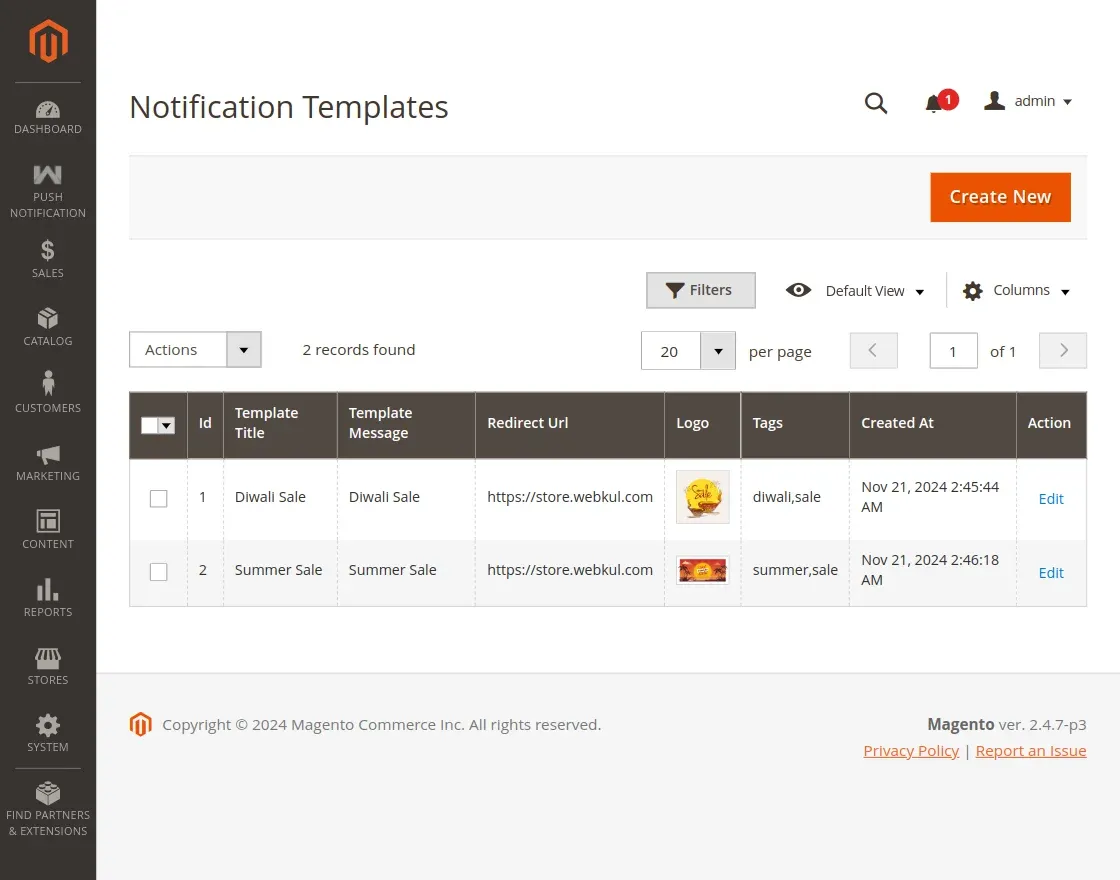
The admin can add, edit or delete notification messages. To create a new push notification message, please click Create New.
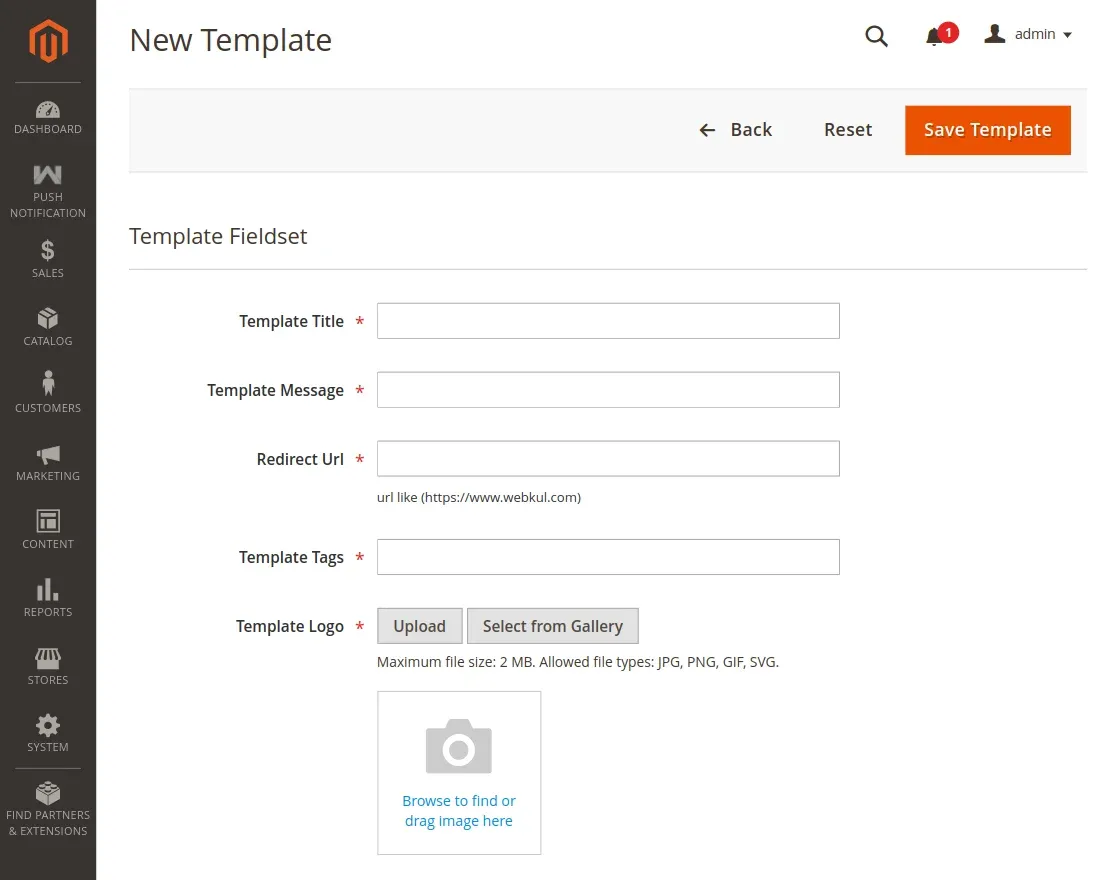
After clicking the Create New button you will arrive at the Template Field set page. Here you need to fill out all the necessary information about your new template.
After that, please click Save Template button to save your new template message.
Template Fieldset
- Title – This will be your title of your notification message.
- Template Message – This is where you have to enter the content of your message.
- Redirect URL – The web page link will be displayed on the notification message.
- Template Tags – Add tags to your messages to identify them.
- Template Logo – You can upload any customized logo for the notification.
Selecting Users for the New Web Push Notification
After creating the template, you need to select your recipients. Go to Push Notification > Registered Users option.
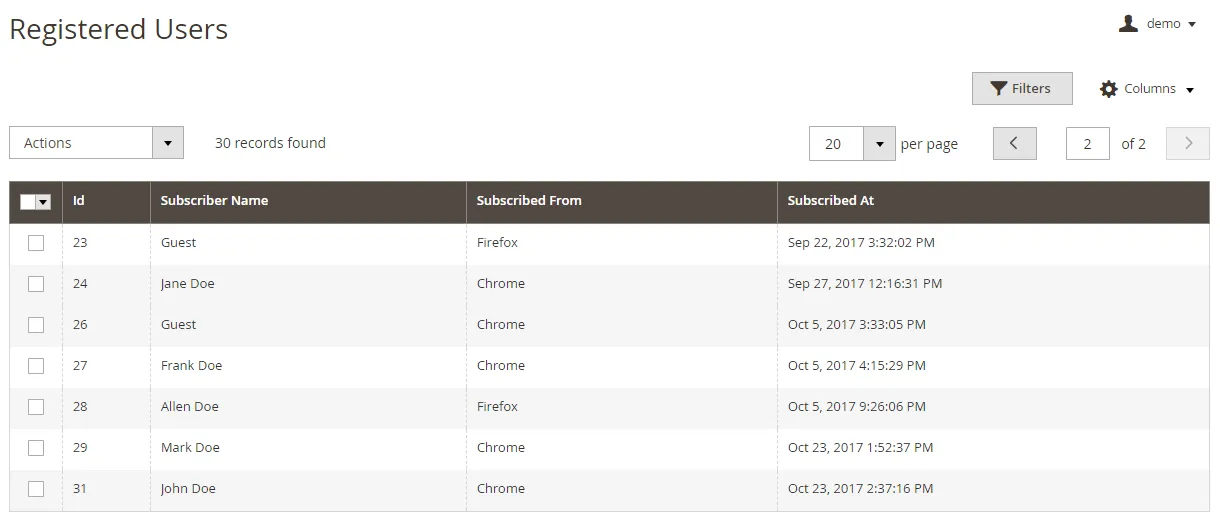
On this page, you can manage all the Registered Users. These are the subscribed users of your website.
You can either delete or send them notification messages. The admin can view the subscribed user ID, name, browser, and subscribed time & date.
Send Web Push Notification
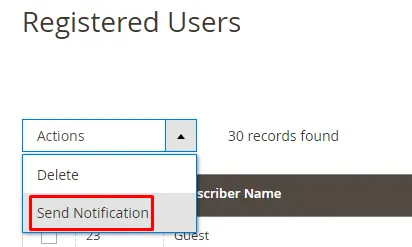
After creating a template, the admin can select all or few subscribed users.
- To select all users click the small drop-down menu and click Select All option.
- To select few users use the checkbox option.
- After selecting the users, go to Actions > Send Notification, then select the template.
- Click OK button to send the notification.
Delete Template
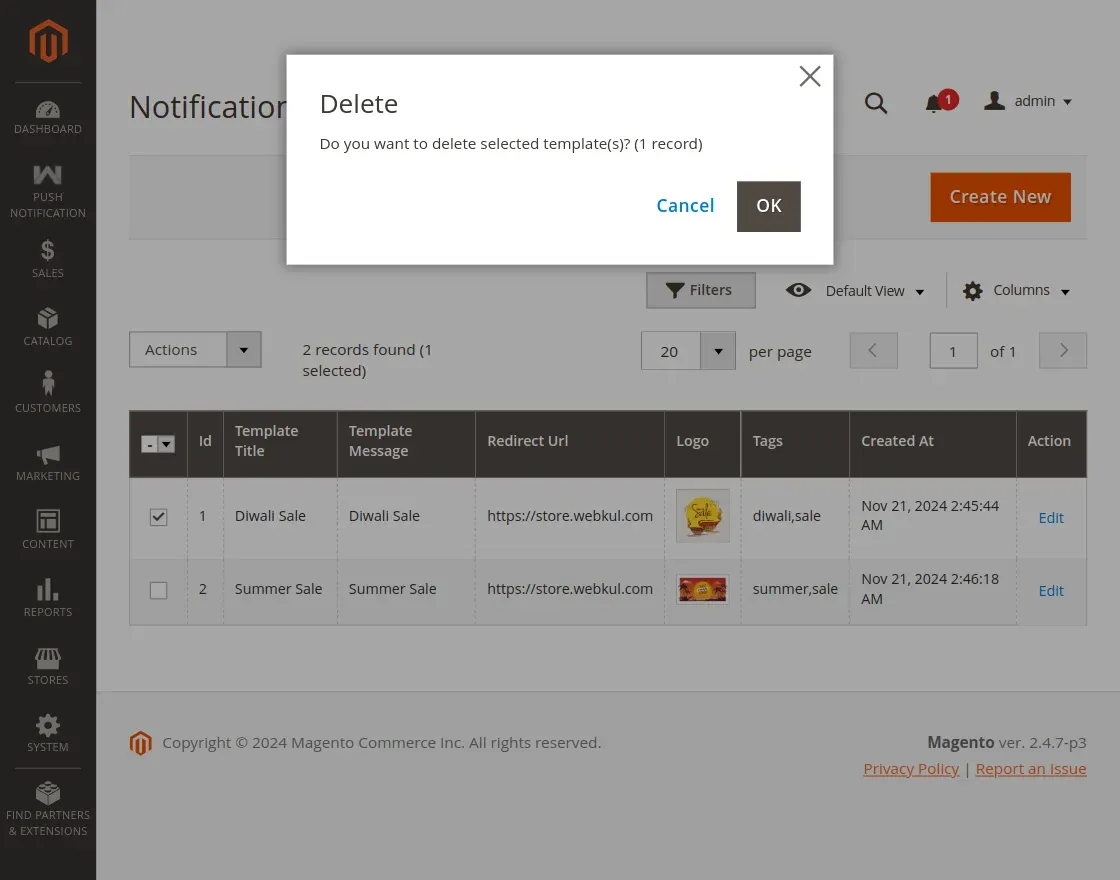
For deleting the template go to the Push Notification menu and select the Notification Templates option.
Then select the message and go to the Actions drop-down menu and click Delete. A confirmation message will appear, click OK.