
Activate & Connect
After installing the module and creating your Firebase API Credentials, you must configure them in the Magento 2 backend admin panel.
Module Configuration
- Log in to the Magento 2 backend admin panel and navigate through Stores > Configuration > Push Notification.
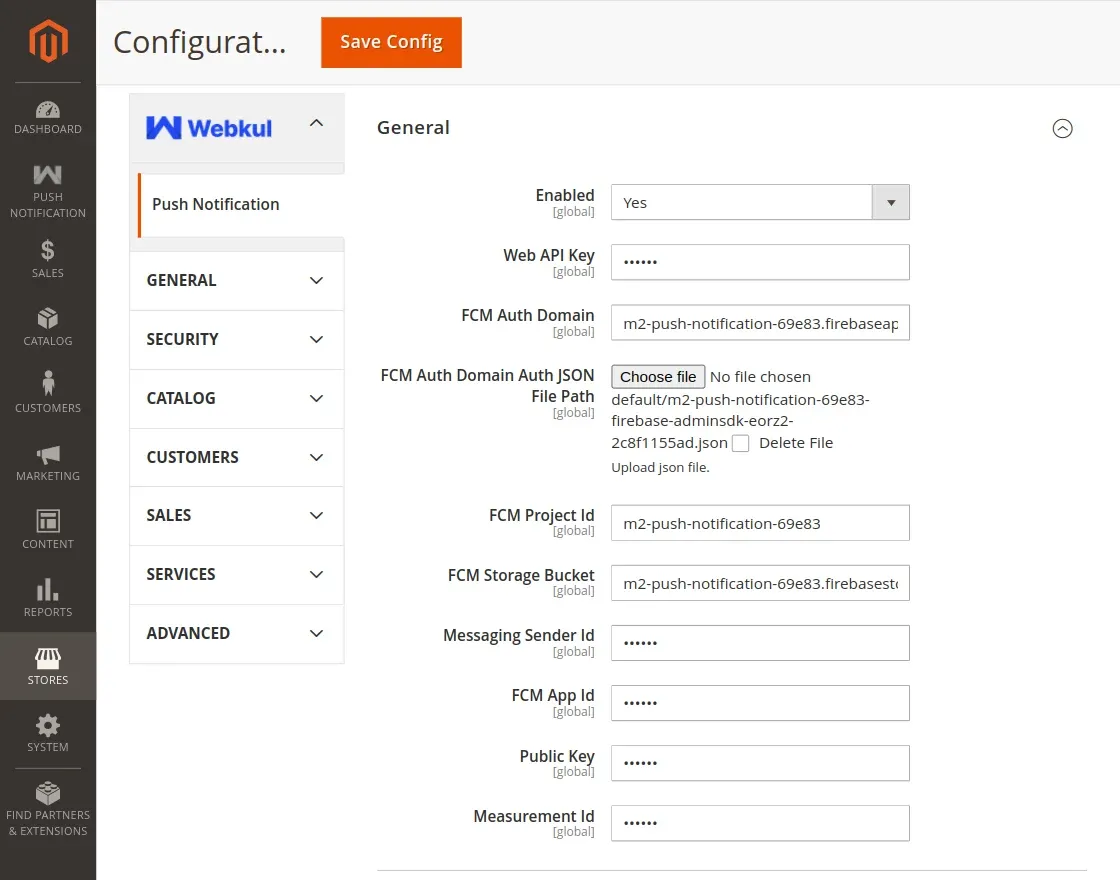
- Use the credentials you generated in the "Requirements" section to fill in the fields.
API Key
- Web API Key: The admin can get the Web API key from Firebase in the General tab under the project setting.
FCM (Firebase Cloud Messaging) Details
- Auth Domain: Enter the auth domain name here from the Firebase web app.
- FCM Auth Domain Auth JSON File Path: Here attach the downloaded auth JSON file.
- Project Id: Enter the generated FCM Project ID here.
- FCM Storage Bucket: Enter storage bucket id here.
- Messaging Sender ID: Enter the sender ID here.
- FCM App Id: Enter the FCM App ID here.
- Public Key: Enter the public key here and it can be found in cloud messaging under the project setting as web push certificates.
- Measurement ID: Enter the measurement ID here.
After entering the required values, tap the Save Config button at the top right-hand corner.
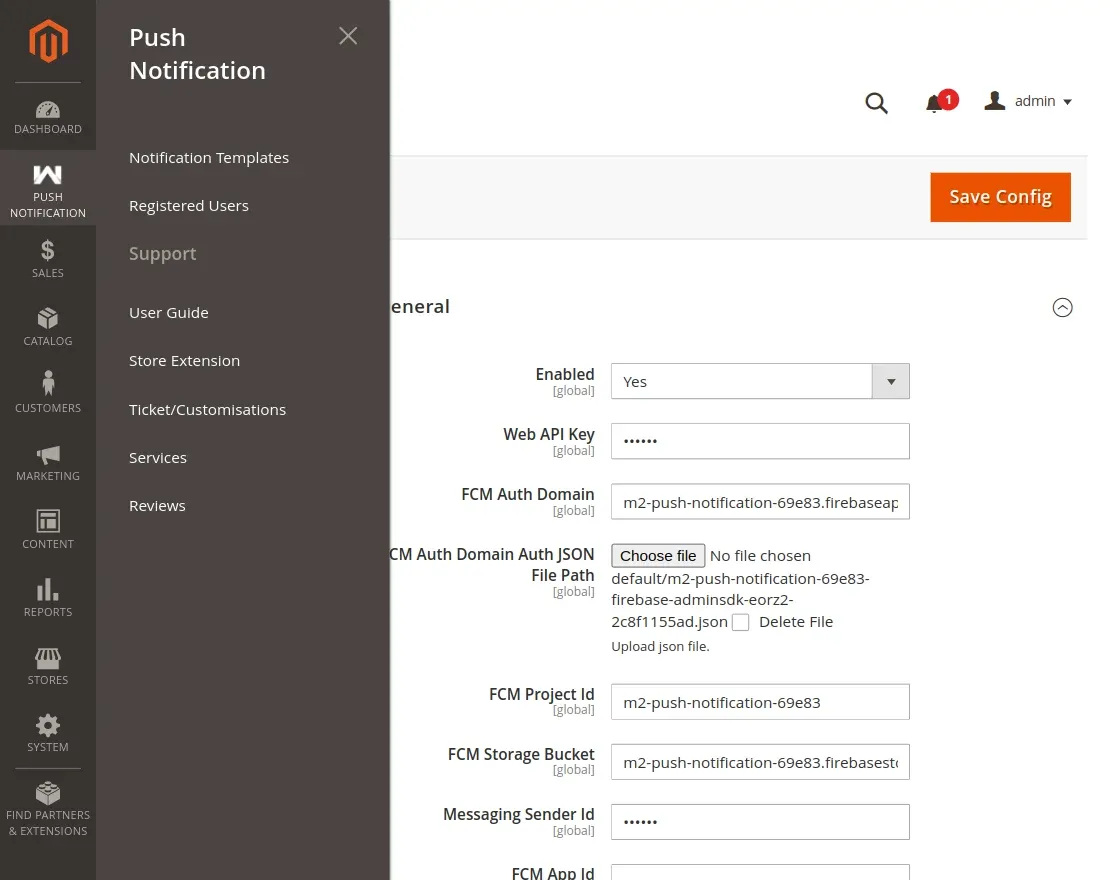
Once you have installed this module, you find a Push Notification menu option on the left side admin panel. Tap it and you will have two sub-menu options to configure:
- Notifications Templates
- Registered Users