
Product-Supplier Association & Cost Priority
A single catalog product can often be sourced from multiple independent suppliers. The Webkul Purchase Management extension allows you to map multiple suppliers to any product, assign distinct vendor cost prices, and prioritize which supplier is selected first during automatic replenishment.
Setting Supplier Price from Assigned Products Grid
Within Purchase Management > Manage Suppliers > [Edit Supplier] > Assigned Products, store administrators can configure tiered pricing and vendor costs directly:
- Locate the product in the Assigned Products table and click the Set Price button in its row.
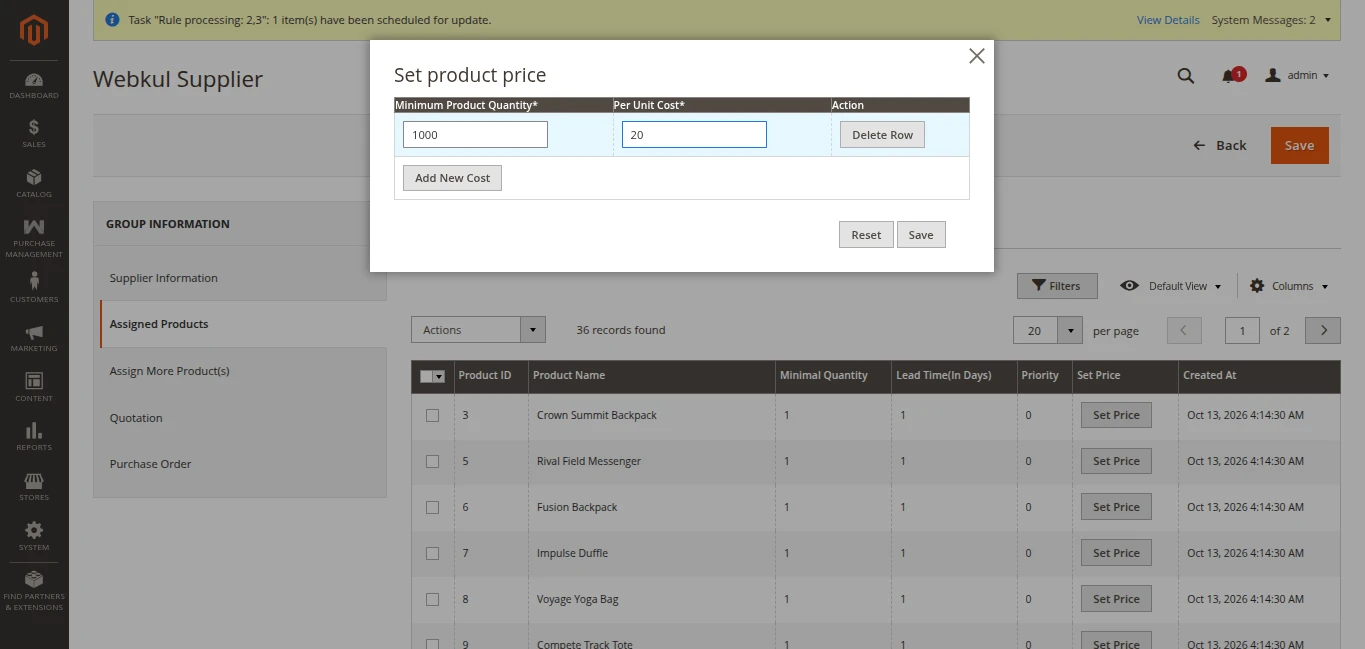
- In the modal dialog that appears:
- Enter the Minimum Product Quantity required to trigger the tier (e.g.
1000). - Enter the Per Unit Cost for that quantity tier (e.g.
20). - To add additional tiered price breaks, click Add New Cost. To remove a row, click Delete Row.
- Enter the Minimum Product Quantity required to trigger the tier (e.g.
- Click Save in the modal.
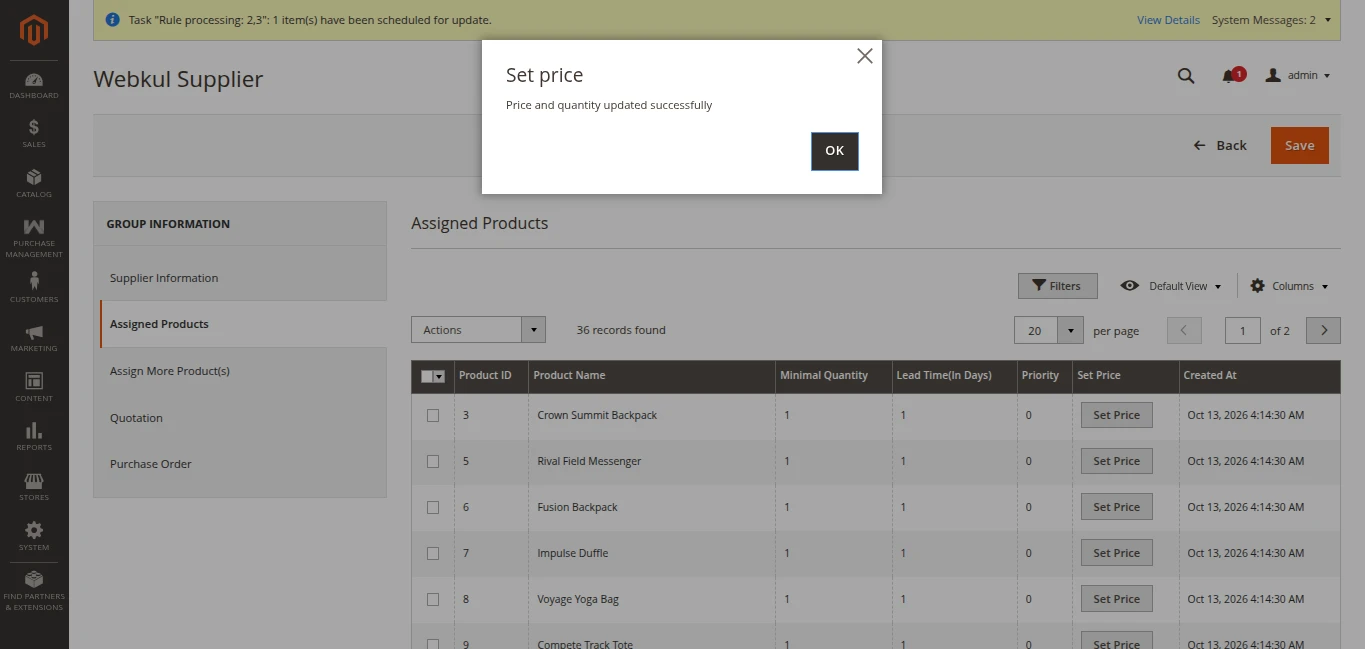
- A confirmation modal will appear with the message: "Price and quantity updated successfully". Click OK.
Inline Editing of Quantity, Lead Time, and Priority
Store administrators can also quickly update product replenishment rules directly within the Assigned Products grid:
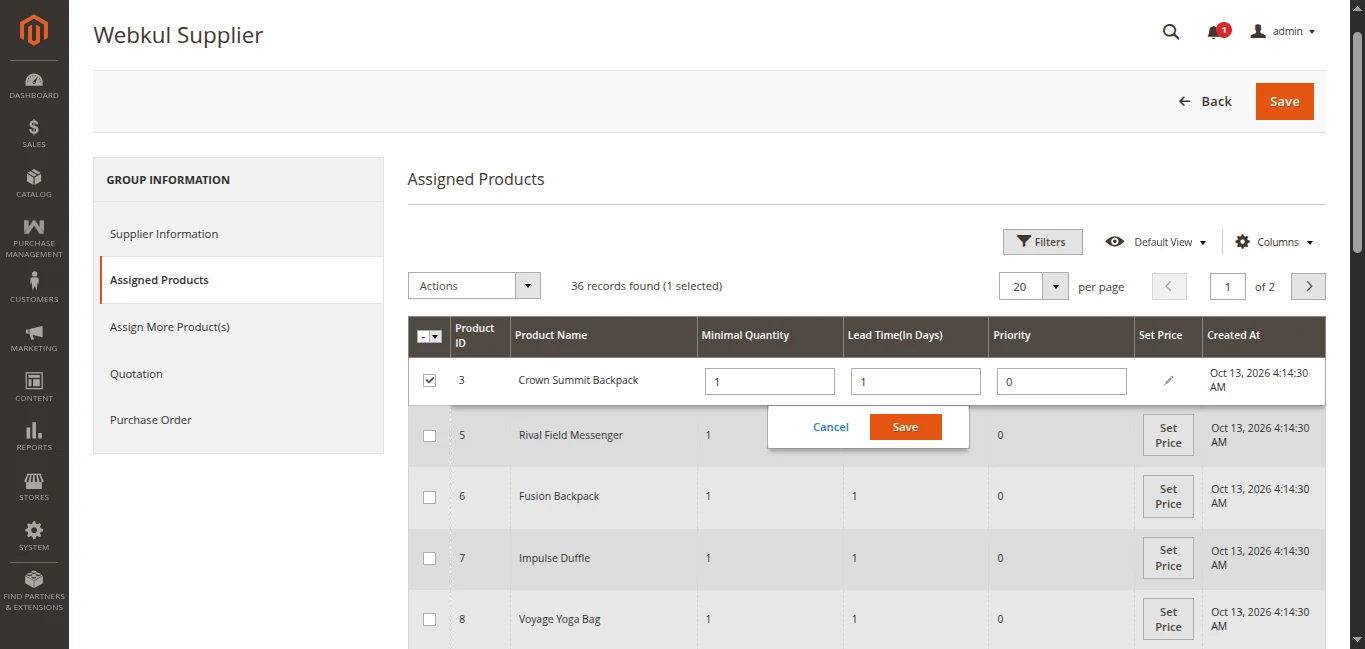
- Select the product row in the Assigned Products grid by ticking its checkbox.
- The editable inline fields for Minimal Quantity, Lead Time (In Days), and Priority will open directly in the table row along with inline Cancel and Save buttons.
- Update the required values and click Save to persist the changes immediately without leaving the page.
Configuring Suppliers from Catalog Product Edit Page
You can also configure supplier associations directly while editing any catalog product:
- Navigate to Catalog > Products.
- Click Edit on your target product (Simple, Configurable, Grouped, or Bundle).
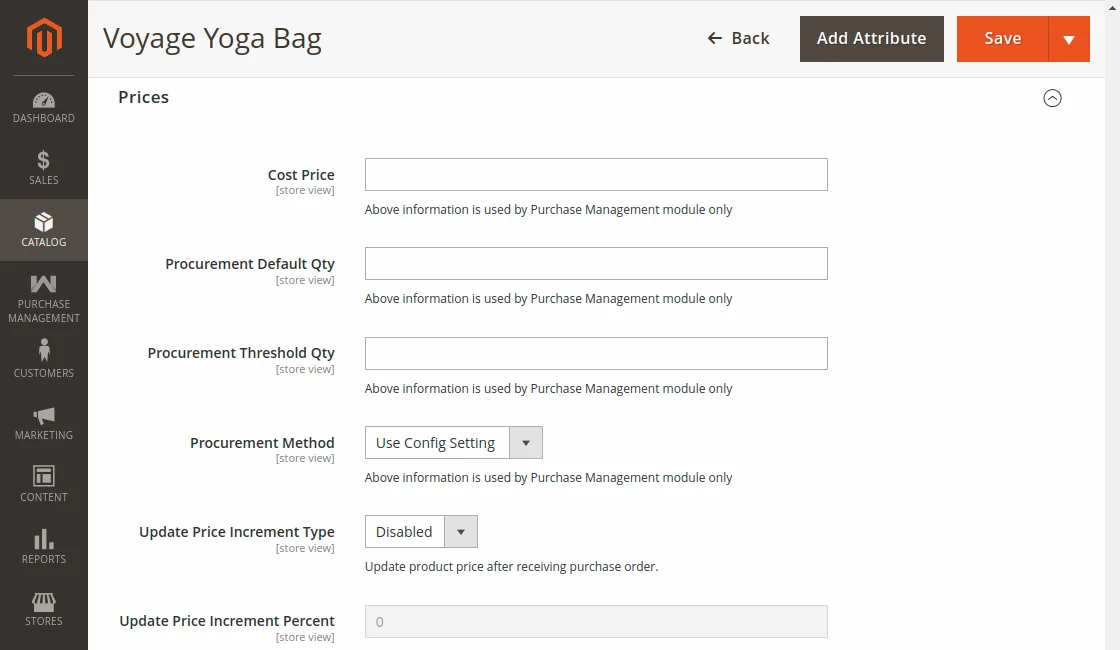
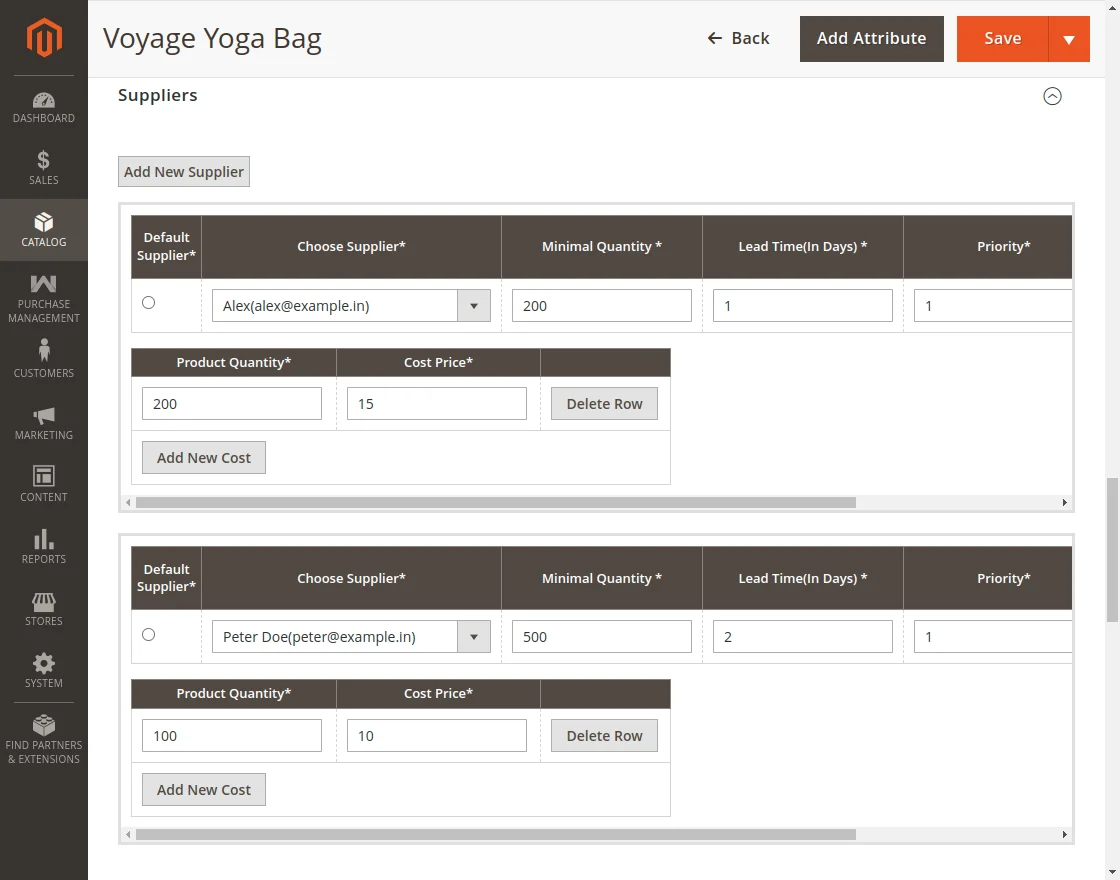
- Scroll down and locate the Purchase Management / Suppliers tab.
Here you will see:
- Associated suppliers for this product.
- Supplier Cost Price: Sourcing price per unit from each vendor.
- Supplier Priority: Set priority ranking (e.g.
1,2,3).
How Priority Works During Automatic Procurement
When automatic replenishment triggers (Procurement Method = Automatic), Magento evaluates the product's associated suppliers and automatically selects the vendor with the highest priority (lowest numerical ranking) to receive the draft purchase order. If Supplier A has priority 1 and Supplier B has priority 2, Supplier A is prioritized first.