
Multi-Lingual & Language Translation
Webkul Purchase Management supports multi-store localization, multi-currency display, and international language translation.
Setting Storefront and Admin Locale
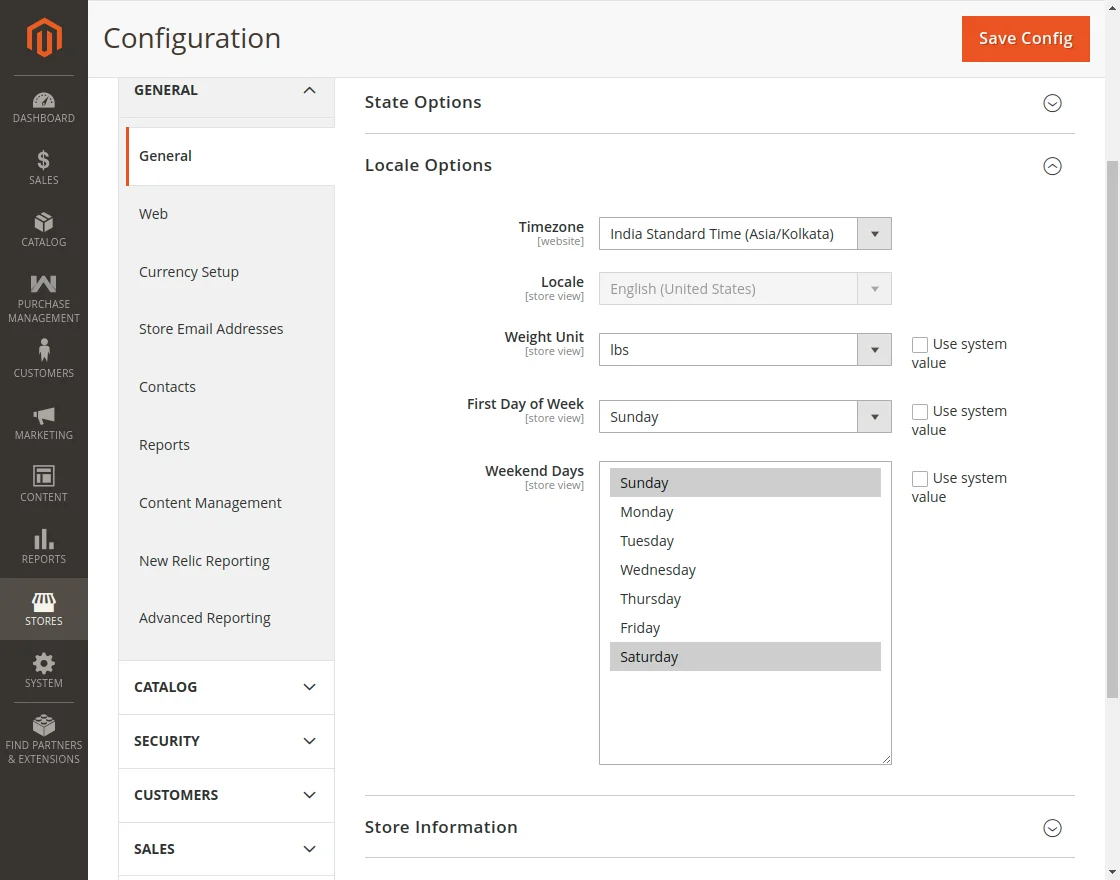
To configure your target regional language for the store view:
- Navigate to Stores > Settings > Configuration > General > General.
- Expand the Locale Options section.
- Select your desired locale language in the Locale dropdown (e.g., French (France), German (Germany), Spanish (Spain), etc.).
- Click Save Config.
Module CSV Translation
All interface labels, table headers, buttons, notifications, and email text within Purchase Management use Magento translation dictionaries.
Step 1: Locate the Dictionary CSV
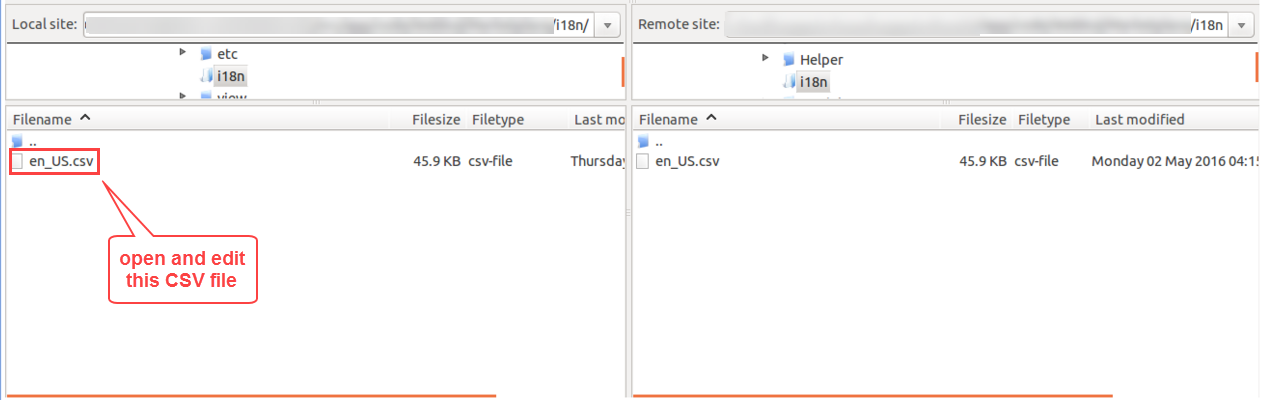
In your Magento server directory, navigate to the module's translation folder:
app/code/Webkul/PurchaseManagement/i18n/en_US.csv
Step 2: Edit and Translate Phrases
Open en_US.csv in any text editor or spreadsheet program. Each line contains a comma-separated key-value pair:
"Original English String","Translated String"
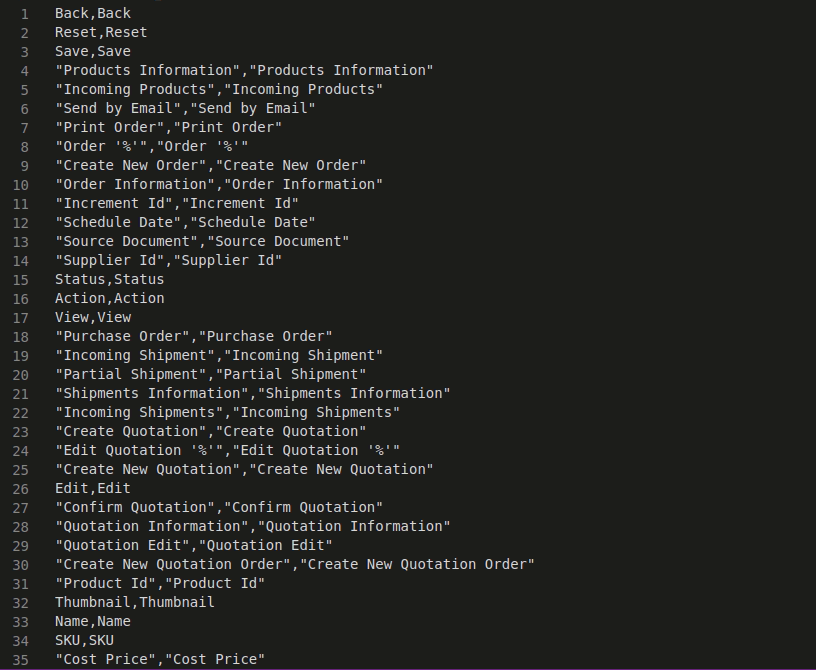
- Keep the left column string in English as the original translation key.
- Replace the text in the right column with your desired translated phrase.
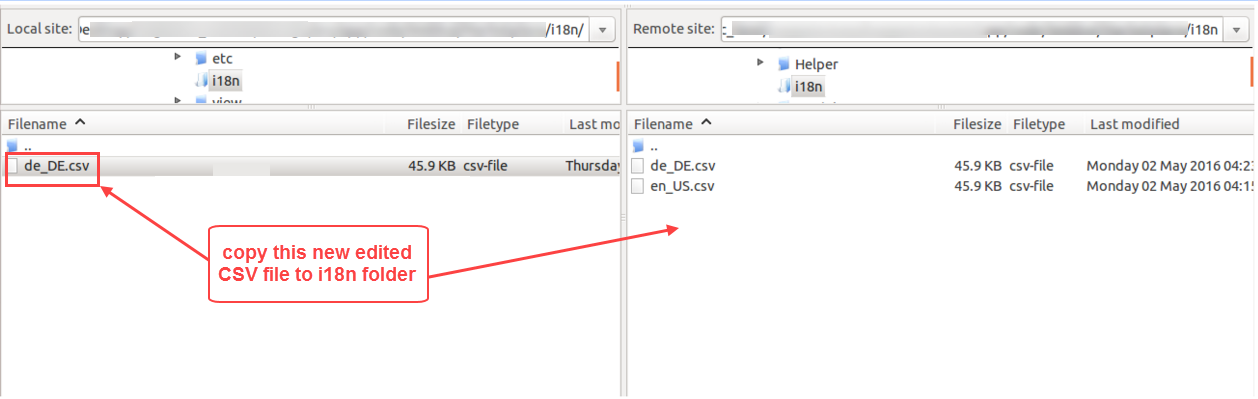
- Save the modified file using the naming standard for your target locale code:
- French:
fr_FR.csv - German:
de_DE.csv - Spanish:
es_ES.csv - Arabic:
ar_SA.csv
- French:
Step 3: Deploy Language Files
Upload the new CSV file into the same directory:
app/code/Webkul/PurchaseManagement/i18n/<locale_code>.csv
Then re-deploy static content and clear cache from your terminal:
php bin/magento setup:static-content:deploy <locale_code> -f
php bin/magento cache:flush