Storefront Offer Submission
The Make An Offer extension delivers an intuitive, frictionless bargaining interface on the storefront. Shoppers can propose their preferred price and quantity either via an interactive popup modal or an embedded product information tab.
Storefront Display Formats
Depending on the Offer Display Type configured in the admin panel, shoppers encounter the offer interface in one of two formats:
1. Modal Popup Button
A prominent Make An Offer button appears on the product detail page adjacent to the standard Add to Cart button.
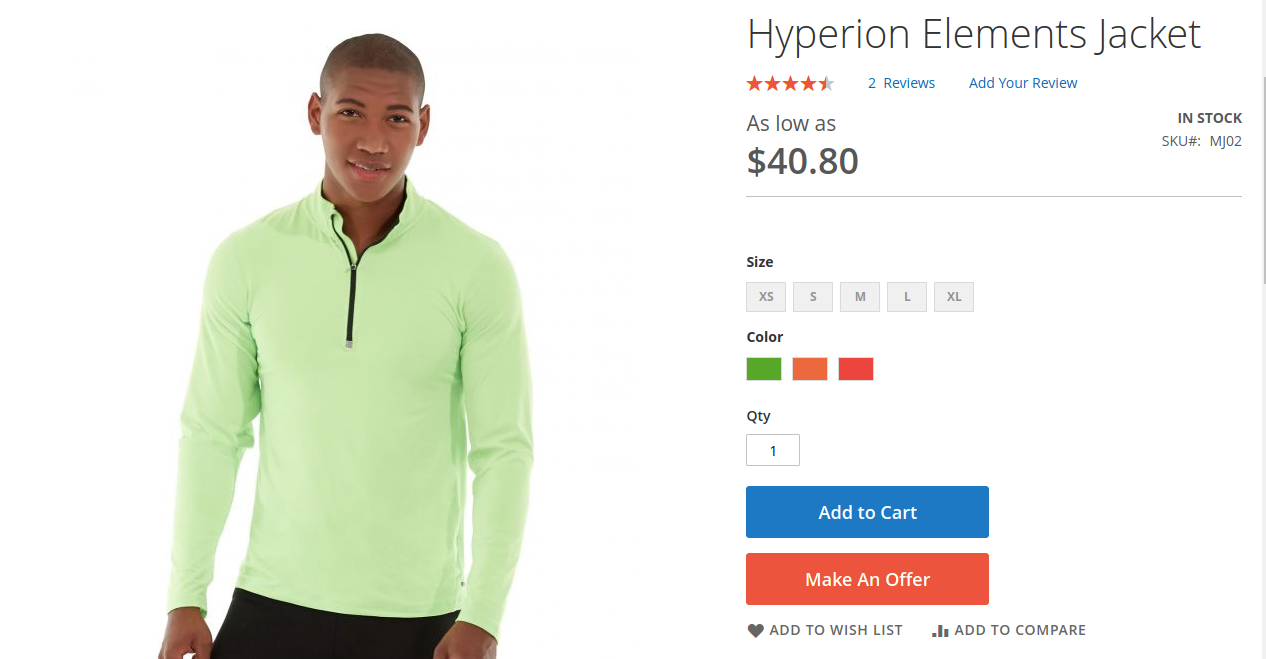
Hyva theme's Make an Offer button
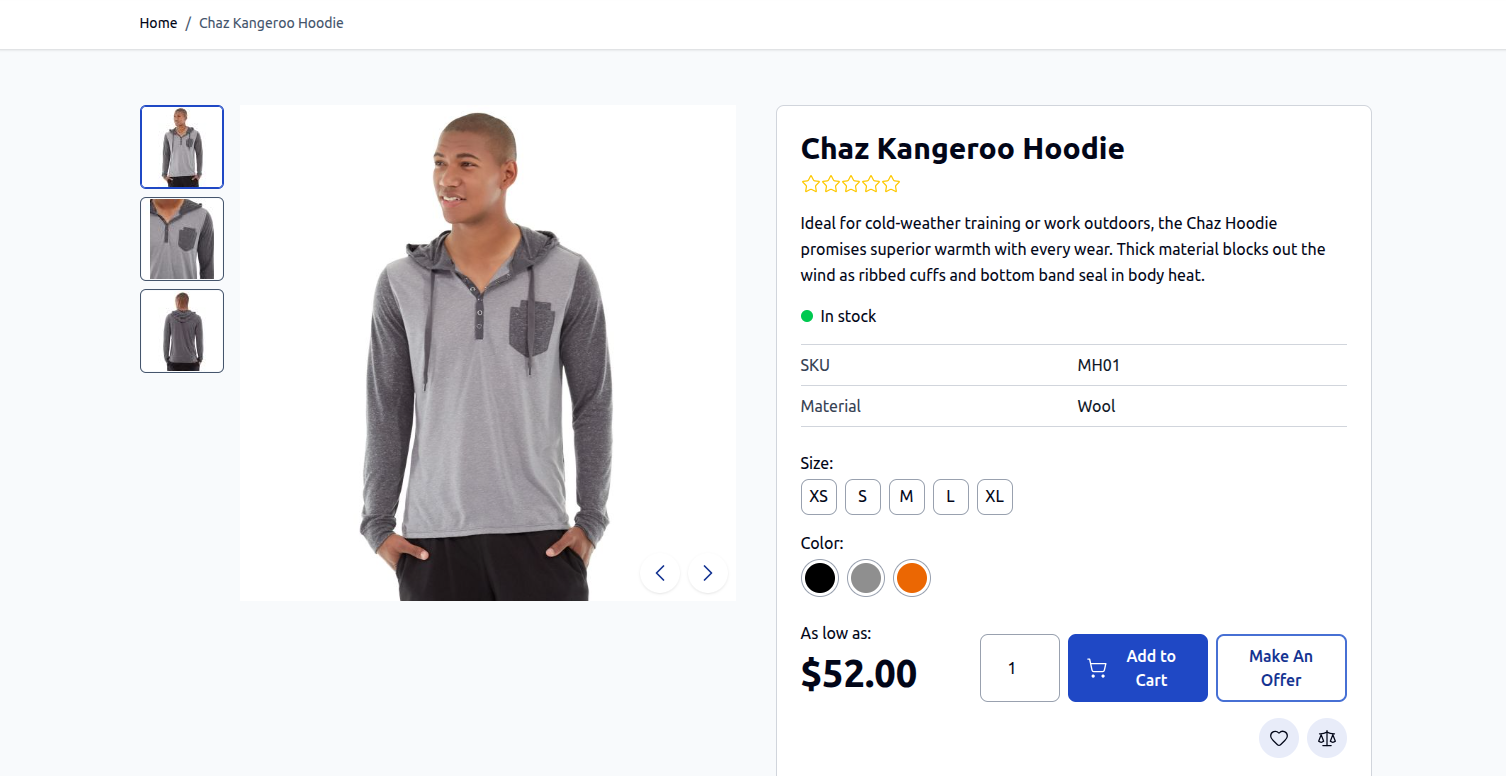
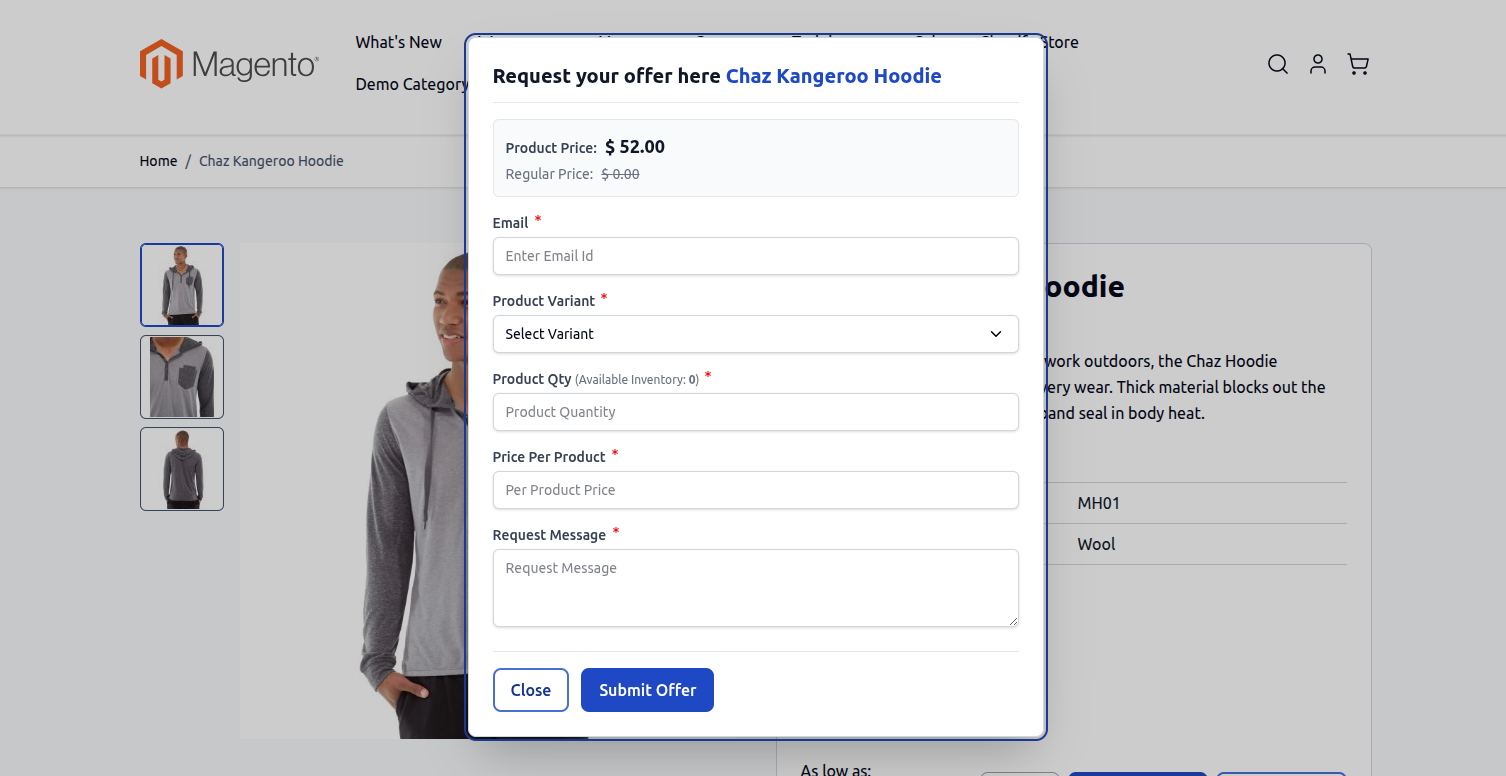
Clicking the button launches a focused modal popup containing the bargaining form:
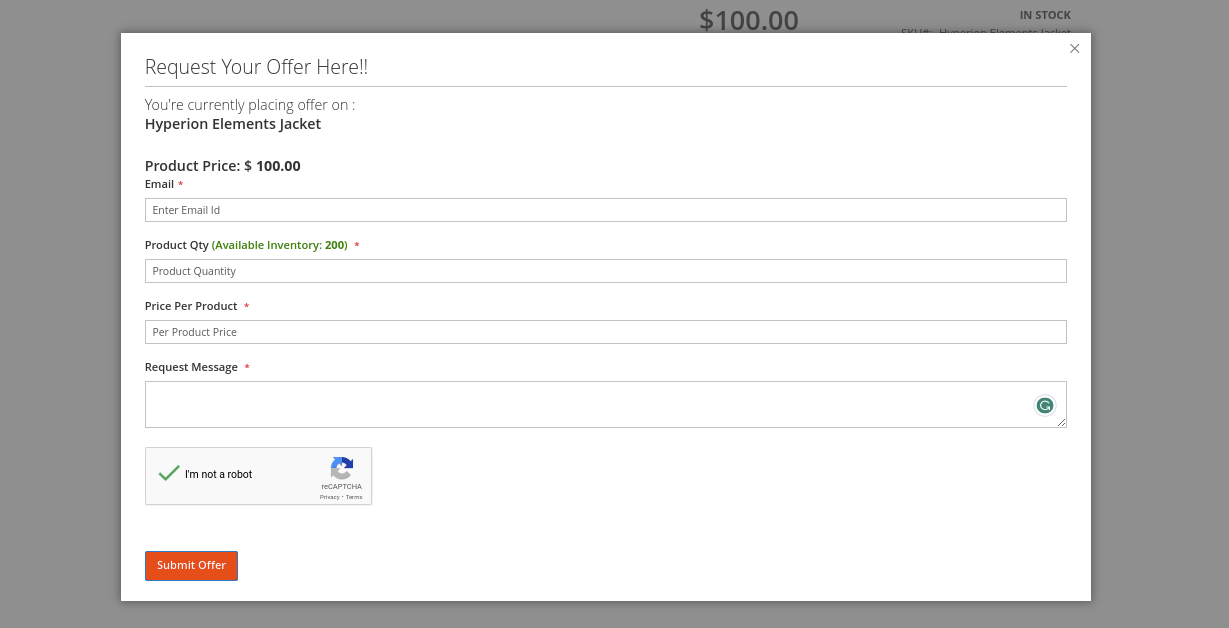
Hyva theme's Make an Offer popup modal form
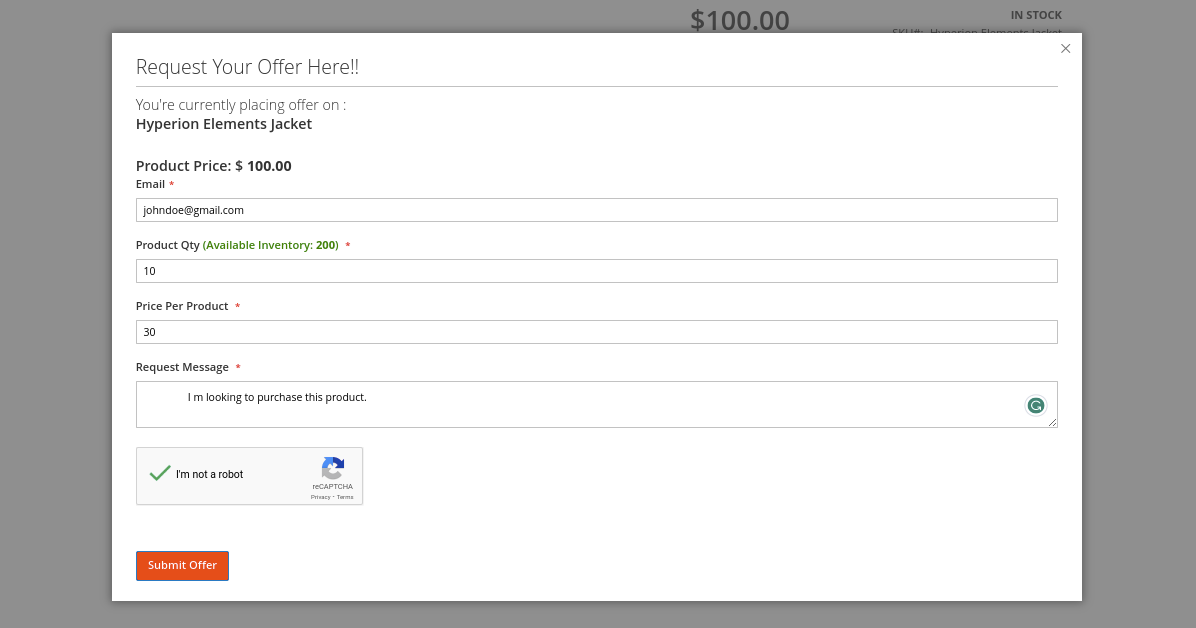
2. Product Information Tab
Alternatively, the bargaining interface can be rendered inside a dedicated Make An Offer tab below the primary product image and description:
Offer Submission Fields
The customer completes the following parameters before submitting their offer:
| Field | Description | Guest vs Registered |
|---|---|---|
| Product Information | Displays current product title and original retail unit price. | Both |
| Product Options | For configurable products, shoppers choose their preferred variant (e.g., Color, Size). | Both |
| Email Address | Captured automatically for logged-in accounts; guest users enter their contact email. | Guest only |
| Offer Price per Product | The proposed discounted unit price the shopper is willing to pay. | Both |
| Requested Quantity | The number of units the customer commits to purchasing at the proposed price. | Both |
| Message / Note | Freeform message or justification (e.g., bulk order inquiry, competitive price match). | Both |
| Google reCAPTCHA | Interactive verification checkbox preventing automated bot submissions. | Both |
Submission Confirmation & Email Notice
Upon successful submission:
- The modal closes and displays the configured Add Success Message banner.
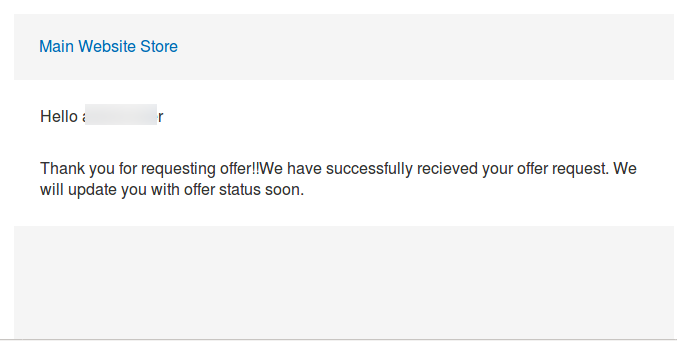
- The customer immediately receives an automated confirmation email summarizing their offer details (Product Name, Proposed Price, Quantity, and Submission Timestamp).