Manage Offers & Promotions
The Manage Offers console is the central hub where store administrators evaluate incoming customer bids, communicate in real time, issue personalized discount coupons, and track negotiation histories.
Accessing the Manage Offers Grid
- Log in to the Magento Admin Panel.
- In the left navigation menu, click Make An Offer.
- Select Manage Offer.
Grid Capabilities
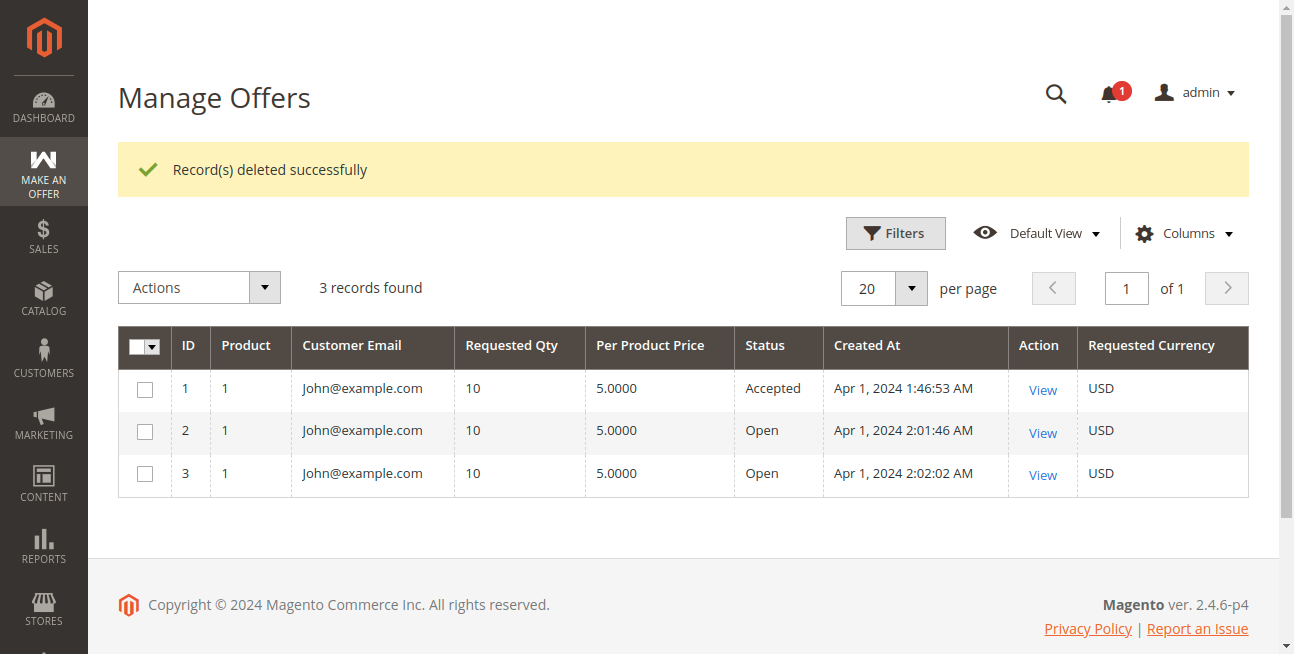
- Offer Overview: Inspect ID, Product Name, Customer Email (registered or guest), Offered Price, Requested Quantity, Status (Open, Accepted, Rejected), and submission Created At timestamp.
- Search & Filtering: Filter records by date ranges, customer email, status, or specific product titles.
- Mass Actions: Perform bulk deletions using the mass action selector.
- Action: Click View to inspect offer specifics, customer messages, and promotion generation tools.
Evaluating an Offer
Clicking View opens the Requested Offer Details dashboard:
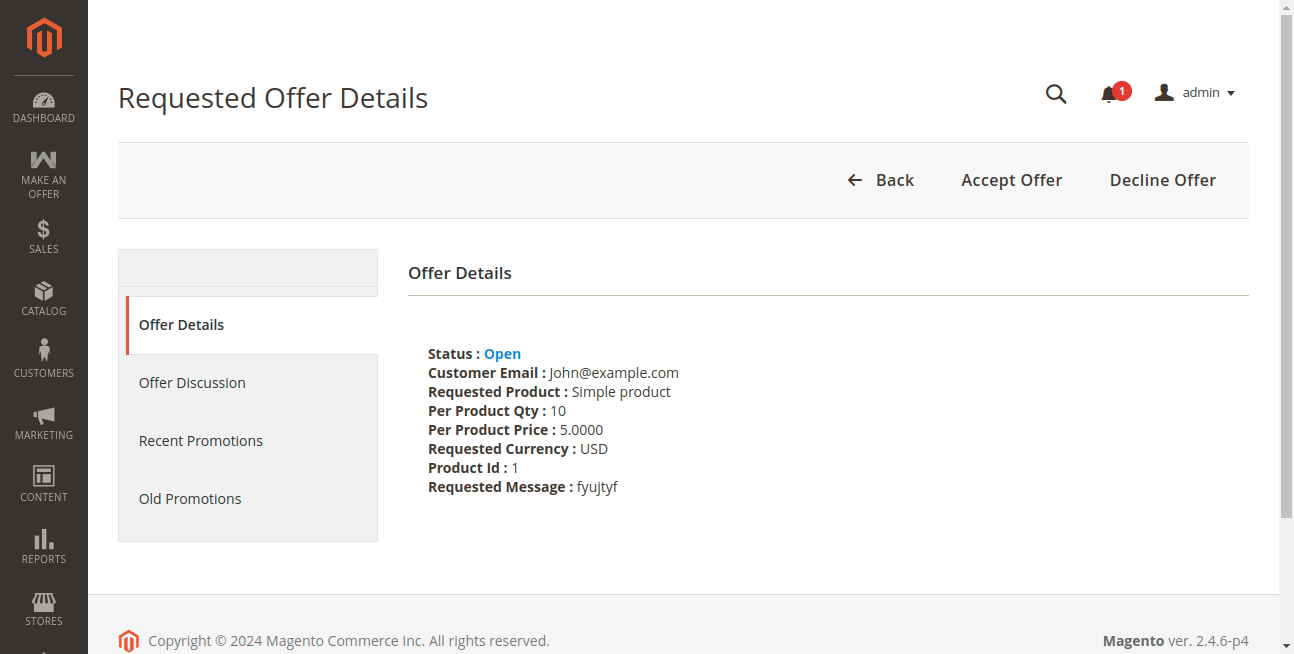
At the top of the screen, administrators have immediate access to core decision actions:
- Accept: Opens the promotion creation modal to approve the quote.
- Decline: Rejects the quotation and sends an automated notification email to the shopper.
- Back: Returns to the Manage Offers grid.
Creating a Promotion (Accepting an Offer)
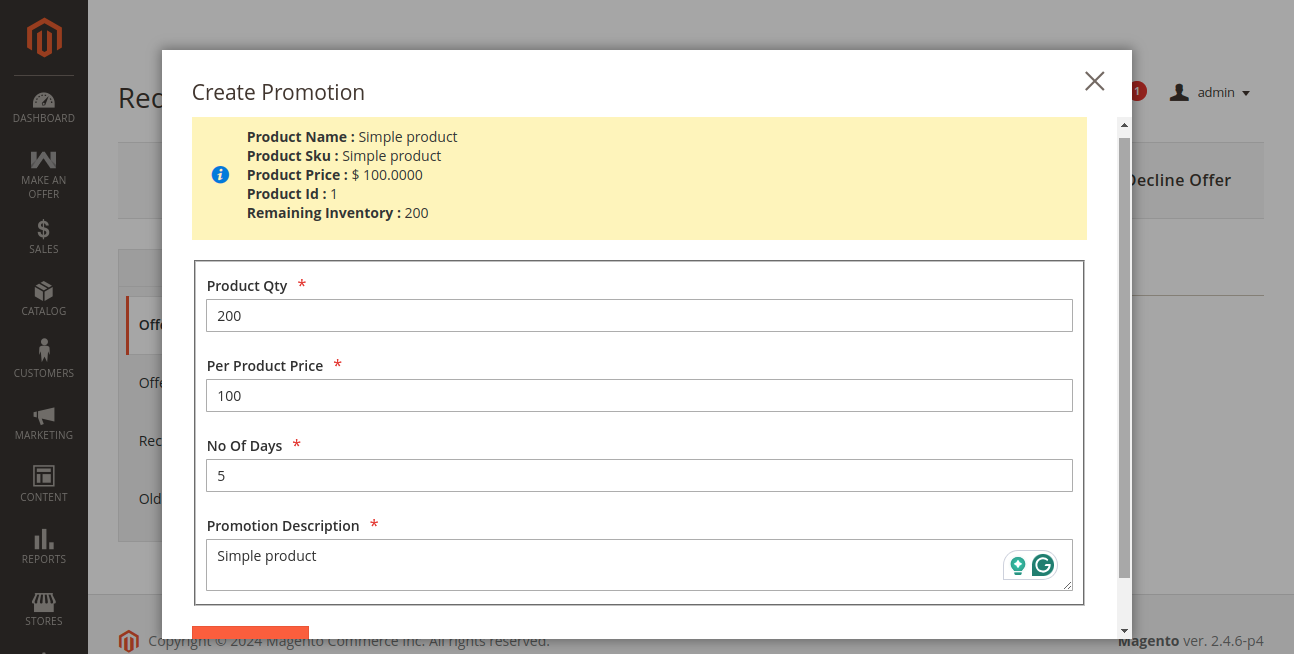
When an administrator decides to accept an offer or establish agreed-upon counter-terms, clicking Accept launches the Create Promotion modal:
Promotion Configuration Fields
- Per Product Price: Set the negotiated unit price. By default, this pre-populates with the customer's requested rate, but the admin can adjust it to propose a counter-rate.
- Product Qty: Specify the quantity required to redeem this discounted rate.
- Promotion Description: Enter an optional note explaining the promotion terms.
- Number of Days: Specify how many days the promotional coupon remains valid (e.g., 7 days or 14 days). After this window lapses, the coupon automatically expires.
Click Save to finalize the promotion.
Customer Email Notification
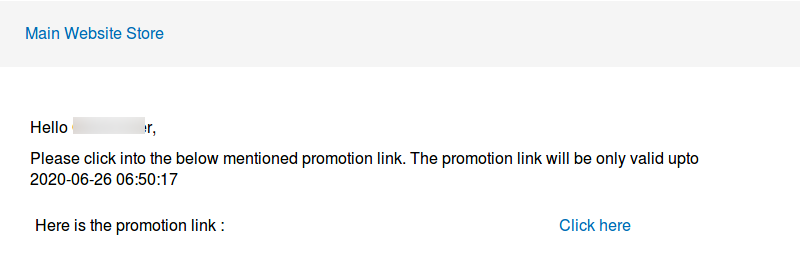
Upon saving the promotion, the module automatically generates a unique promo code (using the configured prefix) and delivers an email to the customer containing a direct checkout link:
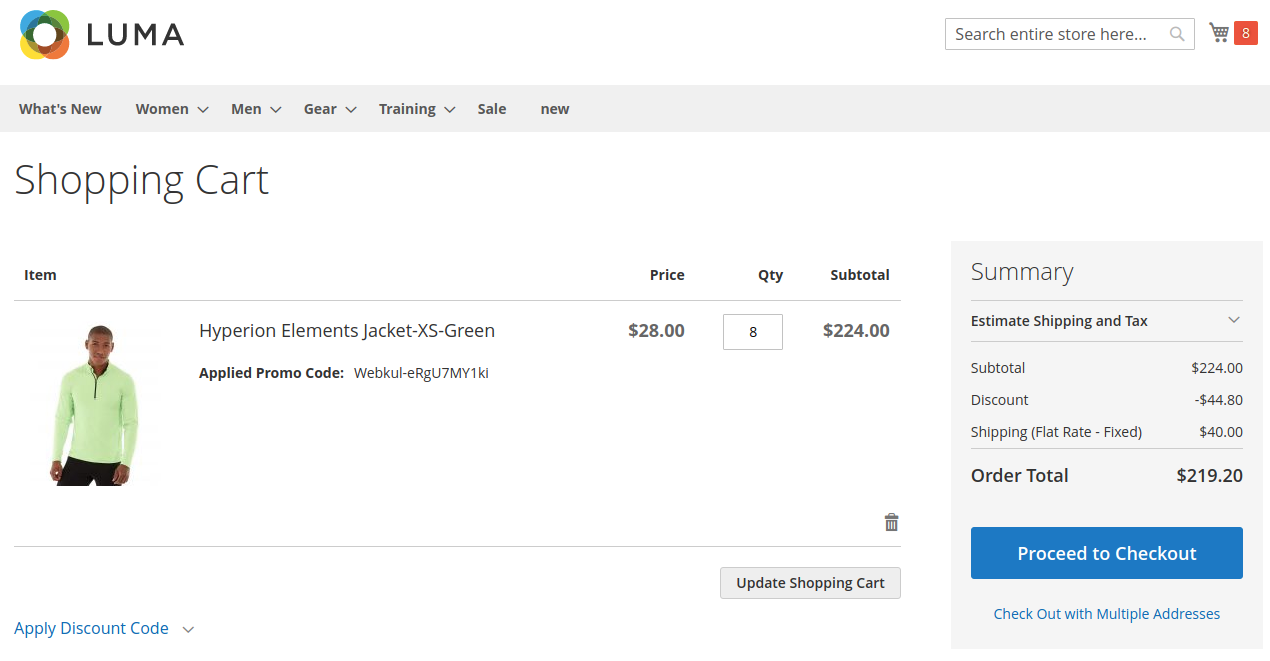
When the customer clicks Click Here, their browser redirects directly to the shopping cart with the negotiated price rule activated:
Post-Acceptance Controls & Discussion Blocking
Once an offer has been accepted, administrators retain full control to manage ongoing communication:
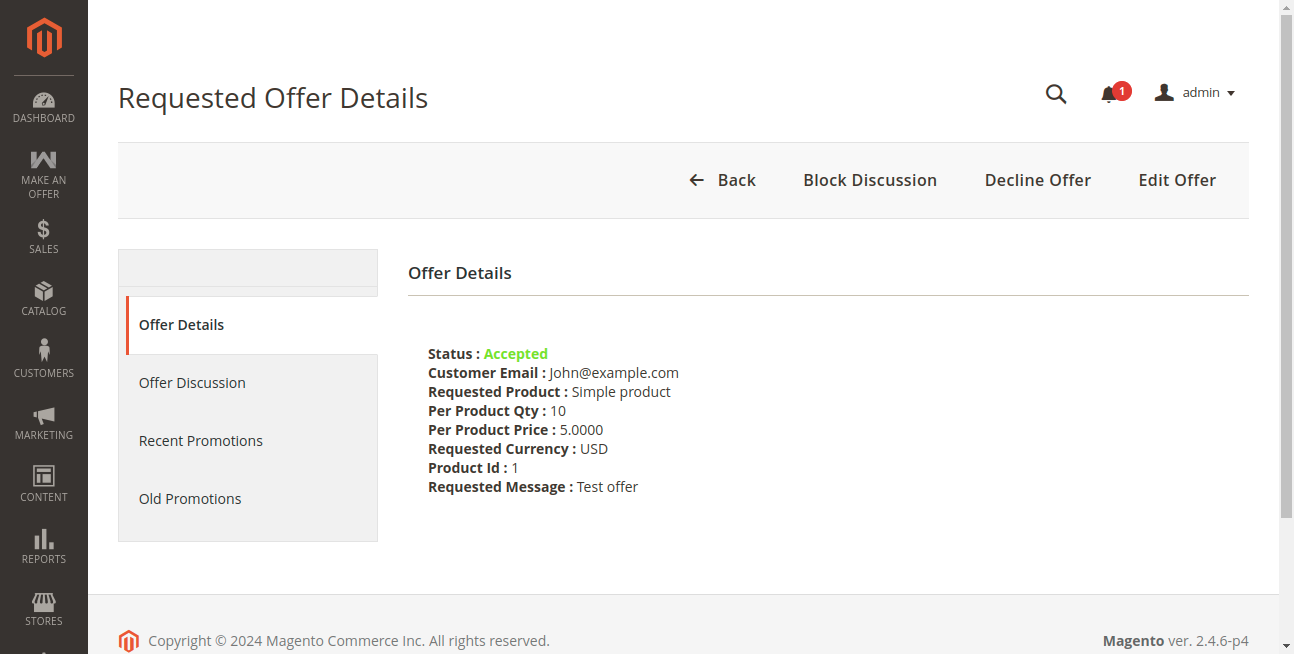
- Edit Offer: Modify terms or formulate updated counter-proposals.
- Decline Offer: Admin can decline a previously accepted offer if stock availability or merchant constraints change.
- Block Discussion: Lock the discussion panel to stop incoming messages from abusive or spamming users. If needed, the admin can click Reopen Discussion later.
Admin Offer Discussion Panel
Administrators can chat directly with the shopper using the embedded Offer Discussion panel located on the offer details page:
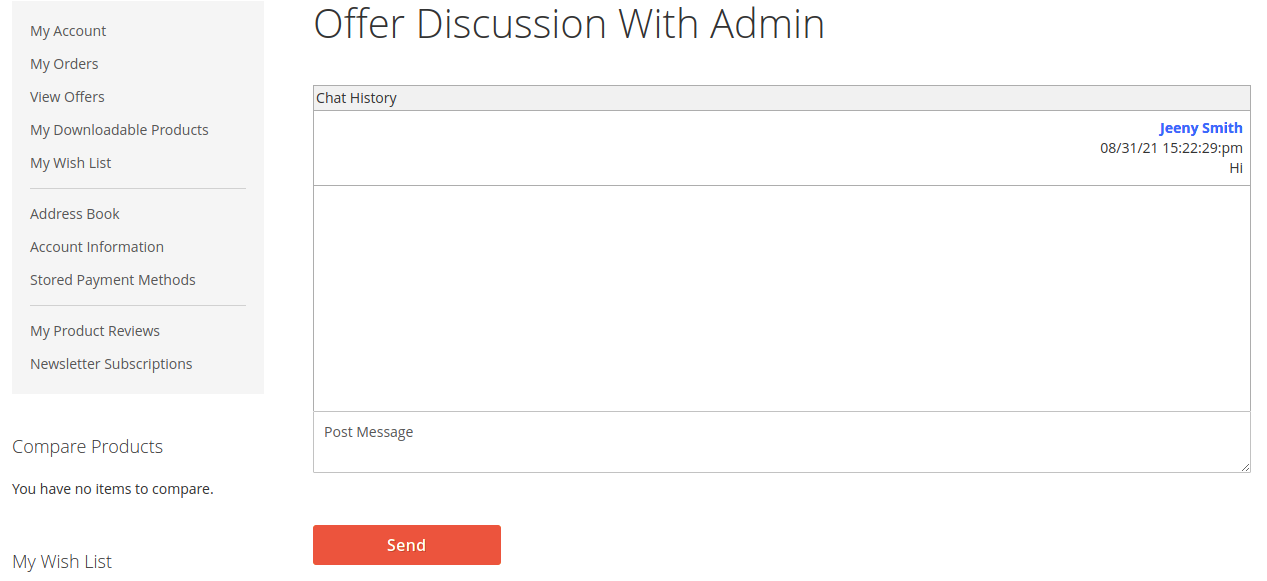
- Review customer comments and negotiation justifications.
- Reply directly from the admin panel without relying on external email threads.
- Messages are instantly synchronized to the customer's account view.
Tracking Promotion History
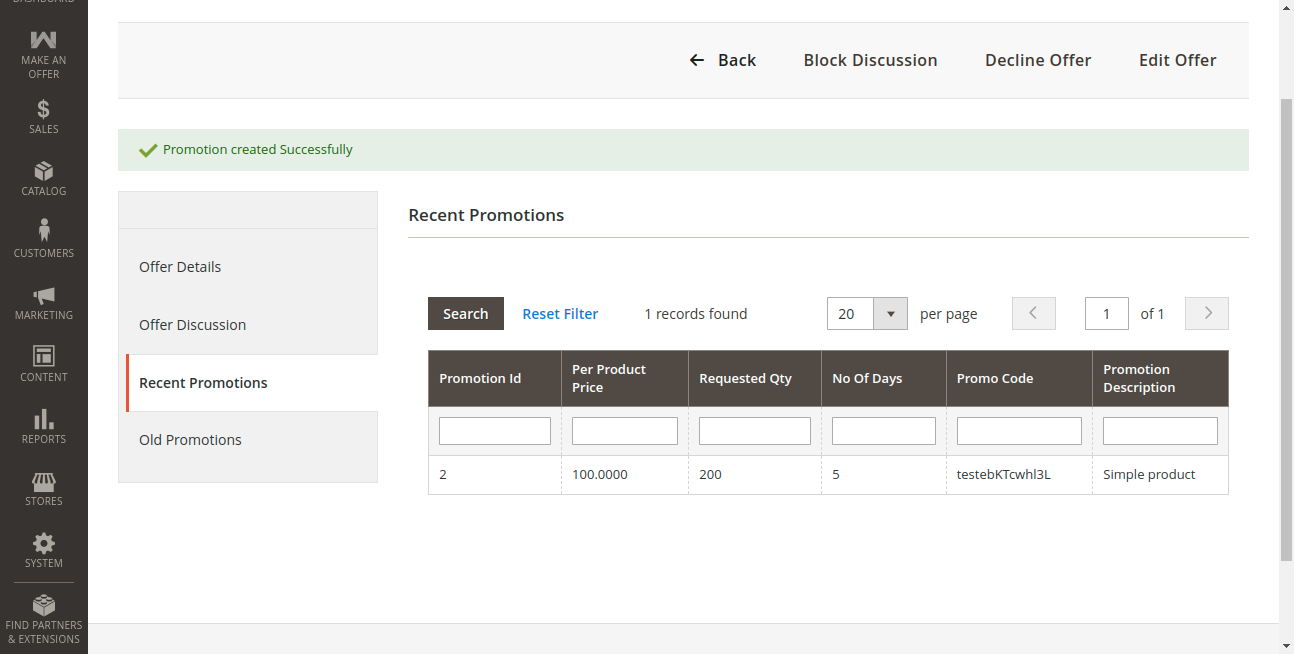
Under the Requested Offer Details screen, two dedicated sub-tabs track coupon records:
1. Recent Promotions Tab
Displays the currently active promotional code, unit price, quantity threshold, validity period, and expiration date.
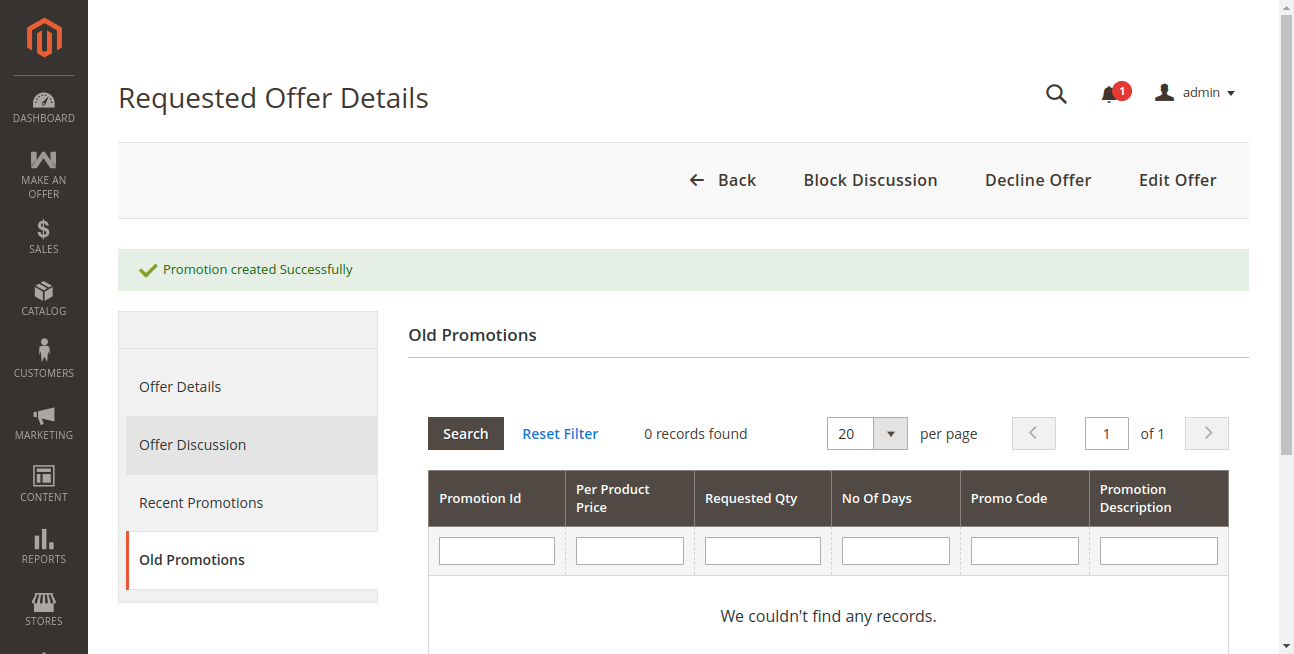
2. Old Promotions Tab
When an offer is countered, updated, or expires, prior coupons are automatically archived in the Old Promotions tab. This provides an audit trail of previous negotiations while preventing reuse of stale coupons.