
Customer Account & Discussion
Registered customers have access to a dedicated self-service portal within their account dashboard to track offer statuses, engage in two-way negotiations with the store admin, and complete discounted checkouts with a single click.
Accessing the Customer Offers Portal
- Customers log in to their account on the storefront.
- In the customer account navigation menu, click View Offers.
- The Requested Offers listing displays all past and current price quotes submitted by the customer.
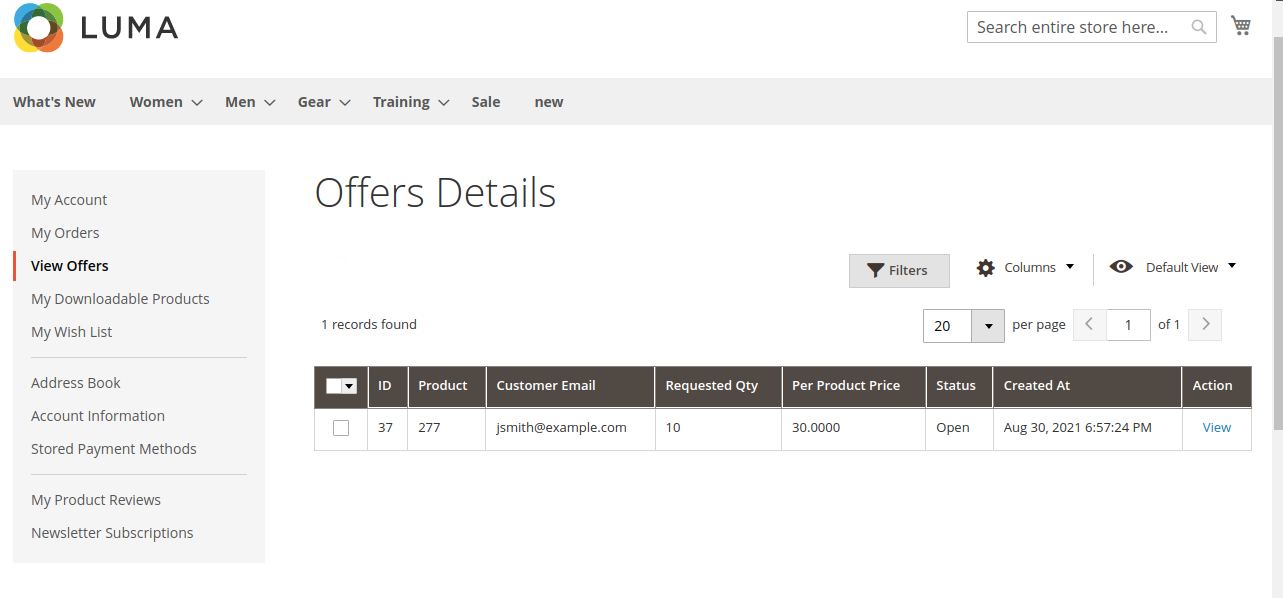
Hyva theme's View Offers listing page
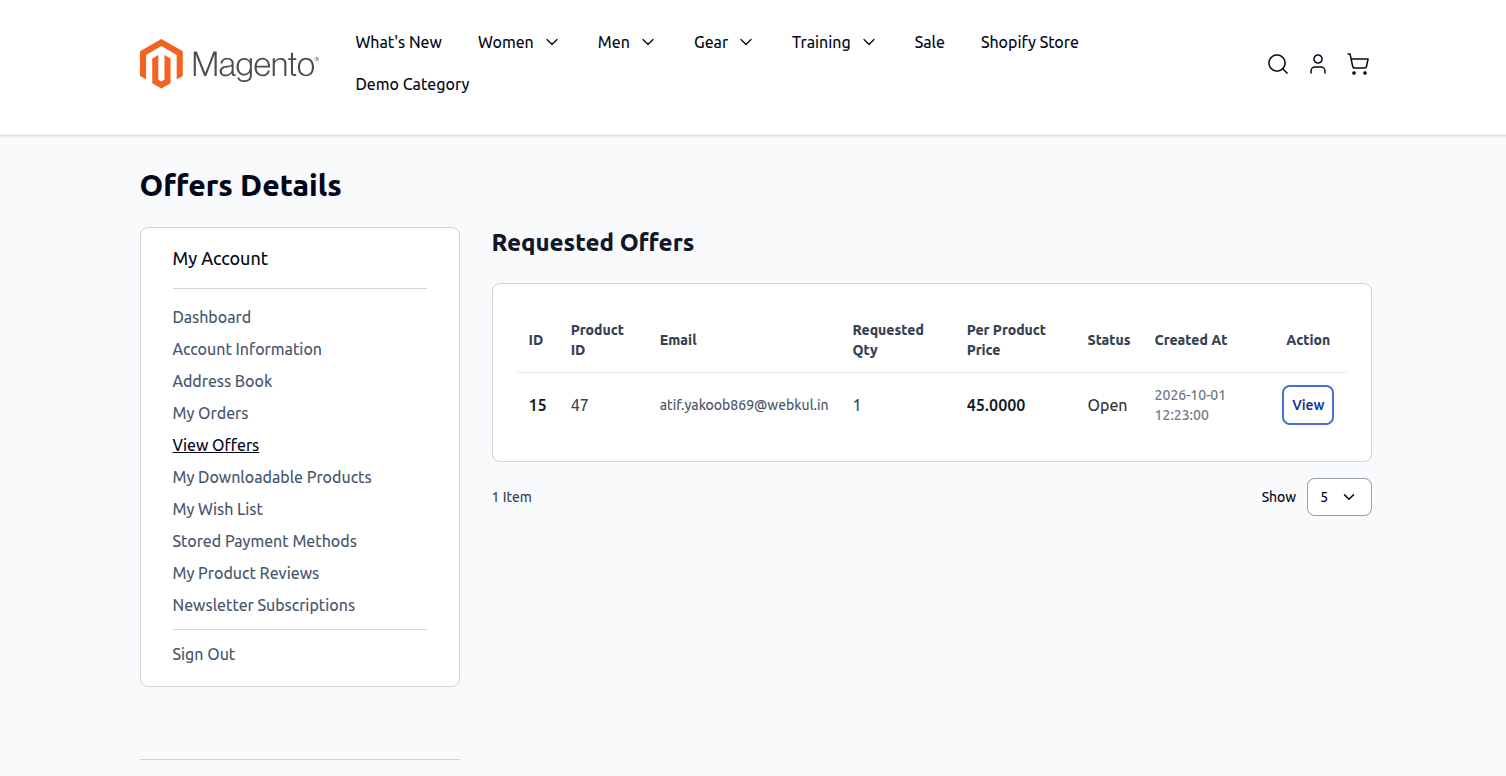
Offers Grid Details
- Offer ID: Unique identifier for tracking each bargaining submission.
- Product Name: Target product, thumbnail, and selected options.
- Offered Price: Proposed discounted unit price.
- Requested Qty: Proposed purchase quantity.
- Status: Visual status indicator:
- Open: Awaiting administrative review or counter-offer.
- Accepted: Approved by admin; ready for checkout at the discounted rate.
- Rejected: Rejected by store admin.
- Action: Click View to inspect offer specifics, chat history, and purchase links.
Offer Details & Lifecycle States
Clicking View opens the comprehensive offer summary page:
1. Open Offer State
While under review, the customer can monitor their original proposal and exchange messages via the discussion panel.
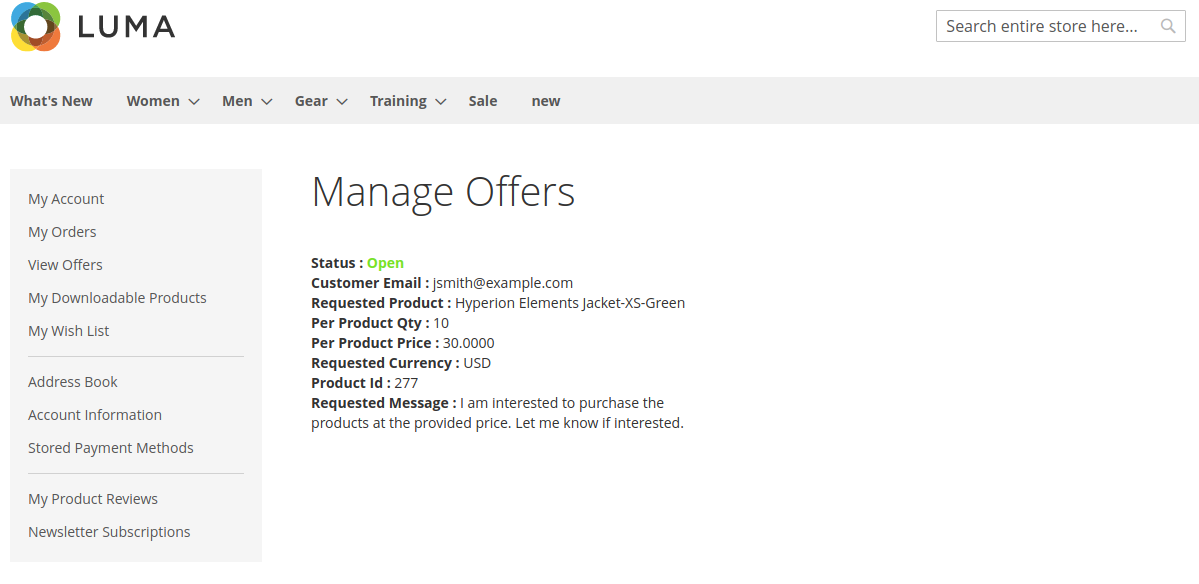
Hyva theme's View page for open offer.
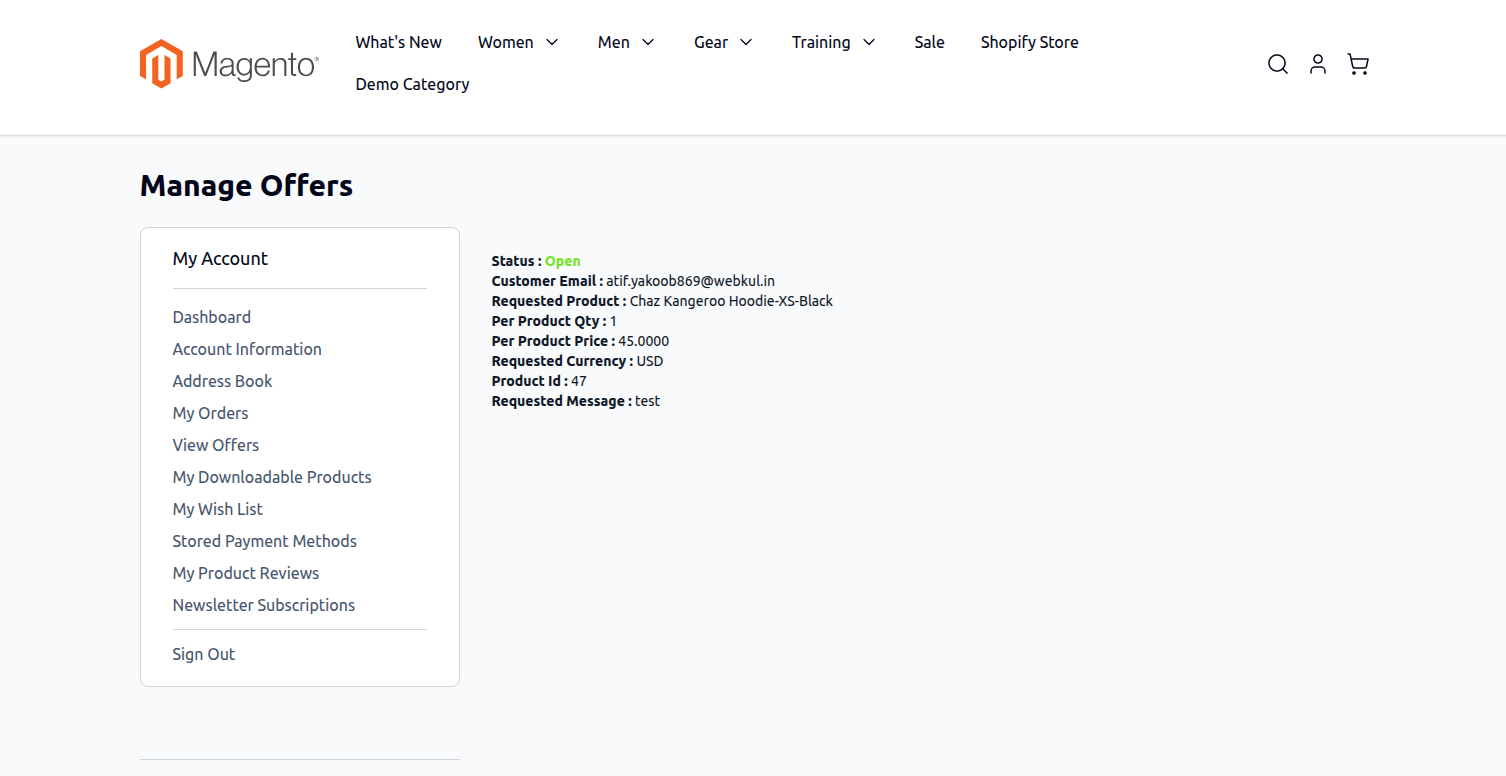
2. Accepted Offer State
Once approved by the store administrator, the offer view displays the approved promotional rate, expiry timeframe, and action buttons:
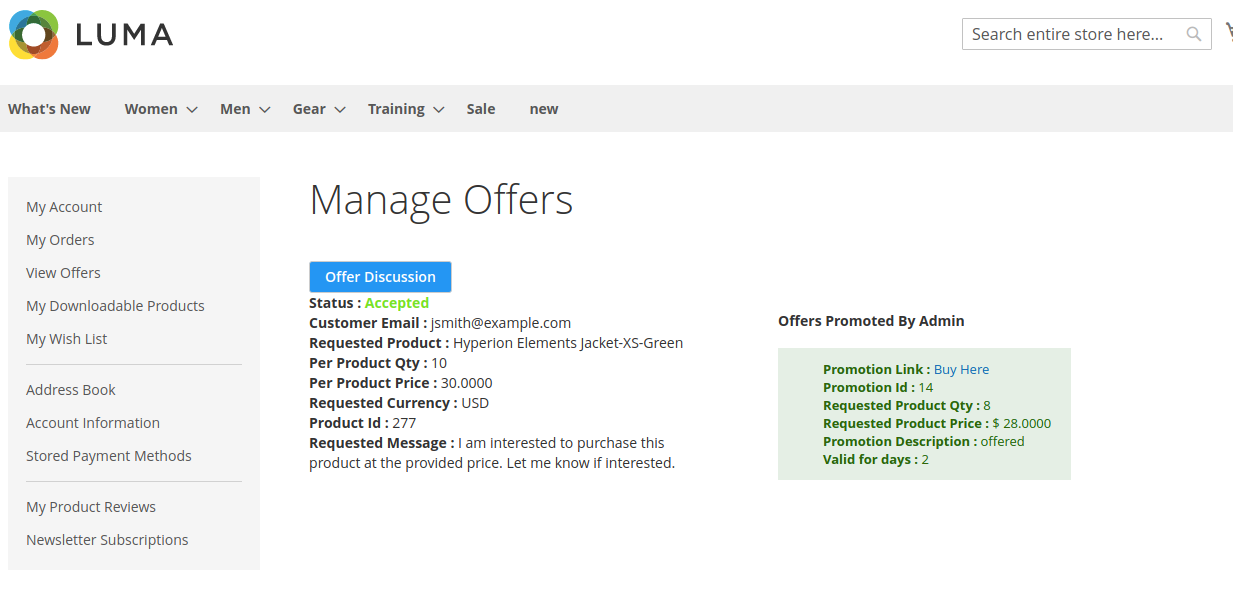
Hyva theme's View page for accepted offer.
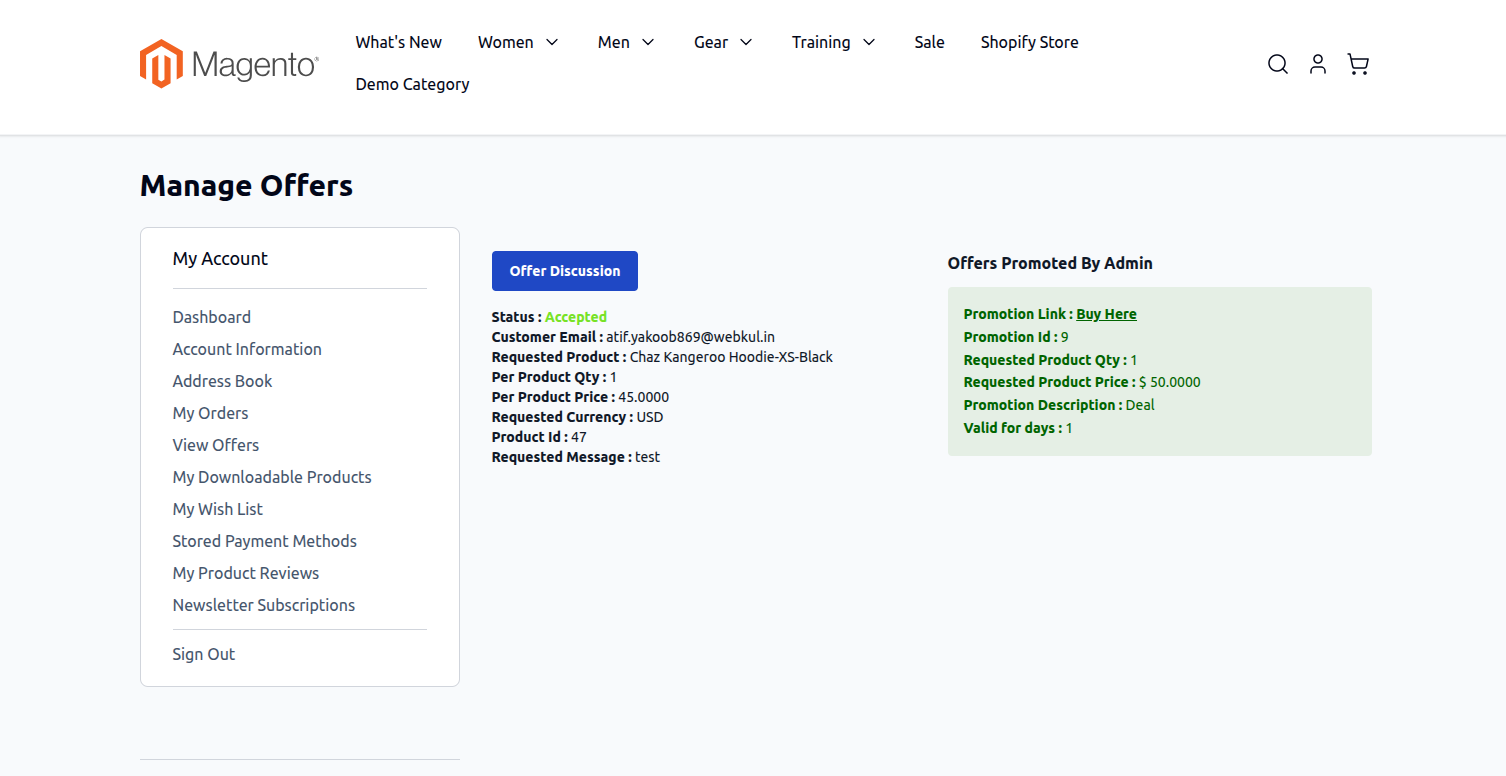
- Offer Discussion: Launches the bargaining chat panel.
- Buy Here: Directly adds the negotiated item to the shopping cart with the promotional discount applied.
3. Counter-Offer & Updated Terms
If an administrator counters a customer's proposal (for example, suggesting $45 instead of $40 for 5 units), the customer sees the updated terms:
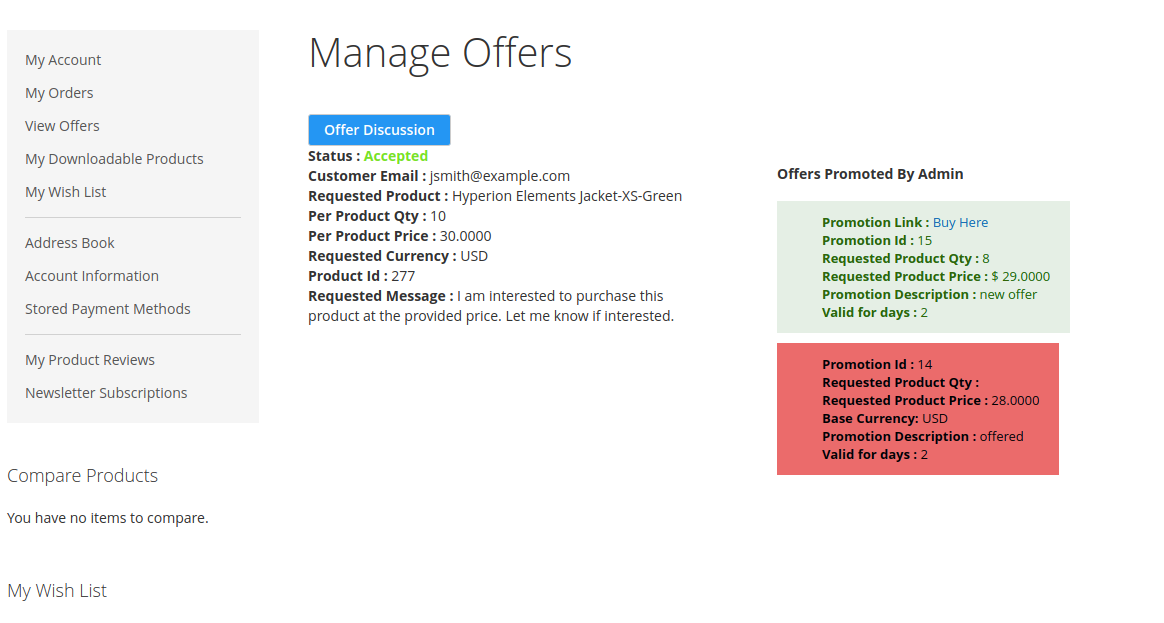
When an offer is modified, older terms are archived under old promotions, and a fresh active promotion is established.
Interactive Two-Way Discussion Panel
Customers can communicate directly with the store administrator by clicking Offer Discussion:
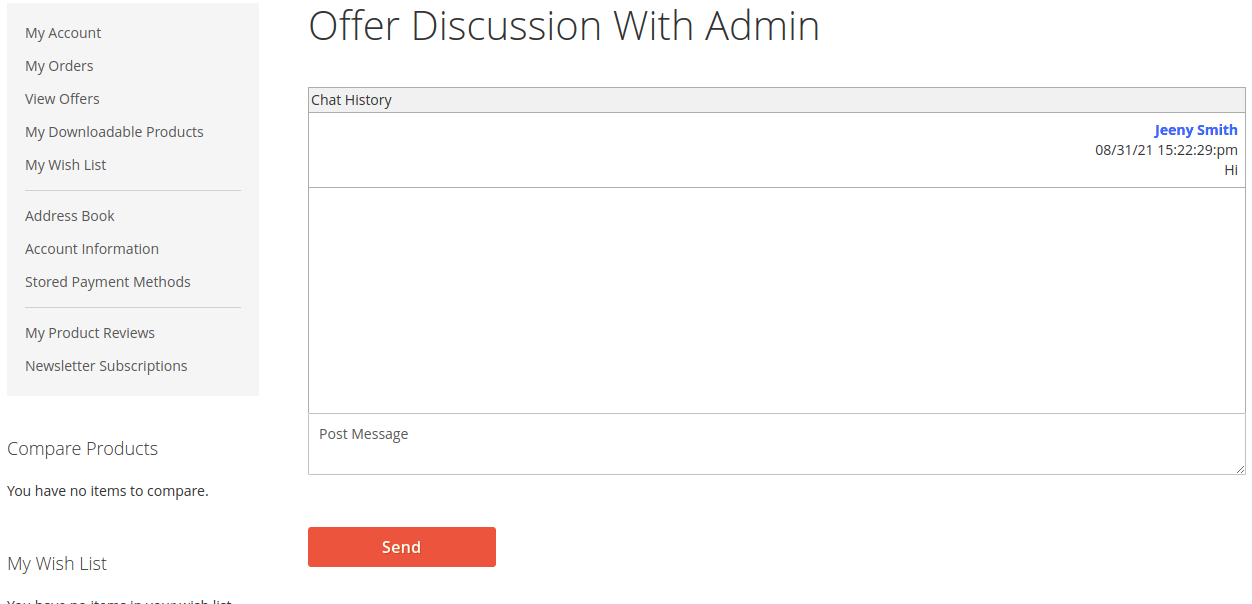
Hyva theme's Offer Discussion page.
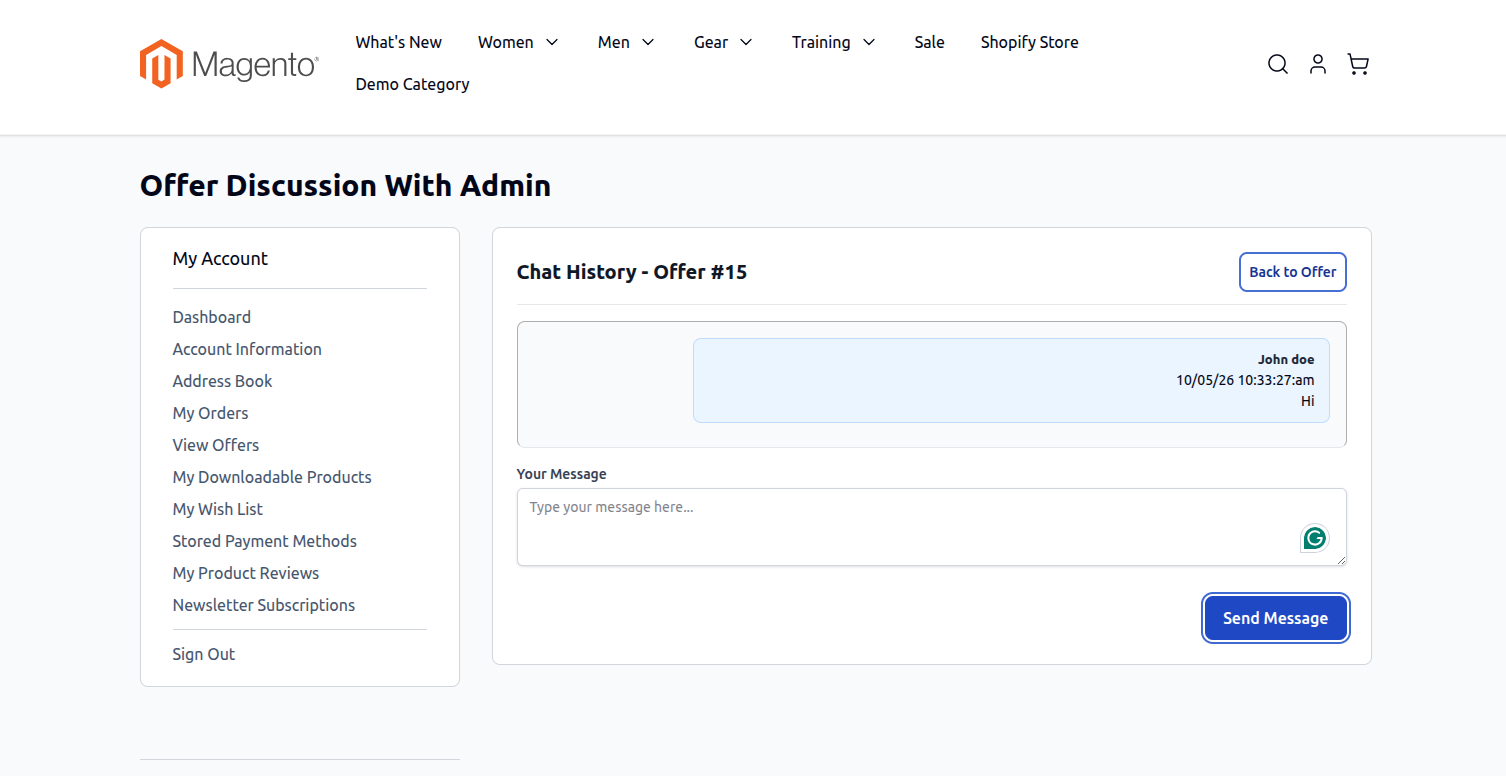
- Message Timeline: Complete chronological history of the negotiation with clear sender indicators and timestamps.
- Messaging: Customers type inquiries, explain bulk order requirements, or propose counter-offers.
- Blocked State Handling: If an administrator locks or blocks discussion on an offer, the input textarea is disabled, and an informative notice prevents further messaging.
One-Click Discount Checkout Flow
When an offer is accepted, purchasing the discounted product is instantaneous:
- The customer clicks Buy Here on the offer details page (or clicks the secure link in their acceptance email).
- The customer is redirected directly to the Magento shopping cart.
- The cart automatically pre-loads the negotiated quantity and applies the promotional coupon discount.
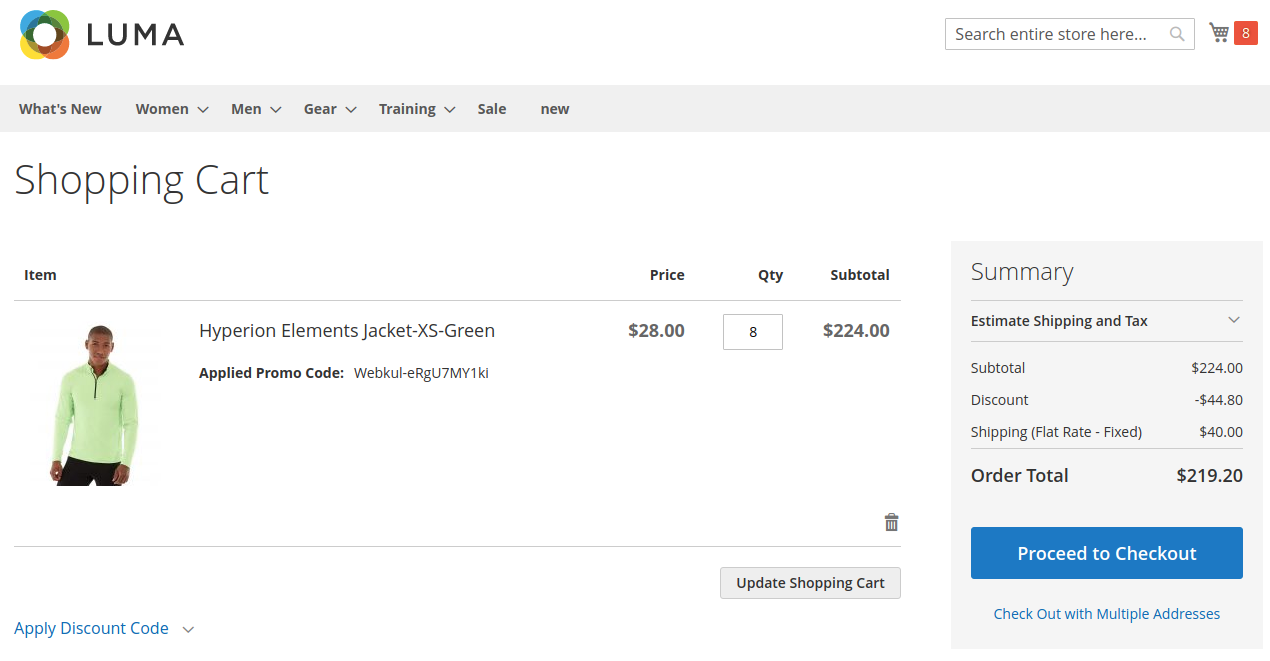
Hyva theme's Cart page with discount applied.
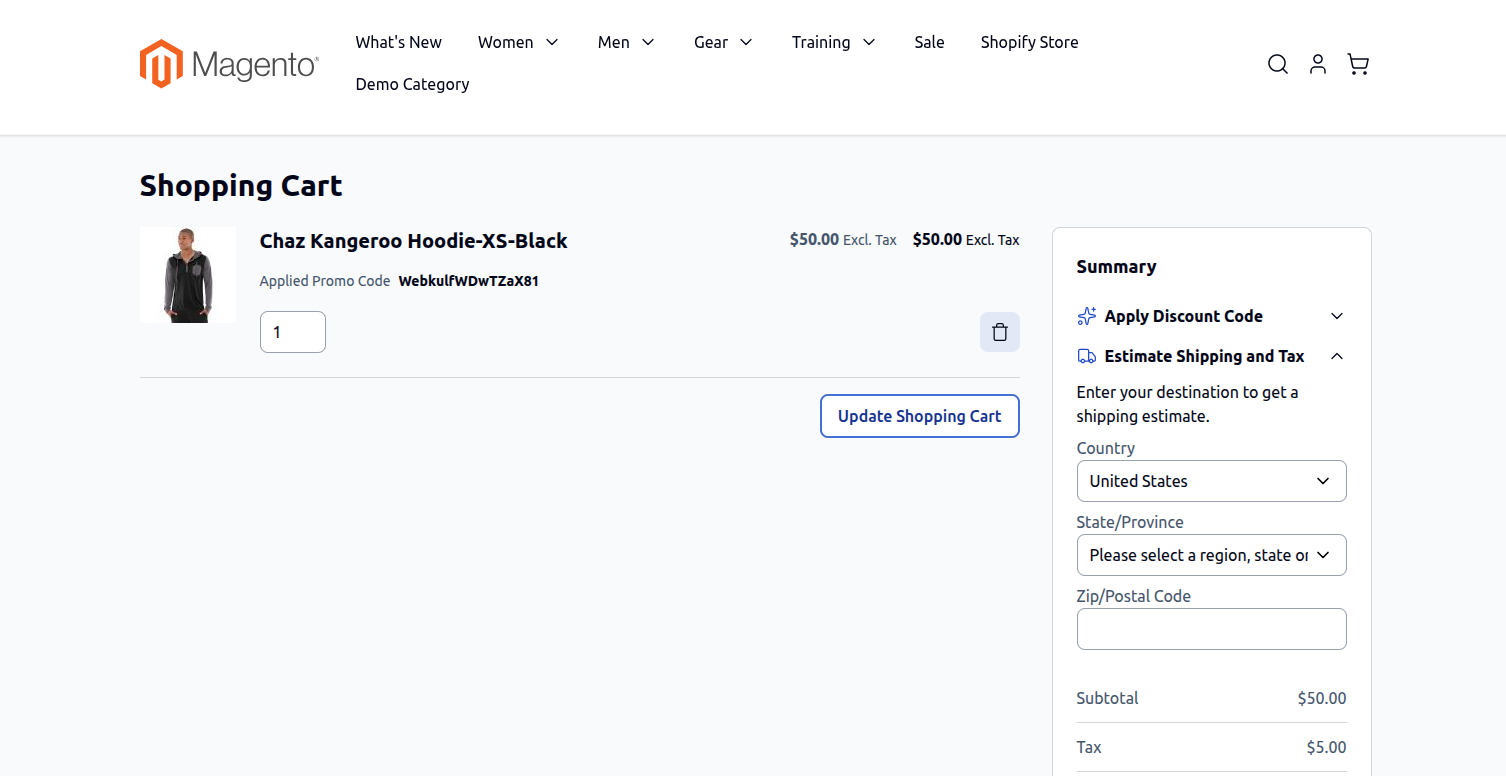
- The shopper proceeds through standard checkout at the agreed-upon price.