
General Settings
Stores → Configuration → Webkul → AI Product Review Summary → General Settings
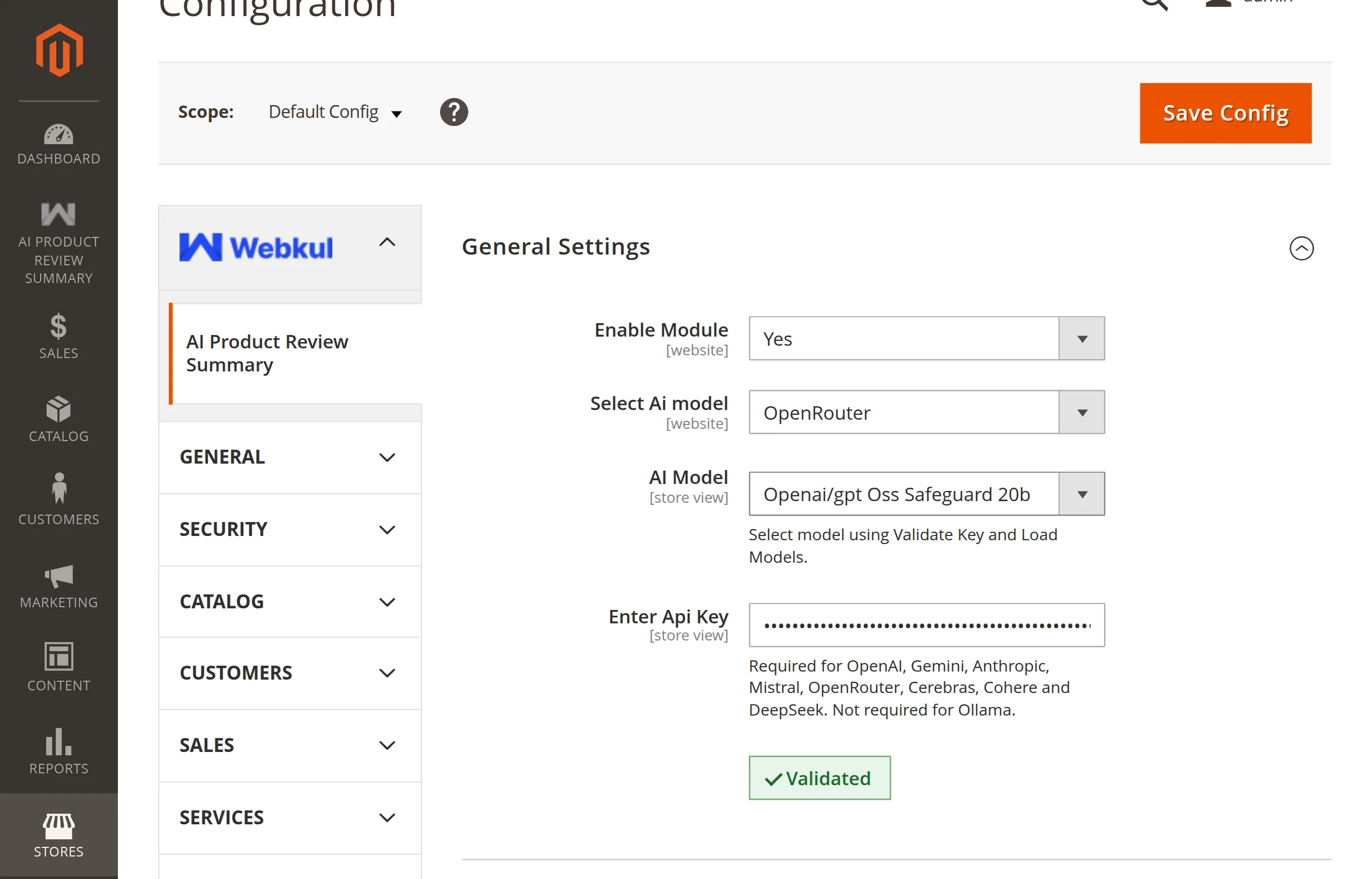
The scope of each field is printed under its label ([website], [store view]). See Scope & Store Views.
Field reference
| Field | Type | Shown when | Config path |
|---|---|---|---|
| Enable Module | Yes / No | Always | aiproductreviewsummary/general/status |
| Select Ai model | Dropdown | Enabled | aiproductreviewsummary/general/ai_model |
| Is Authorized | Yes / No | Ollama only | aiproductreviewsummary/general/llm_api_key_enabled |
| Ollama Endpoint | Text | Ollama only | aiproductreviewsummary/general/ollama_endpoint |
| AI Model | Dropdown (after validation) | Enabled | aiproductreviewsummary/general/llm_model |
| Enter Api Key | Password | Enabled; for Ollama only when Is Authorized = Yes | aiproductreviewsummary/general/api_key |
| Validate Key and Load Models | Button | Enabled | — |
What each field does
Enable Module — the master switch. No hides every other field and the admin menu, stops the Update Status mass action from generating, makes the CLI command print Currently unavailable., and hides summaries on the storefront. See Enable the Module.
Select Ai model — despite the label, this is the provider: ChatGPT (OpenAI), Google Gemini, Anthropic Claude, Mistral AI, OpenRouter, Ollama, Cerebras, Cohere, or DeepSeek. See Provider Overview.
Is Authorized — Ollama only. Set to Yes when your endpoint sits behind bearer-token auth; the API key is then sent as an Authorization: Bearer header.
Ollama Endpoint — base URL of your Ollama server, for example http://localhost:11434. See Ollama (Self-Hosted).
AI Model — the model that writes the summaries. It becomes a dropdown only after Validate Key and Load Models succeeds.
Enter Api Key — stored encrypted. Required for the eight hosted providers, optional for Ollama.
Validate Key and Load Models — tests the connection and fills the model dropdown. See How Validation Works.
Save checks
When the module is enabled, saving runs these checks for hosted providers:
| Error | Cause |
|---|---|
Please select an AI provider. | Select Ai model is empty. |
Please select a model before saving. | AI Model is empty. |
Invalid API Key | The provider rejected the key. |
Unable to verify model list. Please validate again. | The model list could not be fetched. |
Selected model is not valid for current provider credentials. | The model is not offered to this key. |
Switching away from Ollama
Saving any provider other than Ollama deletes the stored Ollama Endpoint and Is Authorized values for that scope, so a stale localhost:11434 can never be used by a cloud provider.
Next: Scope & Store Views.