
Manage Promotions
The Manage Promotions module empowers store administrators to design, schedule, and deploy device-targeted promotional banners and popups on the storefront. By pairing device type conditions with geographic location filters, merchants can deliver contextually relevant marketing messages to their audience.
Navigating to Manage Promotions
- Log in to the Magento Admin Panel.
- In the left navigation menu, click Smart Device Based Promotions.
- Select Manage Promotions.
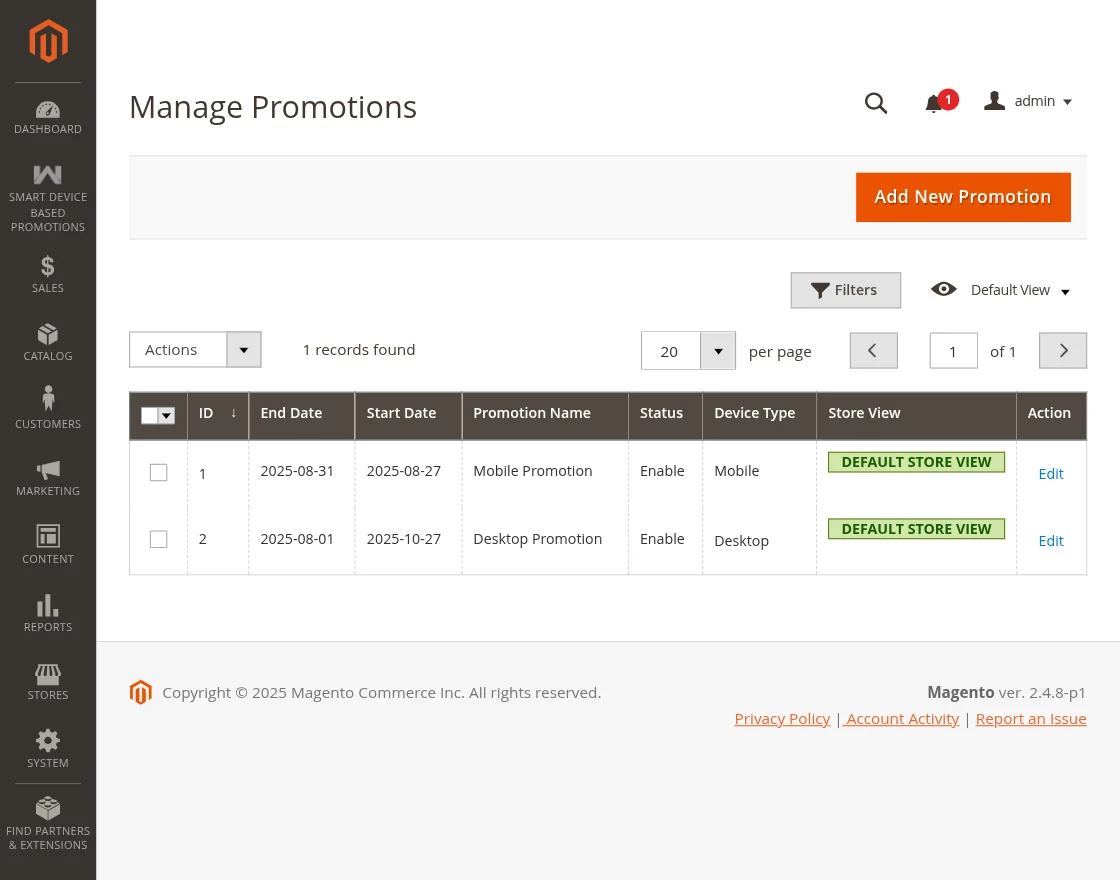
Promotional Campaigns Grid
The Manage Promotions grid provides an overview of all active, scheduled, and past promotional banner rules. From this grid, administrators can:
- View campaign details including ID, Promotion Name, Device Type (
DesktoporMobile), Start Date, End Date, Status , and assigned Store View. - Filter and search campaigns by name, device type, or active dates.
- Perform mass actions, such as mass delete.
- Click Edit in the Action column to modify an existing promotional banner rule.
Creating a New Promotional Campaign
To create a new device-targeted banner, click the Add New Promotion button in the upper right corner of the grid page.
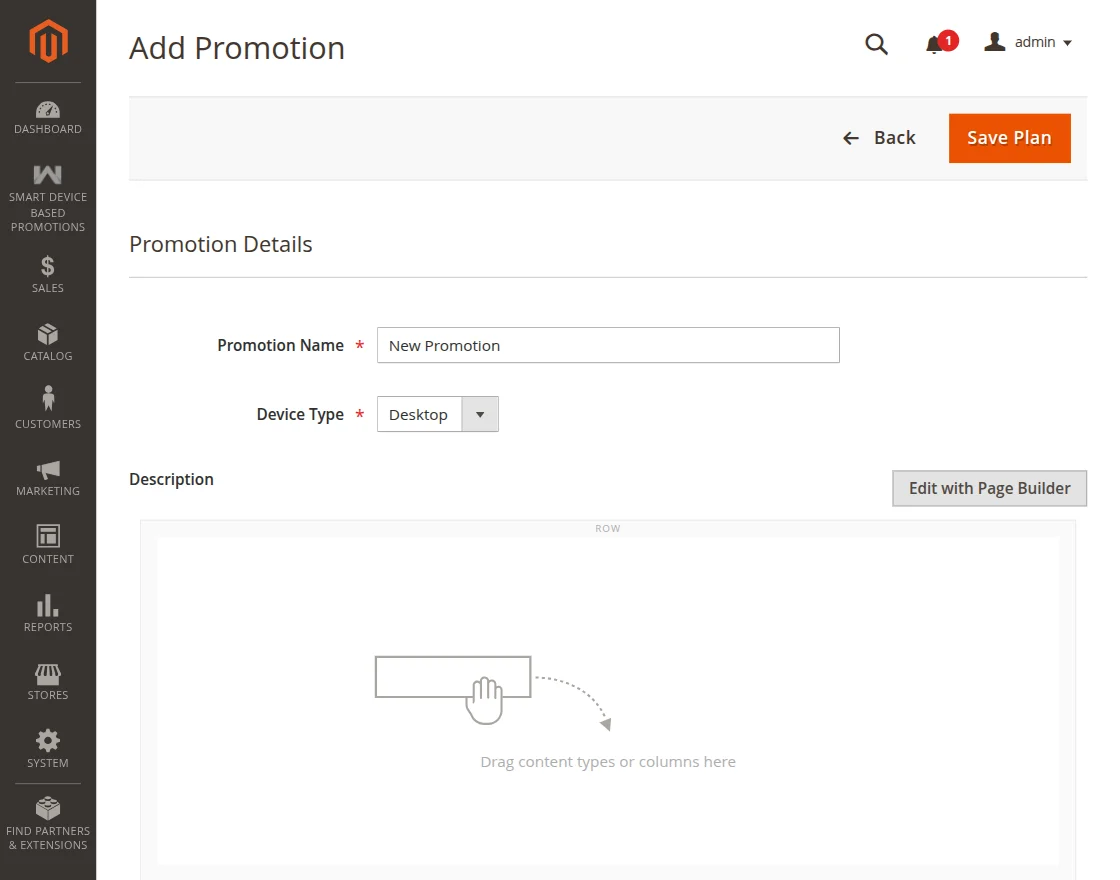
Promotion Configuration Fields
1. Promotion Details
- Promotion Name: Enter a clear, identifiable name for your campaign (e.g., Summer Mobile Flash Sale or Desktop Exclusive Clearance).
- Device Type: Select the target device for this promotion:
- Desktop: The banner will display exclusively to visitors browsing via a desktop or laptop web browser.
- Mobile: The banner will render exclusively to shoppers on smartphone or tablet mobile browsers.
- Description: Use Magento's integrated Page Builder (or WYSIWYG editor) to design the visual promotional banner. You can insert images, headings, call-to-action buttons, promotional text, or links directly to specific category or product pages.
### 2. Geolocation, Scope & Scheduling
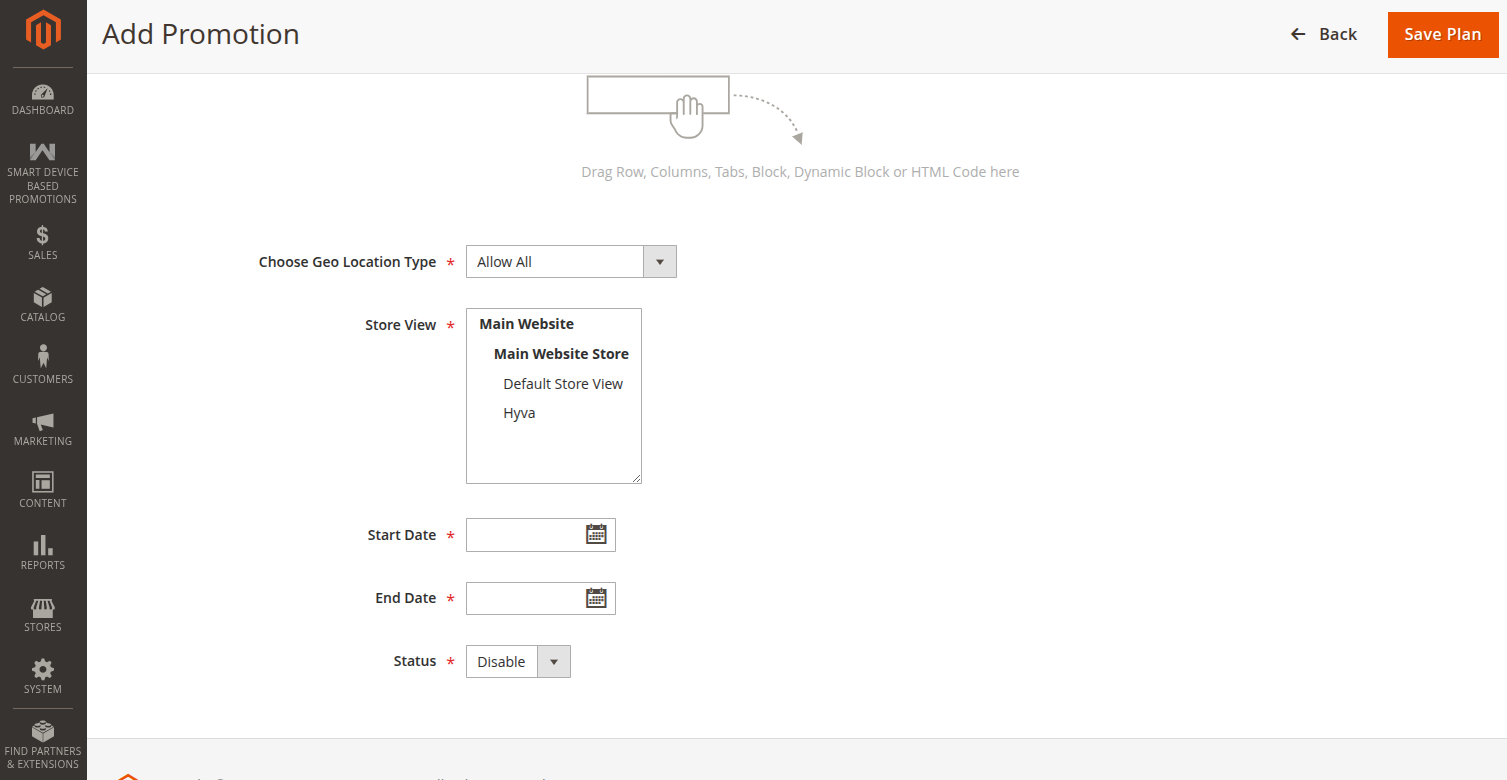
- Choose Geo Location Type:
- All Locations: Displays the promotional banner to all matching device users worldwide.
- Specific Countries: Restricts banner display to visitors originating from selected countries.
- Select Countries: When Specific Countries is chosen, a multi-select country list appears. Select one or multiple destination countries.
- Store View: Select the target store views where this banner should be active. This allows multi-store merchants to run localized language banners.
- Start Date: Select the calendar date and time when the promotion becomes active.
- End Date: Select the date and time when the campaign concludes and the banner is automatically withdrawn.
- Status: Enable or Disable the banner.
Once all fields are properly configured, click Save to activate the promotional campaign.
Banner Design Best Practices
- For Mobile Banners: Keep dimensions compact, text concise, and call-to-action buttons thumb-friendly. Avoid overly large uncompressed images that could degrade mobile page load speeds.
- For Desktop Banners: Take advantage of wider horizontal real estate with high-resolution graphics and detailed product highlights.