
Cart Price Rules
The Webkul Magento 2 Smart Device Based Promotions extension seamlessly integrates with Magento's native Cart Price Rules engine, introducing a dedicated Device Type attribute into rule conditions. This allows store administrators to grant automatic discounts or validate coupon codes exclusively based on whether a customer is shopping from a mobile or desktop device.
Navigating to Cart Price Rules
- Log in to the Magento Admin Panel.
- In the left navigation menu, navigate to Marketing > Promotions > Cart Price Rules.
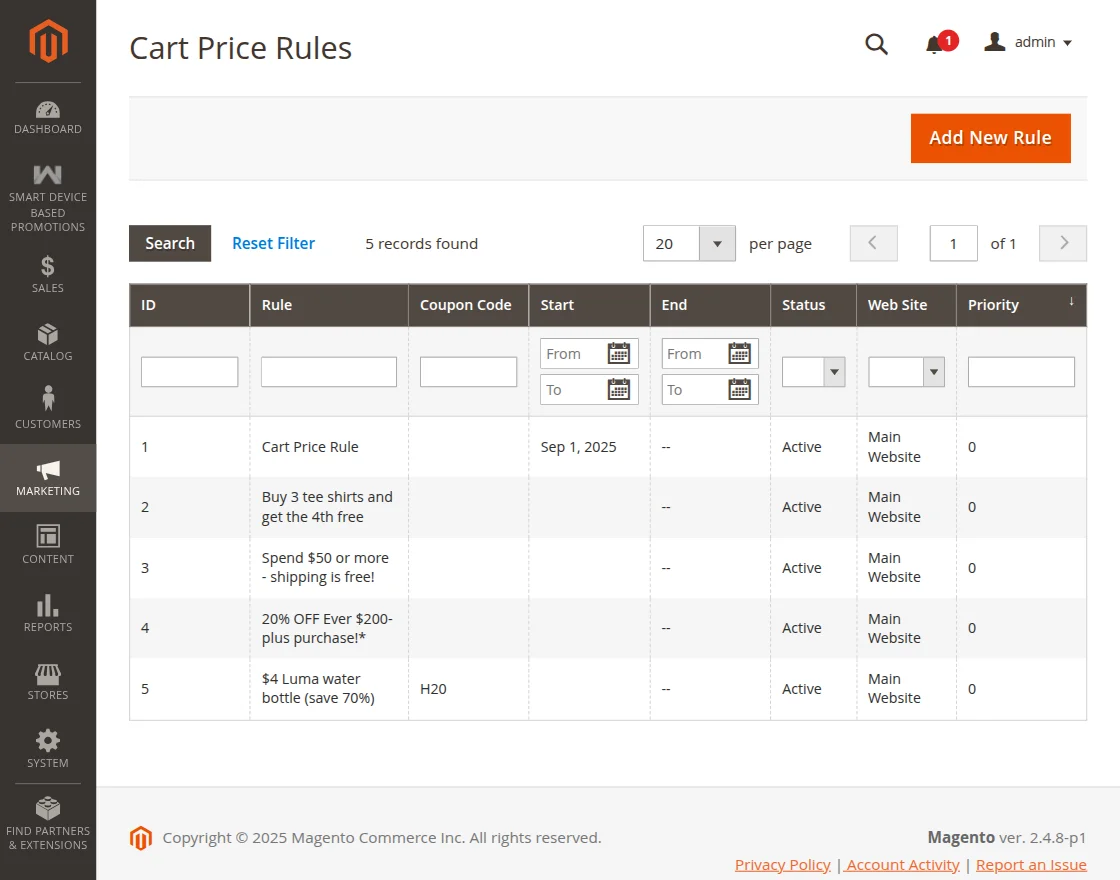
Creating a Cart Price Rule
Click the Add New Rule button on the Cart Price Rules grid page to open the rule configuration form:
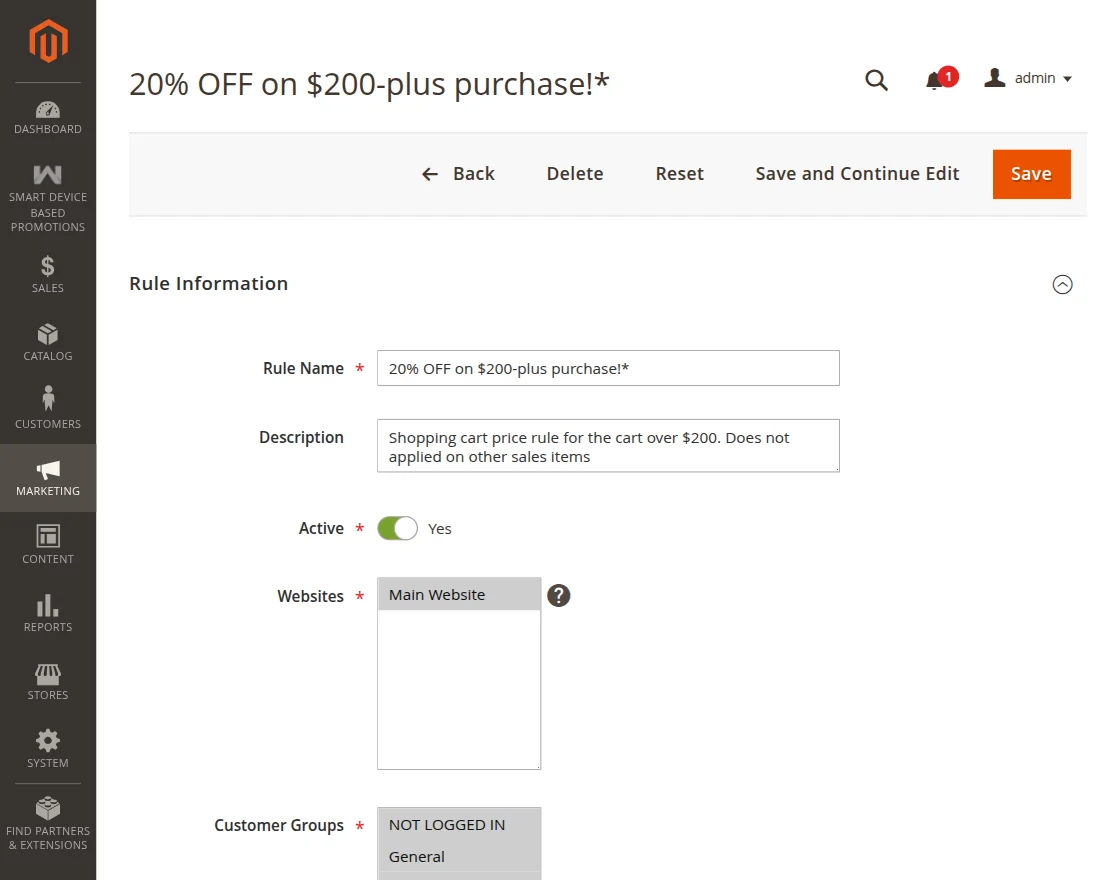
- Rule Name: Enter a descriptive name for internal management (e.g., Mobile Exclusive 15% Off or Desktop Checkout Promo).
- Description: Optional text describing the promotion terms.
- Active: Set to Yes to enable the rule.
- Websites: Select the websites where the rule should apply.
- Customer Groups: Select eligible customer groups (e.g., General, NOT LOGGED IN, Wholesale).
## Device-Specific Discount Condition
To deliver automatic discounts that deduct instantly in the shopping cart without requiring shoppers to type a promo code:
- In the Rule Information section, leave the Coupon dropdown set to No Coupon.
- Scroll down and expand the Conditions tab.
- Click the green
+icon to add a new condition row. - From the condition dropdown list, select Device Type under the Smart Device Based Promotions group.
- Click on the condition operator and choose is, then click on the value selector and choose either Mobile or Desktop.
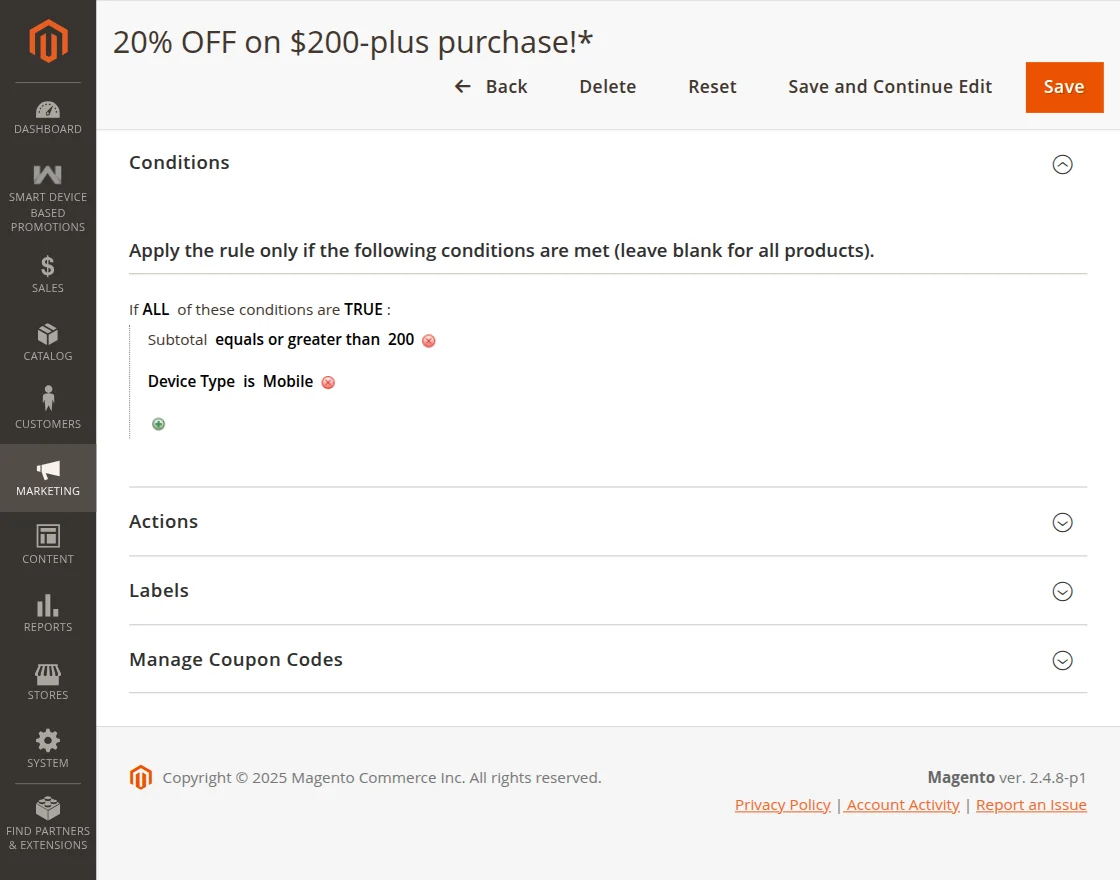
- Expand the Actions tab to specify the discount calculation:
- Apply: Choose Percent of product price discount, Fixed amount discount for whole cart, or Buy X get Y free.
- Discount Amount: Enter the discount percentage or value.
- Click Save in the top navigation bar.
Shoppers accessing your store from the specified device type will automatically see the discount deducted from their cart subtotal during checkout.
## Device-Specific Coupon Application
Merchants frequently run multi-channel campaigns where promotional coupon codes (distributed via SMS marketing, email newsletters, or social media ads) must only be redeemable on a specific device.
1. Set Specific Coupon
In the Rule Information section:
- Set Coupon to Specific Coupon.
- Enter your desired Coupon Code (e.g.,
MOBILESALE20orDESKDEAL10) or check Use Auto Generation to batch-generate unique codes. - Set Uses per Coupon and Uses per Customer as required.
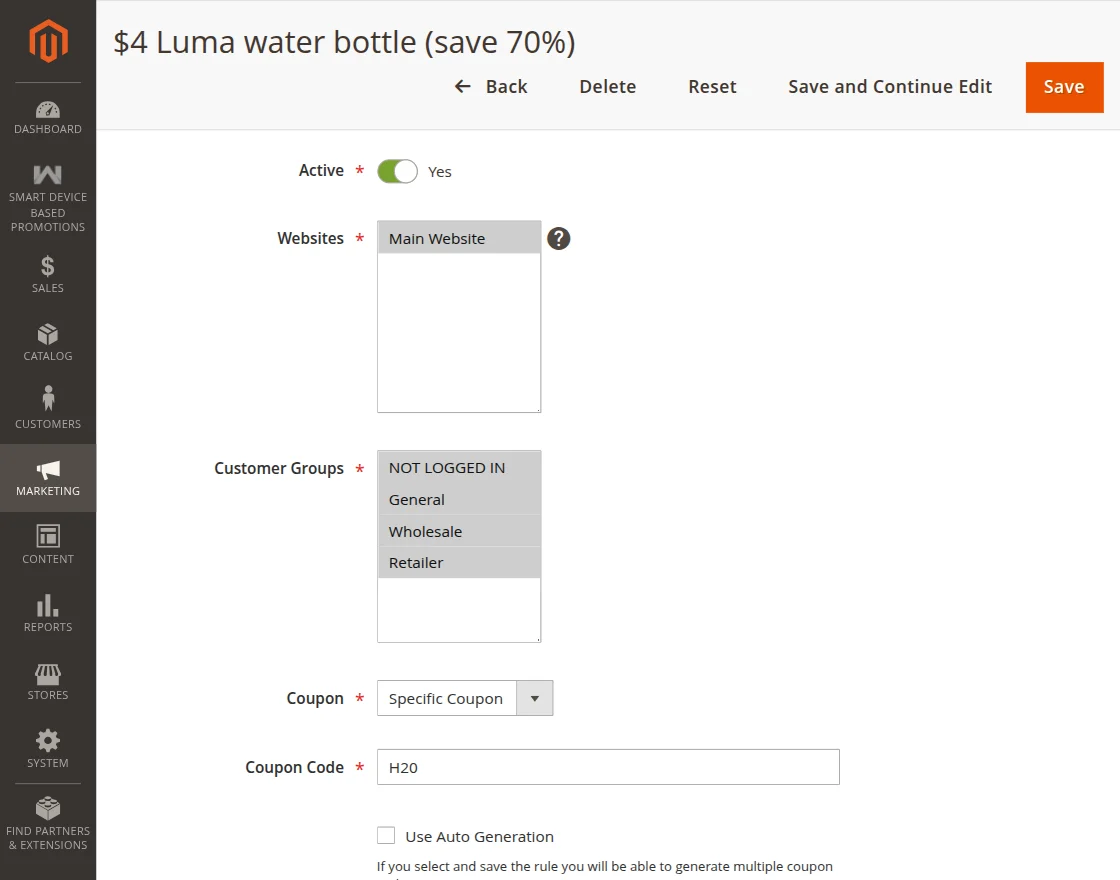
2. Configure Device Restriction Condition
- Navigate to the Conditions section of the rule form.
- Add the condition:
Device Type is [Mobile / Desktop].
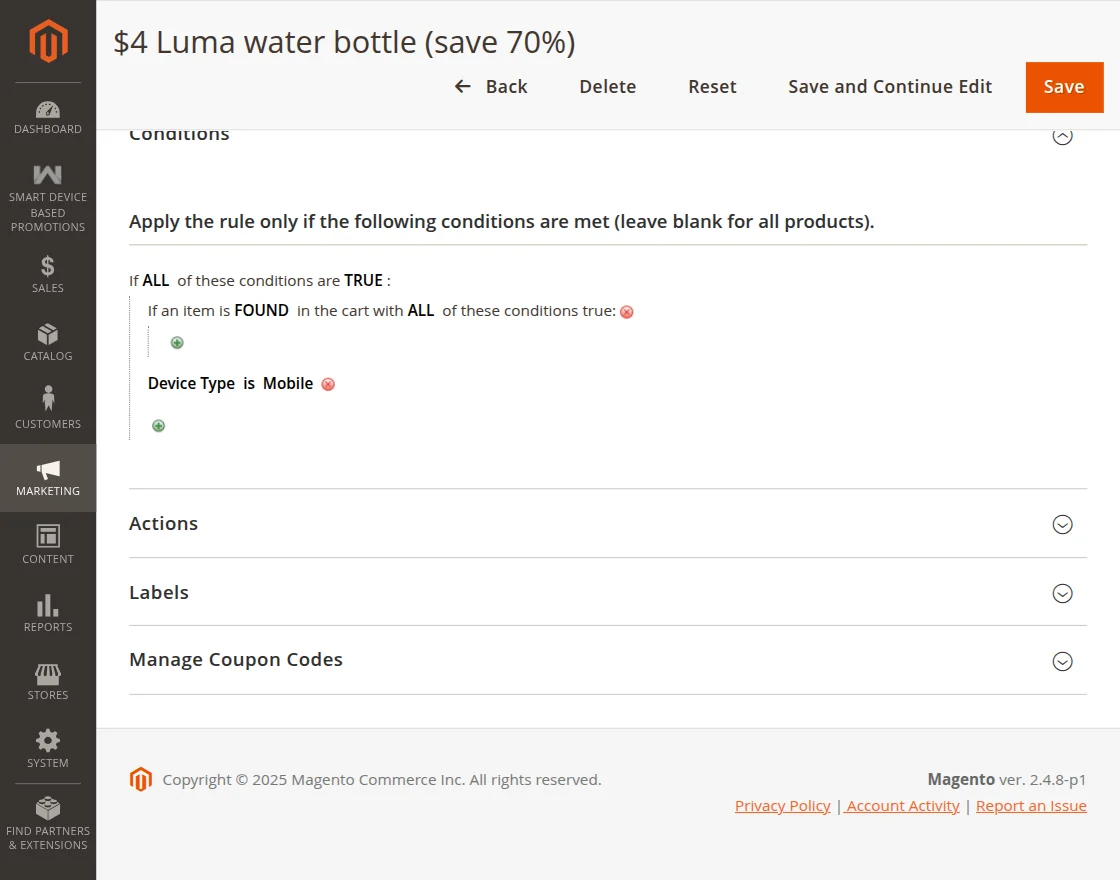
- Under the Actions tab, define the discount value.
- Save the rule.
Storefront Validation Behavior
When a customer attempts to enter this coupon code on the storefront:
- Eligible Device: If the shopper applies the code on the matching device (e.g., entering
MOBILESALE20while browsing on mobile Safari), the code is validated and the discount is deducted from the order summary. - Ineligible Device: If a desktop visitor attempts to enter a mobile-only coupon code, Magento displays a notification indicating that the coupon code is not valid for their current device environment.
Strategy Tip: Driving App & Mobile Web Adoption
Use mobile-restricted coupon codes in SMS and Instagram campaigns to incentivize shoppers to complete orders directly on their smartphones, improving mobile conversion rates and user engagement.