
Activation
After the successful installation of the module, the admin can configure the module settings. To configure the module, navigate to Stores > Configuration > Webkul.
Module License
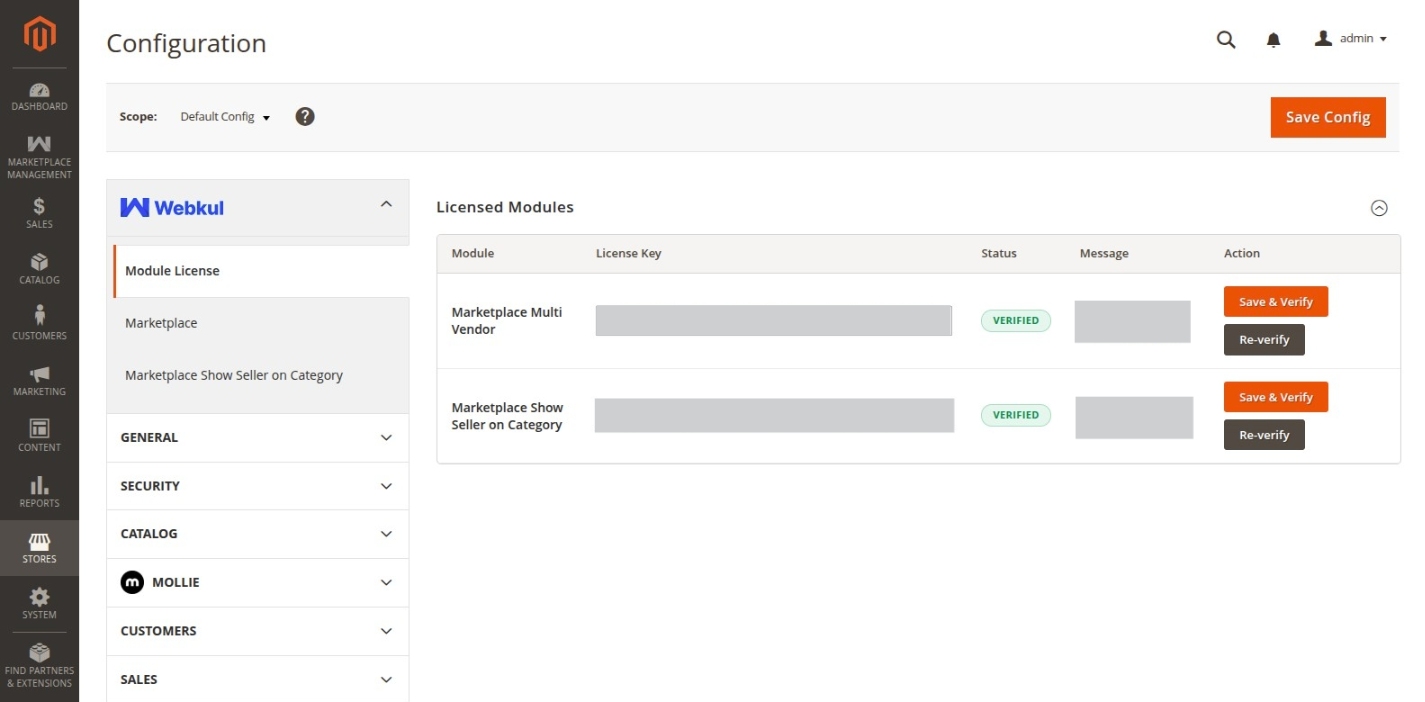
The admin needs to verify the module license to use it properly. Navigate to Stores > Configuration > Webkul > Module License.
Here, the admin will find the list of all the licensed modules. For the Marketplace Show Seller on Category module, the admin needs to enter the License Key and click on the Save & Verify button to verify the license.
Module Configuration
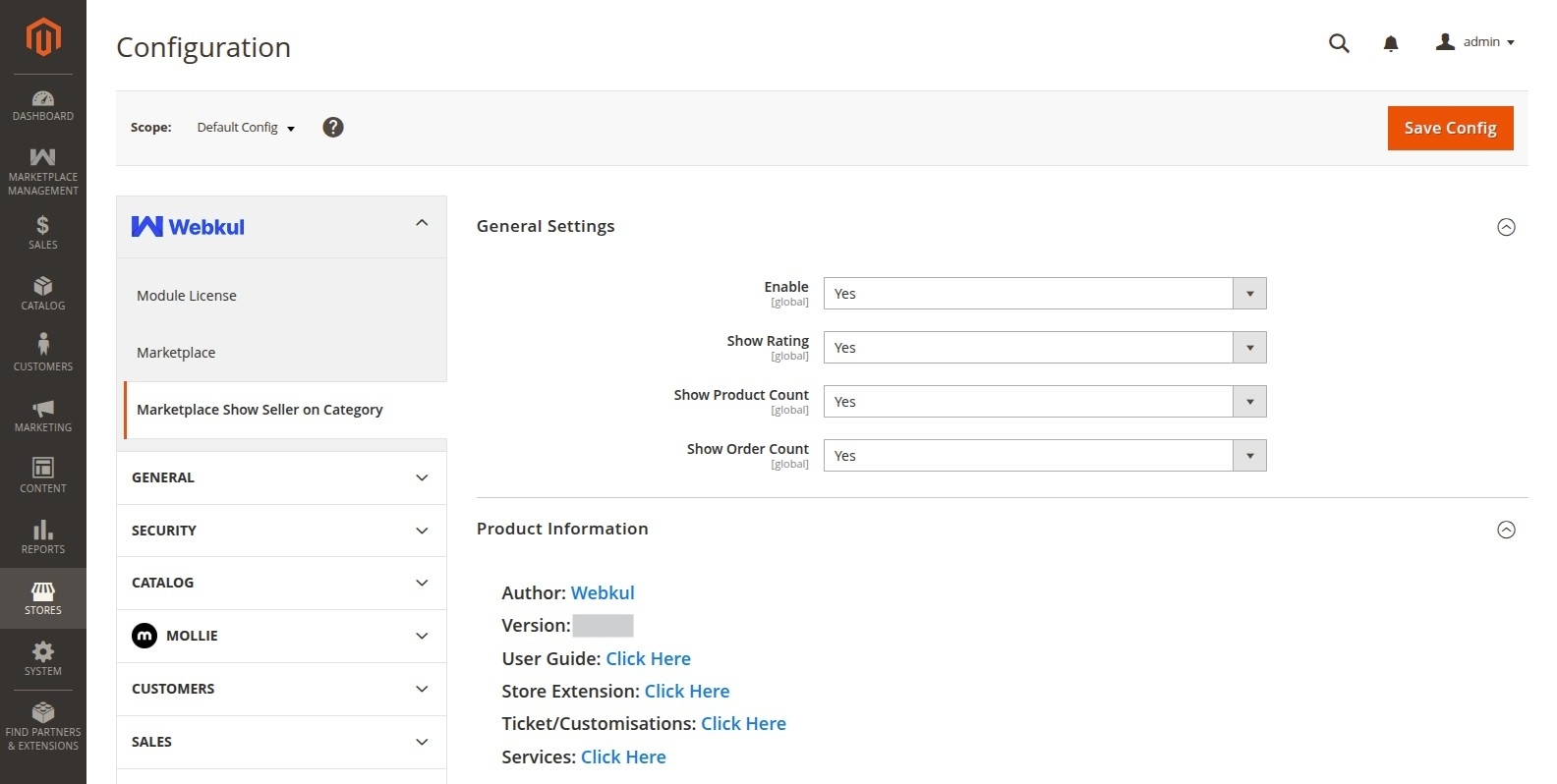
To configure the general settings of the module, navigate to Stores > Configuration > Webkul > Marketplace Show Seller on Category.
General Settings
Under the general settings, the admin can configure the following options:
- Enable: The admin can select Yes to enable the module or No to disable it.
- Show Rating: The admin can select Yes to display the seller's rating badge on the category pages or No to hide it. (Depends on Enable being active).
- Show Product Count: The admin can select Yes to display the total number of products for each seller on category pages or No to hide it. (Depends on Enable being active).
- Show Order Count: The admin can select Yes to display the total number of orders completed by each seller on category pages or No to hide it. (Depends on Enable being active).
Product Information
This section contains information and quick links regarding Webkul module support and links to the user guide blog.