
Sending Seller Invitations
Store administrators can invite prospective vendors to join the marketplace by sending personalized, secure email invitations from the Magento Admin Panel.
Navigating to the Invite Seller Section
- Log in to the Magento Admin Panel.
- In the left navigation sidebar, click on Marketplace.
- Under the Seller Invitation heading, select Invite Seller.
- You will arrive at the Seller Invitation List (
sellerinvitation/menu/index). - Click the orange Send Invite button located in the top-right corner.
Marketplace > Seller Invitation > Invite Seller > [Send Invite]
The Invitation Form Fields
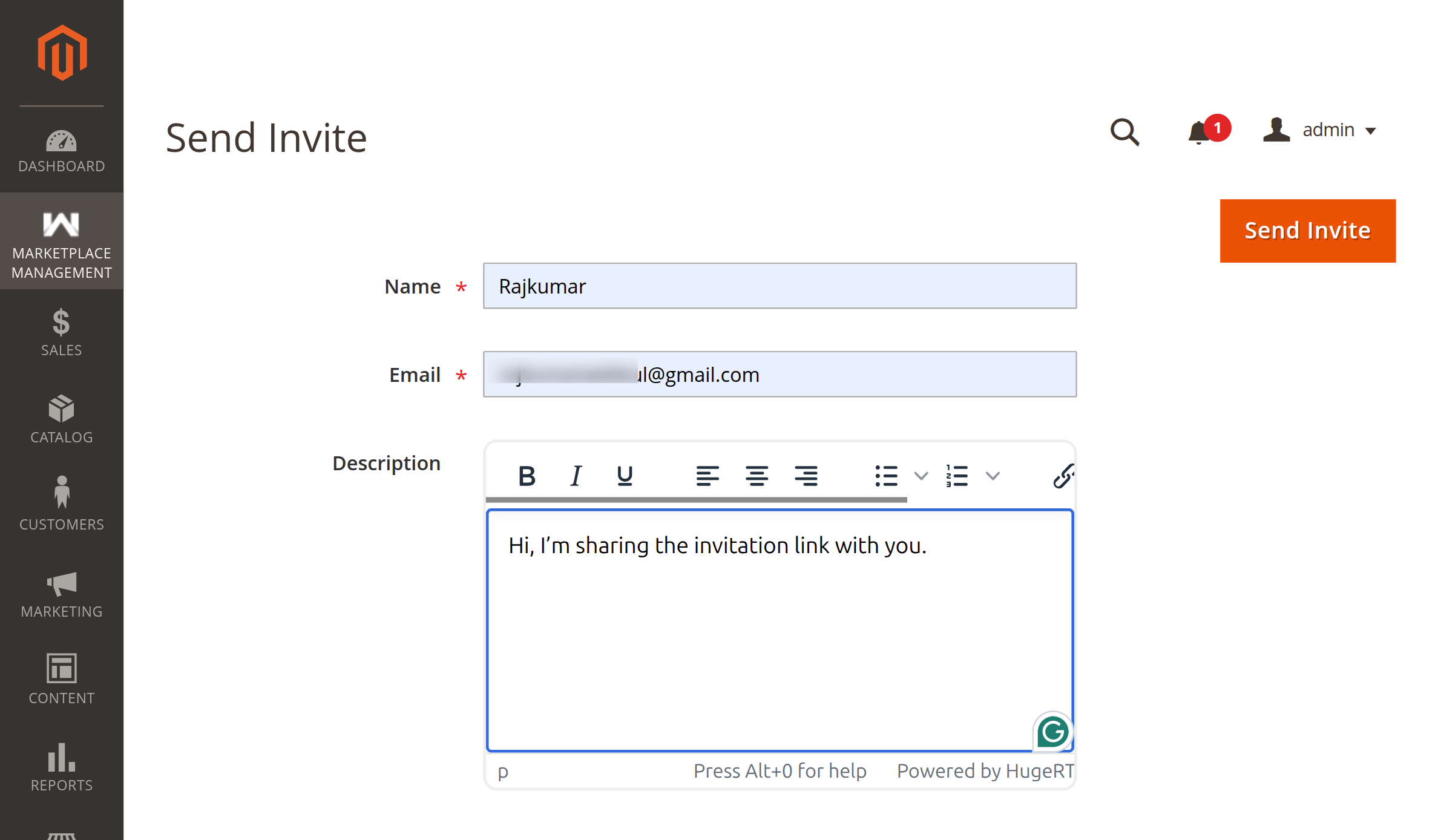
The Send Invite form (sellerinvitation/menu/inviteForm) allows the administrator to input recipient details and custom invitation messages:
| Field | Input Type | Required | Validation Rules | Description |
|---|---|---|---|---|
| Name | Text Input | Yes | required-entry, validate-no-html-tags | The full name of the prospective seller. Stripped of HTML tags for security. Automatically mapped to {{var name}} in the email template. |
| Text Input | Yes | required-entry, validate-email, validate-no-html-tags | The recipient's email address. The invitation code will be strictly linked to this email address. | |
| Description | Textarea / WYSIWYG | No | Text / Formatted HTML | Personalized message to the invitee explaining marketplace terms, commission perks, or welcoming remarks. Injected into {{var body}} of the invitation template. |
Form Submission & Email Generation Logic
When the administrator clicks the Send Invite button:
- Security & Input Sanitization:
- The recipient's name is sanitized using
\Magento\Framework\Filter\StripTags. - The email address is validated using
\Magento\Framework\Validator\EmailAddress.
- The recipient's name is sanitized using
- Duplicate Protection & Rate Limiting:
- A SHA-256 hash of the email address is saved in the admin session along with a timestamp.
- If a duplicate invitation submission is received within 60 seconds, the request is blocked:
"Duplicate request detected." - Remote IP address access is rate-limited using Magento's cache backend (maximum 5 requests per minute). If exceeded:
"Too many attempts. Please try again after 1 minute."
- Invitation State Verification:
- If the candidate already registered as a seller using a previous link:
"Customer already registered using invite link" - If an active, unexpired invitation is already pending for this email:
"Invitation code already sent. You will send invitation link again after link expired"
- If the candidate already registered as a seller using a previous link:
- Token Generation:
- The helper generates a 16-character cryptographically random code (
inviteCode). - The system verifies uniqueness against the
wk_mp_invitationtable before committing.
- The helper generates a 16-character cryptographically random code (
- Destination URL Routing:
- For New Sellers: Generates the registration URL:
https://<store-domain>/customer/account/create/?inviteCode=<random_16_char_code> - For Existing Registered Customers: The system detects the email in the customer repository and sets the URL to:The email body instructs them to log in and open the Become Seller menu.
https://<store-domain>/customer/account/login
- For New Sellers: Generates the registration URL:
- Email Dispatch:
- Sender information is pulled from the Marketplace Admin Email (
marketplace/general_settings/adminemail). - The transactional email is constructed and dispatched to the recipient via
TransportBuilder.
- Sender information is pulled from the Marketplace Admin Email (
- Database Persistence:
- A new row is inserted into
wk_mp_invitation:name: Recipient's nameemail: Recipient's emaildescription: Custom messageinvite_code: Generated unique tokenstatus:0(Not Registered)created_at: Current UTC timestamp
- A new row is inserted into
Invitation Email Notifications
Once the invitation is dispatched, the prospective seller receives an email corresponding to their customer account status:
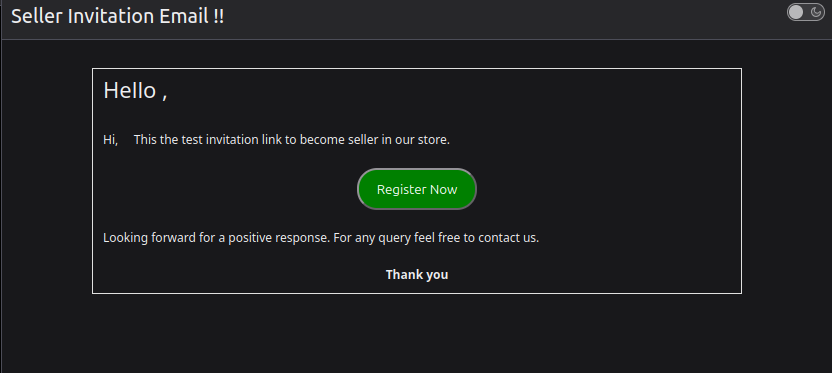
New Candidate Invitation Email
For new candidates without an existing account, the email delivers the invitation message and the Register Now button containing their secure single-use token:
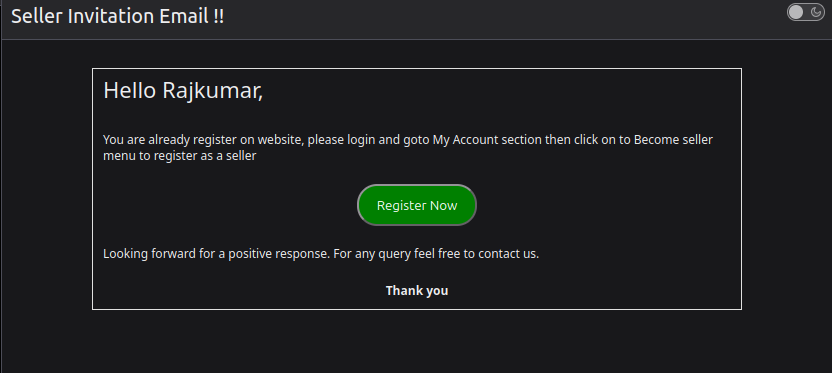
Existing Customer Invitation Email
For candidates who already hold a retail account on the store, the email informs them of their registered status and directs them to log in and access the Become Seller menu in their account dashboard:
Success Notification
Upon successful submission, the admin is redirected to the invitation grid with the confirmation notice:
"Invitation sent successfully"
Next Step
View and manage all dispatched invitations in the Invitation Management Grid.