Module Configuration
Store administrators can configure global module settings, order export triggers, inventory accounting mappings, product attribute exports, and tracking classes from Magento Admin.
Accessing Configuration Settings
- Log in to Magento Admin.
- Navigate to Stores > Configuration.
- Under the Webkul tab on the left sidebar, click Magento Quickbooks Connect.
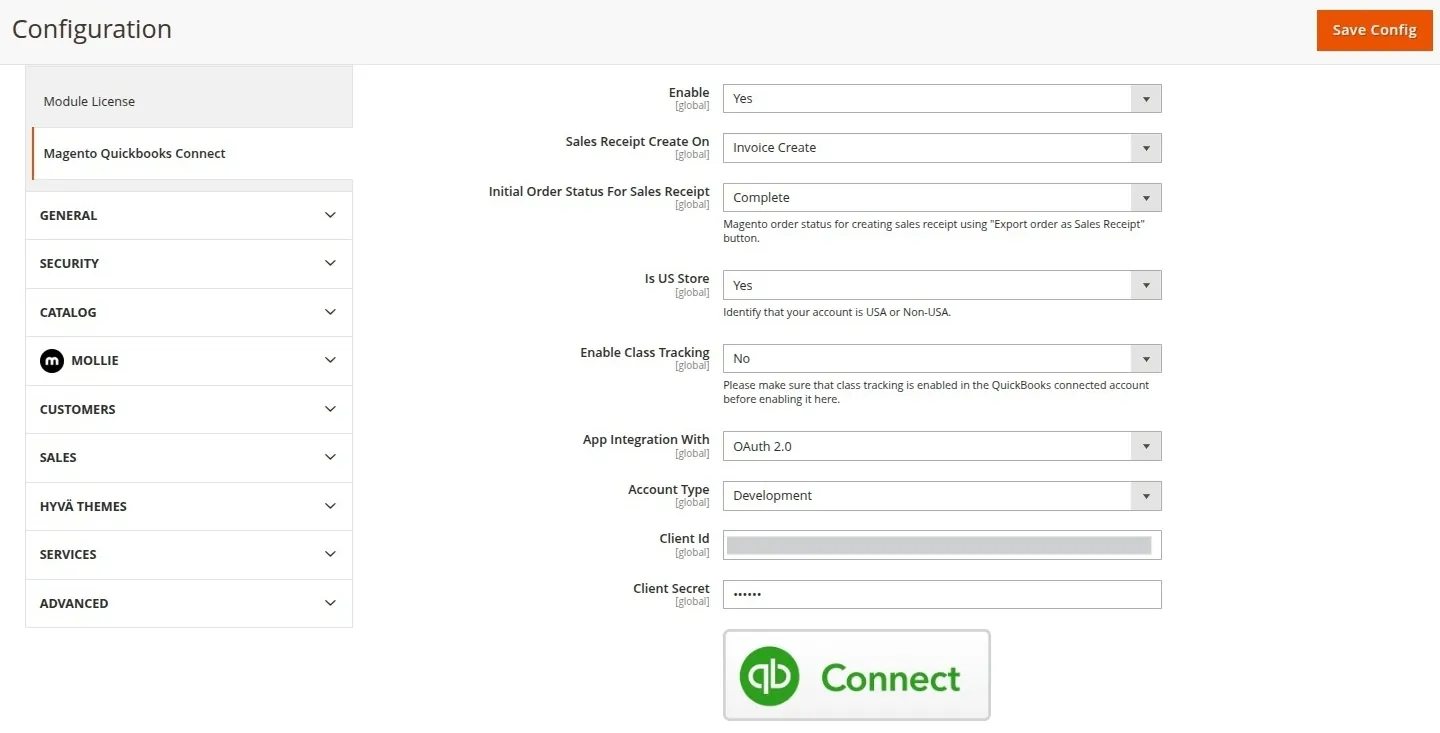
1. General Settings Reference
| Field | Type | Options / Format | Description |
|---|---|---|---|
| Enable | Select | Yes / No | Globally enables or disables QuickBooks integration and export hooks. |
| Sales Receipt Create On | Select | Order PlaceInvoice CreateOrder Complete | Defines when sales receipts are automatically generated in QuickBooks Online. |
| Initial Order Status For Sales Receipt | Select | PendingProcessingComplete | Filter order status when manually batch-exporting orders via the Export Orders as Sales Receipt action. |
| Is US Store | Select | Yes / No | Specify whether your connected QuickBooks account is a USA or Non-USA account (affects tax calculation rules). |
| Enable Class Tracking | Select | Yes / No | Enables class tracking categorization for QuickBooks sales receipts and credit memos. |
| Assign Tracking Class | Select | One to entire transactionOne to each row | Determines whether tracking class applies to the whole transaction header or each line item. |
| Tracking Class | Select | Class Name | Select the active tracking class created in your connected QuickBooks account. |
| App Integration With | Select | OAuth 2.0 / OAuth 1.0 | Select authorization protocol. Recommended: OAuth 2.0. |
| Account Type | Select | Development / Production | Select Development for Sandbox testing or Production for live stores. |
| Client Id | Text | String | Enter the Client ID key generated in Intuit Developer Portal. |
| Client Secret | Encrypted | Password/Hash | Enter the Client Secret key generated in Intuit Developer Portal. |
| Realm ID | Text | Numeric String | Auto-populated QuickBooks Company ID (Realm ID) after authorization. |
| Connect / Disconnect | Button | Action | Triggers OAuth2 login modal or revokes active session tokens. |
2. Accounts for Inventory
When products are exported to QuickBooks Online (either individually or during order export), QuickBooks requires inventory items to be linked to specific Chart of Accounts categories:
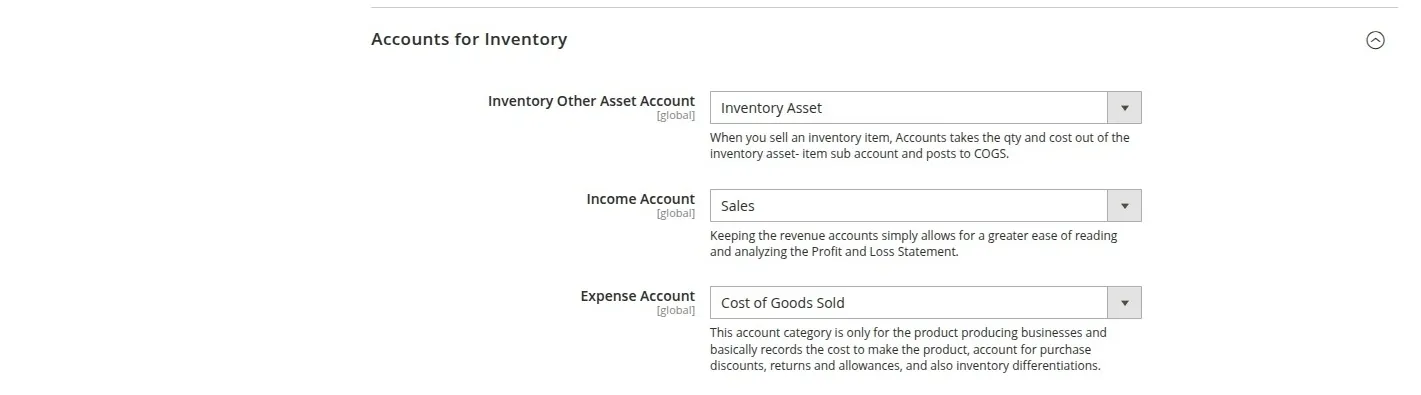
Inventory Other Asset Account
- Description: The asset account used to track inventory asset valuation in QuickBooks when products are purchased or added to inventory.
Income Account
- Description: The revenue income account where sales earnings for exported products are recorded on your Profit and Loss statement.
Expense Account (COGS)
- Description: The Cost of Goods Sold (COGS) expense account where cost of manufacturing or purchasing products is recorded upon sale.
Chart of Accounts Notice
Make sure your connected QuickBooks Online account has asset, income, and expense accounts configured under Accounting > Chart of Accounts before saving this section.
3. Export Product Field Configuration
Customize how product attributes are formatted when sent to QuickBooks:

- QB Product Name: Choose whether QuickBooks items are named after Store Product SKU or Store Product Name.
- QB Product Description: Choose whether item descriptions in QuickBooks use Store Product Name, Store Product Description, or Store Product Short Description.
- Inventory Track: Set to
Yesto enable inventory quantity tracking on exported QuickBooks products.
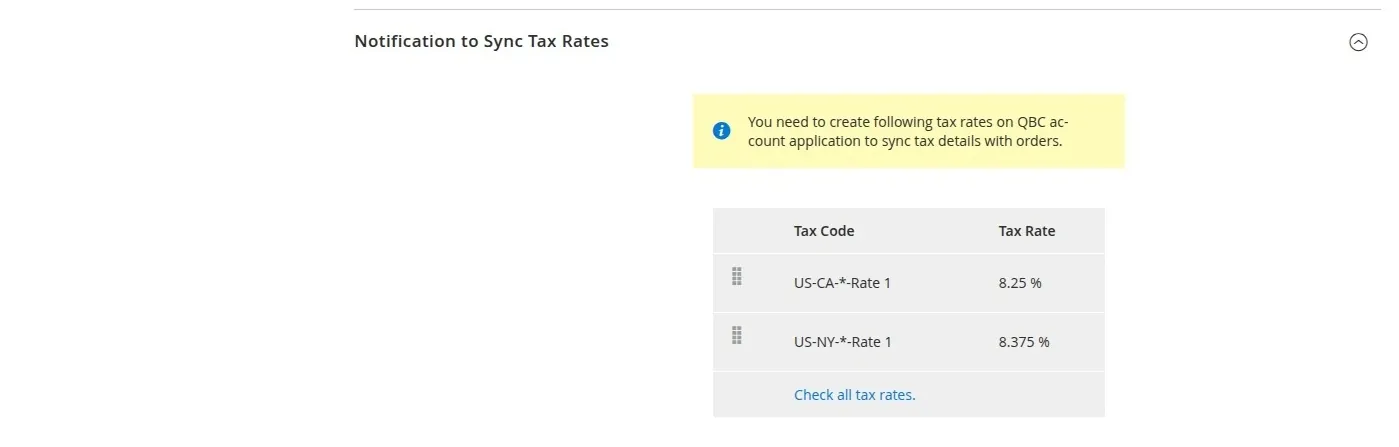
4. Notification to Sync Tax Rates
In this section, click Sync Tax Rates to verify and map Magento store tax rates with corresponding QuickBooks sales tax codes.