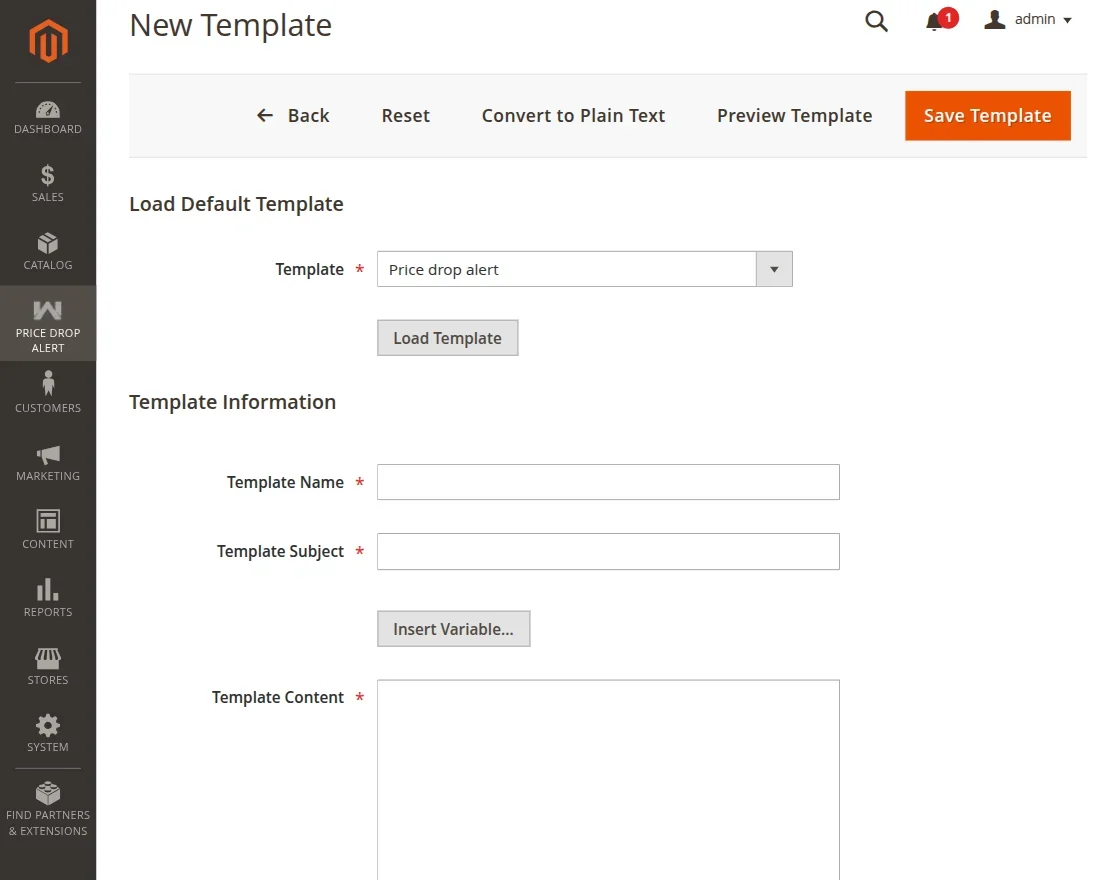
Module Settings
Admin guide to configuring module behavior, product visibility, and transactional email templates.
Backend Path
Navigate to Stores > Configuration > Webkul > Price Drop Alert.
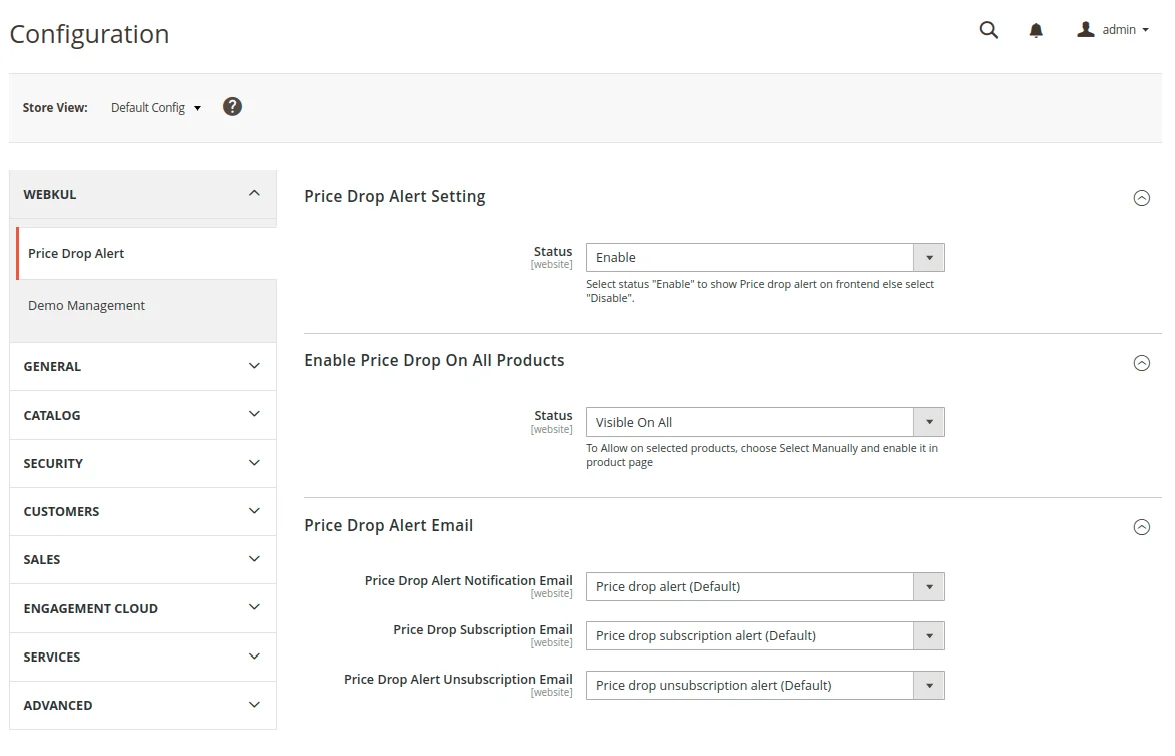
Configuration Fields
Price Drop Alert Setting
- Status: Set to Enable to activate price drop subscription widgets on product pages, or Disable to deactivate.
Enable Price Drop On All Products
- Status:
- Visible on All: Automatically displays price drop alert subscription widgets on all catalog products.
- Select Manually: Requires enabling price drop subscription per product on individual product edit pages.
Price Drop Alert Email Templates
- Price Drop Subscription Email: Select template sent when a user clicks Subscribe.
- Alert Notification Email: Select template sent when a product price drops.
- Price Drop Alert Unsubscription Email: Select template sent when a user unsubscribes.
Click Save Config.
Product-Level Overrides (Manual Mode)
If Enable Price Drop On All Products is set to Select Manually, navigate to Catalog > Products, edit any target product, and configure the Price Drop Alert attribute:
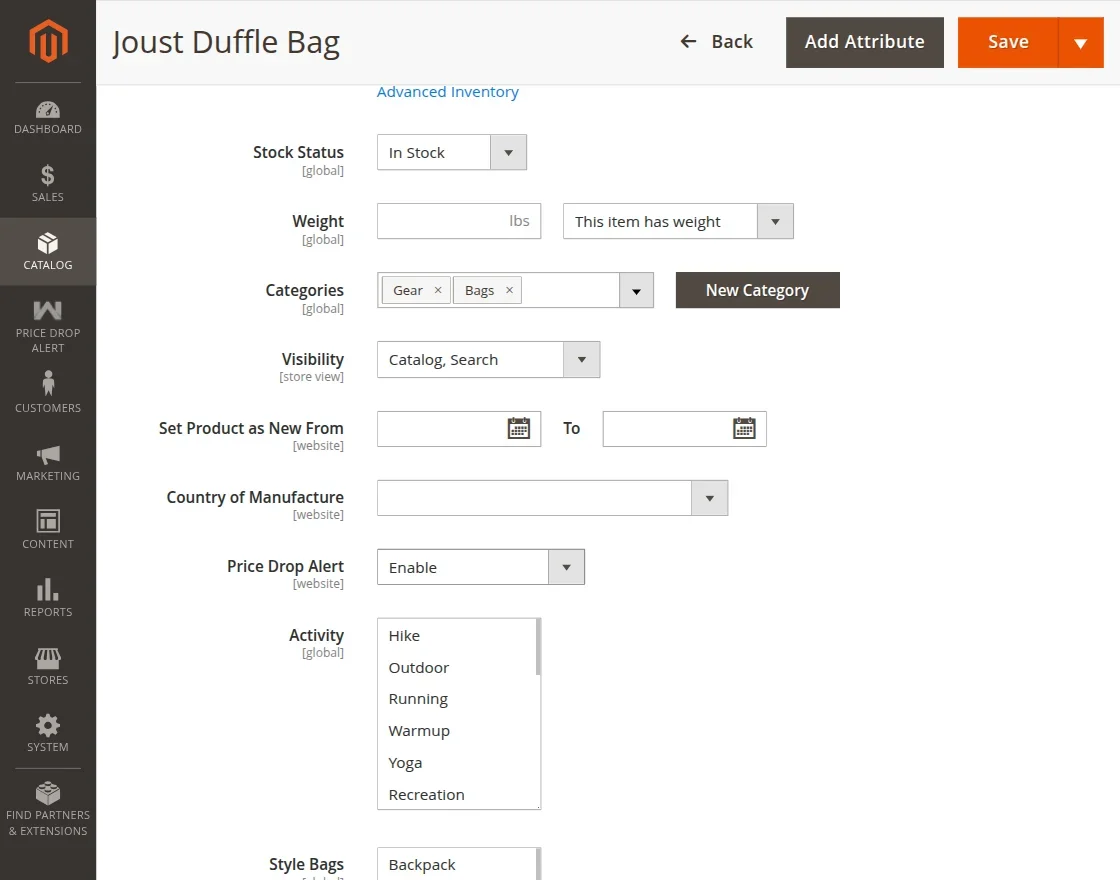
- Set Price Drop Alert to Enable or Use Default Config.
Customizing Email Templates
- Navigate to Marketing > Email Templates.
- Click Add New Template.
- In Template, select Price Drop Alert.
- Click Load Template, customize text/variables, and click Save Template.