
Wishlist Sharing & Social
The module allows registered customers to share their curated wishlists with friends and family via email or unique sharing links.
Sharing Wishlists via Email
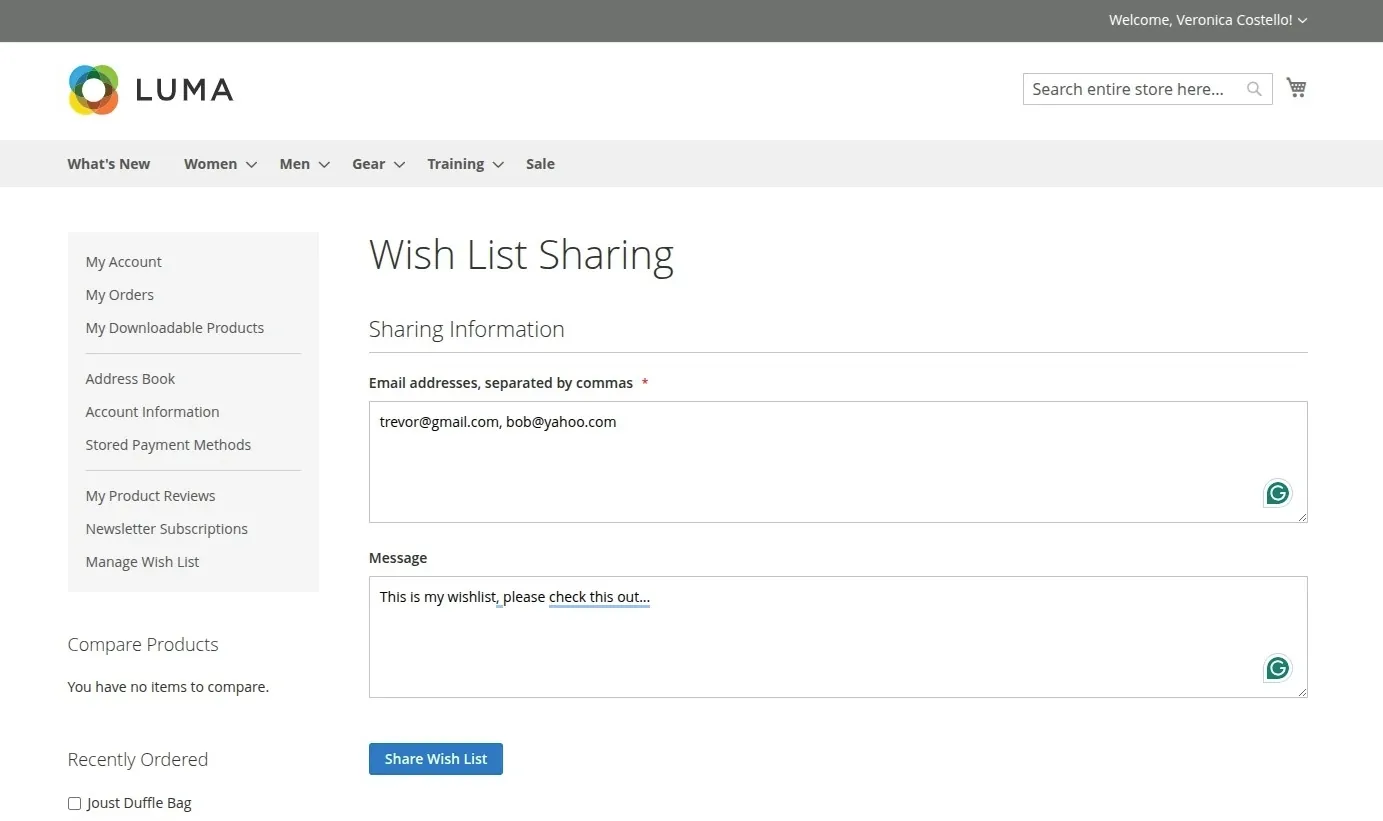
Customers can share any of their custom wishlists via email from their customer account dashboard:
- Navigate to My Account > Manage Wish List.
- Select the wishlist section you want to share and click Share Wish List.
- Enter one or more recipient email addresses (separated by commas or new lines).
- Add an optional personalized message.
- Click Share Wish List.
Unique Sharing Links & Public View
- Unique Sharing Code: Each wishlist automatically generates a unique
sharing_codestring upon creation. - Public Access URL: Shared wishlists are accessible publicly via
/multiwishlist/shared/index/code/<sharing_code>. - Recipient Experience: Recipients receive an email containing a link to view the shared wishlist on the storefront.
- Shared Add to Cart: Visitors viewing a shared wishlist can inspect saved products and use Add to Cart or Add All to Cart directly from the shared page.
Admin Configuration
Wishlist sharing functionality can be enabled or disabled globally by store administrators:
- Location: Stores > Configuration > Webkul > Multi Wish List
- Field: Enable Wish List Sharing (
share_status) - Options:
Yes/No(Default:Yes)