
Module Configuration
Store administrators can manage global settings, guest wishlist availability, wishlist sharing features, and UI displays from the Magento Admin Panel.
Accessing Configuration Settings
- Log in to your Magento Admin Panel.
- Navigate to Stores > Configuration.
- Under the Webkul tab on the left sidebar, select Multi Wish List.
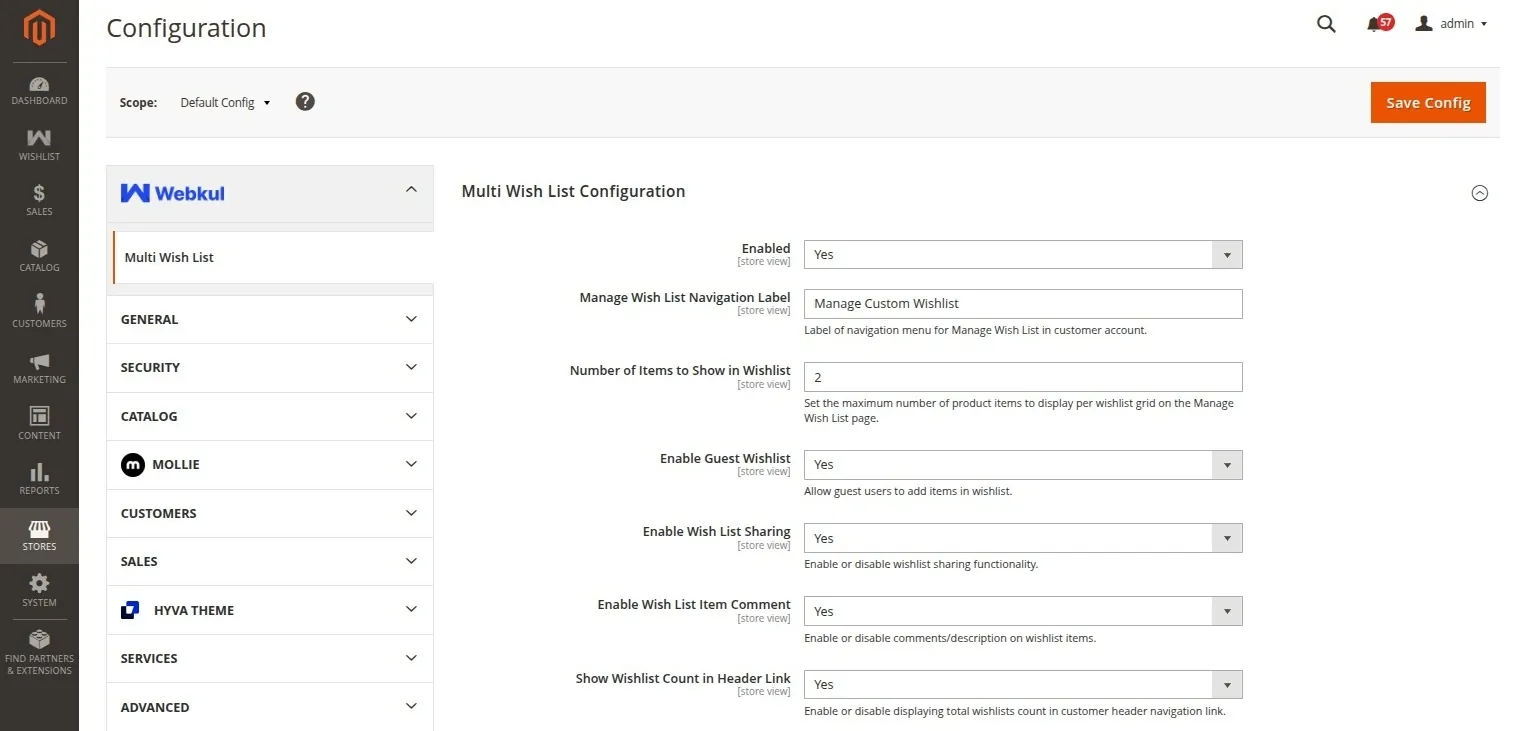
General Settings Reference
Below is the complete reference for all module configuration fields:
1. Enabled
- Options:
Yes/No - Default:
No - Description: Controls global extension functionality across the storefront. Set to
Yesto enable multiple wishlists features.
2. Manage Wish List Navigation Label
- Type: Text Field
- Default:
Manage Wish List - Description: Customizes the label of the navigation menu link displayed in the customer account sidebar.
3. Number of Items to Show in Wishlist
- Type: Numeric Digits
- Default:
3 - Description: Sets the maximum number of product items displayed per wishlist grid block on the customer's Manage Wish List dashboard page.
4. Enable Guest Wishlist
- Options:
Yes/No - Default:
Yes - Description: Allows guest/unregistered visitors to add items to a temporary wishlist preserved via browser cookies. Upon login or registration, guest items automatically sync to the customer account.
5. Enable Wish List Sharing
- Options:
Yes/No - Default:
Yes - Description: Enables or disables wishlist sharing via email and unique URL link. When disabled, the Share Wish List button is hidden on the storefront.
6. Enable Wish List Item Comment
- Options:
Yes/No - Default:
Yes - Description: Enables or disables the comment/notes text box on individual wishlist items, allowing customers to save custom item descriptions.
7. Show Wishlist Count in Header Link
- Options:
Yes/No - Default:
Yes - Description: Controls whether total wishlist count badge (e.g.,
"2 items") is displayed in the customer header navigation link.