
Firebase Project Credentials Setup
The extension uses Firebase Cloud Messaging (FCM) to send web push notifications to customer browsers. Follow this guide to generate your Firebase credentials.
1. Create a Firebase Project
- Go to the Firebase Console and sign in with your Google account.
- Click Add project or Create a project.
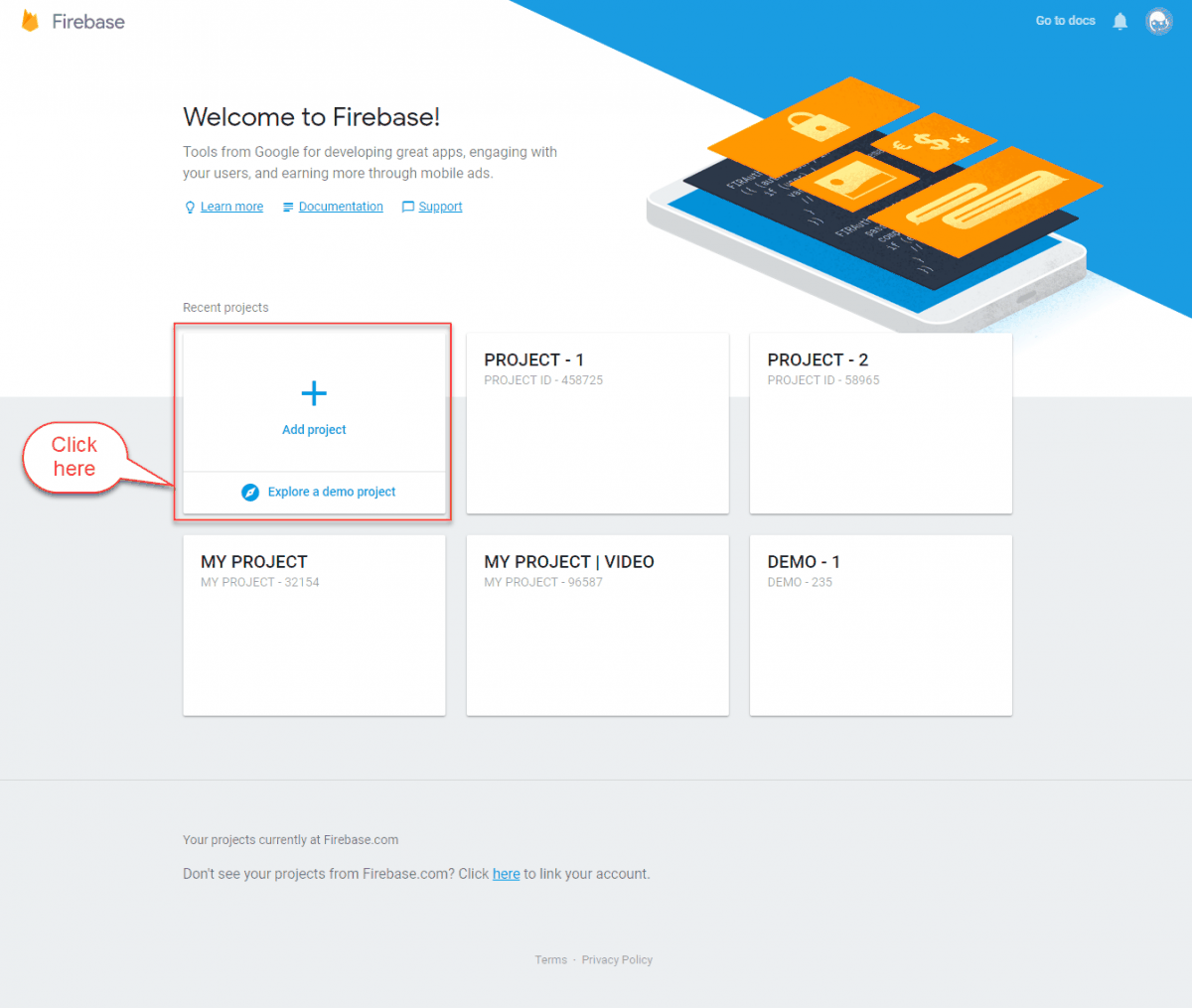
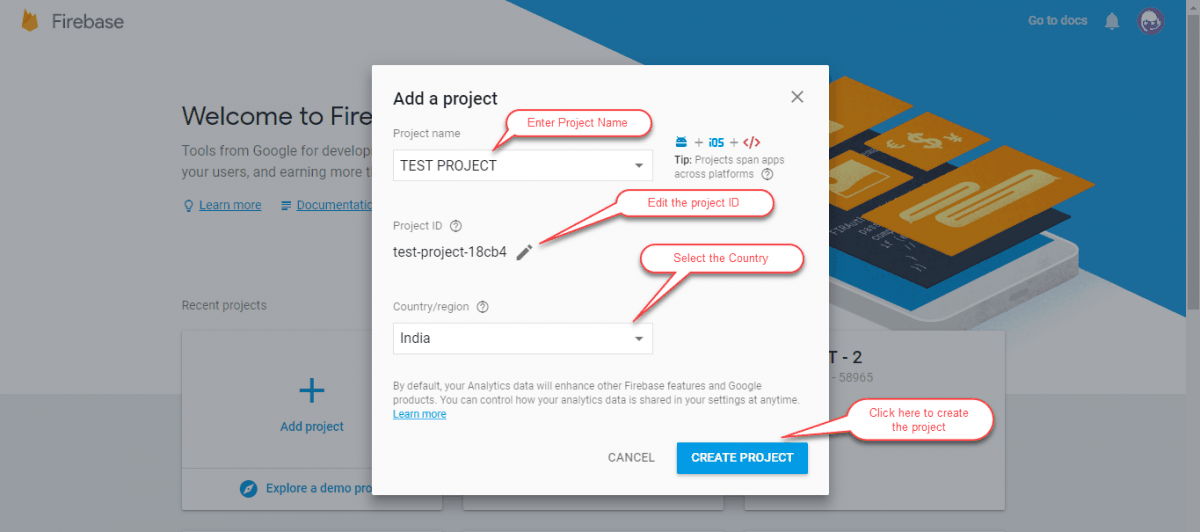
- Enter your Project Name (e.g.,
My Magento Store Push), accept terms, and click Create Project.
2. Access Project Settings
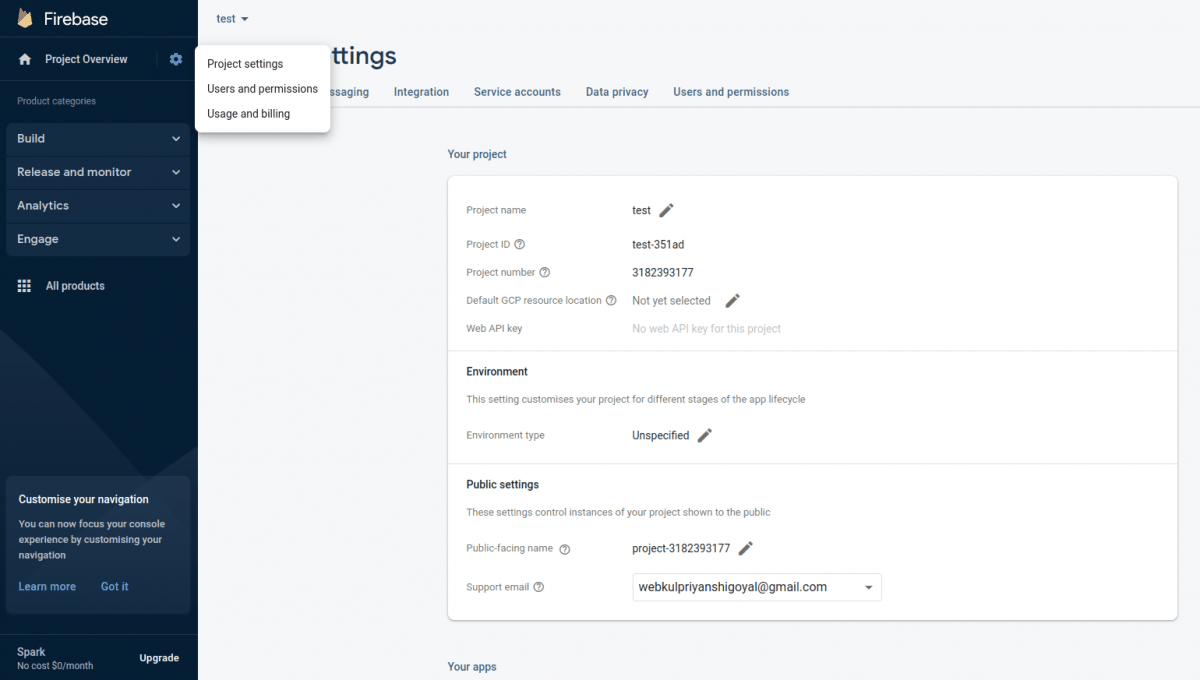
- Click the Settings (Gear Icon) next to Project Overview in the left navigation panel.
- Select Project settings.
3. Retrieve Cloud Messaging Credentials
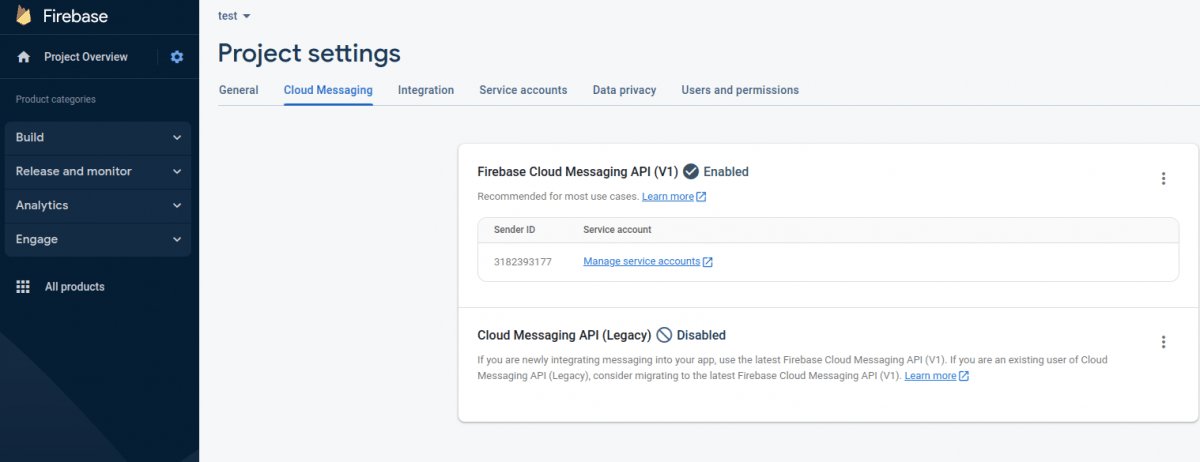
- Go to the Cloud Messaging tab.
- Note down the Sender ID and Server Key.
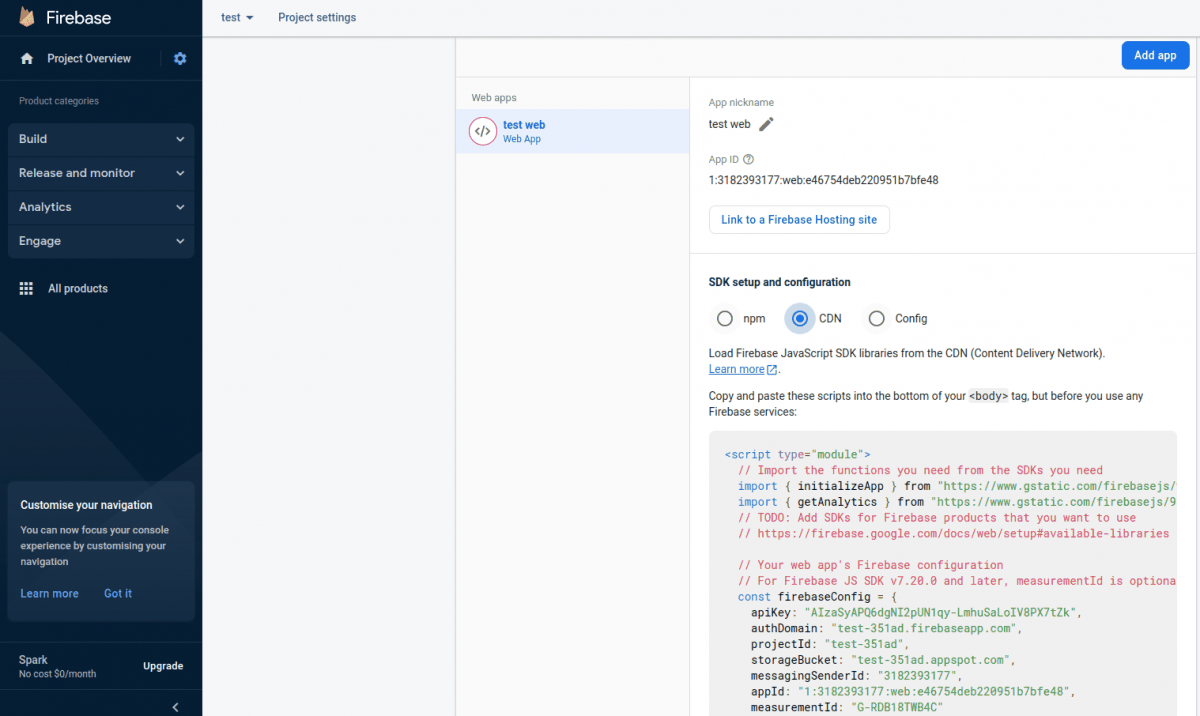
4. Retrieve Web App Credentials
- In Project settings > General tab, scroll to Your apps section.
- Click the Web icon
</>to register a Web App. - Copy the configuration parameters:
- Web API Key (
apiKey) - Auth Domain (
authDomain) - Database URL (
databaseURL) - Project ID (
projectId) - Storage Bucket (
storageBucket) - Messaging Sender ID (
messagingSenderId) - App ID (
appId)
- Web API Key (
5. Download Service Account Private Key JSON
- In Firebase Console, open Project settings > Service accounts tab.
- Click Generate new private key.
- Save the downloaded
.jsonfile. You will upload this JSON file in Magento Admin configuration under FCM Auth Domain Auth JSON File.
Next Steps
Proceed to the Admin Configuration page to enter these Firebase API credentials into your Magento Admin.