
i18n Language Translation
Translate static user interface labels, button text, and backend menus into your target store view languages using Magento's native i18n CSV translation dictionaries.
Setting Locale in Magento Admin
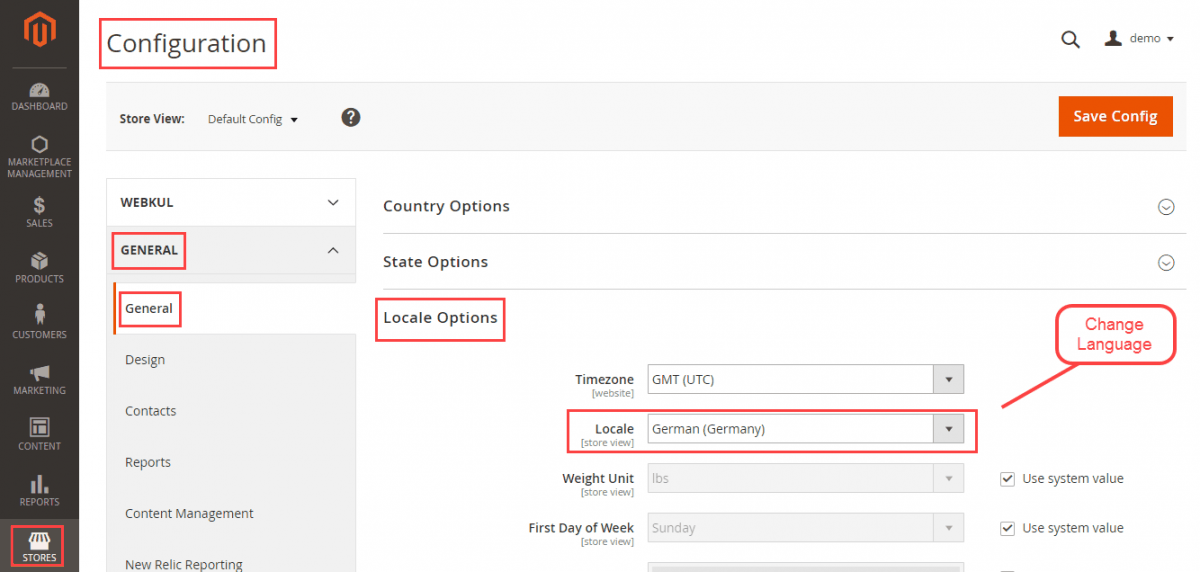
- Navigate to Stores > Settings > Configuration.
- Under the General tab, select General > Locale Options.
- Select your target Locale (e.g., German (Germany), French (France), Spanish (Spain)).
- Save the configuration.
Creating & Uploading CSV Translation Files
- Open your server terminal or FTP client and navigate to:
app/code/Webkul/MpPushNotification/i18n/ - Locate the default translation dictionary file
en_US.csv.
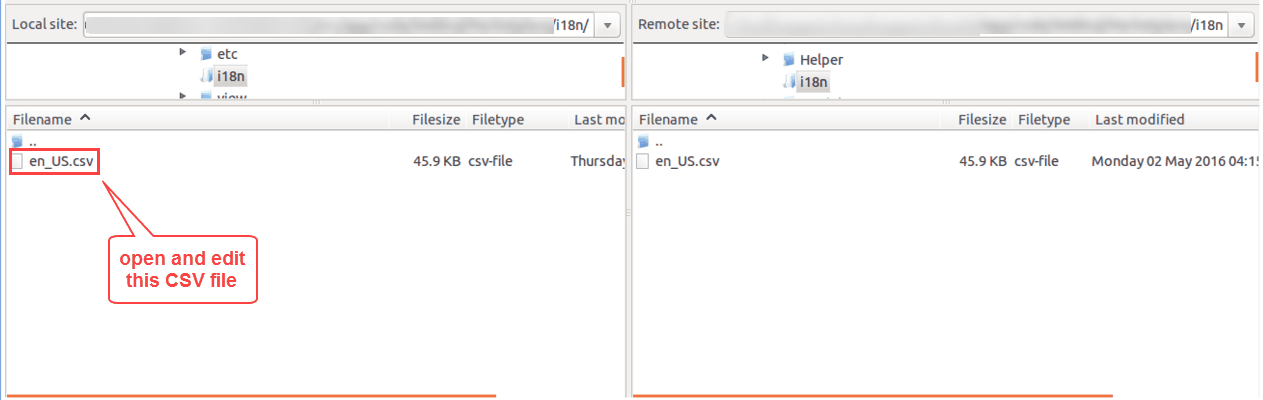
- Duplicate
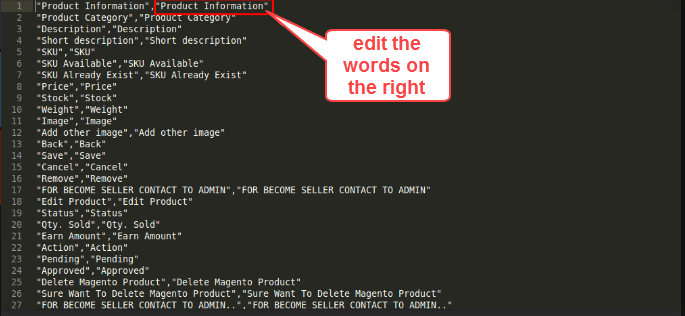
en_US.csvand rename it using your target locale and country code (e.g.,de_DE.csvfor German,fr_FR.csvfor French). - Translate terms on the right side of the comma
,while preserving original English terms on the left:
"Notification Templates","Benachrichtigungsvorlagen"
"Send Notification","Benachrichtigung senden"
"Subscriber List","Abonnentenliste"
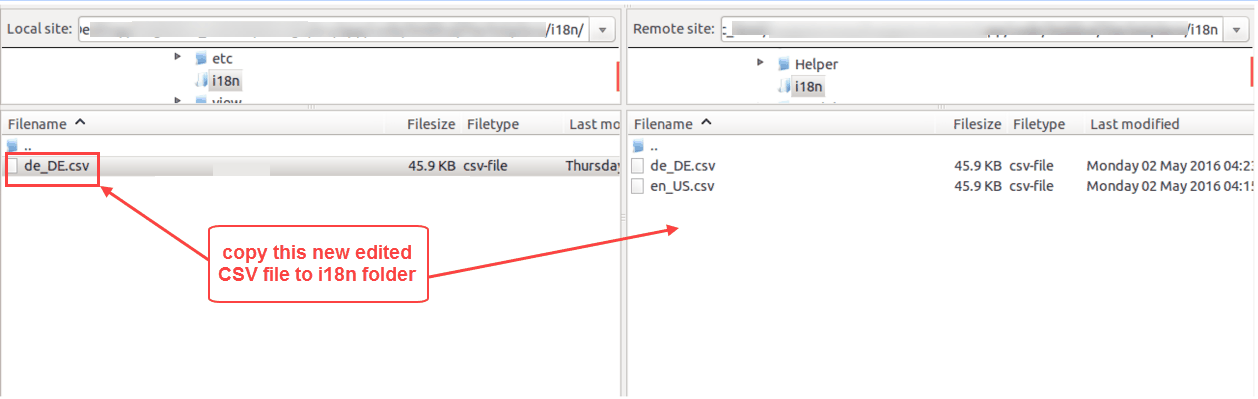
- Upload the newly created CSV file into
app/code/Webkul/MpPushNotification/i18n/.
- Flush the Magento cache (
php bin/magento cache:flush) to apply the new translations.