Admin Notification Templates
Store administrators can create, edit, filter, and delete rich push notification templates in the admin backend.
Accessing Notification Templates
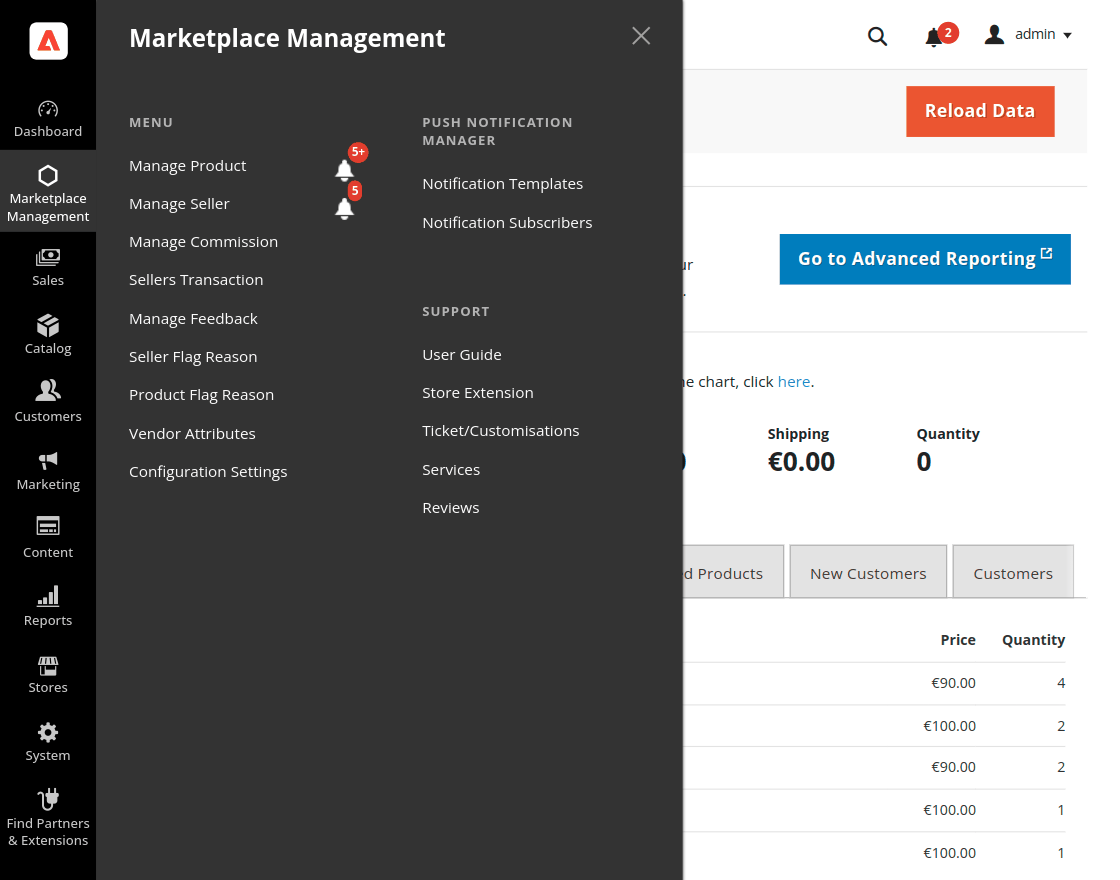
- Navigate to Marketplace Management > Push Notification Manager.
- Click Notification Templates.
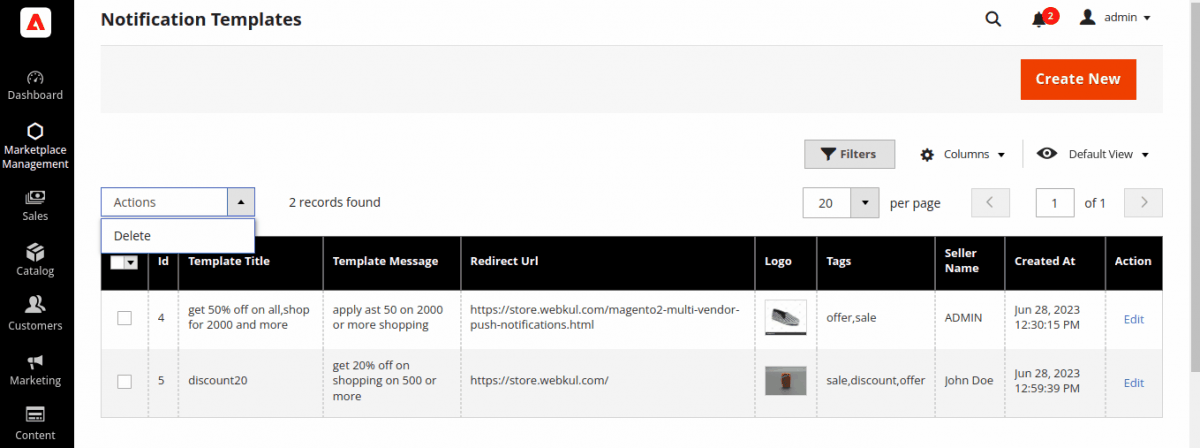
The templates grid displays all saved push notification templates.
Creating a New Template
- On the Notification Templates grid page, click Create New at the top right.
- Complete the template fields:
| Field | Description |
|---|---|
| Template Title | Headline text displayed in the push notification alert. |
| Template Message | Main body message text of the notification. |
| Redirect URL | Destination web page URL opened when the user clicks the push alert. |
| Template Tags | Categorization tags or internal labels for organizing templates. |
| Template Logo | Image/logo icon displayed alongside the notification message. |
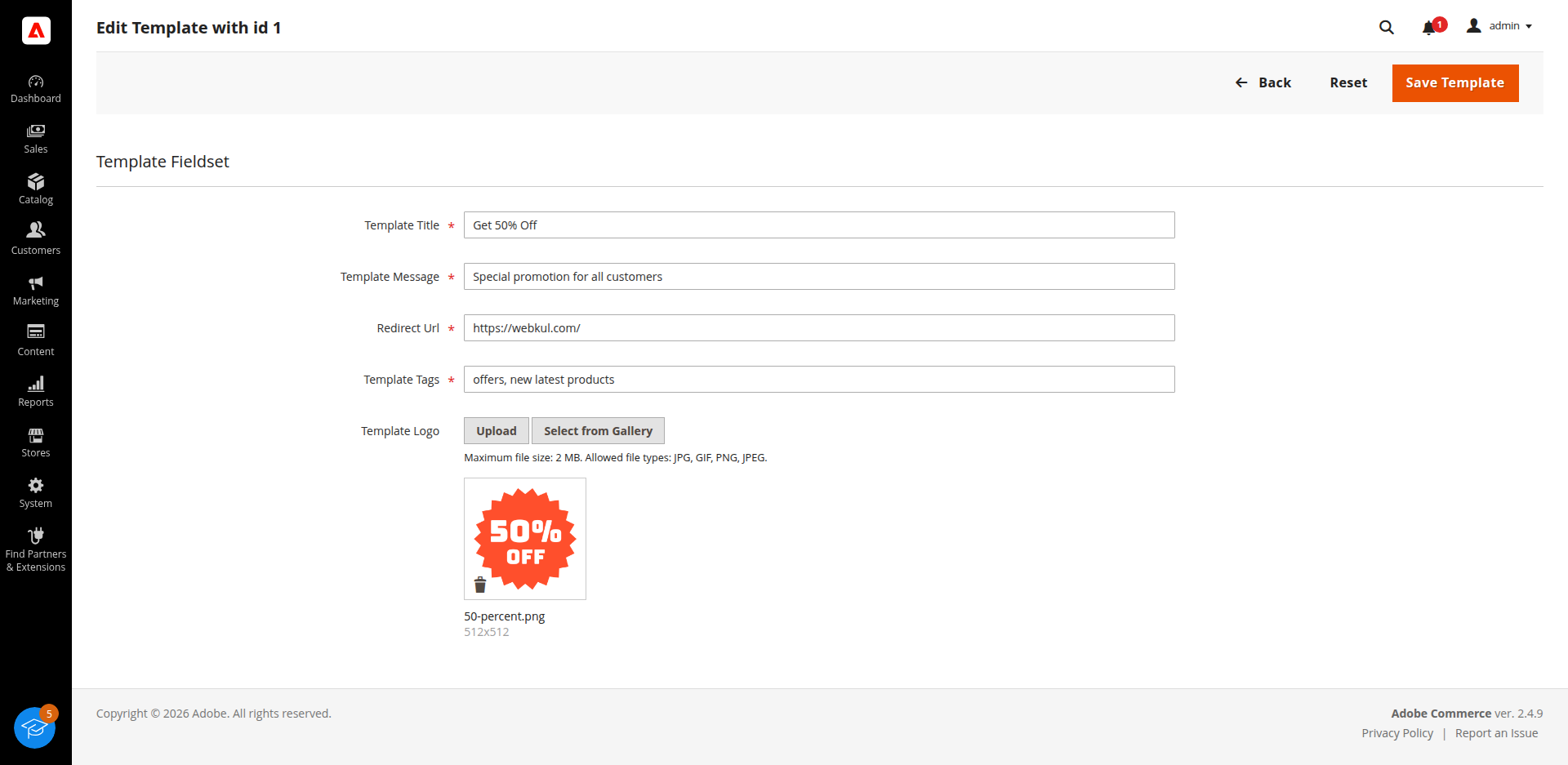
- Click Save Template.
Deleting Notification Templates
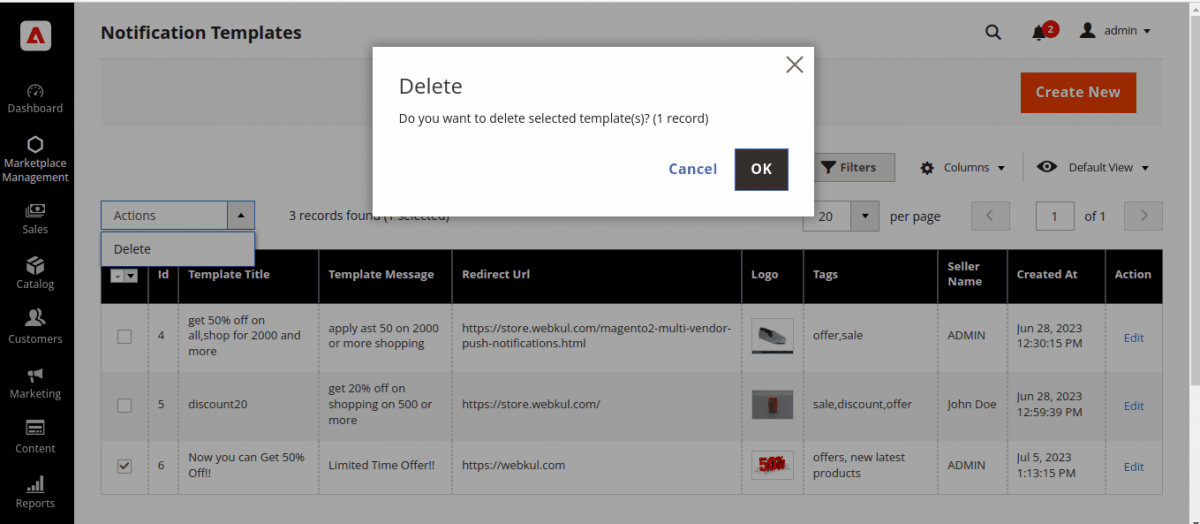
- Go to Marketplace Management > Push Notification Manager > Notification Templates.
- Select the templates to remove using individual checkboxes.
- From the Actions dropdown menu, select Delete.
- Confirm the prompt by clicking OK.