Notification Subscribers & Sending Alerts
Manage registered web push notification subscribers and dispatch instant push notifications to customers.
Viewing Registered Subscribers
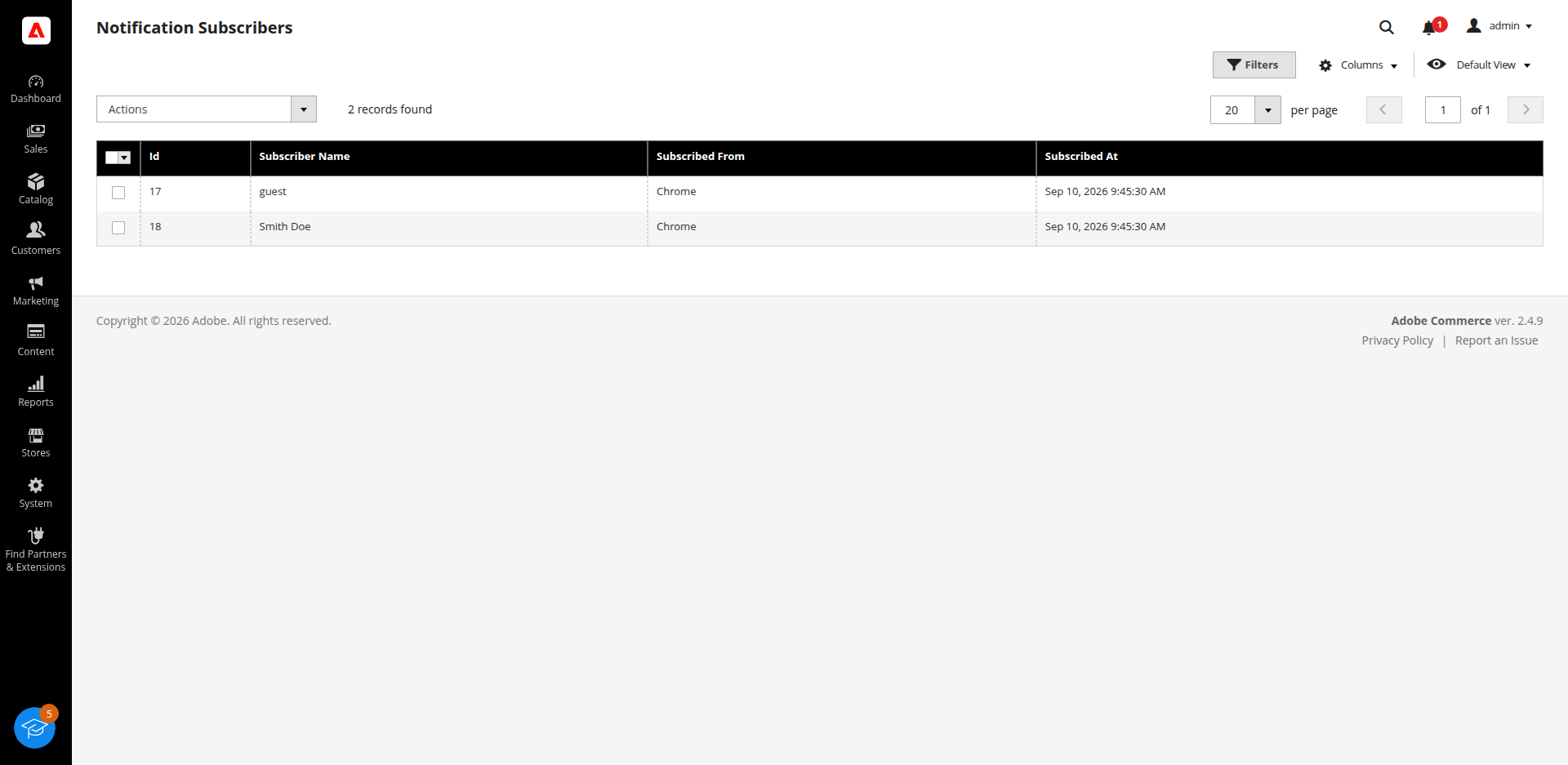
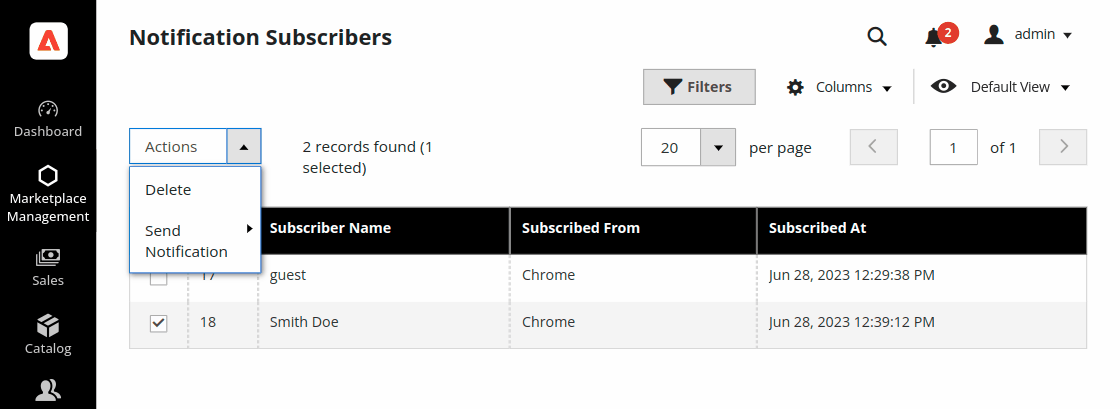
Navigate to Marketplace Management > Push Notification Manager > Notification Subscribers.
The subscribers grid lists all registered browser tokens:
- ID: Unique subscriber record ID.
- User Token: Firebase browser registration token string.
- Browser: Browser type (Chrome, Firefox, etc.).
- Created At: Date and timestamp when the customer opted in.
Use the Filters menu to search for subscribers by Token, Browser type, or Date range.
Dispatching Web Push Notifications
- Go to Marketplace Management > Push Notification Manager > Notification Subscribers.
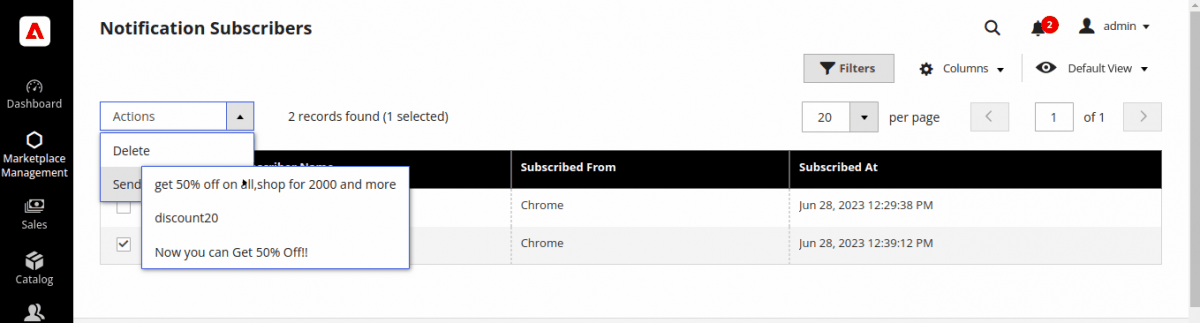
- Select target subscribers using individual checkboxes, or select all subscribers using the header checkbox.
- From the Actions dropdown menu, select the desired Notification Template to send.
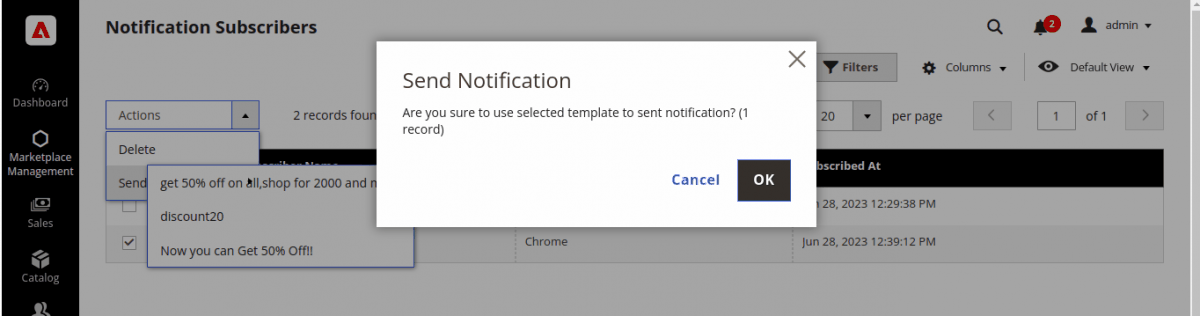
- A confirmation dialog will appear. Click OK to dispatch the real-time push notification via Firebase FCM.
Removing Registered Subscribers
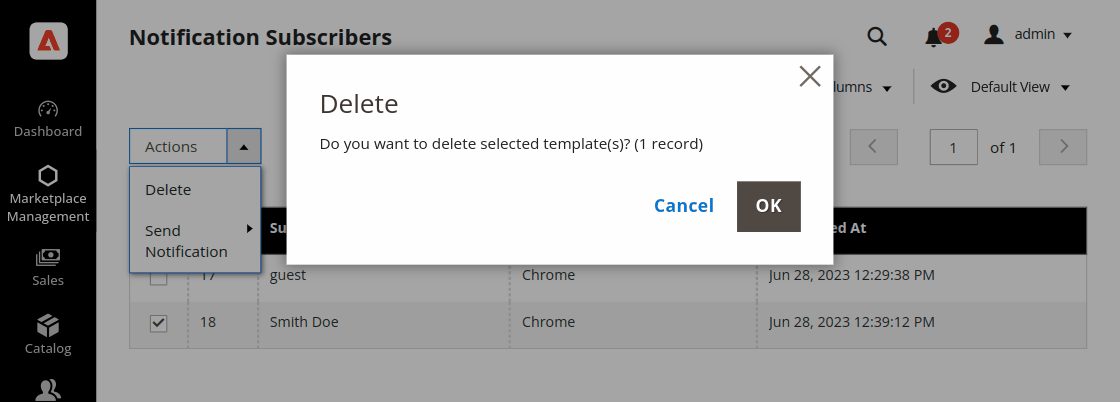
- Select subscriber records using the checkboxes.
- Select Delete from the Actions dropdown menu.
- Confirm the removal prompt by clicking OK.