
Vendor Subdomain & Theme Personalization
Subscribed tenants obtain full branding independence on the marketplace platform through dedicated subdomain URLs and customizable storefront themes.
Subdomain Configuration
With the Vendor Subdomain module active, subscribed sellers can define their tenant web address:
- In the seller customer account, go to Seller Profile.
- Locate the Subdomain URL configuration field.
- Enter the desired subdomain slug (e.g.,
mystoreformystore.yourmarketplace.com).
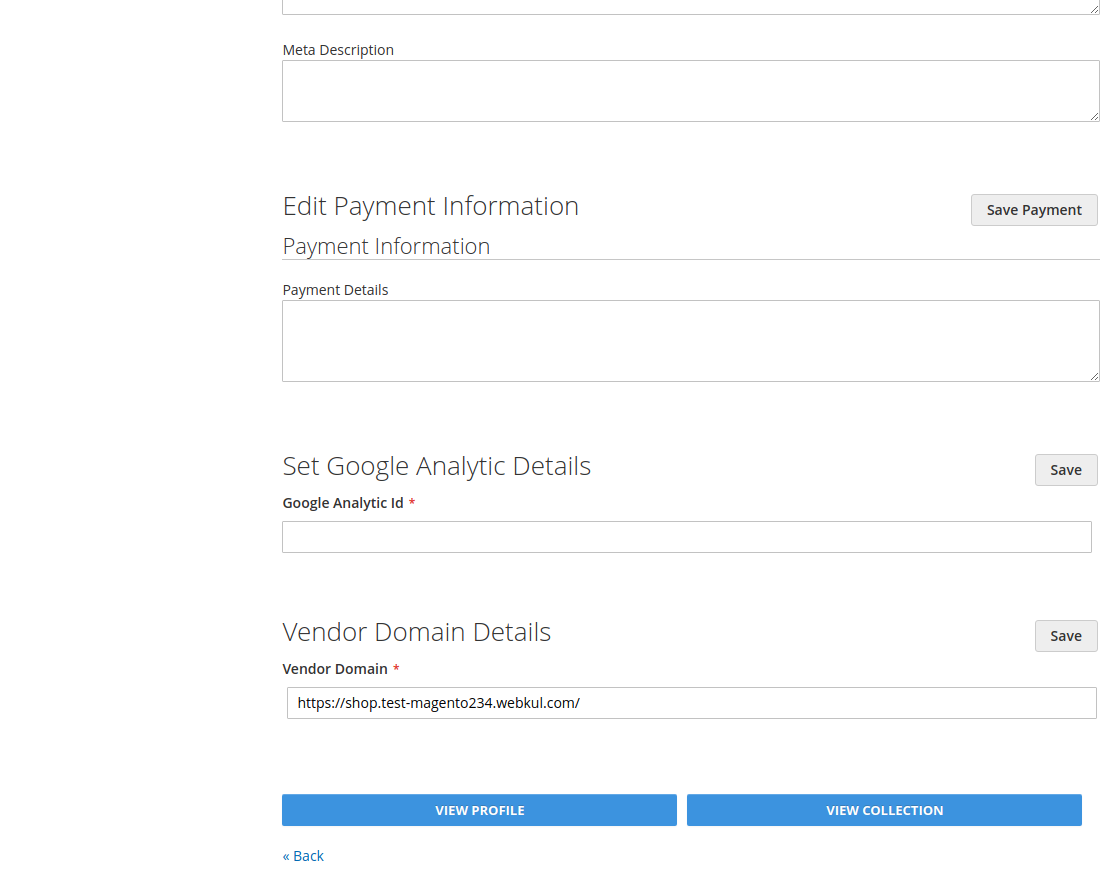 Figure 10.1: Configuring the seller subdomain slug.
- Click Save Profile.
Subdomain Storefront & Product Collection
Once configured, the seller's profile and catalog collection are served directly on their unique subdomain:
- View Profile: Directs shoppers to the dedicated subdomain storefront (e.g.,
https://mystore.yourmarketplace.com). - View Collection: Opens the seller's catalog filtered exclusively to their inventory under their tenant address.
| Vendor Subdomain Profile | Vendor Subdomain Collection |
|---|---|
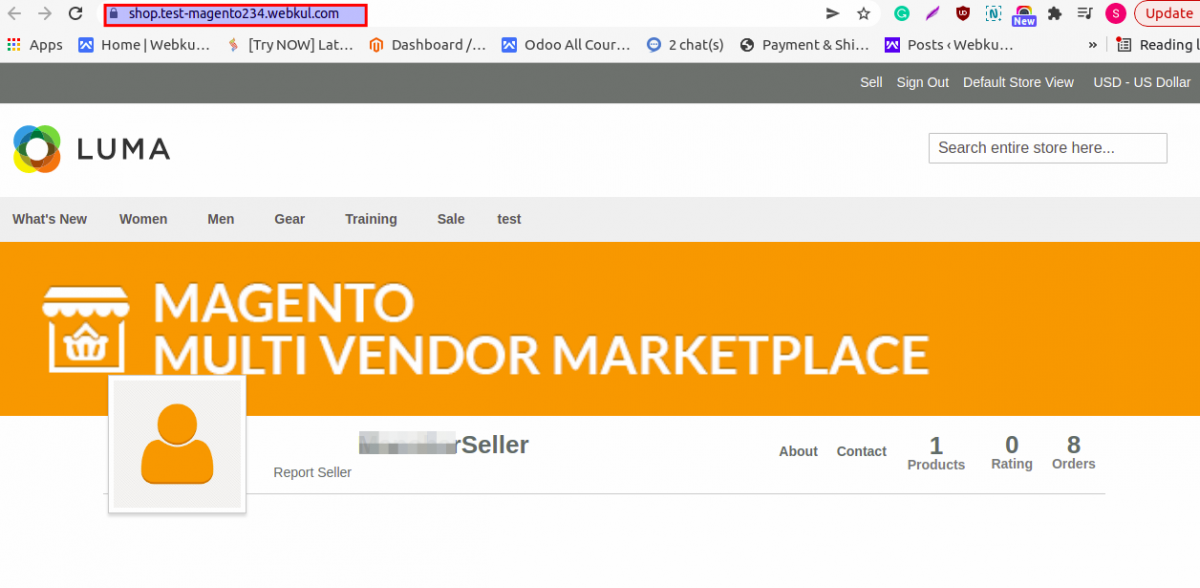 | 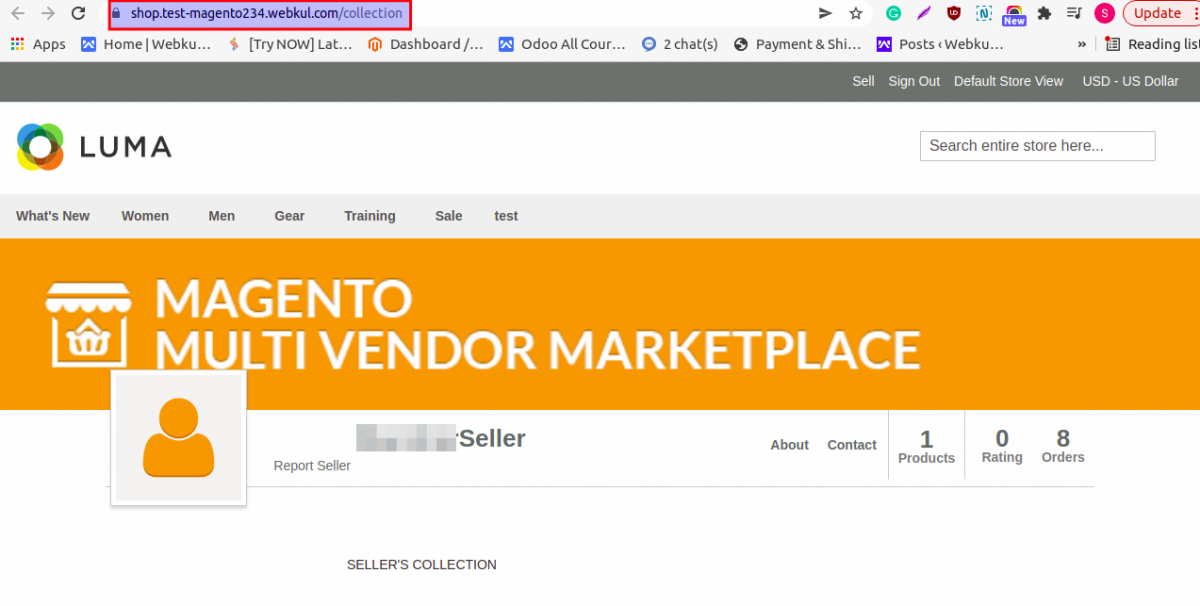 |
| Figure 10.2: Seller profile loaded on custom subdomain. | Figure 10.3: Seller product collection on custom subdomain. |
Seller Subdomain Theme Customization
Vendors can tailor the visual aesthetic of their tenant storefront without developer intervention:
- In the seller account sidebar, navigate to SaaS Configuration / Theme Settings.
- From the Select Theme drop-down menu, choose an available frontend theme provided by the marketplace administrator.
- Click Save.
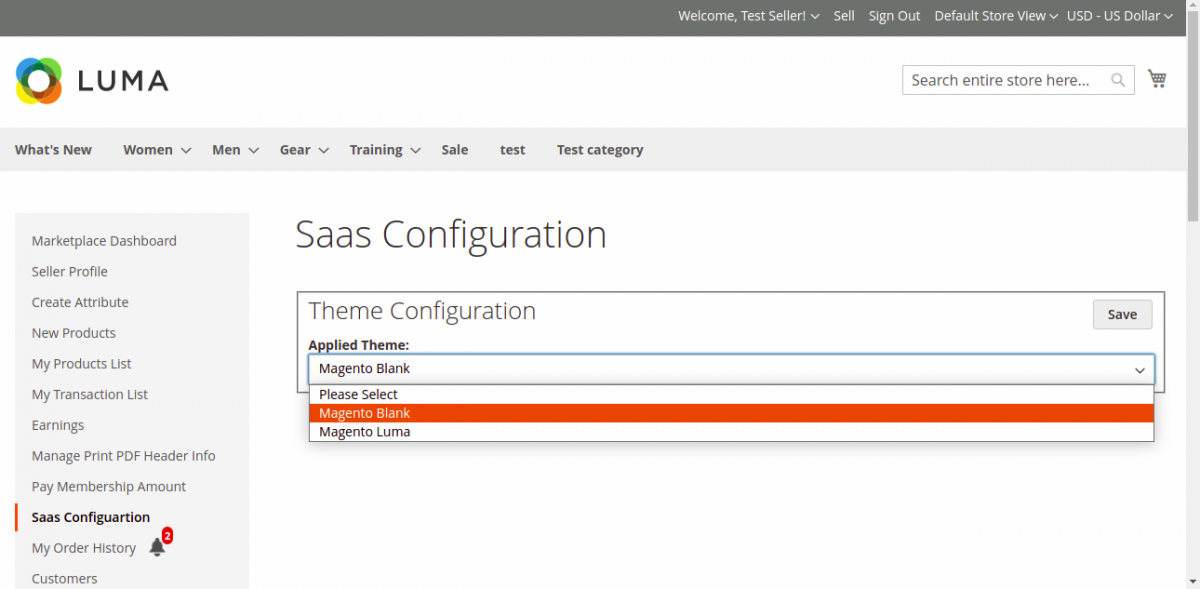 Figure 10.4: Selecting a theme for the vendor subdomain.
The selected theme is instantly applied to the vendor's subdomain storefront:
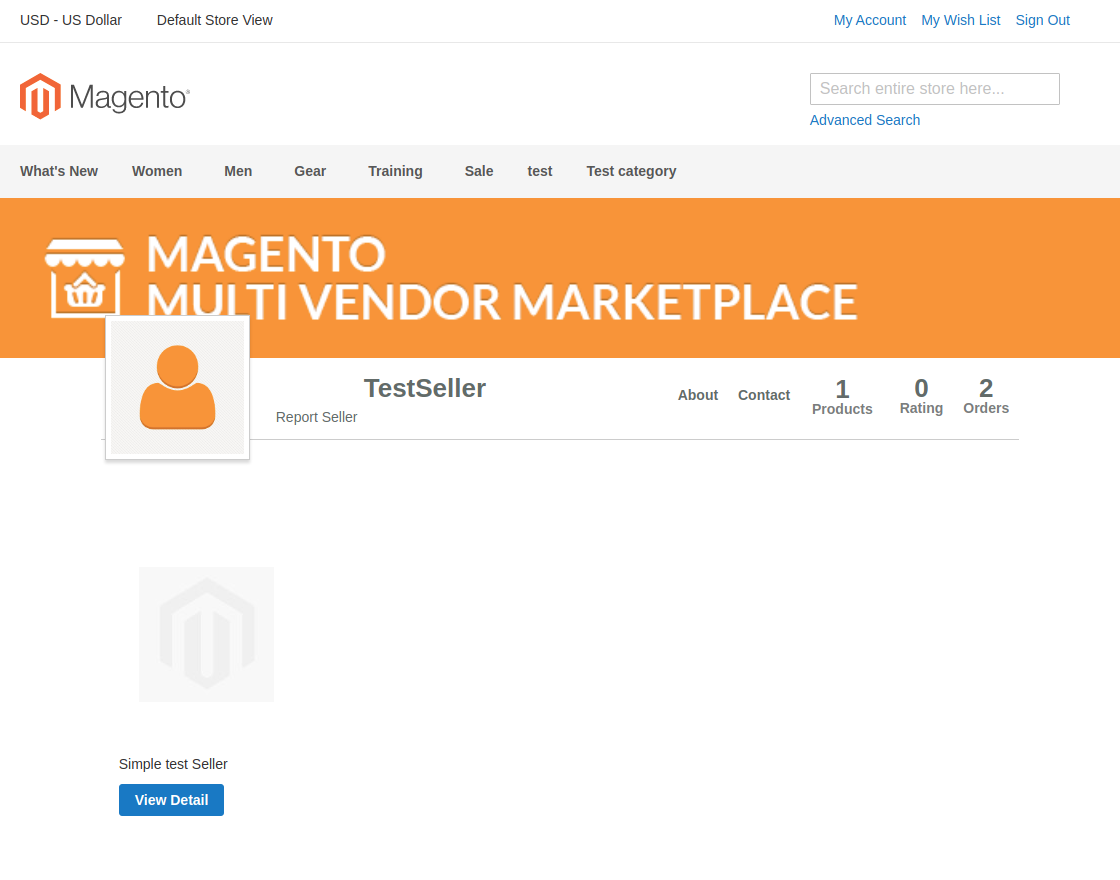 Figure 10.5: Vendor subdomain displaying the custom applied theme.