
Multilingual & Language Translation
The Webkul Multi Company SaaS Extension for Magento 2 provides comprehensive multilingual localization. It natively supports both Left-to-Right (LTR) and Right-to-Left (RTL) reading directions, including Arabic, Hebrew, and Persian.
Language Translation (CSV Dictionary)
Module strings are localized using Magento standard CSV dictionary translation files.
Step 1: Locate Translation Files
Navigate to the module's translation directory:
app/code/Webkul/MpSaas/i18n/
Inside this directory, the base English dictionary en_US.csv is provided.
Step 2: Create a New Locale File
Duplicate en_US.csv and rename it to match your target store locale code (e.g., ar_SA.csv for Arabic — Saudi Arabia, fr_FR.csv for French, es_ES.csv for Spanish).
cp app/code/Webkul/MpSaas/i18n/en_US.csv app/code/Webkul/MpSaas/i18n/ar_SA.csv
Step 3: Edit Translated Strings
Open the newly created CSV file in any text editor. Translate the terms in the second column (enclosed in double quotes after the comma):
"Pay Membership amount","دفع مبلغ العضوية"
"Duration","المدة"
"Subscription Charge","رسوم الاشتراك"
"Remaining Days","الأيام المتبقية"
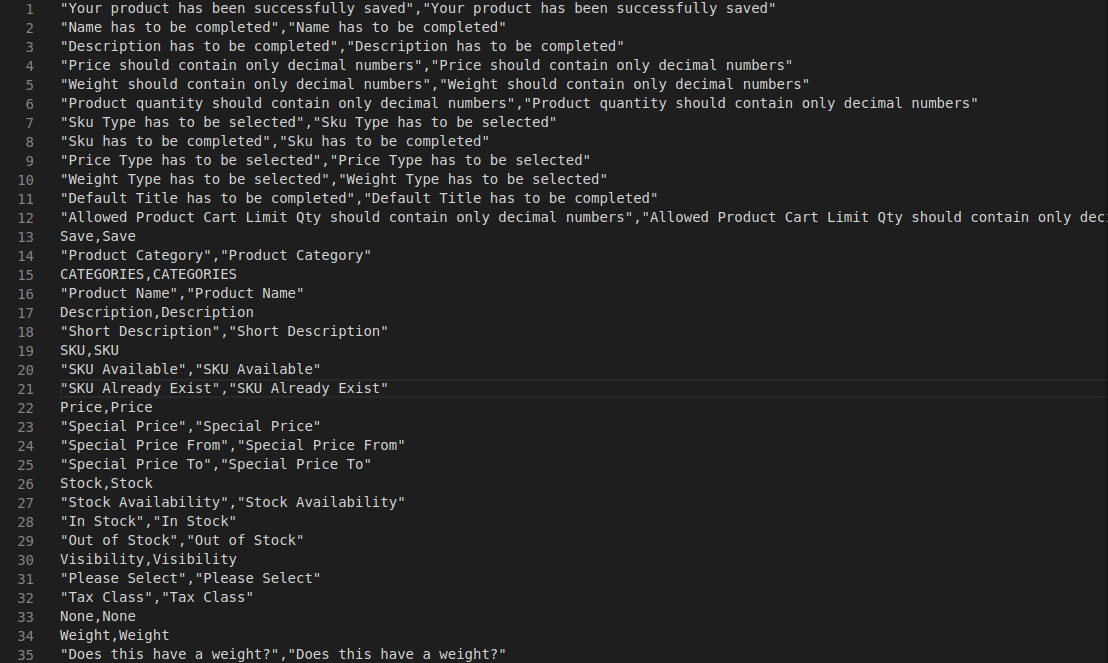 Figure 5.1: Editing the localization CSV dictionary file.
RTL Layout Preview
When an RTL locale such as Arabic is configured, the storefront and seller portal automatically flip layout alignment:
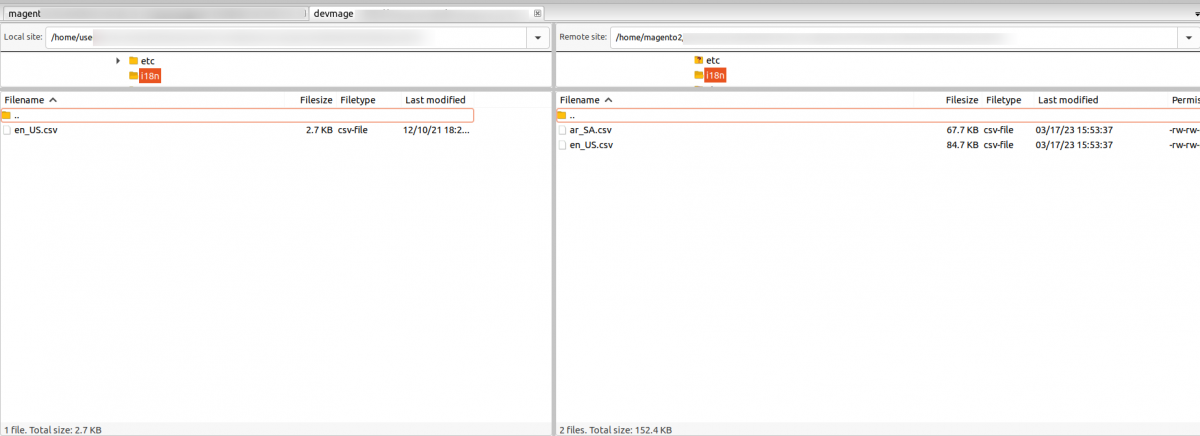 Figure 5.2: Seller SaaS interface localized into Arabic with full RTL support.
Multilingual Storefront Configuration
To switch the storefront language to your desired locale:
- Log in to the Magento Admin Panel.
- Navigate to Stores > Settings > Configuration > General > General > Locale Options.
- Choose the appropriate store view from the top-left Store View scope selector.
- Deselect Use Website and choose your target locale from the Locale drop-down (e.g., Arabic (Saudi Arabia)).
- Click Save Config.
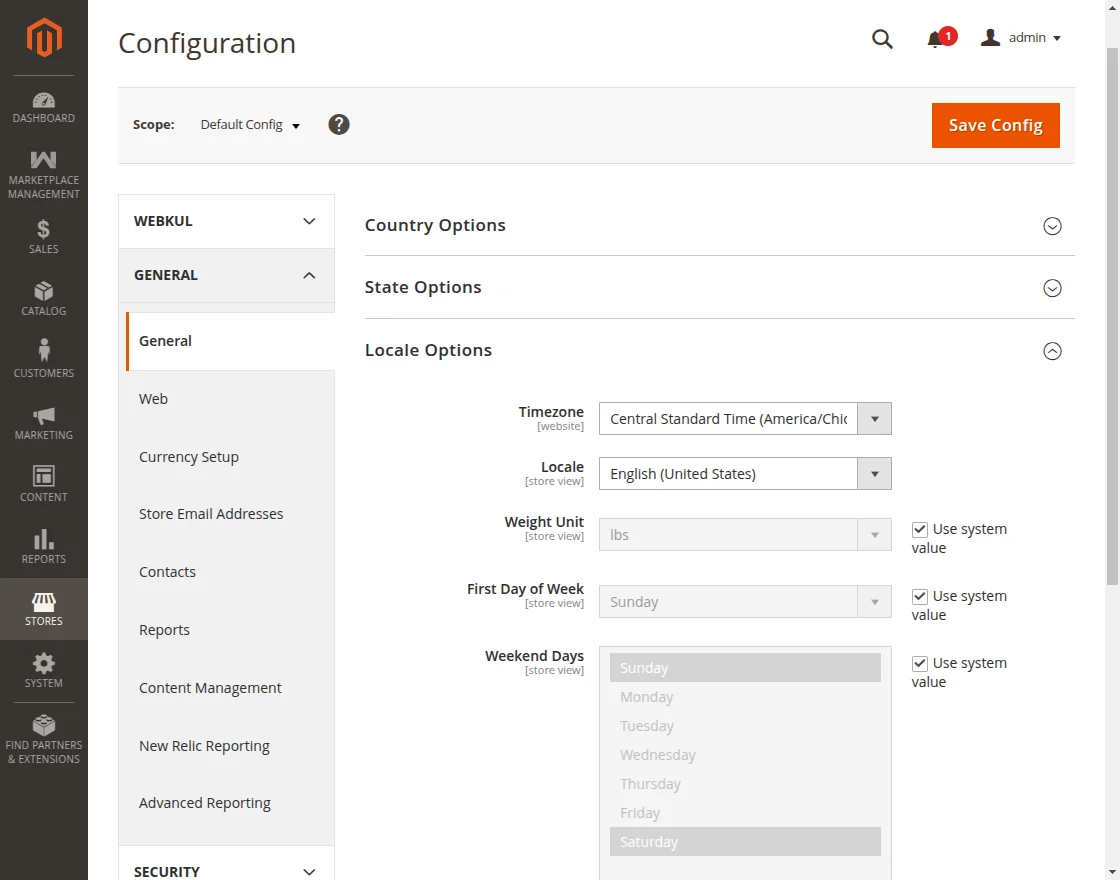 Figure 5.3: Configuring Locale Options in Store Settings.
- Flush Magento cache storage via terminal:
php bin/magento cache:flush