
Recurring Payment Gateways Setup
The Multi Company SaaS Module relies on specialized recurring payment methods to handle automated billing cycles, subscription lifecycle webhooks, and billing mandates.
PayPal Recurring Express Checkout
Navigate to: Stores > Settings > Configuration > Sales > Payment Methods > PayPal Recurring Express Checkout Payment Method.
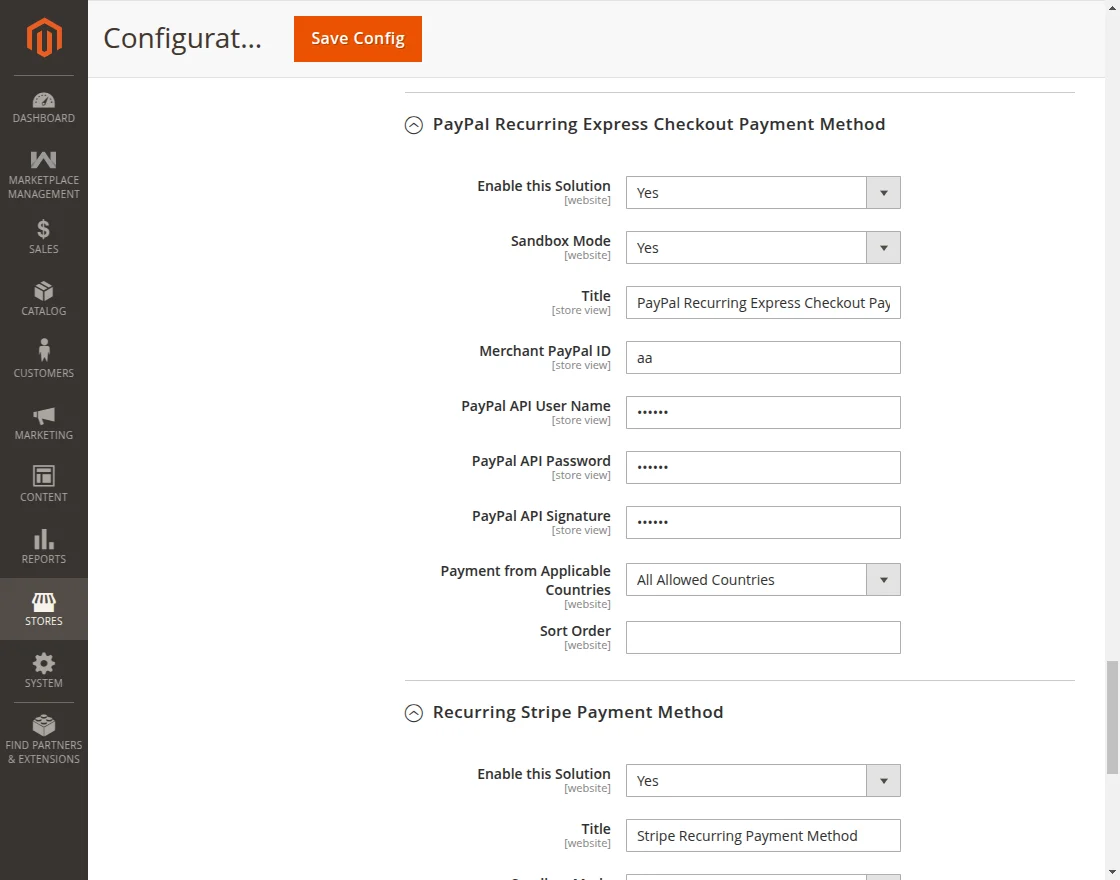 Figure 7.1: PayPal Recurring Express Checkout configuration panel.
Configuration Settings
| Field | Description |
|---|---|
| Enable this Solution | Select Yes to make PayPal Recurring available at checkout. |
| Sandbox Mode | Choose Yes for sandbox testing using PayPal Developer accounts, or No for live production processing. |
| Title | The checkout title presented to sellers (e.g., PayPal Recurring Express Checkout). |
| Merchant PayPal ID | Enter your PayPal merchant account ID. |
| PayPal API User Name | API username generated from your PayPal Business / Developer account. |
| PayPal API Password | API password corresponding to your PayPal API credentials. |
| PayPal API Signature | API signature string provided by PayPal. |
| Payment from Applicable Countries | Choose All Allowed Countries or specify individual countries permitted to subscribe. |
| Sort Order | Numeric sequence determining display position at checkout. |
PayPal IPN Notification Webhook Setup
To ensure Magento receives subscription events (e.g., recurring billing renewals, cancellations, or failures), configure your PayPal Instant Payment Notification (IPN) listener:
Webhook URL:
https://<your-store-domain>/mpsaas/paypal/webhook
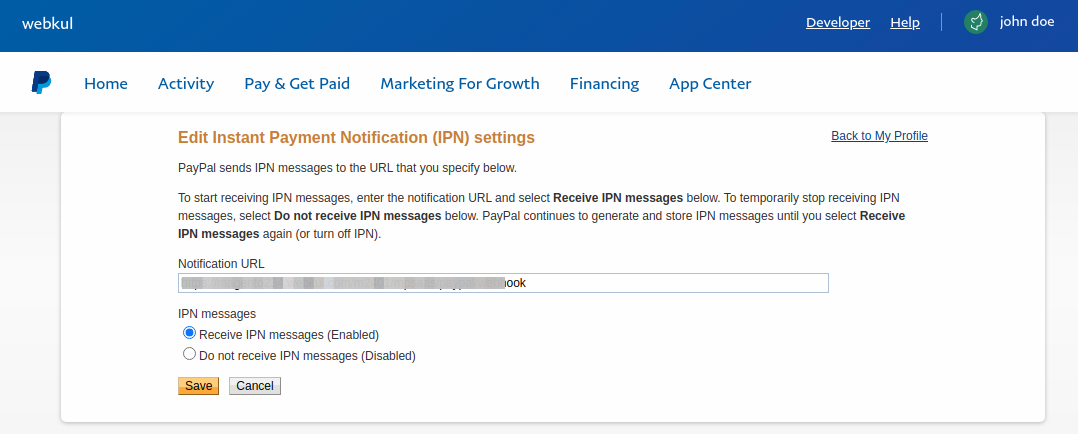 Figure 7.2: Entering the PayPal Webhook / IPN notification URL.
Recurring Stripe Payment Method
Navigate to: Stores > Settings > Configuration > Sales > Payment Methods > Recurring Stripe Payment Method.
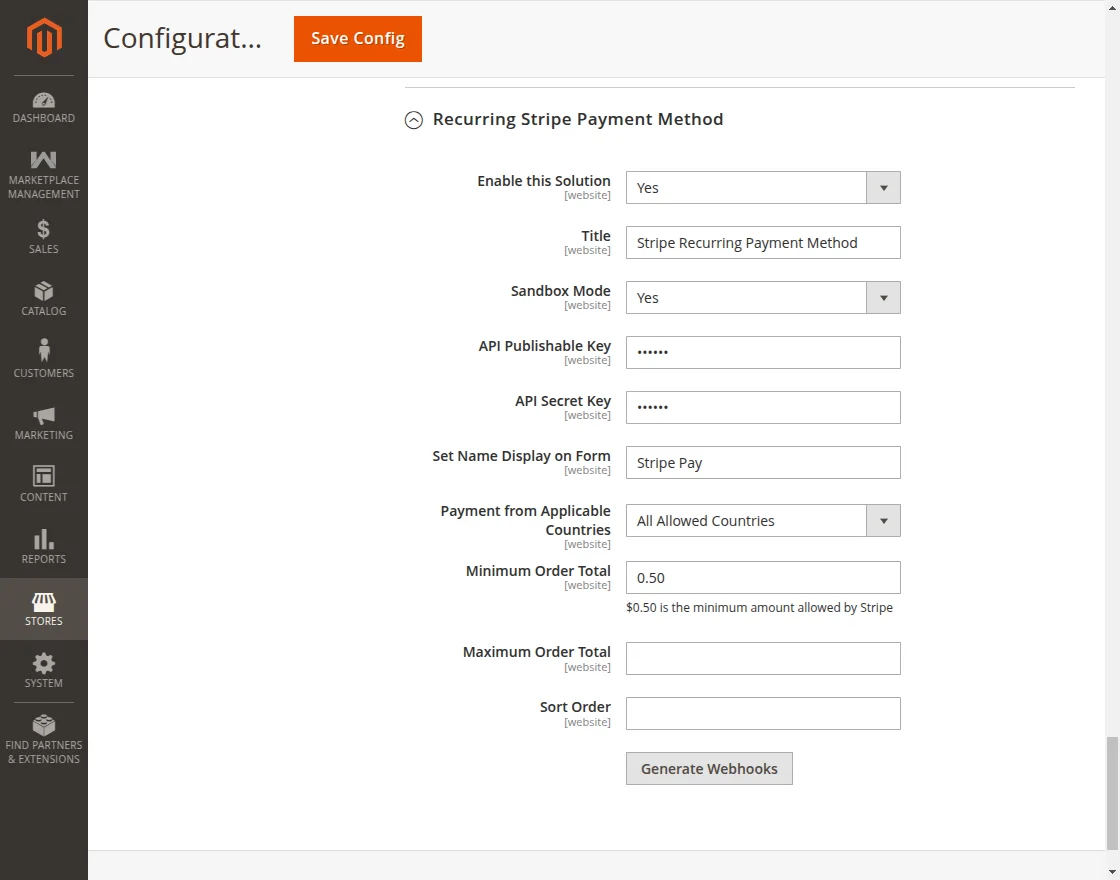 Figure 7.3: Recurring Stripe Payment configuration panel in Magento Admin.
Configuration Settings
| Field | Description |
|---|---|
| Enable this Solution | Set to Yes to enable Stripe recurring subscription payments. |
| Title | Front-end title displayed during checkout (e.g., Credit Card (Stripe Recurring)). |
| Sandbox Mode | Select Yes for Test Mode (pk_test_... / sk_test_...) or No for Live Mode. |
| API Publishable Key | Your Stripe account publishable key. |
| API Secret Key | Your Stripe account secret key. |
| Set Name Display on Form | Cardholder name placeholder displayed on the checkout card form. |
| Payment from Applicable Countries | Select All Allowed Countries or select specific regions. |
| Minimum Order Total | Minimum order amount allowed for Stripe checkout (minimum $0.50). |
| Maximum Order Total | Maximum permissible transaction total. |
| Sort Order | Numeric display order at checkout. |
Automated Stripe Webhook Generation
The module includes a built-in one-click webhook registration mechanism:
- In the Recurring Stripe Payment Method panel, locate the Generate Webhook button.
- Click Generate Webhook.
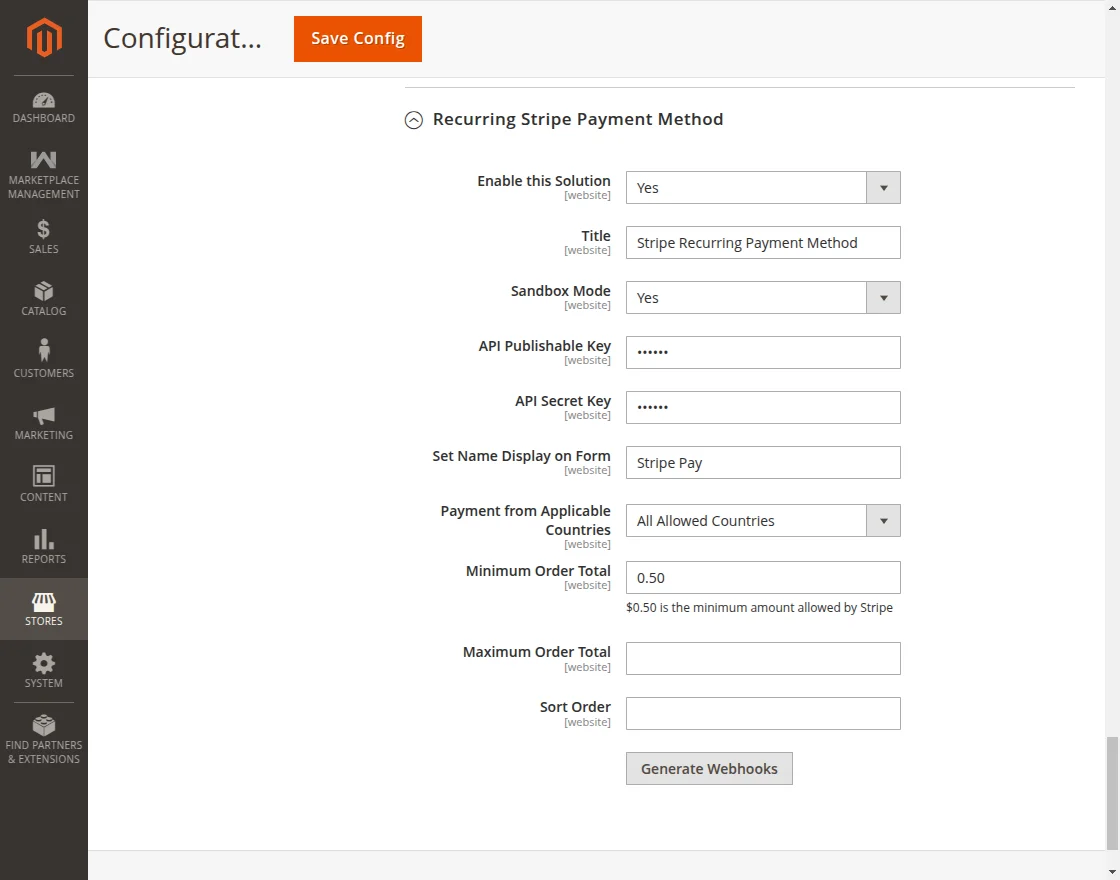 Figure 7.4: One-click Stripe webhook registration button.
- Magento contacts Stripe API via the configured secret key and registers the webhook URL automatically.
- A success notification confirms registration:
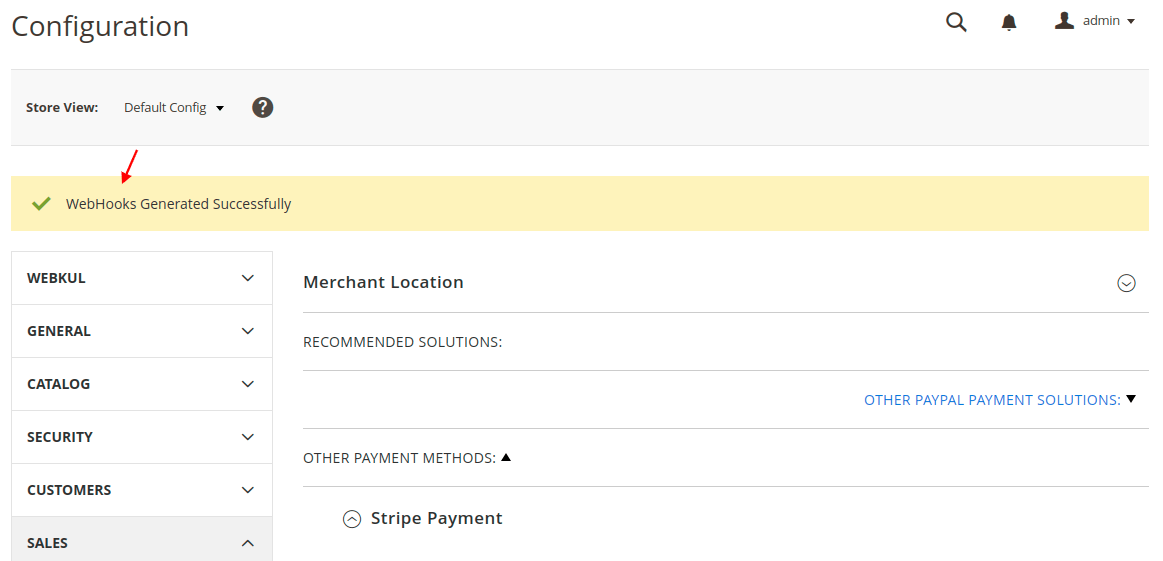 Figure 7.5: Confirmation message of successful Stripe webhook generation.