
Seller Shipping Portal
When the store administrator sets Allow Sellers to Save USPS Details to Yes, marketplace vendors gain access to dedicated shipping settings within their vendor portal.
1. Entering USPS API Credentials
To connect their independent USPS account:
- Log in to the customer storefront with seller credentials.
- In the vendor dashboard left menu, click USPS Configuration (route
/mpusps/shipping/view). - Complete the credential fields:
- USPS User ID: The vendor's USPS Developer Portal Consumer Key (Client ID).
- USPS Password: The vendor's USPS Developer Portal Consumer Secret (Client Secret).
- Account Type: Select EPS, METER, or PERMIT.
- Account Number: The vendor's 10-digit Enterprise Payment System account or meter ID.
- Customer Registration Identifier (CRID): The vendor's business location CRID.
- Mailer Identifier (MID): The vendor's 9-digit or 6-digit Mailer ID.
- Mailer Identification Code: The vendor's designated Manifest MID.
- Click Save.
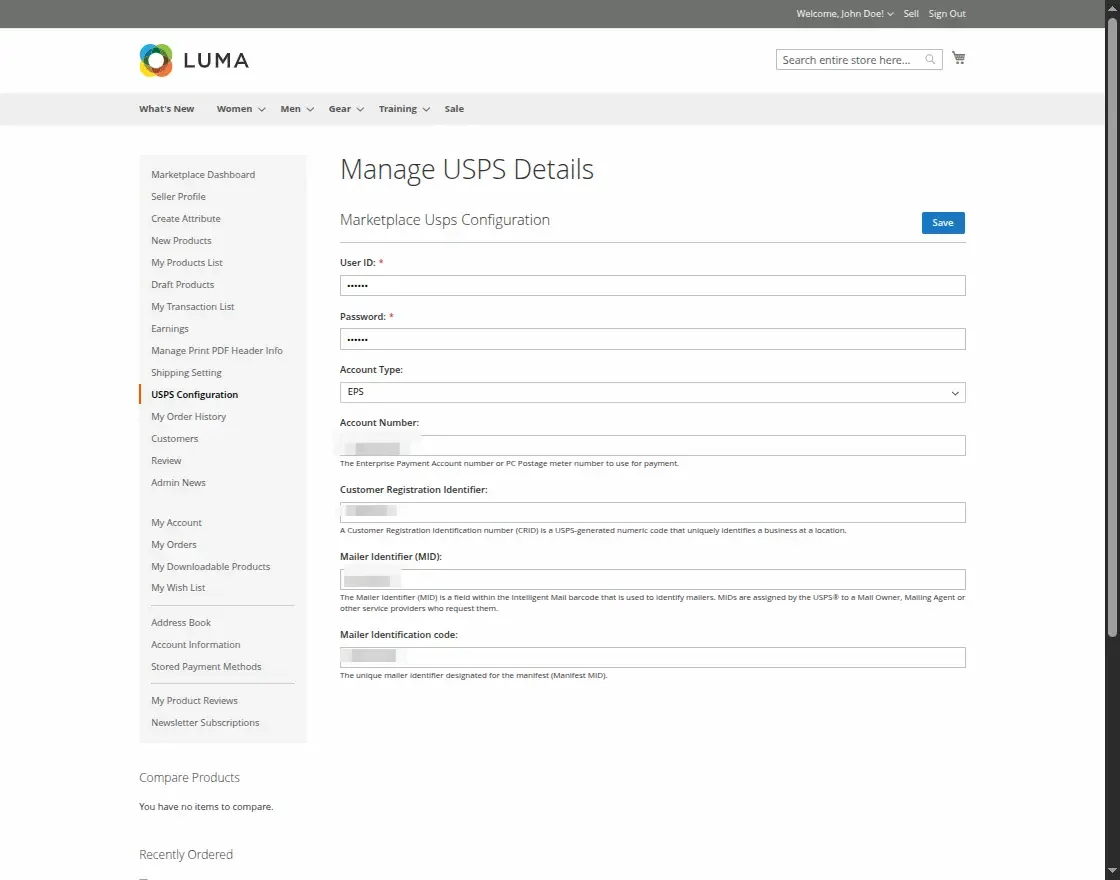
Behind the scenes, these values are stored securely in customer EAV attributes (usps_user_id, usps_password, account_type, account_number, usps_crid, usps_mid, usps_manifestmid).
Fallback Behavior
If a seller leaves these fields blank, the system automatically uses the store administrator's global credentials for rate queries and label creation, ensuring checkout remains uninterrupted.
Hyvä Theme Storefront Support
For storefronts running the Hyvä theme, sellers access a native Tailwind CSS / Alpine.js configuration interface. See Hyvä Theme Compatibility for walkthrough and screenshots.
2. Setting Up Seller Shipping Origin
USPS calculates shipping rates based on postal zones between the origin address and the destination address. Every seller must define their shipping warehouse origin:
- In the seller portal left menu, navigate to Shipping Setting (route
/marketplace/shipping/origin/). - Populate all origin address fields:
- Company / Shop Name
- Phone Number
- Street Address
- City
- State / Province
- Zip / Postal Code (strictly validated by USPS)
- Country (United States for domestic rates)
- Click Save.
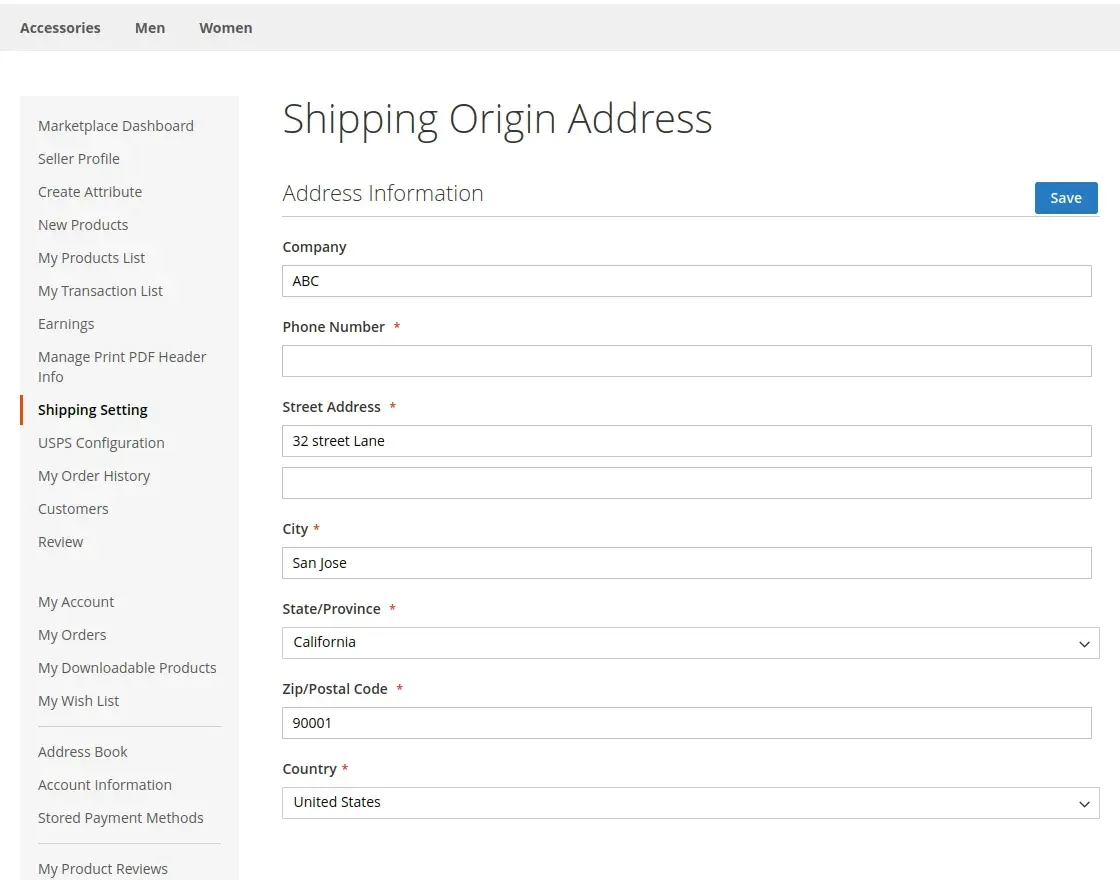
Invalid ZIP Codes Halt Rate Calculation
USPS will reject rate queries if the origin postal code is invalid or missing. Ensure sellers maintain an accurate 5-digit US ZIP Code in their shipping origin settings.
3. Customize Invoice & Packing Slip PDF Headers
Vendors can brand their printable shipping slips, packing slips, and invoices:
- In the seller portal left menu, go to Manage Print PDF Header Info (route
/marketplace/order/printpdfheader/). - Upload the seller's Shop Logo.
- Fill in the Invoice / Packaging Slip Address, VAT number, tax identification, and custom return policy notes.
- Click Save.
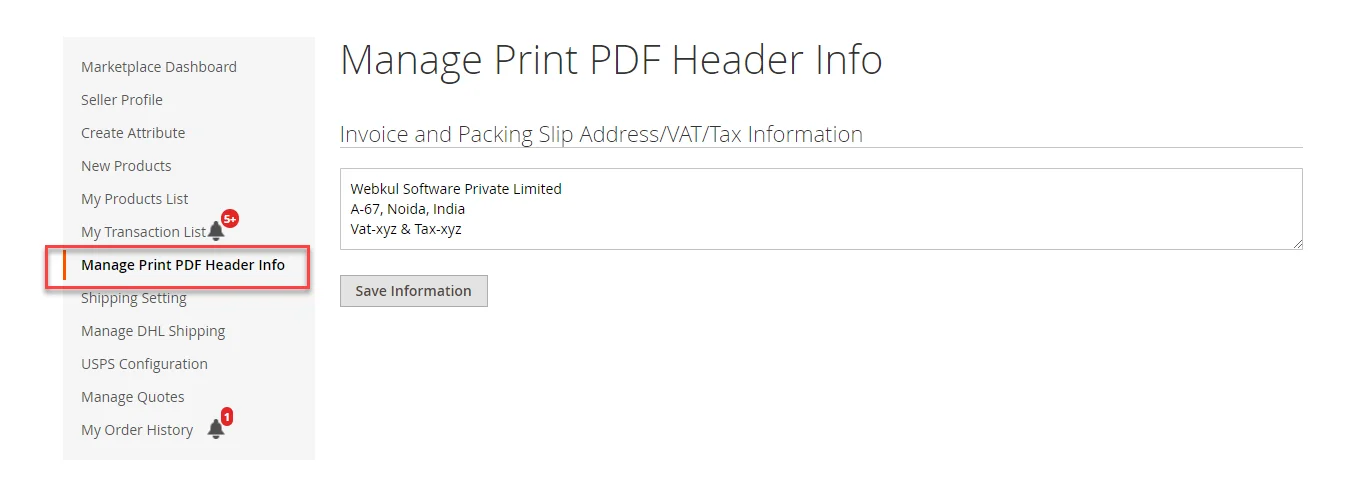
These details automatically appear on generated packing slips and invoice PDFs downloaded by the seller.