
Installation
Follow this step-by-step procedure to install the Magento 2 Table Rate Shipping module on your store.
Step 1: Download and Extract Module
- Log in to your Webkul Store Account.
- Navigate to My Account → My Purchased Products.
- Locate Magento 2 Multi Shipping Method with Price Range and Zip Range and download the ZIP archive.
- Extract the contents on your local system.
Step 2: Upload Files to Server
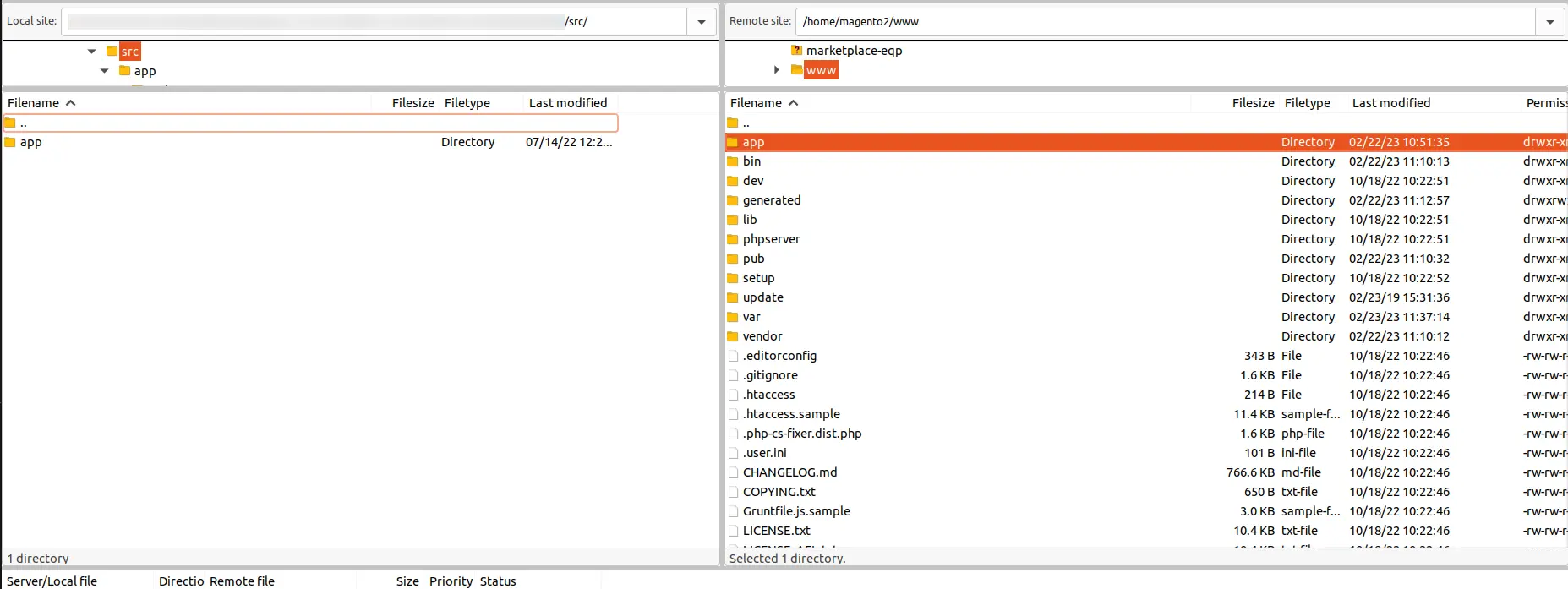
- Open your terminal or SFTP client.
- Navigate to your Magento root directory.
- Verify or create the destination directory
app/code/Webkul/MageTableRate. - Copy all extracted module files into
app/code/Webkul/MageTableRate.
mkdir -p app/code/Webkul/MageTableRate
cp -r /path/to/extracted/MageTableRate/* app/code/Webkul/MageTableRate/
Step 3: Run Magento CLI Commands
From your Magento project root directory, run the following commands in sequence:
# 1. Enable module schema and data updates
php bin/magento setup:upgrade

# 2. Compile dependency injection and code generators
php bin/magento setup:di:compile

# 3. Deploy static view files for admin and storefront
php bin/magento setup:static-content:deploy

# 4. Rebuild Magento search and carrier indexes
php bin/magento indexer:reindex

# 5. Flush Magento system cache
php bin/magento cache:flush
Production Mode
If your store is running in production mode, ensure you deploy static content with -f or pre-compile assets to avoid storefront downtime.
Language Translation (Optional)
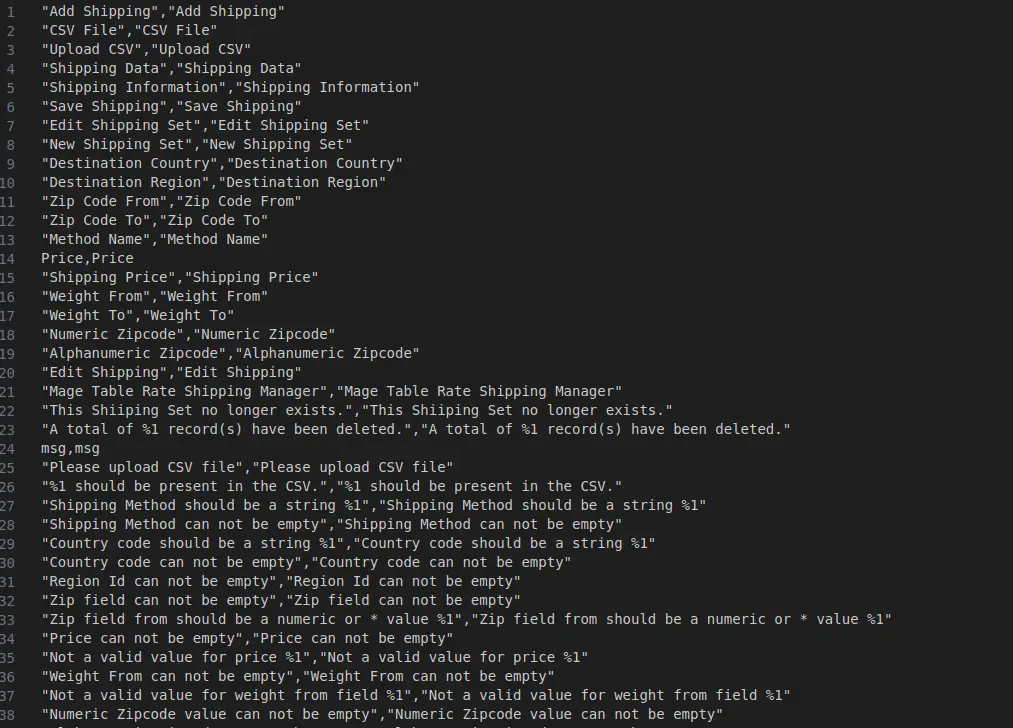
The module comes with standard English strings (i18n/en_US.csv) and supports both Left-to-Right (LTR) and Right-to-Left (RTL) languages.
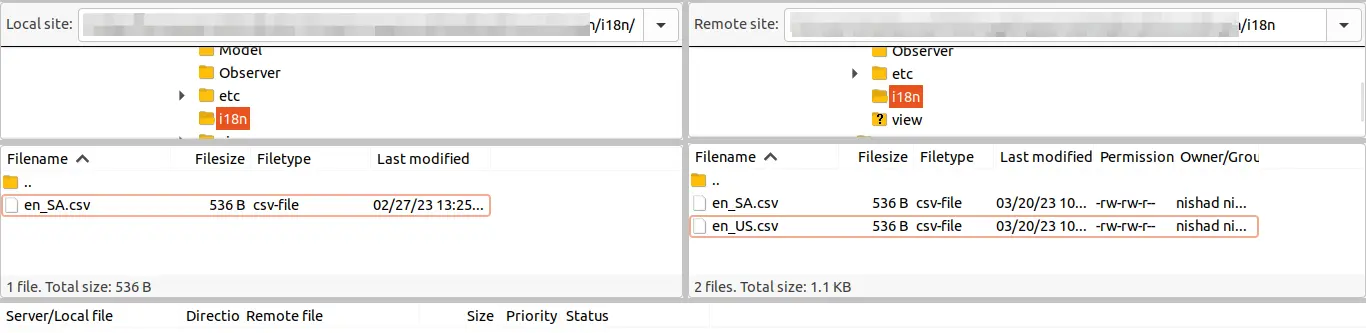
- Navigate to
app/code/Webkul/MageTableRate/i18n/. - Copy
en_US.csvand rename it with your locale code (for example,ar_SA.csvfor Arabic). - Translate all values on the right-hand side of each comma-delimited line.
- Save the file and upload it to
app/code/Webkul/MageTableRate/i18n/.
- Flush the cache to apply translations:
php bin/magento cache:flush
Next Step
Proceed to Activate & Connect to confirm module enablement and admin access.