
Table Rate Rules & CSV Import
The Webkul Table Rate Shipping management screen allows administrators to review existing rules, perform mass deletions, edit individual rate rows, and bulk upload thousands of rates using CSV.
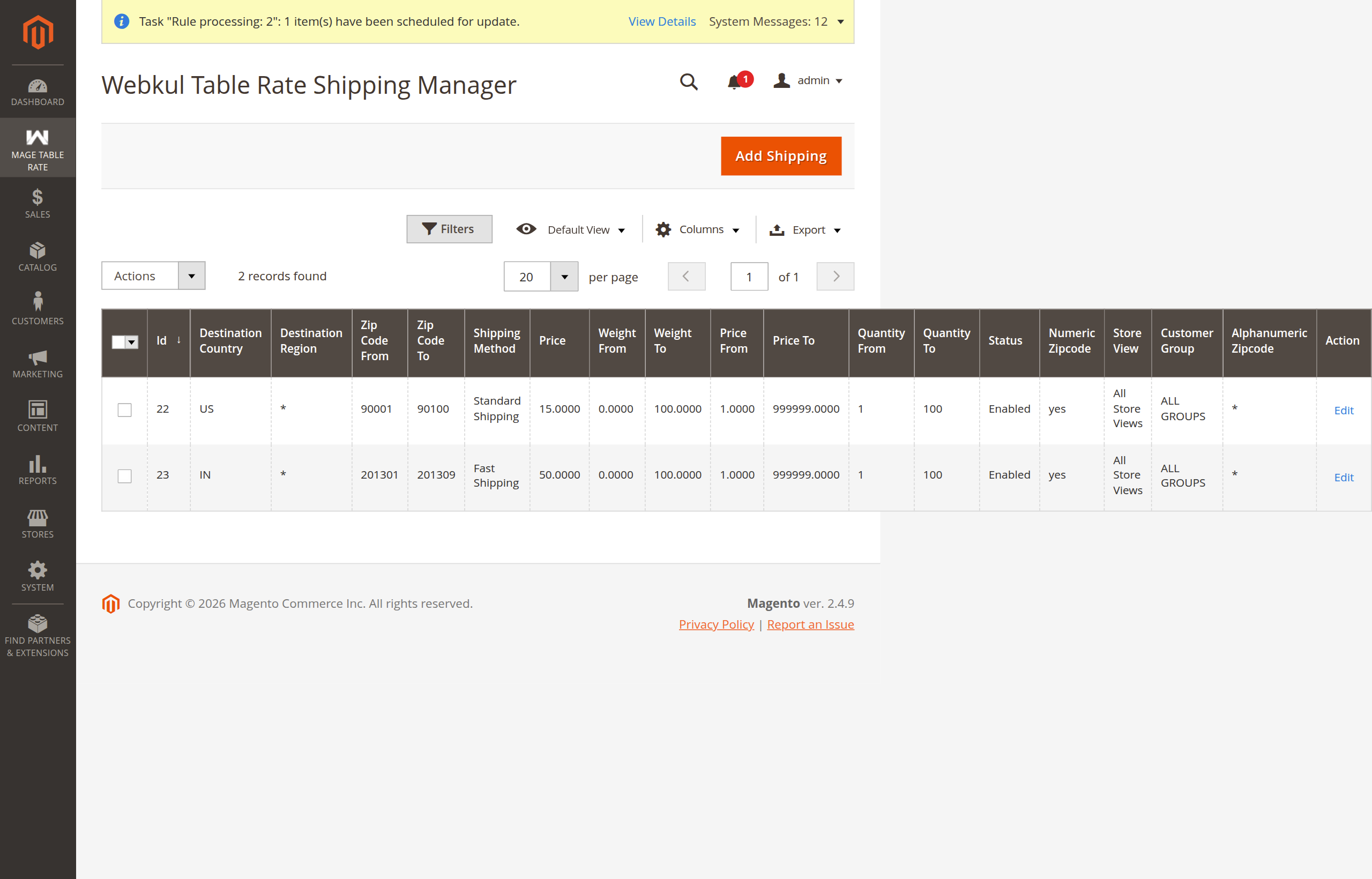
Navigating to Shipping Rules Grid
From the Magento Admin Panel, navigate to MAGE TABLE RATE → Manage Table Rate Shipping.
Grid Capabilities
- Filter & Search: Filter rules by Entity ID, Destination Country, Region, Method Name, Price, Status, Customer Group, and Store View.
- Sorting: Sort columns by clicking on any column header.
- Mass Actions: Select checkboxes next to one or more rules, choose an action from the Actions dropdown, and confirm.
- Edit Action: Click the Edit link in the Action column of any row to modify its parameters.
Bulk Importing Shipping Rules via CSV
To add or update shipping rules in bulk, use the CSV upload feature:
- On the top right of the shipping manager grid, click Add Shipping.
- On the Add Shipping Rates screen, locate the CSV File import section:
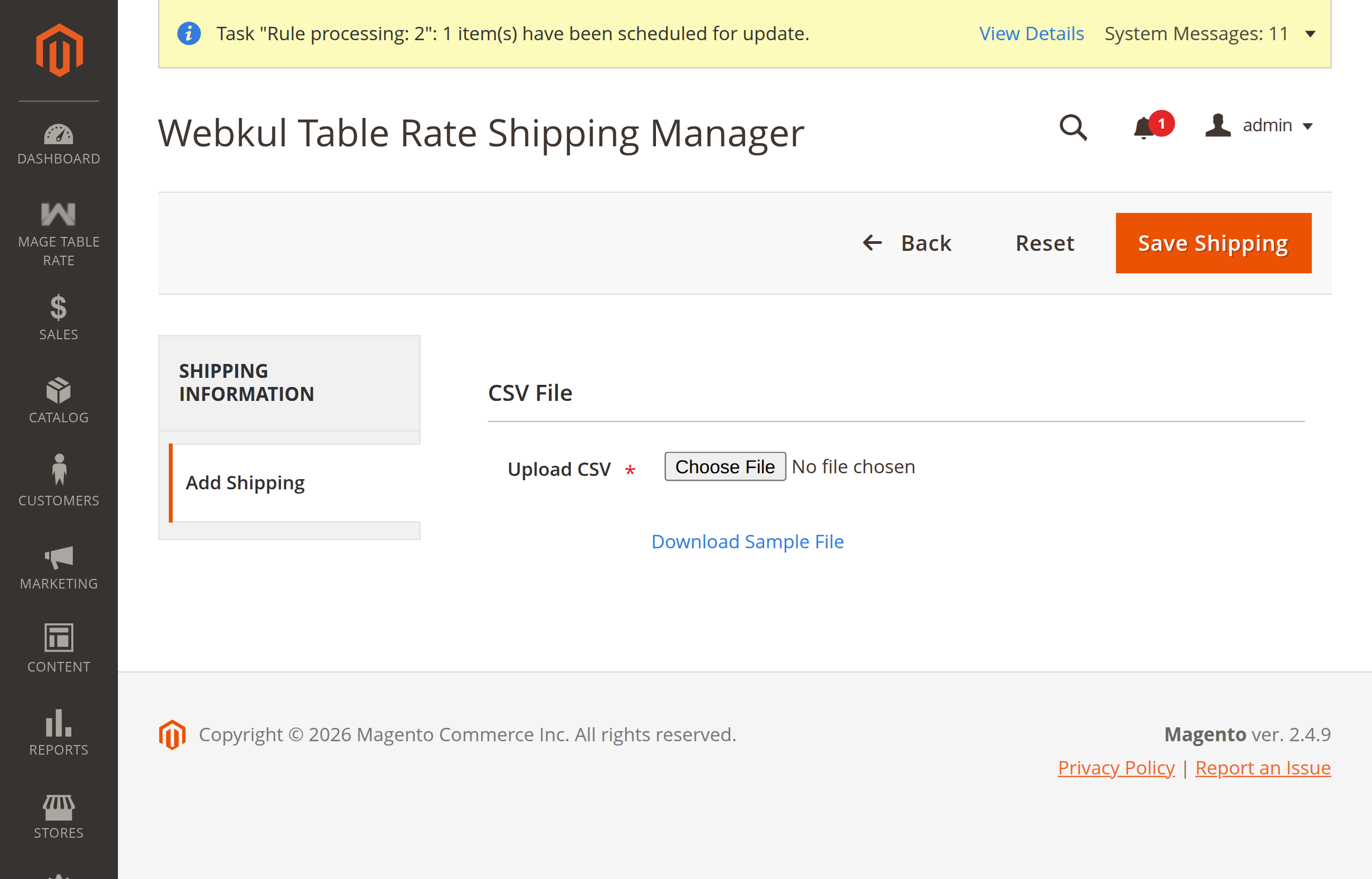
- Click Download Sample File to obtain the official CSV template (
adminShippingInfo.csv).
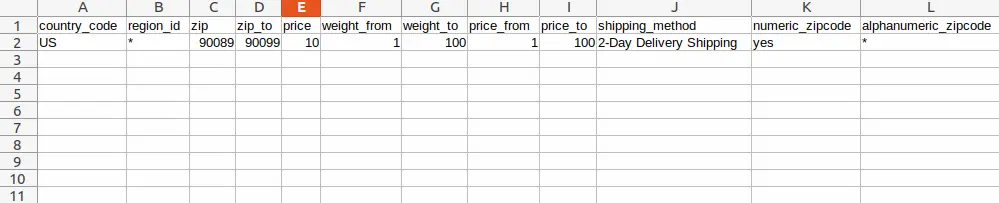
- Open the CSV file in your spreadsheet editor (e.g. LibreOffice Calc, Excel, or Google Sheets).
- Fill in your rate matrix following the column specification below.
- Save the file in UTF-8 CSV format.
- Under Import Shipping, click Choose File, select your completed CSV file, and click Upload Shipping (or Save Shipping).
- The grid updates with a status notification confirming your rules have been processed.
CSV Column Specification
Each row in the CSV represents a distinct shipping rule:
| Header | Required | Type | Example | Description |
|---|---|---|---|---|
country_code | Yes | String (2) | US | 2-letter uppercase ISO country code (e.g. US, GB, CA, IN). |
region_id | Yes | String | CA or * | Region/State ID, region name, or * for all regions. |
zip | Yes | String | 90001 | Starting postal code (or exact code, or *). |
zip_to | Yes | String | 90100 | Ending postal code for numeric ranges, or *. |
price | Yes | Float | 15.00 | Shipping cost charged to the customer. |
weight_from | Yes | Float | 0.0 | Minimum order weight in store weight units. |
weight_to | Yes | Float | 50.0 | Maximum order weight in store weight units. |
price_from | Yes | Float | 1.0 | Minimum order subtotal threshold. |
price_to | Yes | Float | 9999.0 | Maximum order subtotal threshold. |
shipping_method | Yes | String | Express Air | Method name visible to customers at checkout. |
numeric_zipcode | Yes | String | yes | Set yes for numeric ranges; no for alphanumeric codes. |
alphanumeric_zipcode | Yes | String | * or SW1A | Alphanumeric postal code or prefix when numeric_zipcode is no. |
quantity_from | Yes | Integer | 1 | Minimum item quantity in cart. |
quantity_to | Yes | Integer | 100 | Maximum item quantity in cart. |
status | Yes | Integer | 1 | 1 for Enabled, 0 for Disabled. |
customer_group | Yes | String | * | Customer group ID, code (e.g. Wholesale), or * for all. |
store_view | Yes | String | 0 | Store view ID, code (e.g. default), or 0 / * for all. |
Sample CSV Content
country_code,region_id,zip,zip_to,price,weight_from,weight_to,price_from,price_to,shipping_method,numeric_zipcode,alphanumeric_zipcode,quantity_from,quantity_to,status,customer_group,store_view
"US","*","90001","90100","10","1","100","1","999999","Standard Shipping",yes,"*","1","10","1","*","*"
"GB","*","*","*","25","0","50","1","500","Royal Mail Express",no,"SW1A","1","50","1","General","default"
"CA","Ontario","K1A","K1A","18","0","20","50","2000","Canada Priority",no,"K1A 0B1","1","20","1","*","*"
Editing Individual Shipping Rules
To modify a specific rule without re-uploading the entire CSV:
- On the Webkul Table Rate Shipping Manager grid, click the Edit link in the Action column next to the target rule.
- The edit screen presents all rule configuration options organized into sections:
1. Destination & Method Information
Configure destination geographic boundaries, method label, and flat shipping price:
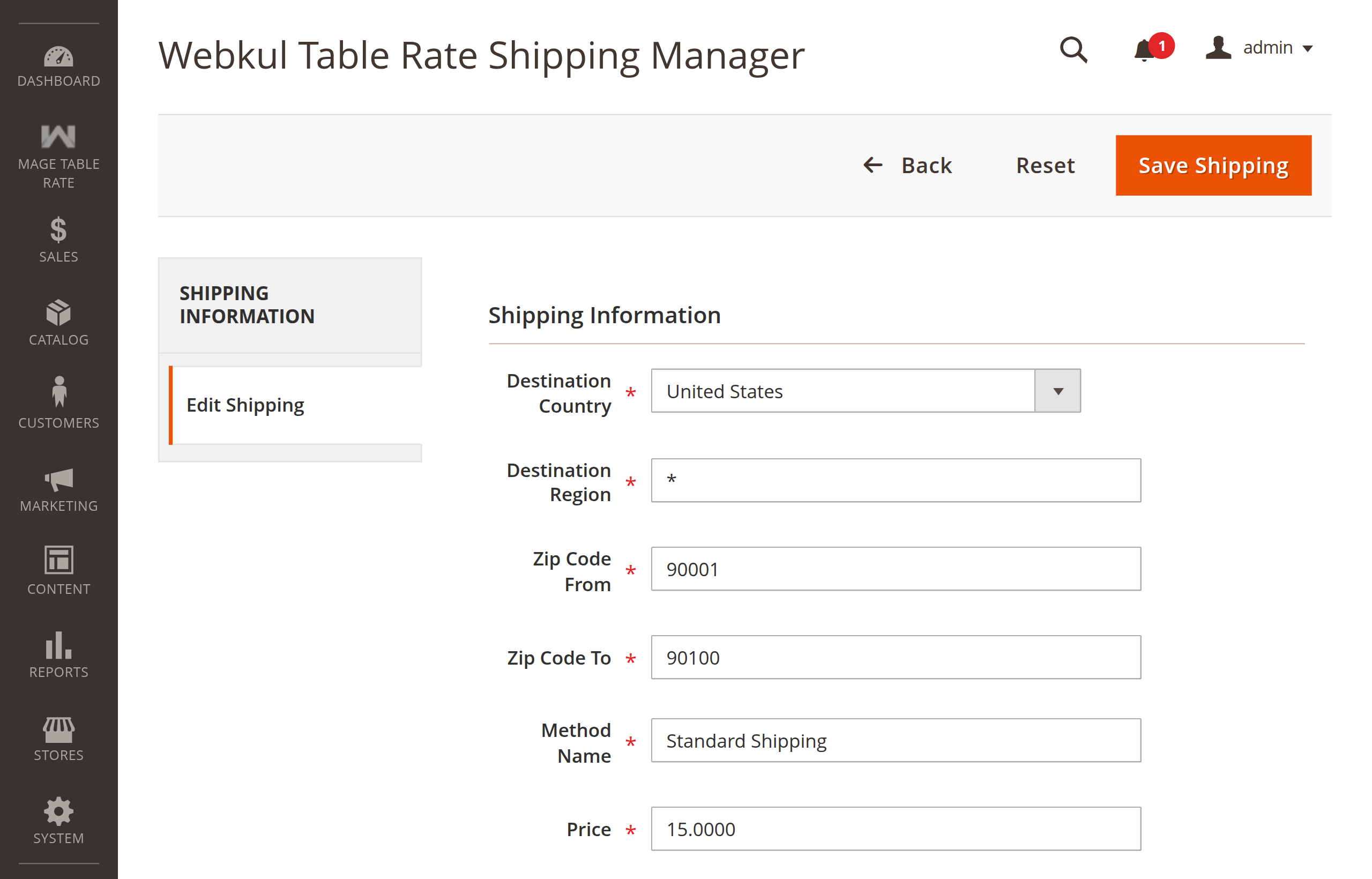
- Country: Select destination country (e.g.
United States). - Region/State: Select specific state/province or
*for all regions. - Zip Code From & Zip Code To: Define postal code range boundaries (e.g.
90001to90100). - Shipping Method: Enter customer-facing method label (e.g.
Standard Shipping). - Price: Shipping fee charged when rule conditions are satisfied.
2. Weight, Price & Quantity Boundaries
Define cart threshold requirements:
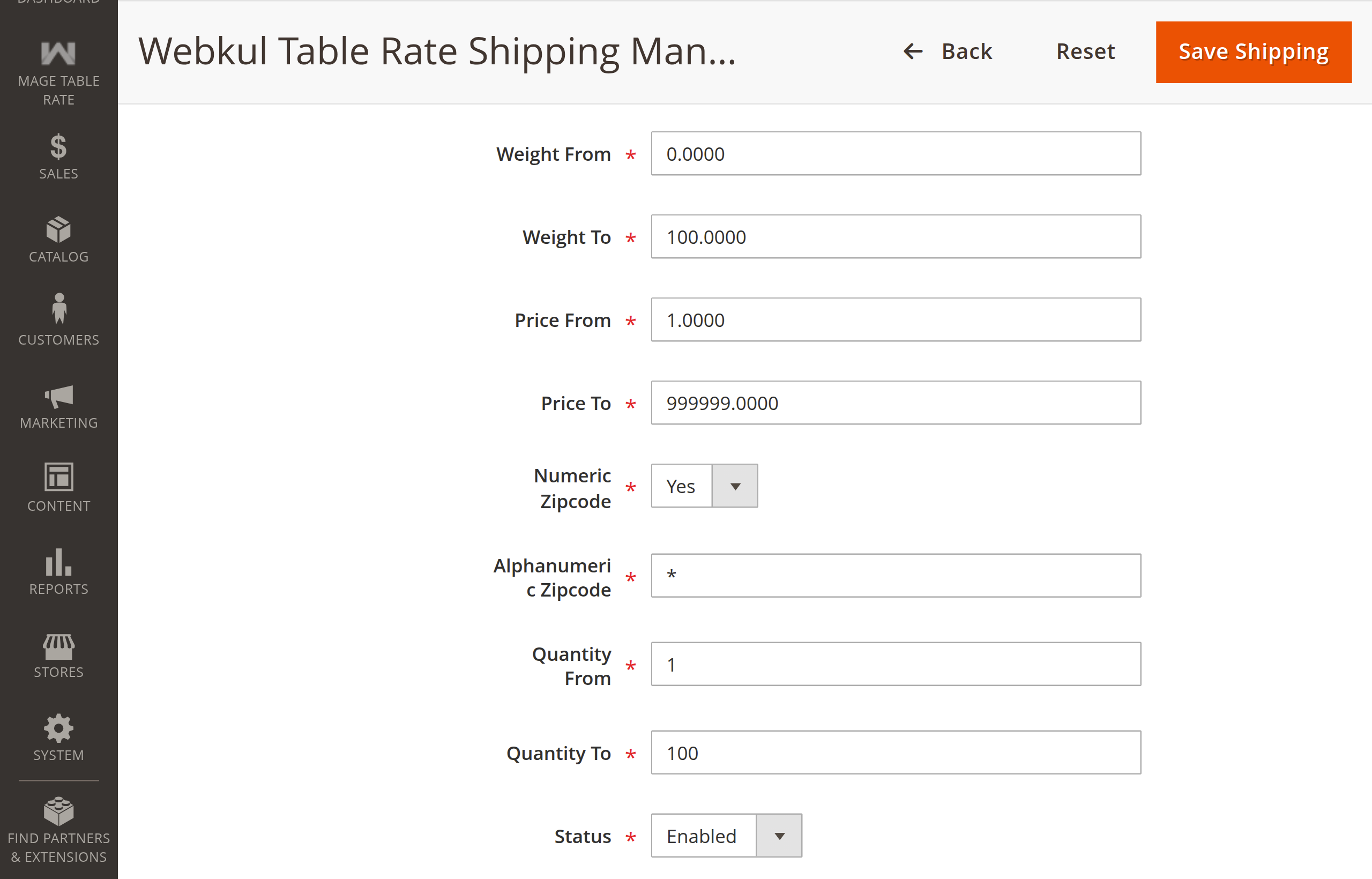
- Weight From & Weight To: Set package weight thresholds.
- Price From & Price To: Set cart order subtotal thresholds.
- Numeric Zipcode: Choose Yes for numeric ranges, No for alphanumeric postal codes.
- Quantity From & Quantity To: Minimum and maximum item count thresholds.
3. Customer Groups & Store Scoping
Target customer groups, store views, and toggle rule availability:
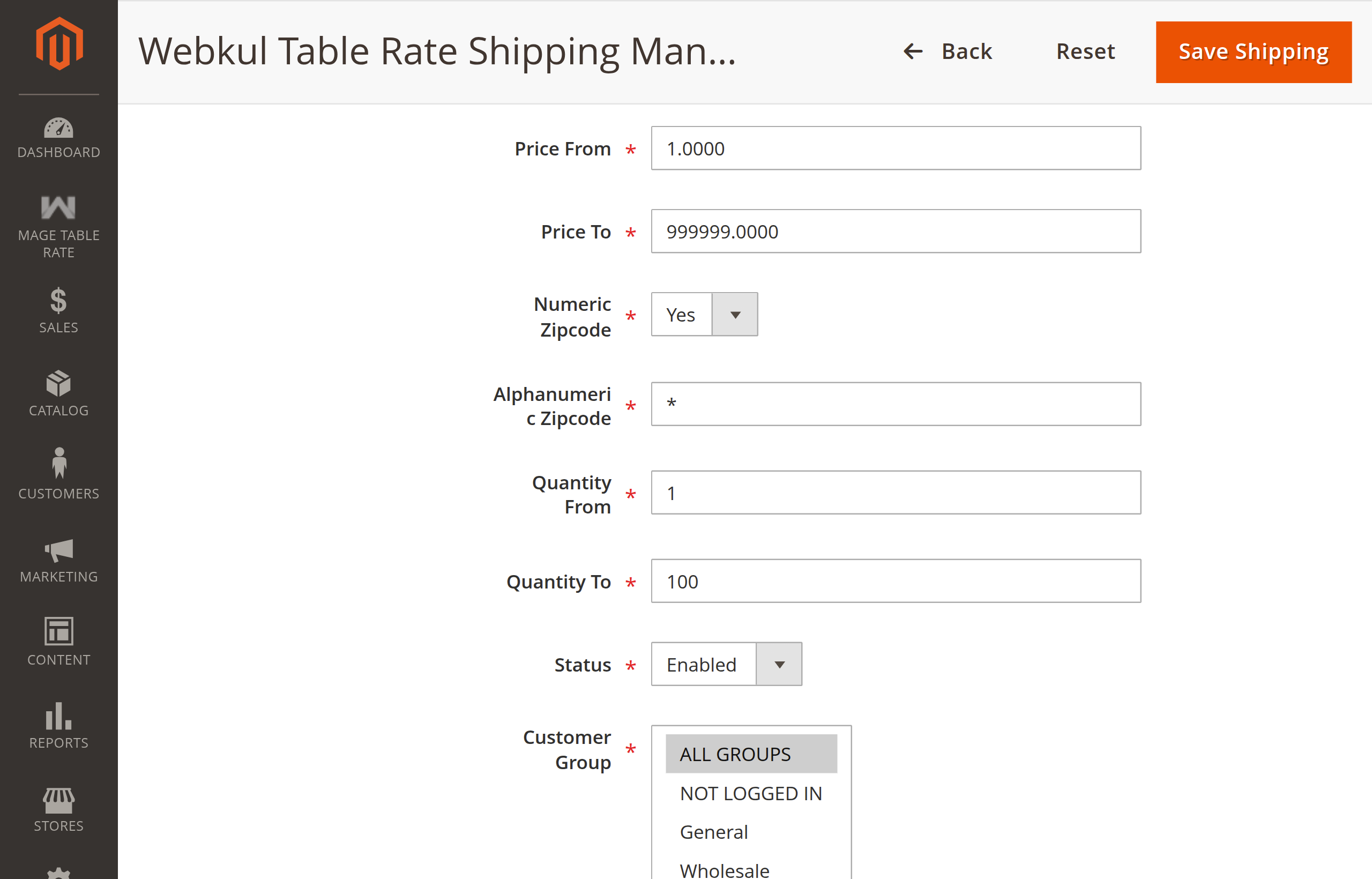
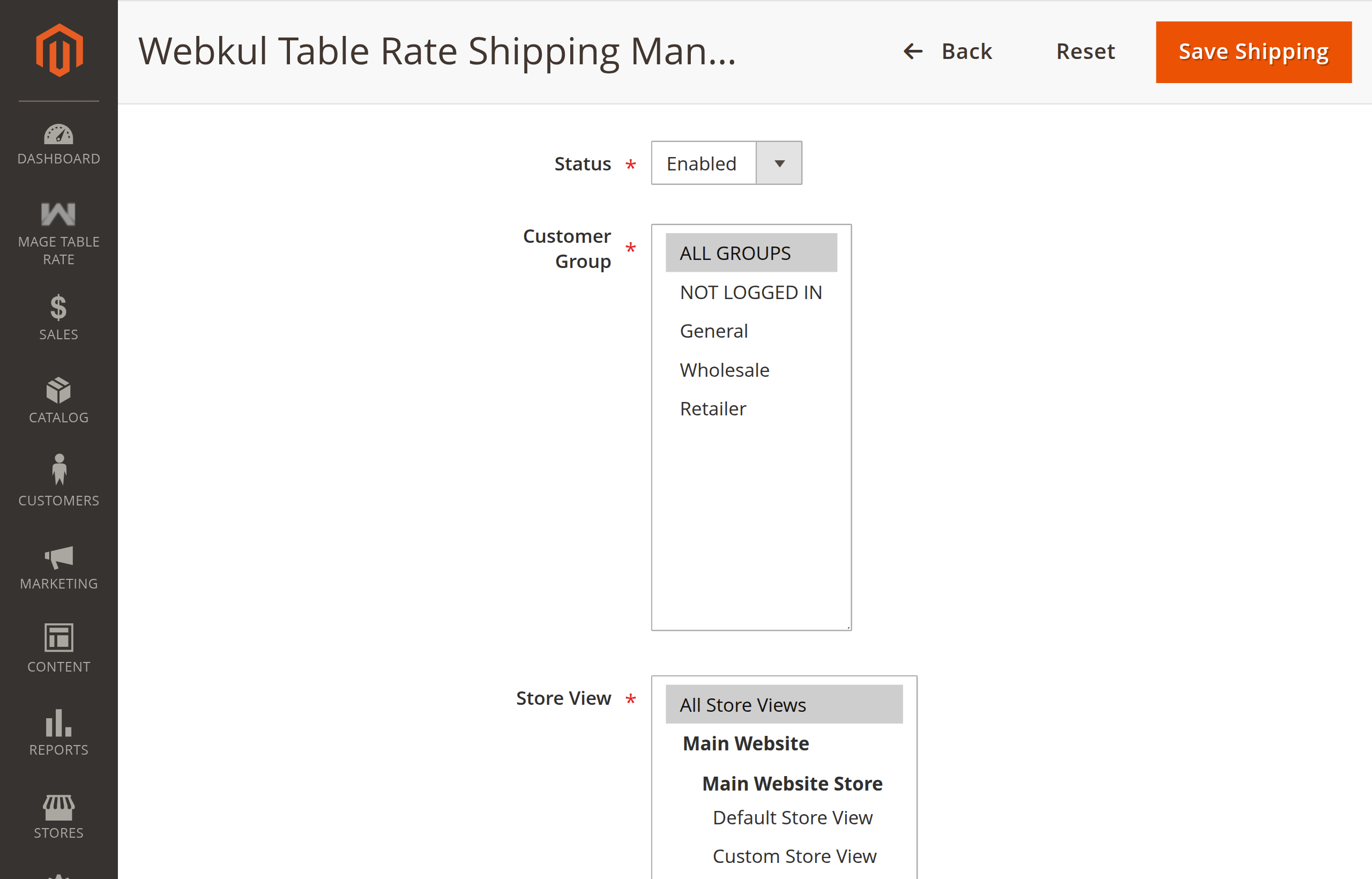
- Status: Toggle rule between Enabled and Disabled.
- Customer Group: Select one or multiple customer groups (e.g.
ALL GROUPS,NOT LOGGED IN,General,Wholesale,Retailer). - Store View: Select applicable store views or
All Store Views.
- Click Save Shipping in the top right corner to persist the changes.
Next Step
Learn how customers experience these rates in Storefront & Checkout.