
Homepage Configurator
The Homepage Configurator helps you build the store homepage from small blocks called sections. You can add a banner, category tiles, product sliders, promo blocks, trust badges, and more from Magento Admin.
You do not need to edit code to use it.
Open the page
- Sign in to Magento Admin.
- Go to Content -> Homepage Configurator -> Sections.
- The Homepage Sections grid will open.
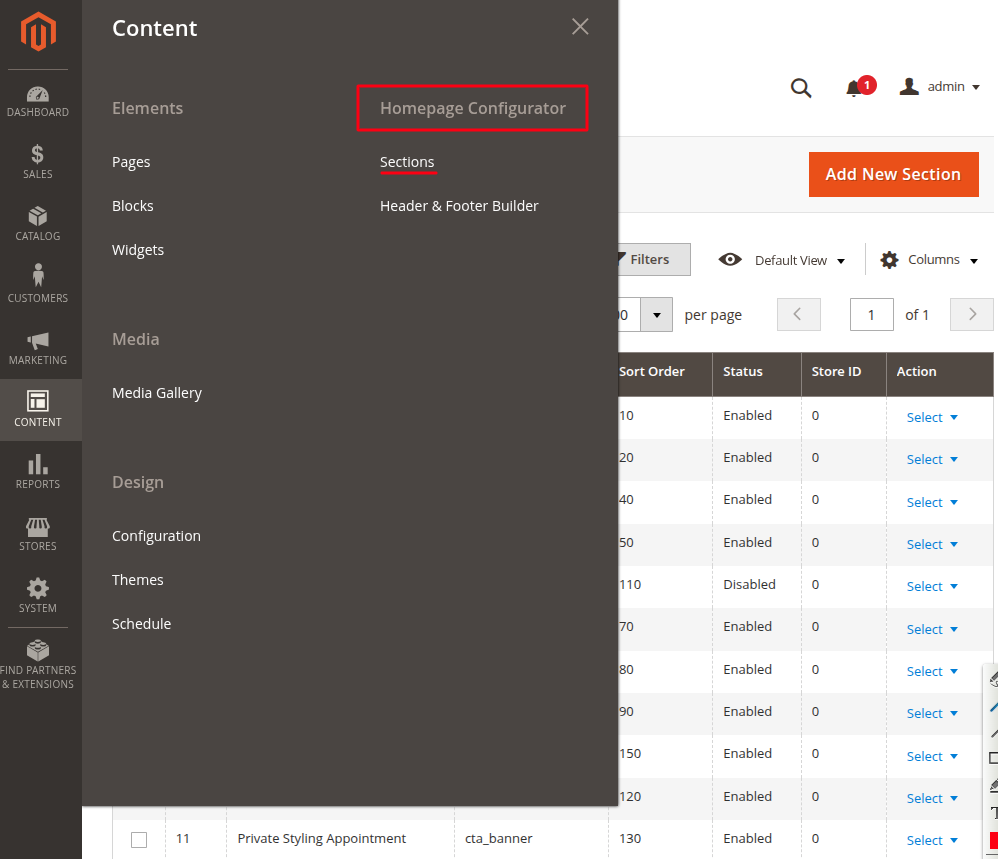
What you can do from the grid
| Area | What it means |
|---|---|
| Add New Section | Create a new homepage block. |
| Title | The name you see in Admin. Use a clear name like Hero Banner or Trending Products. |
| Section Type | The kind of block, such as Hero Banner, Category Grid, or Product Carousel. |
| Sort Order | Controls the order on the homepage. A smaller number shows higher on the page. |
| Status | Shows if the section is Enabled or Disabled. |
| Store ID | Use 0 for all store views. Use a store view ID only when the section should show on one store view. |
| Action | Edit, duplicate, or delete a section. |
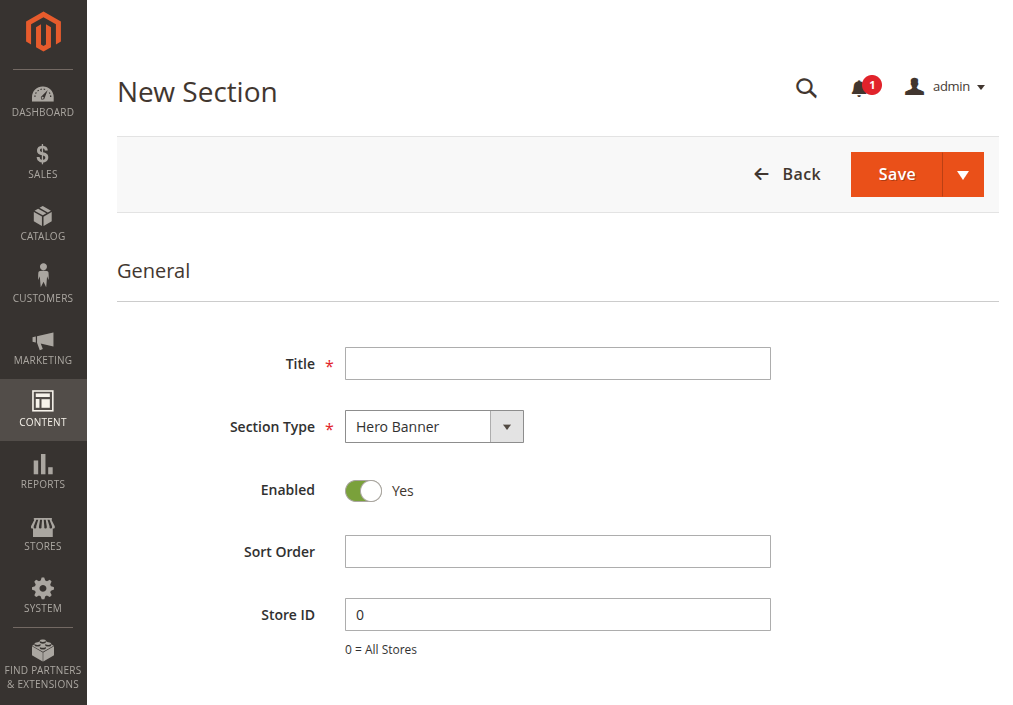
Basic setup flow
Use this flow when you want to add or change a homepage section.
- Click Add New Section.
- Enter a clear Title.
- Choose the Section Type.
- Set Enabled to Yes.
- Enter the Sort Order.
- Keep Store ID as
0unless you want this section for one store view only. - Fill the section settings.
- Click Save.
- Open the storefront homepage and check the result.
Tips
If a saved change does not show on the storefront, clear Magento cache and refresh the page.
Good homepage order
For a jewellery store, this order is simple and easy for shoppers to follow:
| Sort Order | Section |
|---|---|
10 | Hero Banner |
20 | Category Grid |
30 | Trending Products |
40 | New Arrivals |
50 | Sale or Featured Products |
60 | Featured Collection or Split Content |
70 | Collection Banners |
80 | Promo Banner |
90 | Luxury Grid |
120 | Instagram Feed |
130 | CTA Banner |
150 | Trust Badges |
You can use different numbers. Leave space between numbers, such as 10, 20, and 30, so it is easy to add a new section later.
Helpful actions
- Use Duplicate when you want to create a similar section quickly.
- Use Disable when you want to hide a section for some time.
- Use Delete only when you are sure you do not need the section again.
- Keep section titles simple, because they help you find the right section later.