
Instagram Feed
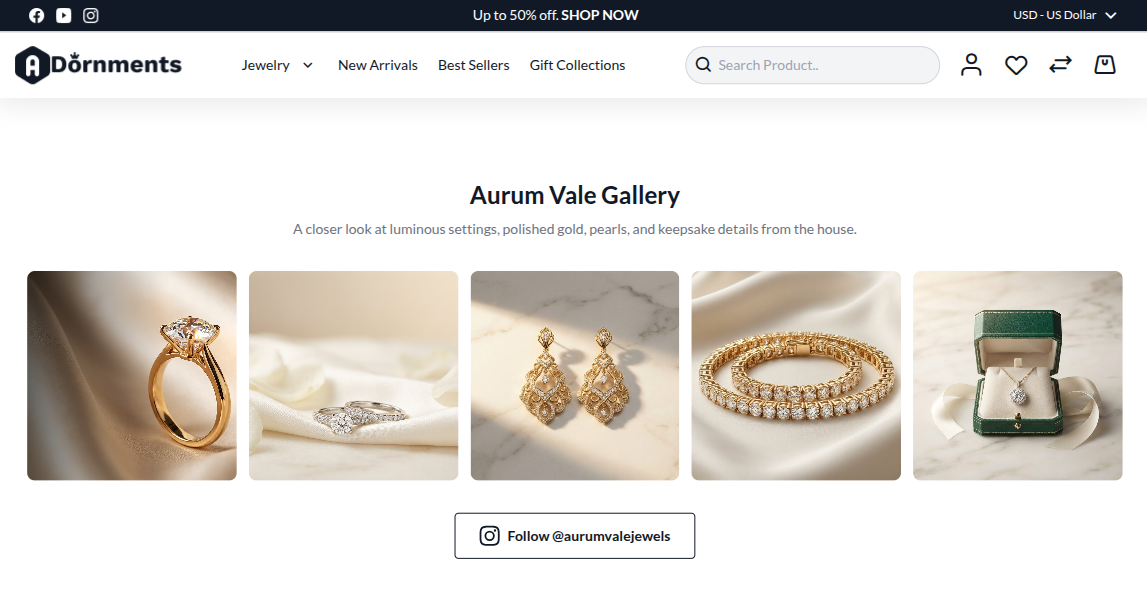
The Instagram Feed section shows a small photo gallery. Use it for brand photos, customer looks, styling ideas, or social proof.
Add an Instagram Feed
- Go to Content -> Homepage Configurator -> Sections.
- Click Add New Section.
- Enter a Title, for example
Aurum Vale Gallery. - Set Section Type to Instagram Feed.
- Set Enabled to Yes.
- Use a Sort Order so it appears in the right place on the homepage.
- Fill the Instagram Feed Configuration fields.
- Click Save.
Main settings
| Setting | What it does |
|---|---|
| Section Title | Gallery title. If empty, the section title is used. |
| Section Subtitle | Small text below the title, such as Follow us @aurumvale. |
| Instagram Handle | Your Instagram username, such as @aurumvale. |
| Columns Desktop | Number of images in one row on desktop. |
| Columns Mobile | Number of images in one row on mobile. |
| Masonry Layout | Keeps images in a natural gallery style. |
| Show Hover Icon | Shows an Instagram icon when shoppers hover over an image. |
Image fields
Click Add Image, then fill these fields.
| Field | What to enter |
|---|---|
| Image | Upload the gallery image. Maximum file size is 4 MB. |
| Link URL | Link for the image, such as an Instagram post or product page. |
Storefront result
Good practice
- Use clear lifestyle or jewellery-detail photos.
- Keep the gallery small on the homepage.
- Link images to useful pages.
- Check mobile spacing after saving.