Managing Service Fees
Learn how to create, edit, enable, disable, and delete service fee rules for your online store.
Viewing the Service Fee Table
In your Magento Admin Panel, go to: Webkul Service Fees > View service fees List (or Stores > Service Fee).
The Service Fee grid lists all fee rules created for your store with the following details:
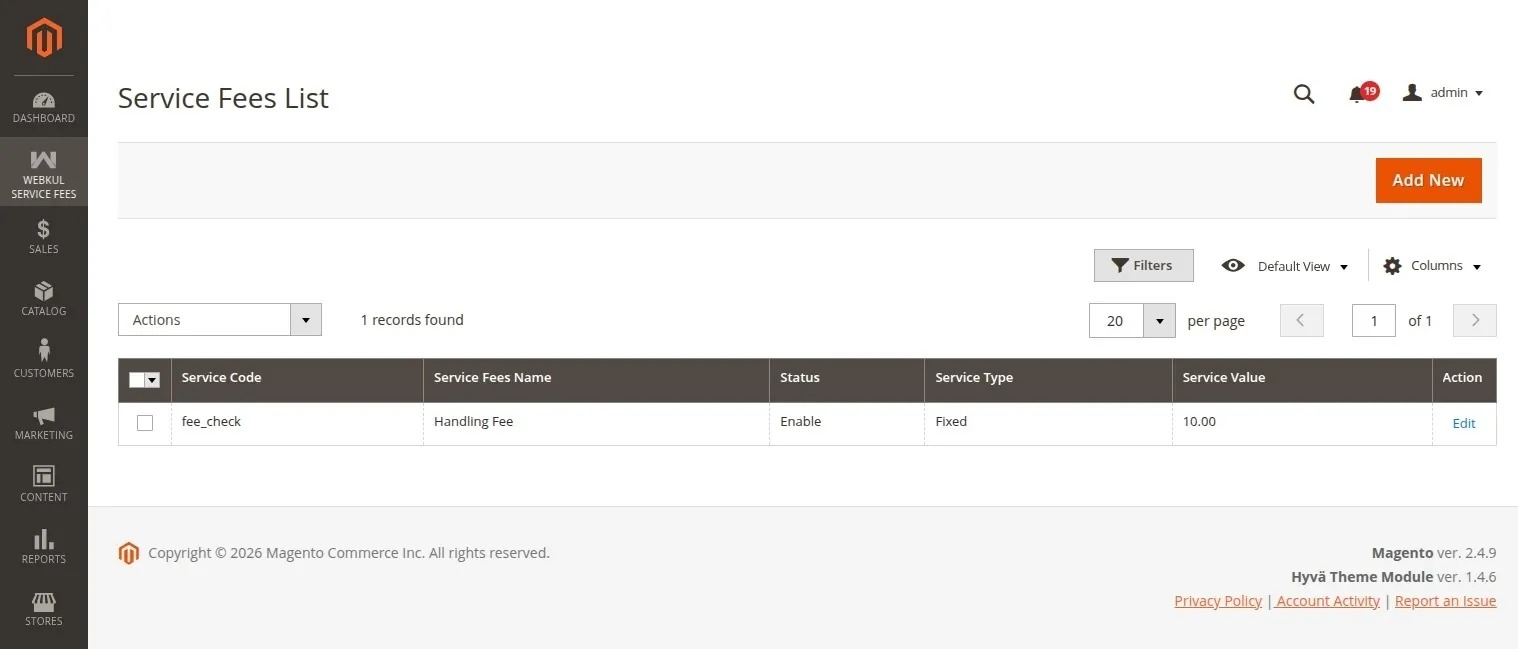
- Service Code: A short code identifier (e.g.,
fee_checkorEXPRESS_HANDLING). - Service Fees Name: The title displayed to customers at checkout (e.g., Handling Fee).
- Status: Indicates if the fee rule is currently Enabled or Disabled.
- Service Type: Displays whether the fee is a Fixed amount or Percentage rate.
- Service Value: The numerical fee amount or percentage (e.g.,
10or2.5). - Action: Click Edit to modify rule attributes.
Creating a New Service Fee Rule
To create a new service charge:
- Click Add New at the top right of the grid page.
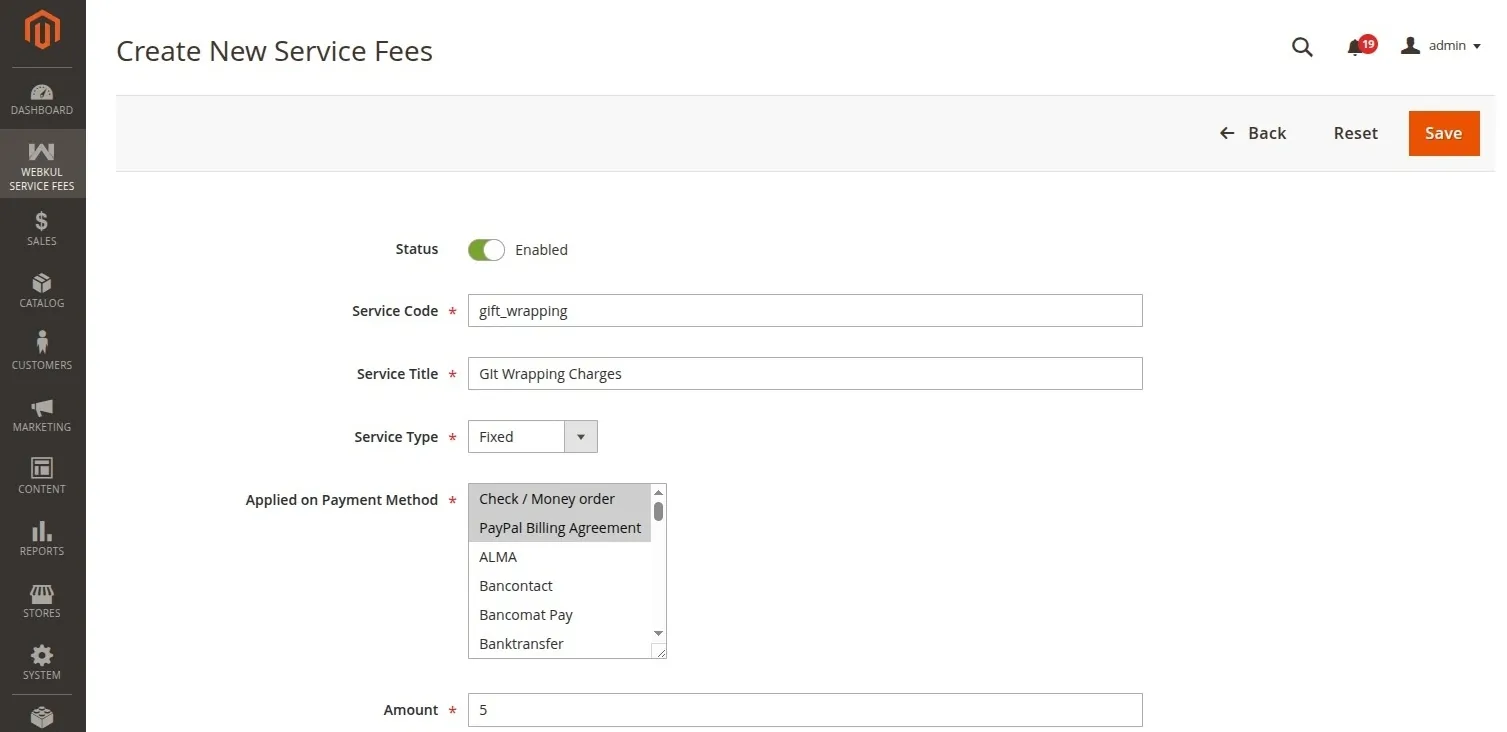
- Fill out the required fee details in the form:
Field Descriptions
- Status: Toggle to Enabled to make the service fee active immediately.
- Service Code *: Enter a unique identifier code for the rule (e.g.,
Service_XYZ). - Service Title *: Enter the customer-facing label displayed at checkout (e.g.,
Test Service Fee). - Service Type *: Select the calculation method:
- Fixed: Adds a flat monetary fee to the order total.
- Percentage: Calculates the fee as a percentage of the cart subtotal.
- Applied on Payment Method *: Select one or multiple payment methods that will trigger this fee (e.g., Check / Money order, PayPal Billing Agreement, ALMA, Bancontact, Bancomat Pay, Banktransfer, etc.).
- Amount *: Specify the numerical fee amount or percentage value (e.g.,
10or2.5).
- Click Save.
Editing an Existing Fee Rule
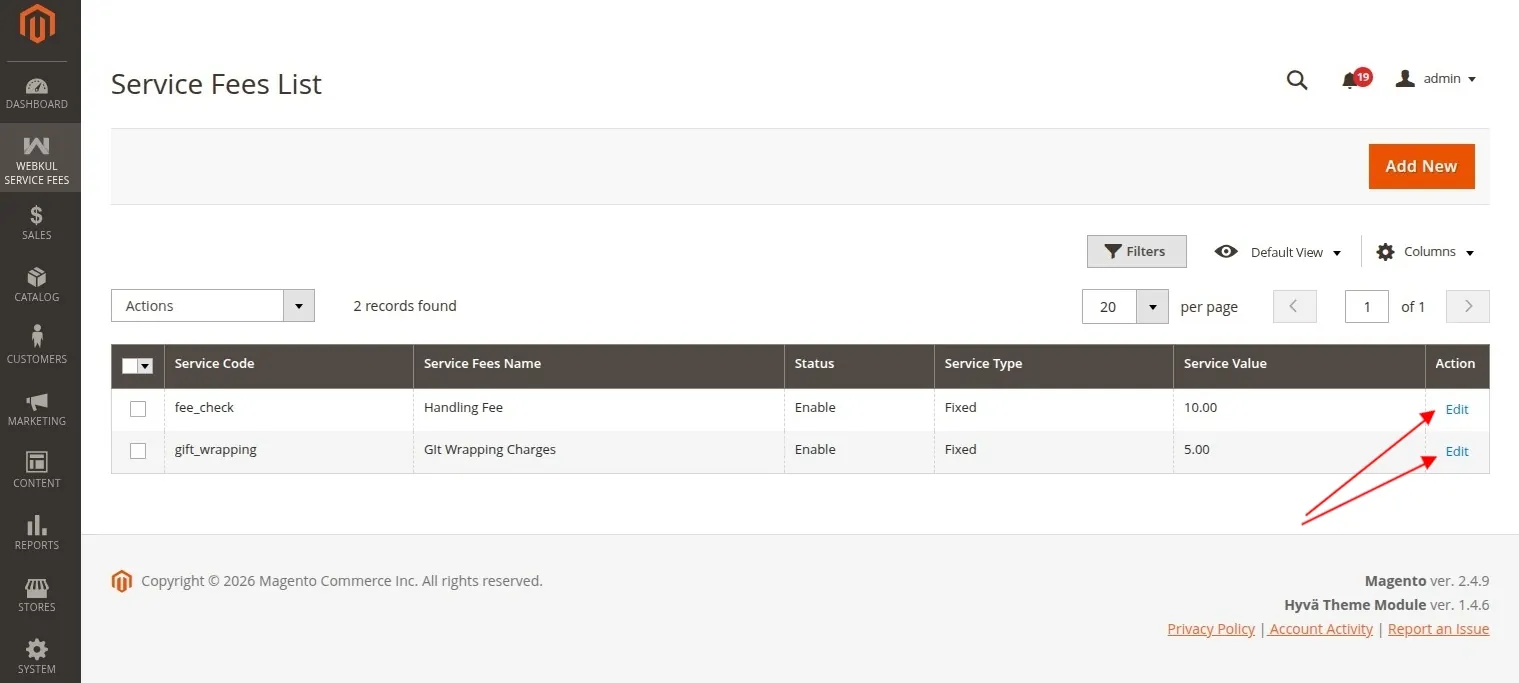
- Find the rule in the Service Fees List grid.
- Click Edit under the Action column.
- Update any field (Title, Amount, Type, Payment Method, or Status).
- Click Save.
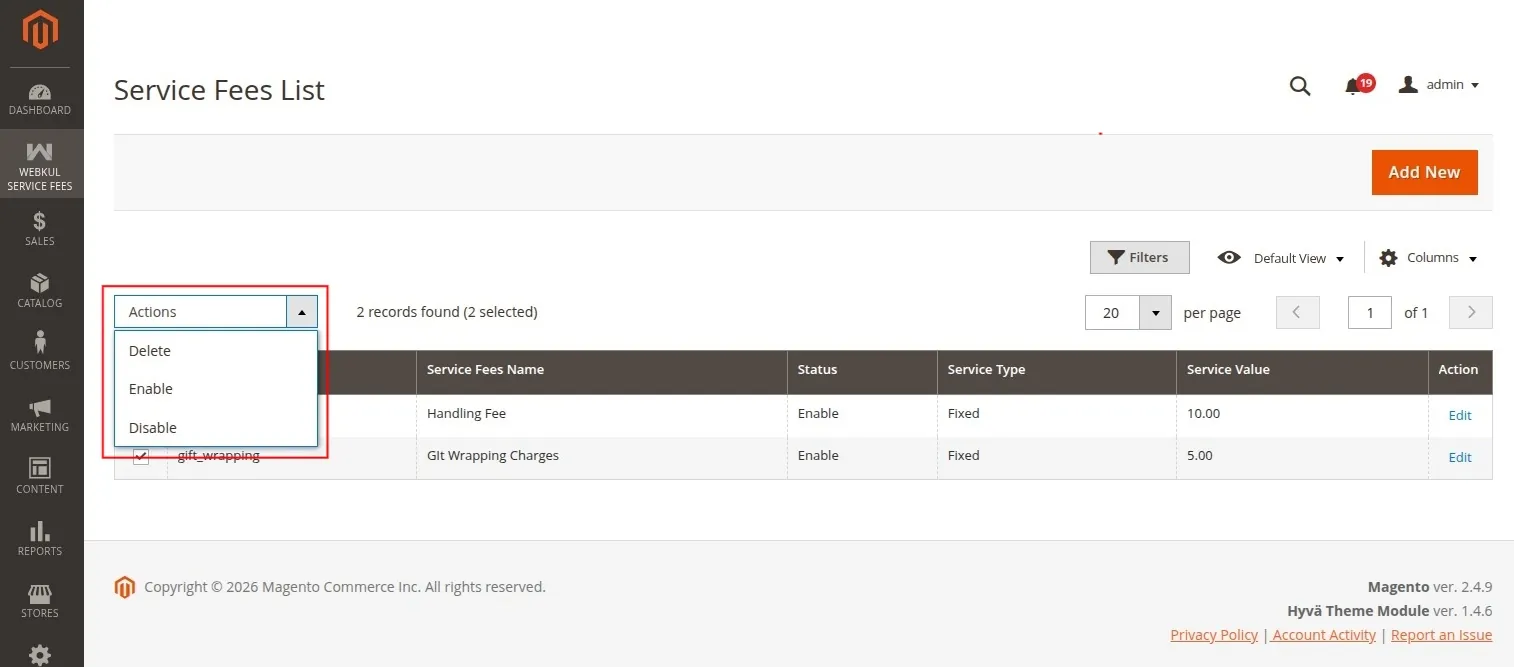
Bulk Actions (Enable, Disable, Delete)
To update multiple fee rules at once:
- Check the boxes next to the rules you wish to update in the grid.
- Click the Actions dropdown menu at the top left of the grid.
- Select Enable, Disable, or Delete.
- Confirm your selection.