
Shipment & Tracking Labels
This guide explains how to generate shipments, create customized package dimensions, print Parcel Perfect shipping labels with barcodes, and send tracking information to customers.
1. Creating a Shipment
Once an order is paid and ready to dispatch:
- In the admin order screen (Sales > Orders > View Order), click the Ship button.
- Select Create Shipping Label checkbox if you wish to generate the label during shipment creation, or proceed to submit the shipment.
- Once submitted, navigate to the Shipments tab in the left-hand menu of the order.
- Click View on the created shipment to open shipment details and tracking information.
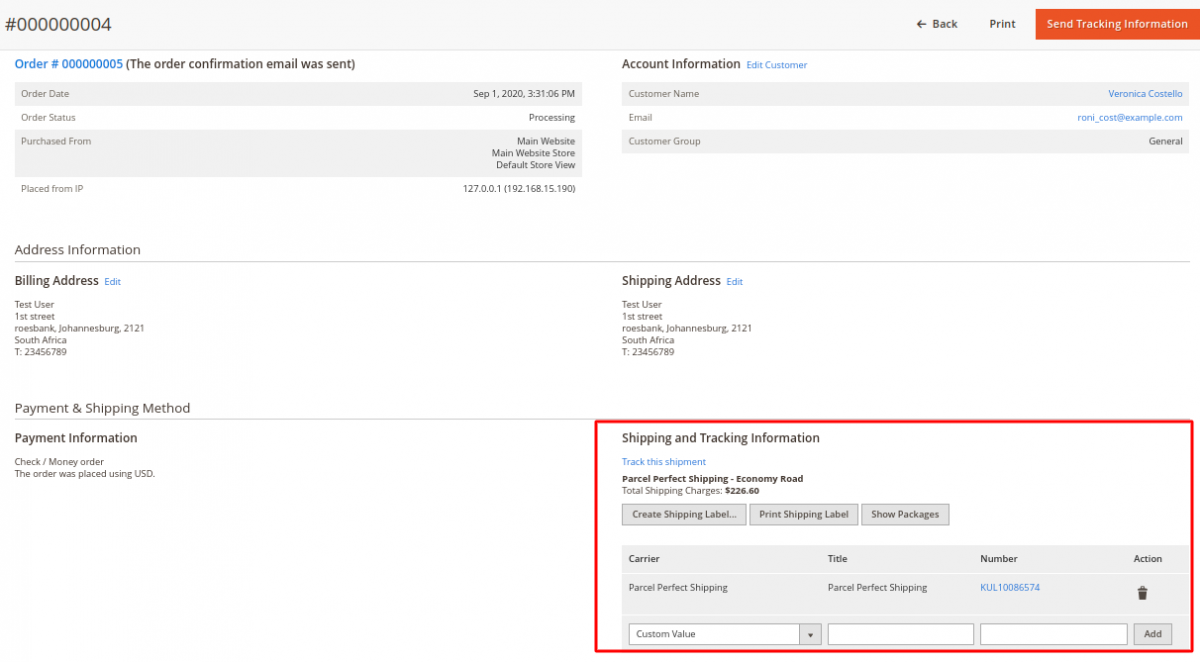
From the shipment view, administrators have access to:
- Track this shipment: Check current delivery status via Parcel Perfect tracking services.
- Create Shipping Label: Configure packaging dimensions and generate the carrier label.
- Print Shipping Label: Download the generated PDF shipping label.
- Show Packages: Inspect created packages and assigned products.
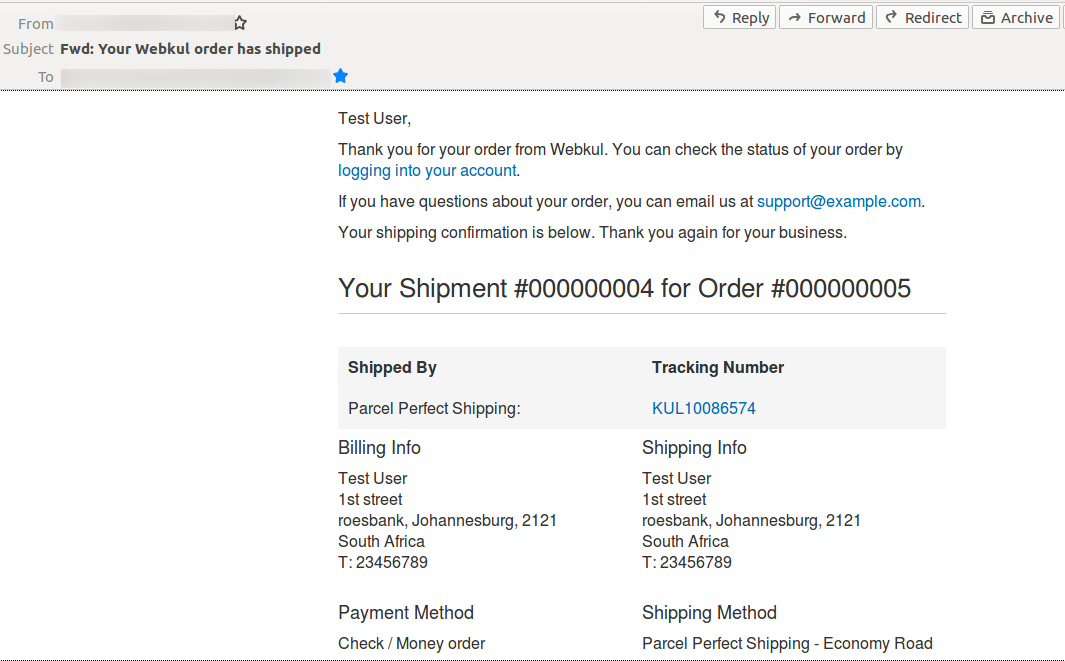
- Send Tracking Information: Dispatch an automated shipment update email to the customer.
2. Packaging Details & Create Shipping Label
Click Create Shipping Label on the shipment page. A packaging modal will prompt the administrator to define package specifications:
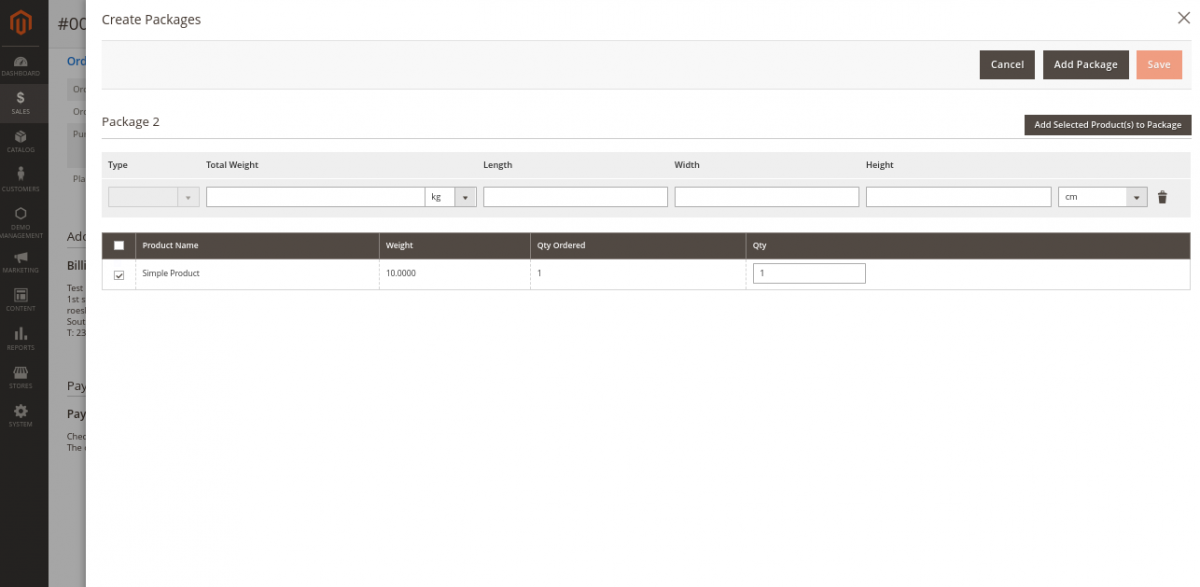
Package Information Fields:
- Product Name: Specify the items or description included in the package.
- Total Weight: The exact total weight of the parcel.
- Dimensions: Enter package Length, Width, and Height (cm).
- Add selected Product(s) to Package: Click this button to assign products to the current box.
Once package details are entered, click Save to communicate with Parcel Perfect and generate the shipment label.
3. Printing the Shipping Label
Once the label is created:
- Click the Print Shipping Label button on the shipment page.
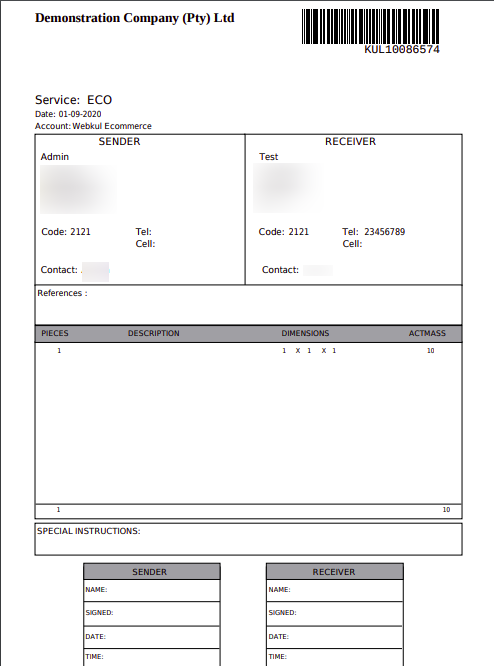
- Magento will download or display the official Parcel Perfect Shipping Label containing:
- High-resolution barcode and waybill tracking number.
- Shipper and consignee delivery addresses.
- Total piece count and billable package weight.
- Courier route and destination hub codes.
4. Show Packages
Administrators can verify how products were partitioned across packages:
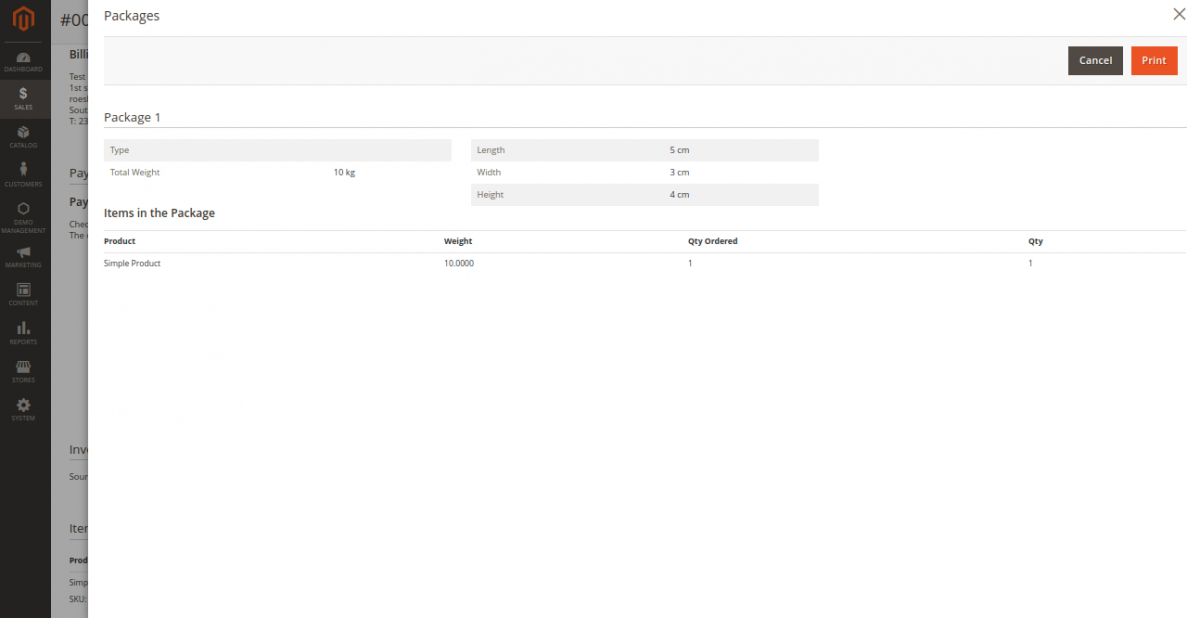
- Click the Show Packages option on the shipment screen.
- A table lists package IDs, dimensions, weights, and items packed.
5. Sending Tracking Information to Customer
Administrators can notify the customer immediately via email:
- Click the Send Tracking Information button on the shipment view.
- Magento automatically sends an email to the customer's registered email address with complete order details and the Parcel Perfect tracking number.
Next Step
Encountering any issues? Review the Troubleshooting guide or check FAQ & Support.