
Installation Guide
Follow these steps to install the Magento 2 Parcel Perfect Shipping extension on your Magento 2 instance.
Step 1: Extract Extension Archive
After purchasing the extension from the Webkul Store, download the zip folder to your local computer and extract its contents:
parcel-perfect-shipping.zip
└── src/
    └── app/
        └── code/
            └── Webkul/
                └── ParcelPerfectShipping/
Step 2: Upload Files to Magento 2 Root
Transfer the extracted app directory into your Magento 2 root installation directory on the server:
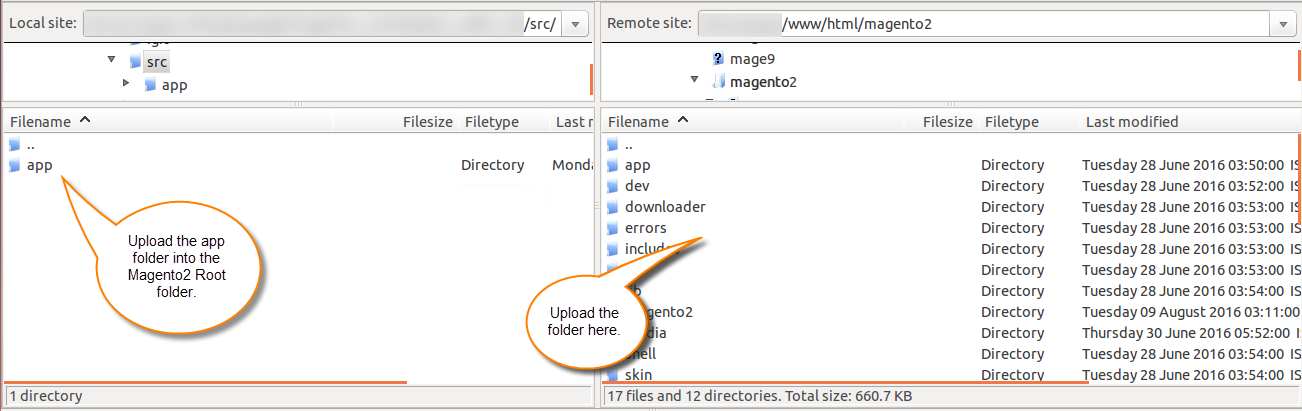
Ensure the directory structure matches the following path:
<Magento_Root>/
└── app/
    └── code/
        └── Webkul/
            └── ParcelPerfectShipping/
Step 3: Run Magento CLI Commands
Connect to your server via SSH, navigate to your Magento 2 root directory, and execute the following deployment commands:
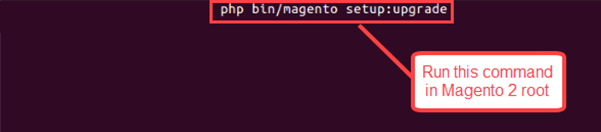
1. Upgrade Database Schema & Data
php bin/magento setup:upgrade
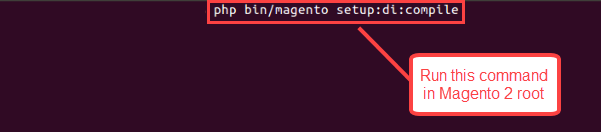
2. Compile Dependency Injection
php bin/magento setup:di:compile
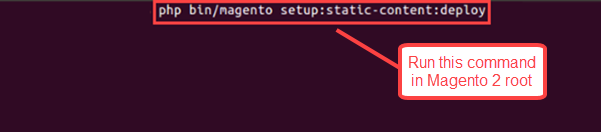
3. Deploy Static Content
php bin/magento setup:static-content:deploy
Step 4: Flush Cache
After executing the commands, flush the Magento cache from the admin panel:
- Navigate to System > Cache Management.
- Click Flush Magento Cache.
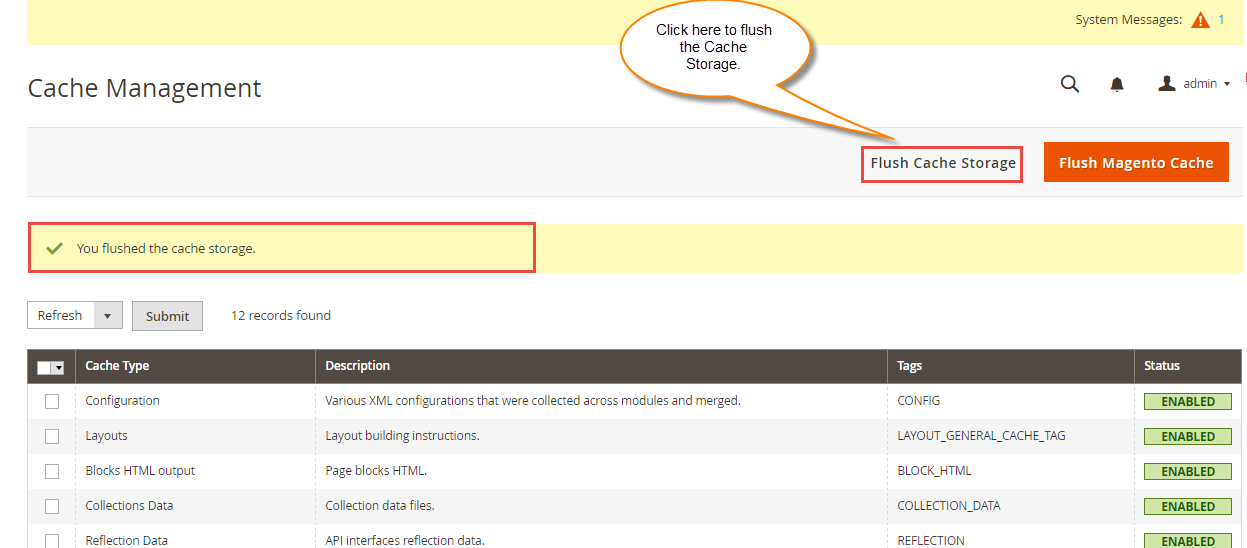
Alternatively, flush the cache directly via CLI:
php bin/magento cache:flush
Step 5: Verification
To verify that the extension is active:
- Run:
php bin/magento module:status Webkul_ParcelPerfectShipping
You should see: Webkul_ParcelPerfectShipping : Module is enabled.
- Log in to the Magento Admin Panel.
- Navigate to Stores > Configuration > Sales > Shipping Methods > Parcel Perfect Shipping. The configuration section will now be available.
Next Step
Follow the Parcel Perfect Credentials and Admin Configuration guides to configure your shipping gateway.