
Admin Configuration Settings
Configure your Parcel Perfect account credentials, operating environment, handling fees, and storefront display settings in the Magento 2 Admin Panel.
Accessing Configuration Panel
- Log in to the Magento 2 Admin Panel.
- Navigate to Stores > Configuration.
- Under the Sales tab in the left sidebar, click Shipping Methods.
- Locate and expand the Parcel Perfect Shipping section.
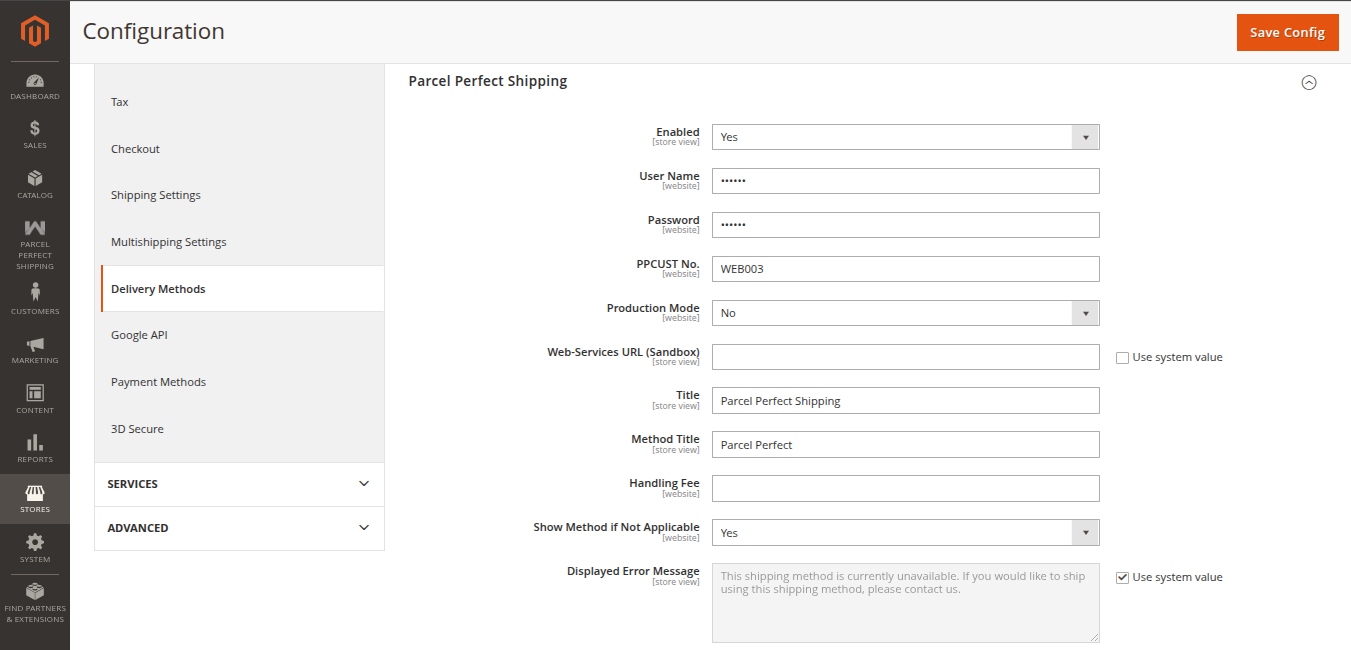
Configuration Settings Field Reference
| Field Name | Description | Recommended / Available Values |
|---|---|---|
| Enabled | Enable or disable the Parcel Perfect Shipping method on checkout. | Select Yes to activate, or No to deactivate. |
| User Name | The username of your Parcel Perfect shipping account. | Enter the username provided by Parcel Perfect. |
| Password | The password of your Parcel Perfect shipping account. | Enter the secure password provided by Parcel Perfect. |
| PPCUST No. | The Parcel Perfect Customer Number assigned to your merchant account. | Enter your merchant account identifier (e.g., WEB003). |
| Production Mode | Choose between sandbox testing and live production environment. | Select No for Sandbox / Development, or Yes for Production / Live. |
| Web-Services URL (Sandbox) | The sandbox API server URL provided by Parcel Perfect for test quotes. | Enter the sandbox server endpoint (visible when Production Mode is No). |
| Web-Services URL (Production) | The live production API server URL provided by Parcel Perfect. | Enter the live server endpoint (visible when Production Mode is Yes). |
| Title | The top-level shipping carrier title displayed to buyers at cart and checkout. | e.g., Parcel Perfect Shipping |
| Method Title | The specific shipping method name shown beneath the carrier title. | e.g., Standard Delivery or Courier Service |
| Handling Fee | Additional handling surcharge added on top of the calculated shipping price. | Enter a numeric value (e.g., 5.00 or 0). |
| Show Method If Not Applicable | Determines whether to display this shipping method even if it is not applicable for the entered address. | Select Yes or No. |
| Displayed Error Message | Custom error message shown to customers when the shipping method cannot be calculated or is not applicable. | e.g., This shipping method is currently unavailable. If you require the service, please contact us. |
Once configured, click Save Config in the top right corner and flush your cache.
Next Step
Learn how to localize strings and set up multi-lingual stores in Multi-Lingual & Language Translation.