
Gift Card Product Creation
With Webkul Magento 2 Marketplace Gift Card, both the Store Administrator and Marketplace Sellers have full capability to create and list Gift Card products.
Gift Cards function similarly to standard virtual catalog products with customizable options for recipient details.
Admin Workflow: Creating a Gift Card Product
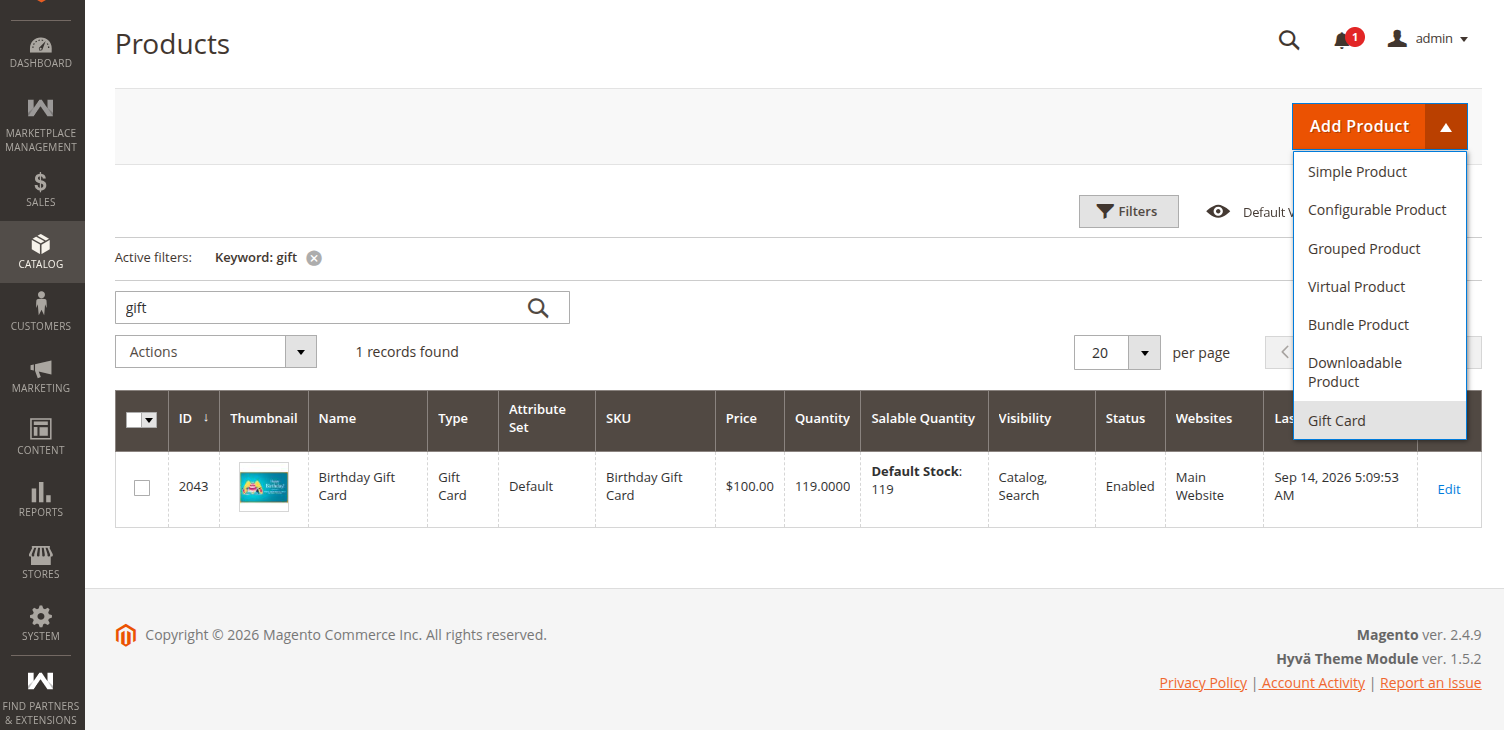
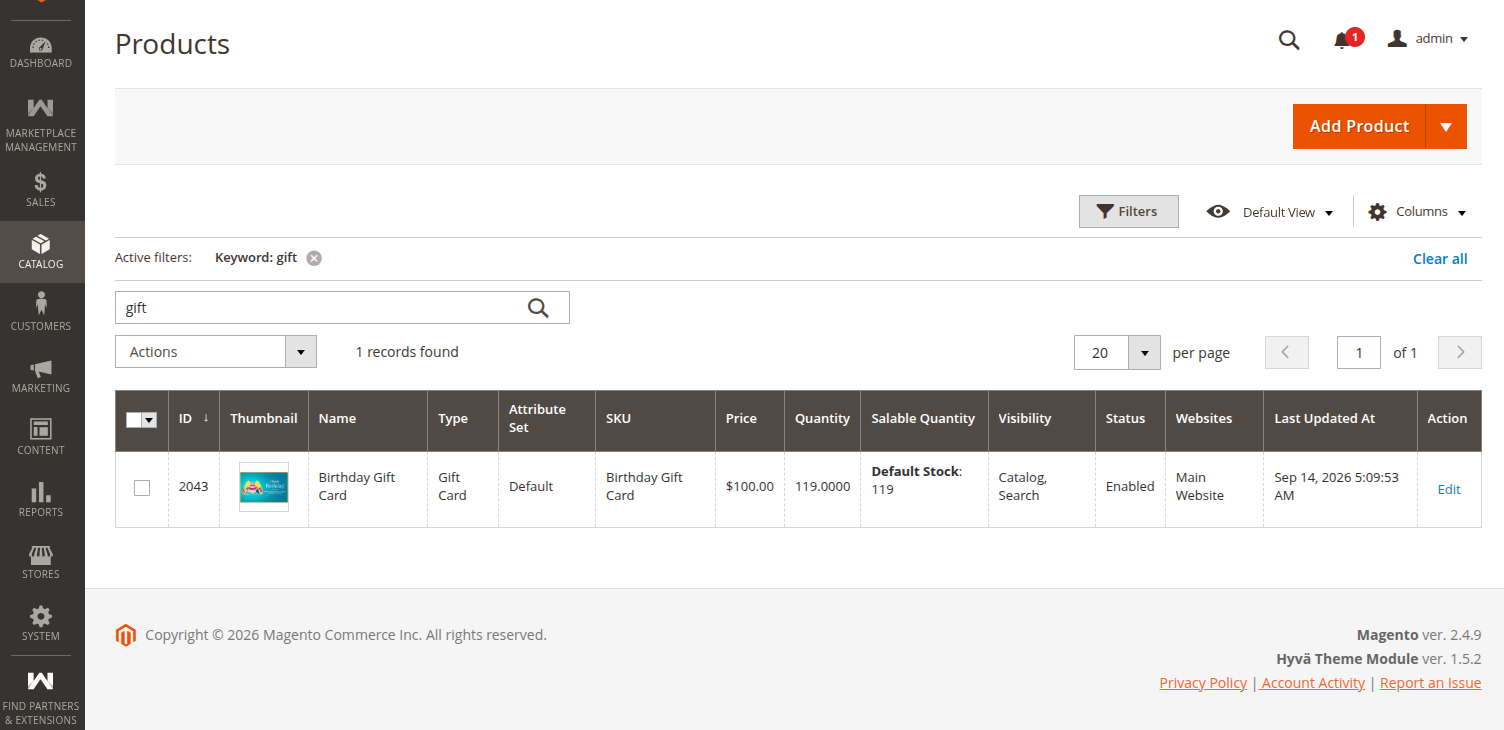
- Navigate to Catalog > Products in the Magento Admin panel.
- Click the dropdown arrow next to Add Product and select Marketplace Gift Card (or Virtual Product with Gift Card attributes).
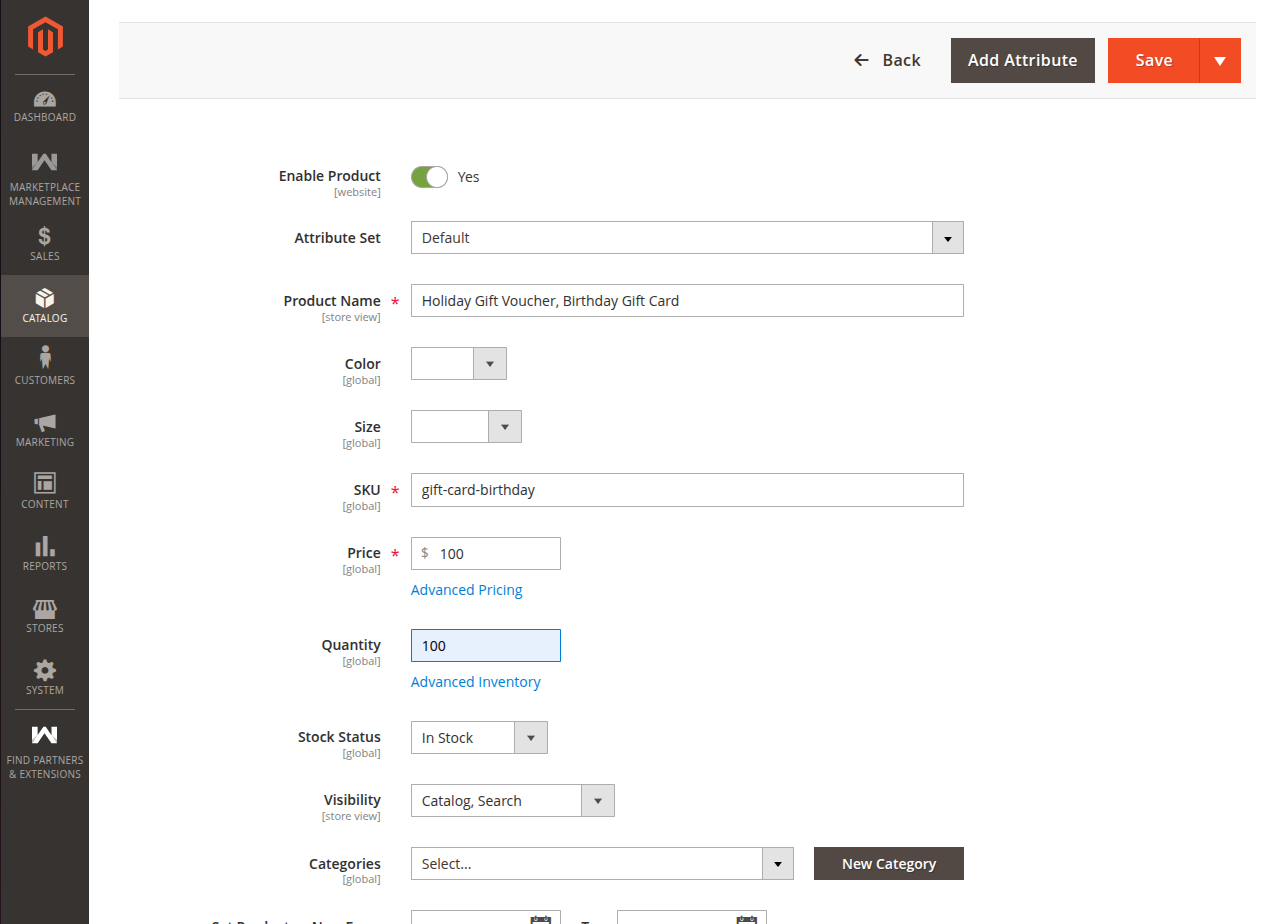
- Fill in the required product attributes:
- Product Name: E.g., Holiday Gift Voucher, Birthday Gift Card.
- SKU: E.g.,
gift-card-birthday. - Price: Face value of the gift card (e.g.,
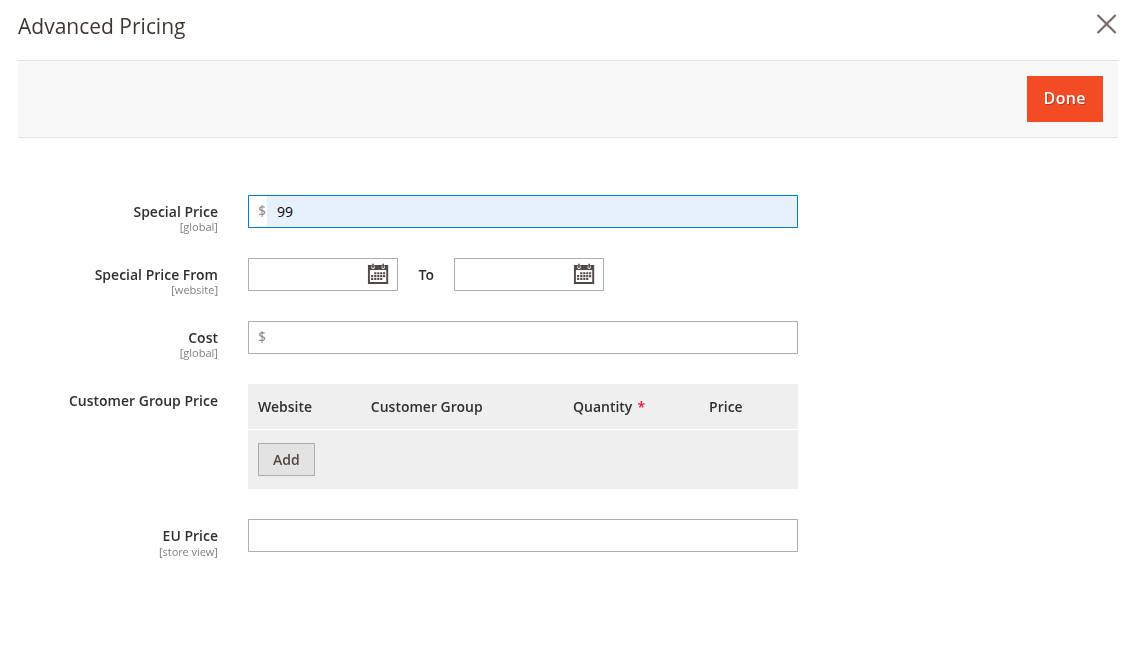
$100.00). - Special Price: Optional discounted price (e.g.,
$90.00). - Quantity: Set inventory quantity (or set to In Stock).
- Categories: Select store catalog categories.
Add Gift Card – Vendor
The Magento 2 Marketplace seller can create a new product by choosing the product type as a gift card.
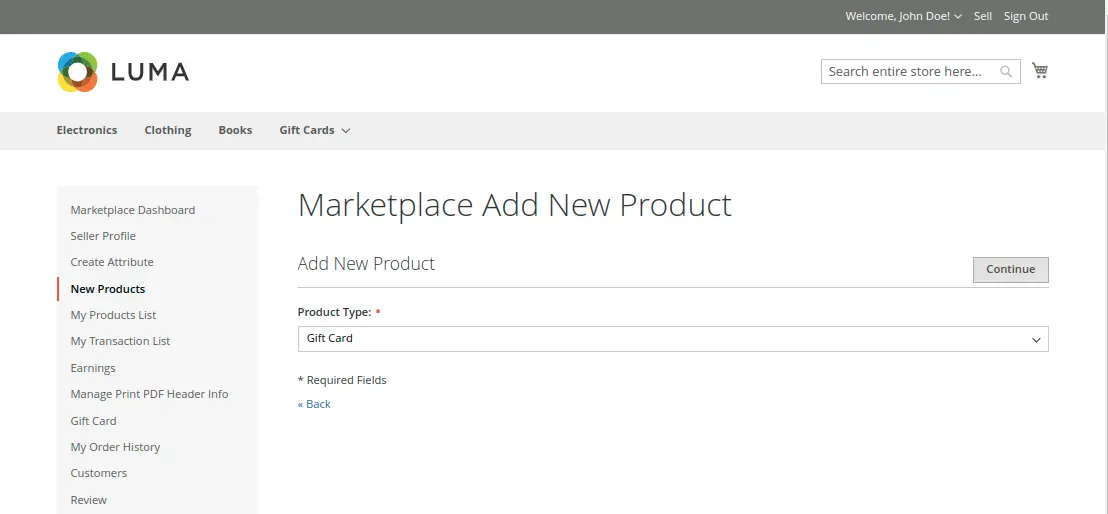
Hyva Compatible image 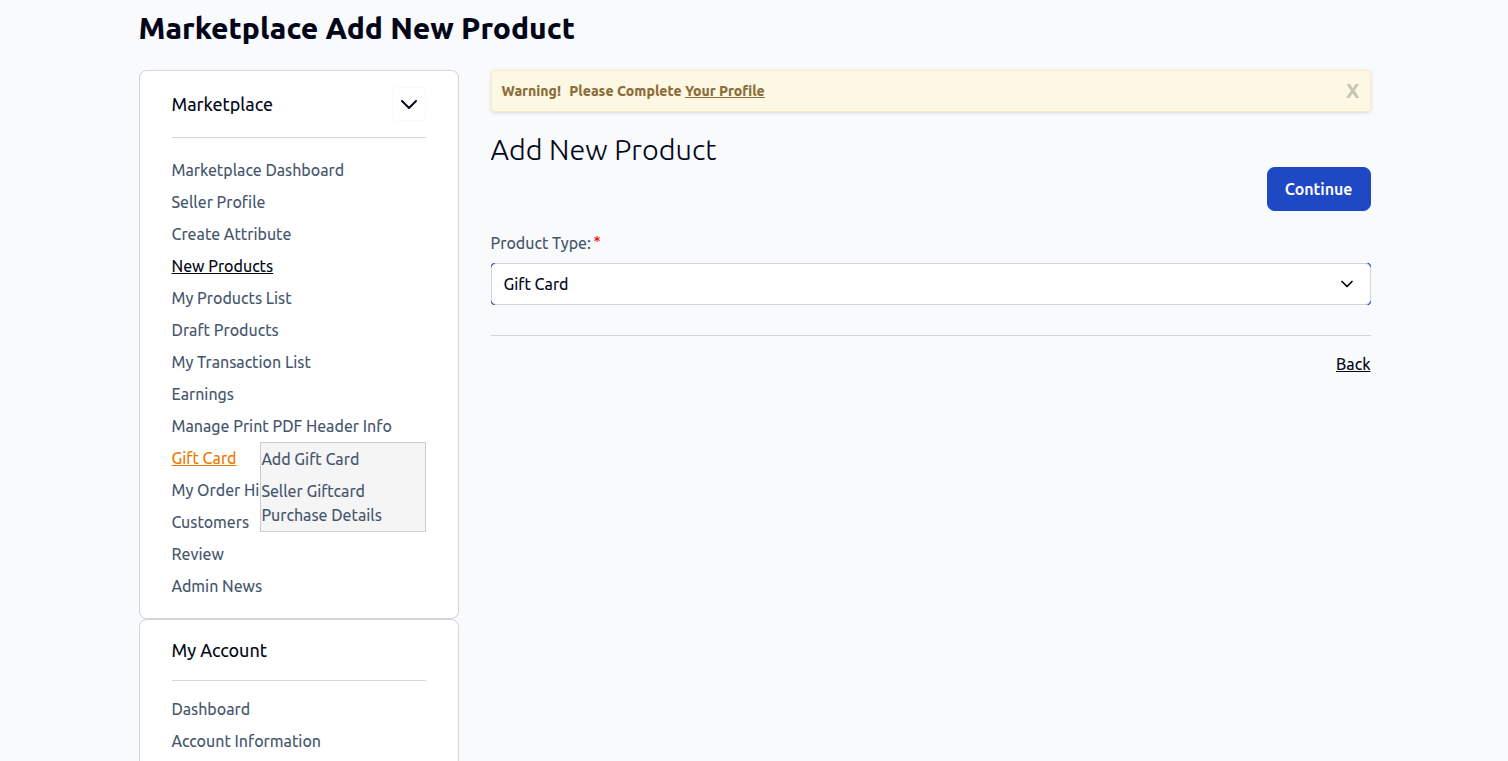
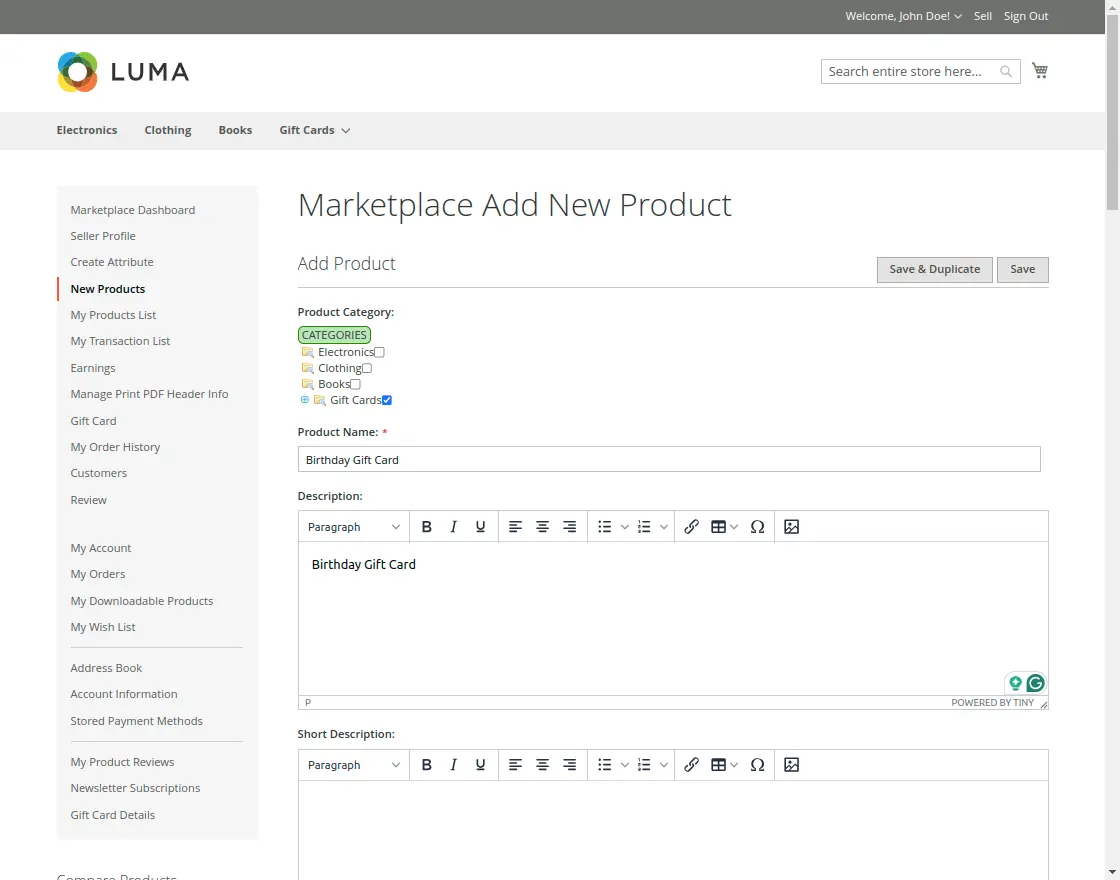
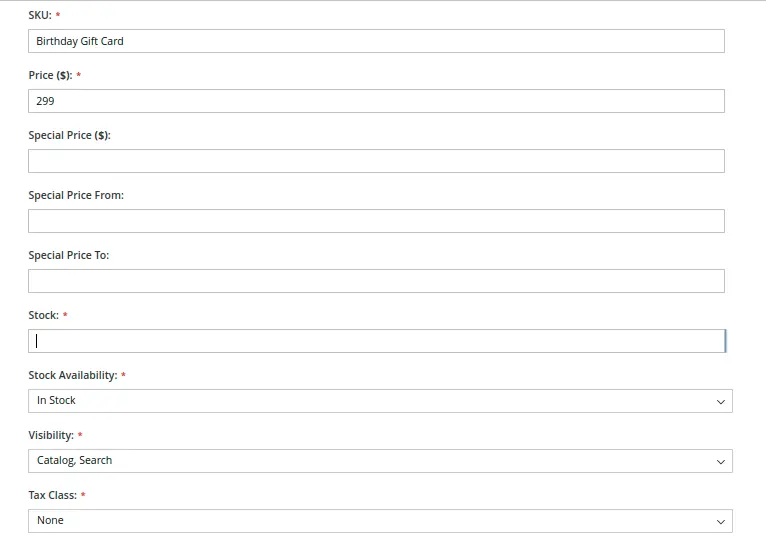
After clicking on the continue, it will bring up the page to add a new card product. Now, enter all the required information required for a Gift Card Product as shown below in the snapshot.
You will see one of the information is a special price, in this field the seller can set the special price for the gift card product by setting the special price duration.
Hyva Compatible image 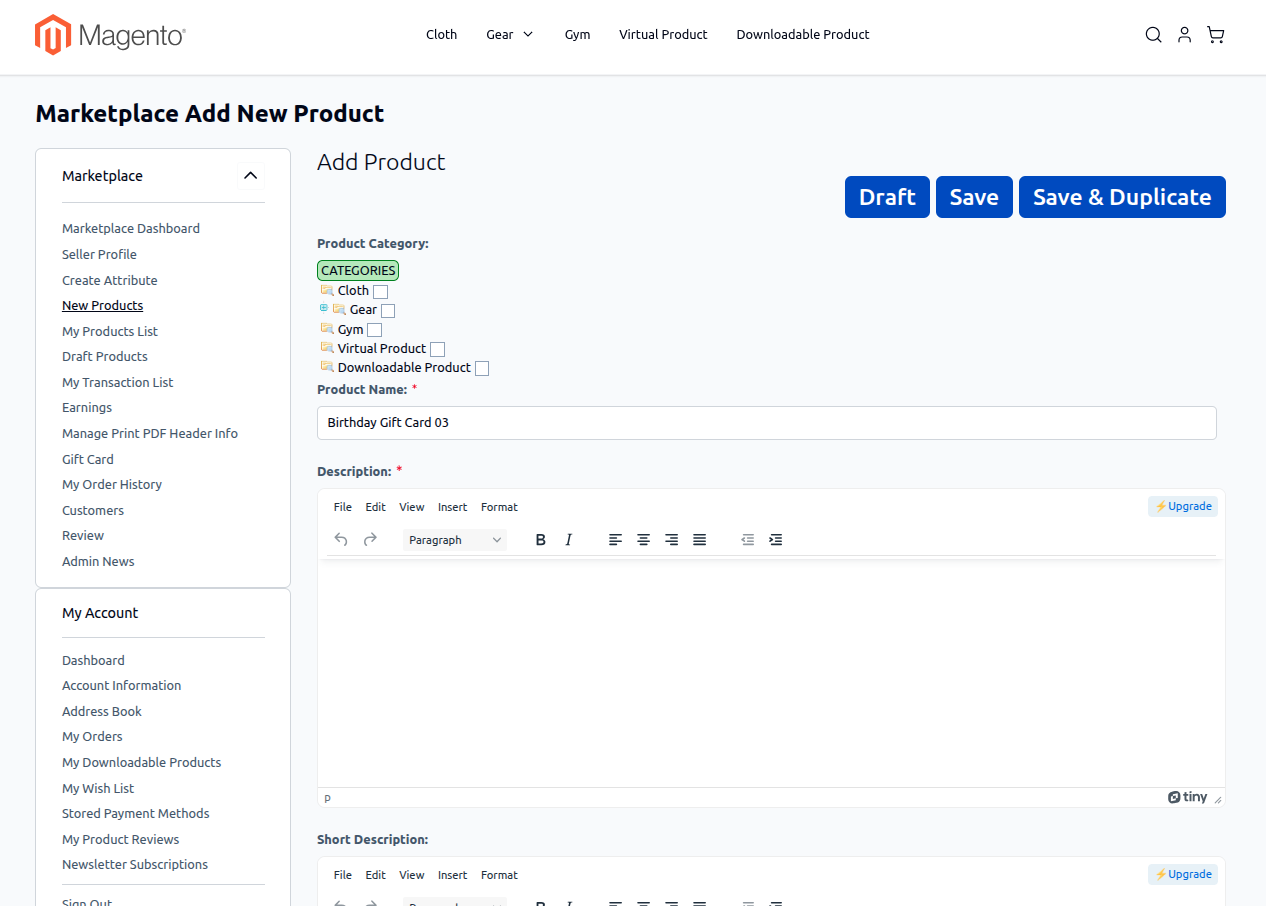
Hyva Compatible image 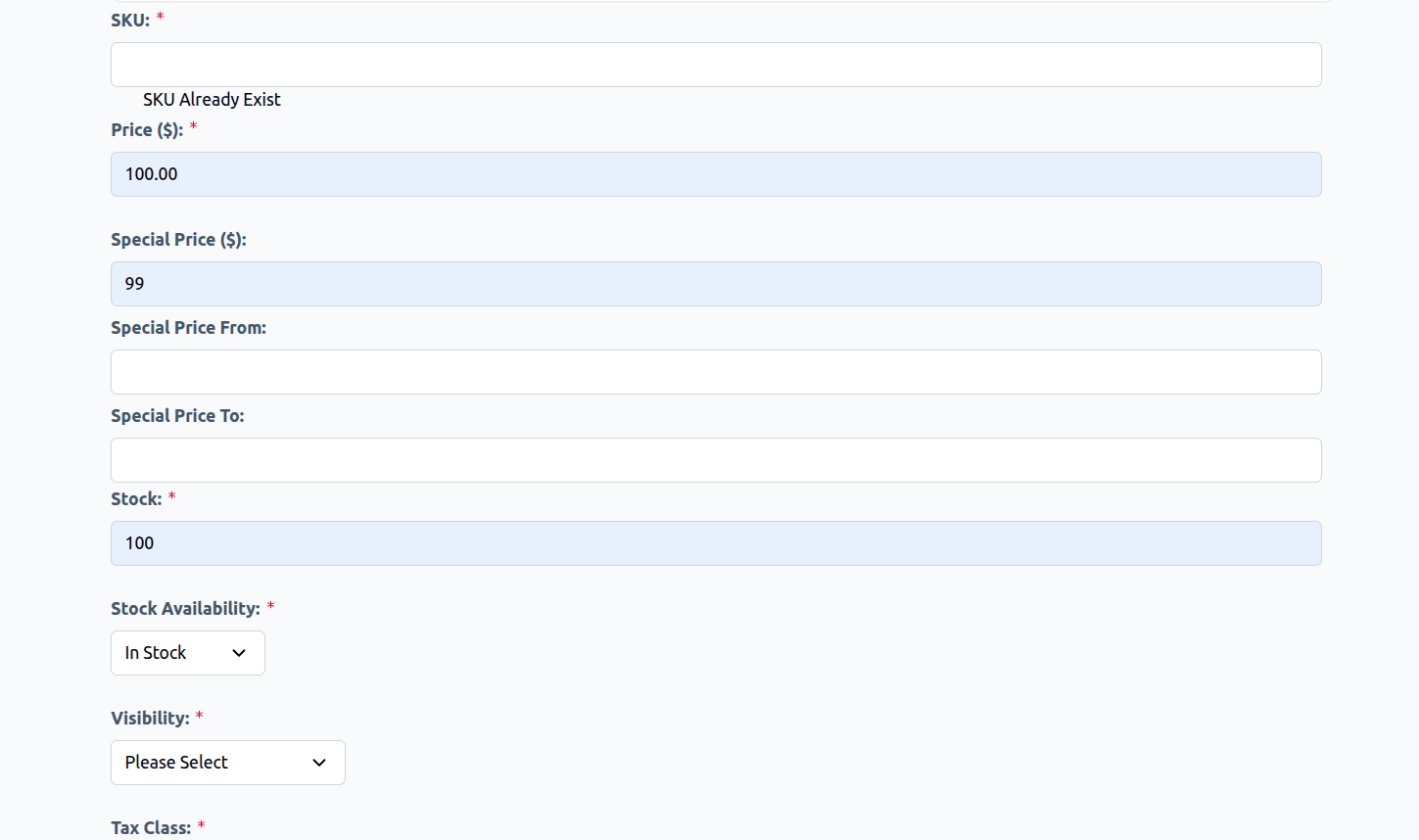
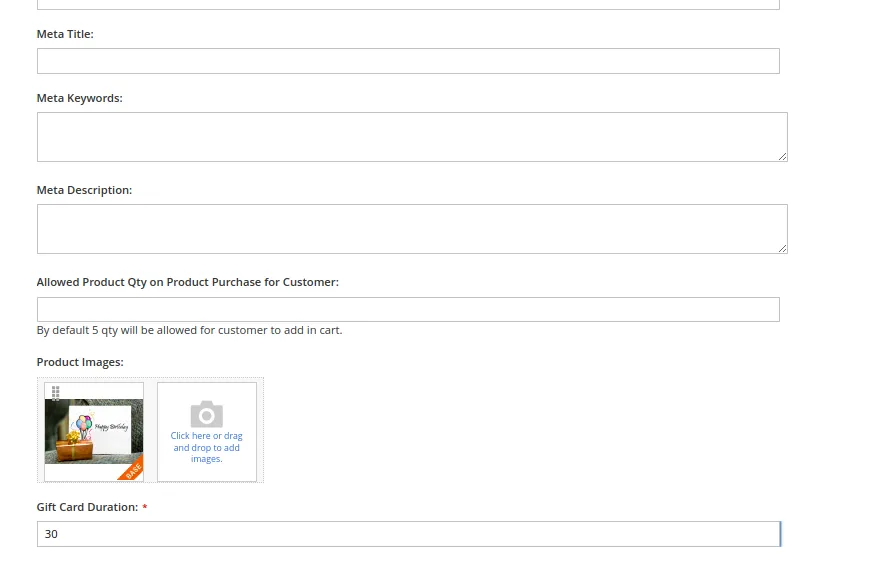
In the last section of the Gift Card product page, there will be an option to set the Gift Card Duration. The seller has to set the number of days allowed to redeem a Gift Card.
Hyva Compatible image 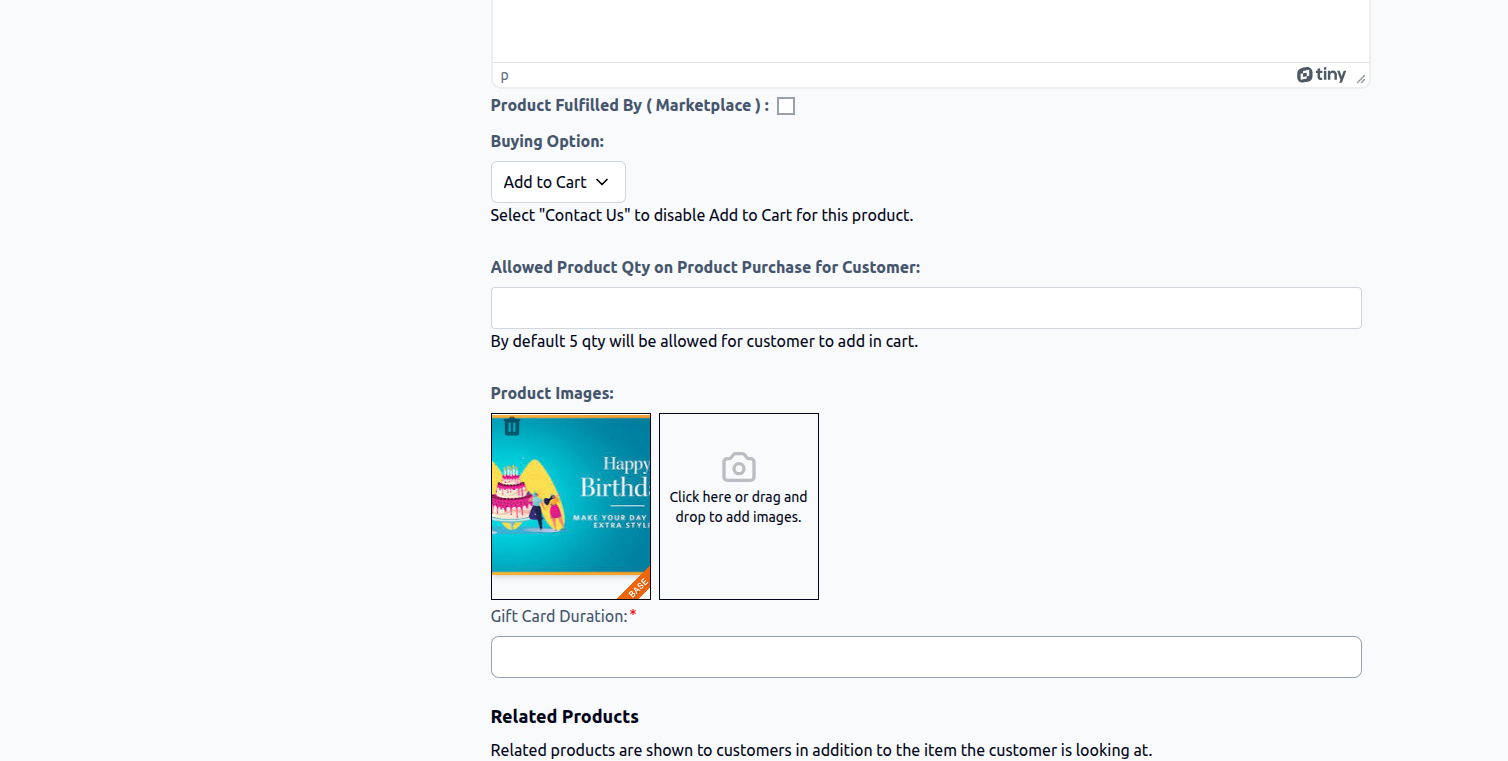
After filling up all the required details of the product, now click on the save button.
Product Display on Storefront
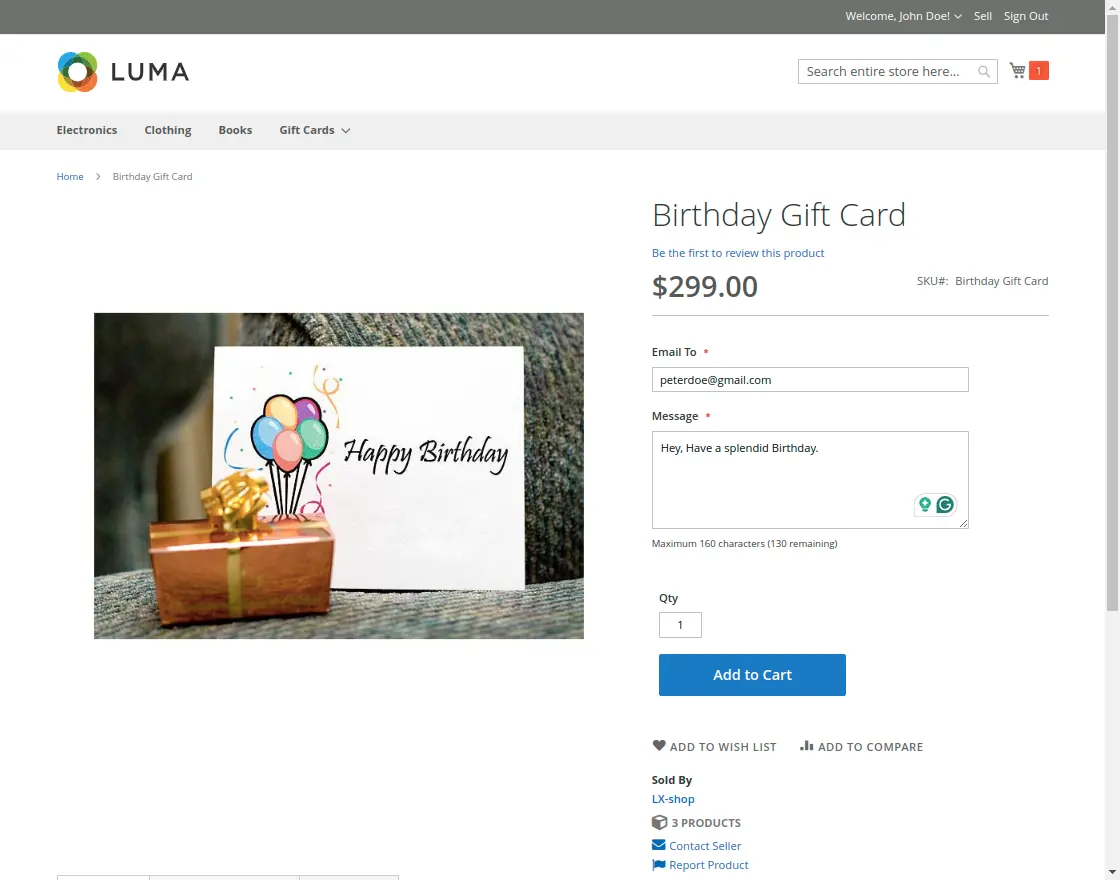
Once saved, the Gift Card product displays on the store frontend with custom input fields:
- Price Tag: Shows face value or special promotional price.
- Email To Input Box: Accepts the recipient's email address.
- Message Input Box: Allows the buyer to type a message (e.g., "Happy Birthday John! Enjoy your gift!").
- Add to Cart Button: Adds the configured virtual gift card to the customer's cart.
Hyva Compatible image 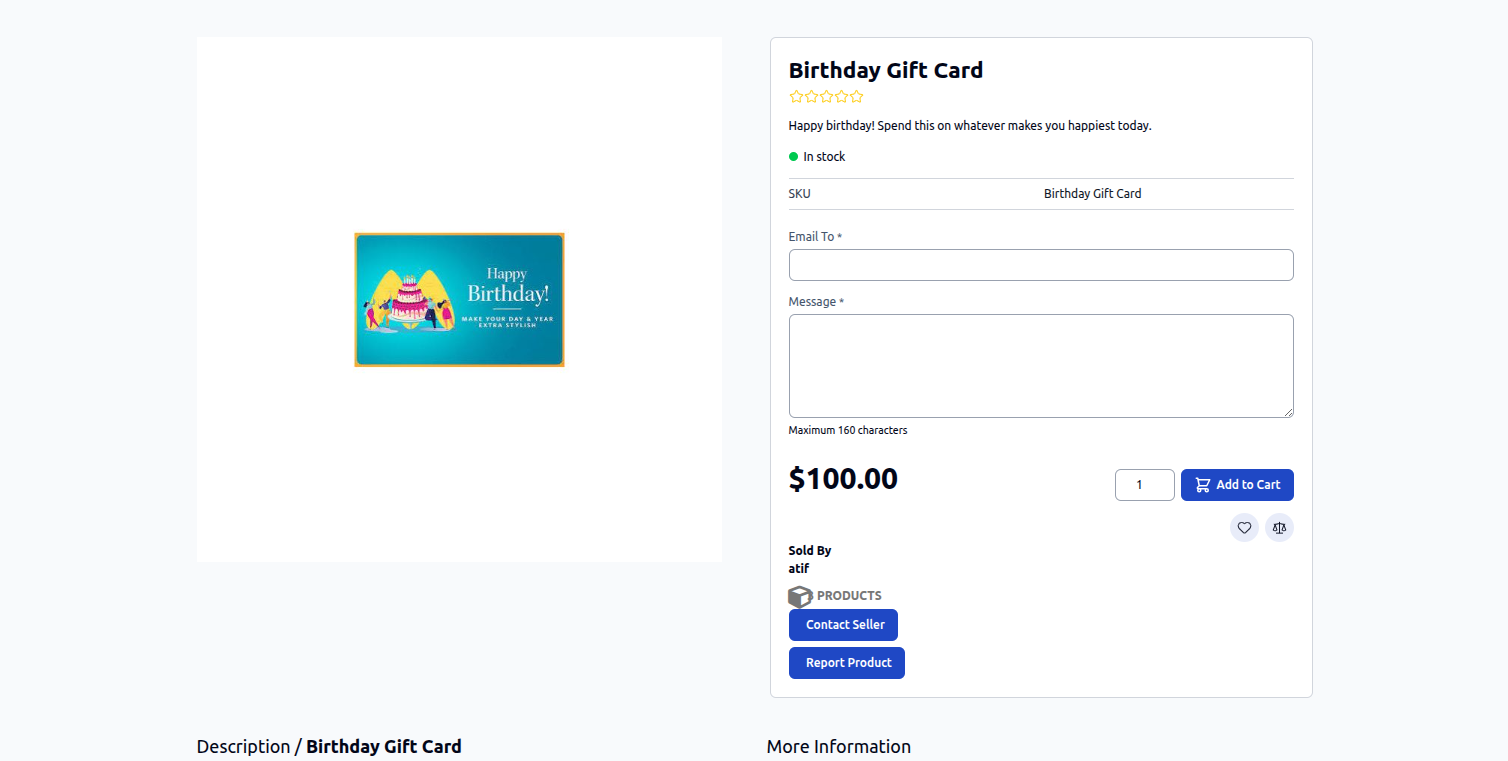
NOTE
Gift Cards are treated as Virtual Products—they do not require shipping costs, tax on shipping, or physical delivery addresses!