
Installation Guide
Follow these steps to install the Magento 2 Marketplace Catalog Translation extension on your server.
Step 1: Extract and Upload Extension Files
- Download the extension ZIP file from your Webkul Store account.
- Extract the ZIP package on your local computer.
- Inside the extracted folder, locate the
src/app/directory. - Using an SSH/SFTP client (such as FileZilla or Cyberduck), upload the contents of
appinto your Magento 2 root installation folder on the server.
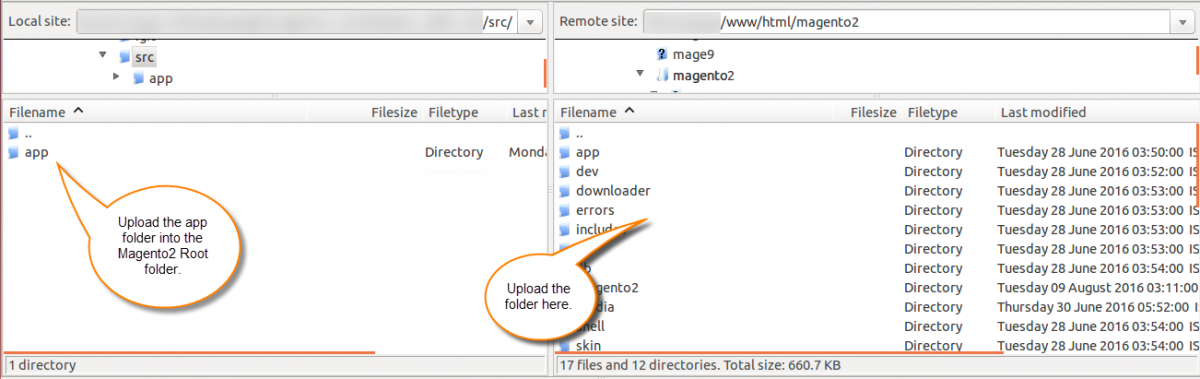
<Magento_Root>/
└── app/
    └── code/
        └── Webkul/
            └── MpCatalogTranslation/
Step 2: Run Deployment CLI Commands
Open your terminal, establish an SSH connection to your web server, navigate to your Magento 2 root folder, and execute the standard installation commands:
1. Upgrade Setup & Schema
Updates module status and creates required database tables:
php bin/magento setup:upgrade
2. Compile Dependency Injection
Compiles interdependency classes and proxy definitions:
php bin/magento setup:di:compile
3. Deploy Static Content
Deploys storefront and admin static assets:
php bin/magento setup:static-content:deploy -f
4. Reindex Indexers
Rebuilds catalog and search indexers:
php bin/magento indexer:reindex
Step 3: Flush Magento Cache
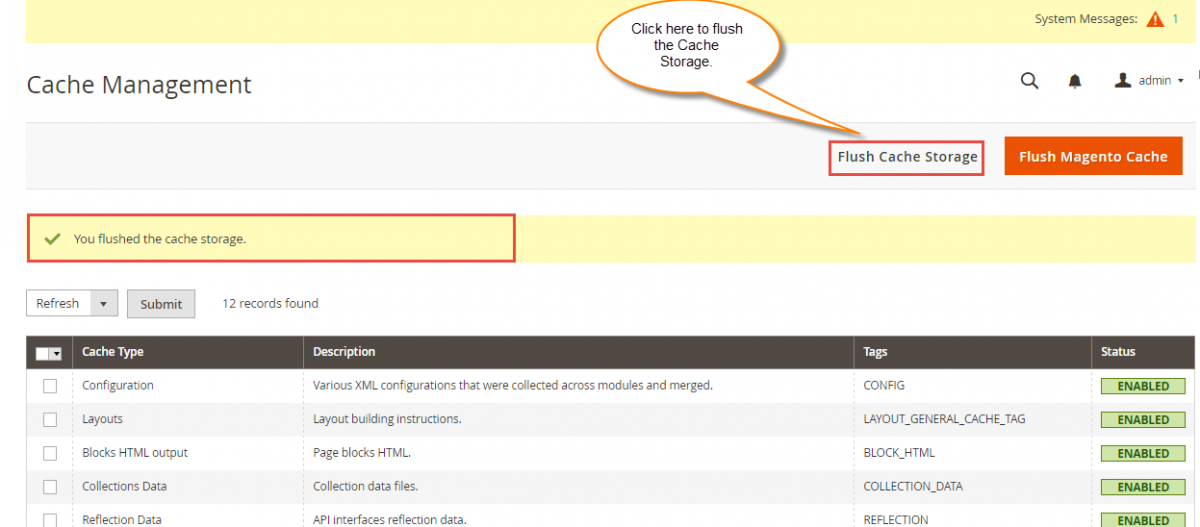
To ensure the new configuration options and menu entries appear in your admin panel, clear the Magento cache:
- Log in to your Magento Admin Panel.
- Navigate to System > Cache Management.
- Click Flush Magento Cache at the top right corner.
Verification
Once installed, verify that Marketplace Catalog Translation appears under Stores > Configuration.