
Admin Configuration
Navigate to Stores > Configuration > Webkul > Elastic Search Settings in your Magento Admin Panel.
Module License
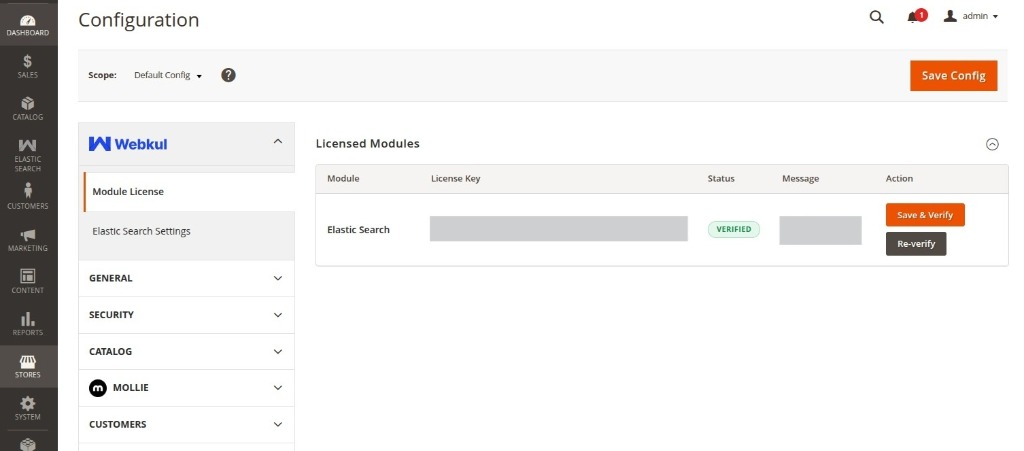
The admin needs to verify the module license to use it properly. Navigate to Stores > Configuration > Webkul > Module License.
Here, the admin will find the list of all the licensed modules. For the Elastic Search module, the admin needs to enter the License Key and click on the Save & Verify button to verify the license.
1. Select Search Engine
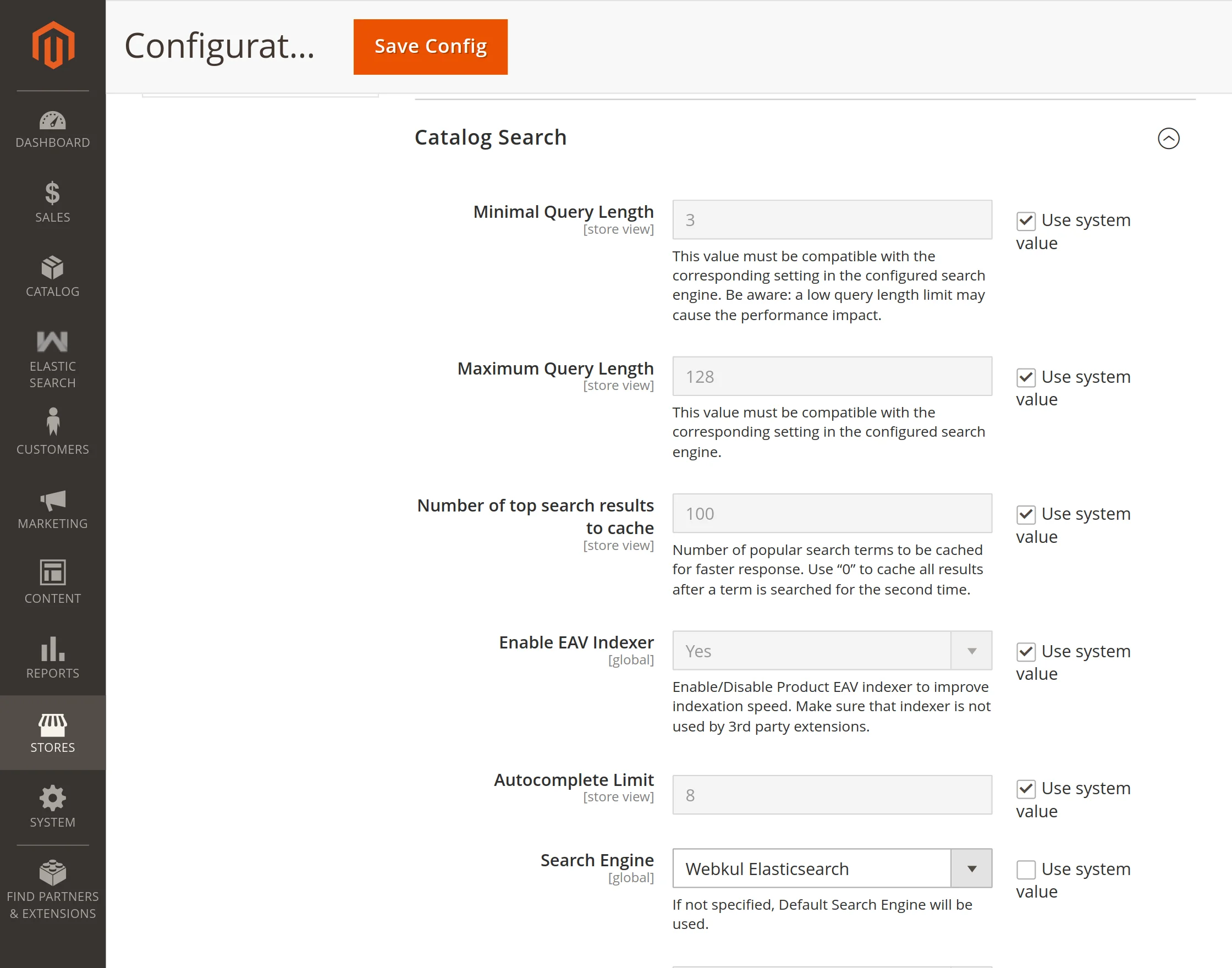
The next step is to tell Magento to route search queries through the Webkul Elasticsearch engine:
- Navigate to Stores > Configuration > Catalog > Catalog Search in the Magento Admin Panel.
- Locate the Search Engine dropdown.
- Select Webkul Elasticsearch.
- Click Save Config.
2. General Settings
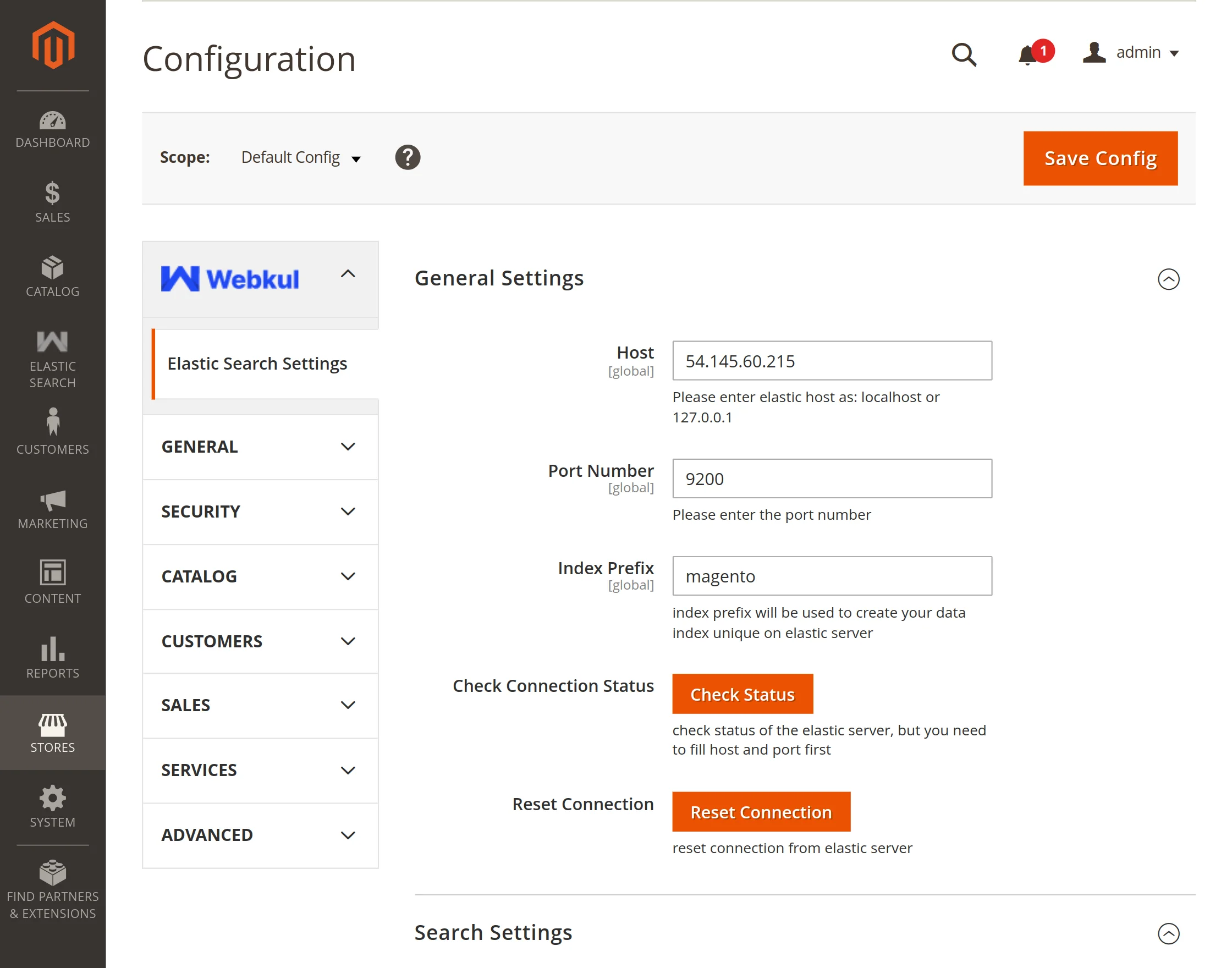
Next, configure the connection parameters for your Elasticsearch cluster:
Navigate to Stores > Configuration > Webkul > Elastic Search Settings > General Settings.
Configuration Fields
- Enable Module: Set to Yes to activate Elasticsearch indexing and querying.
- Host: Enter the hostname or IP address of your Elasticsearch server (e.g.,
localhostor127.0.0.1). - Port Number: Enter the HTTP/REST port for Elasticsearch (default:
9200). - Index Prefix: Enter a unique prefix for your indices (e.g.,
wk_store1_).[!TIP] When sharing a single Elasticsearch cluster across multiple Magento websites or testing environments, using distinct index prefixes prevents cross-environment index overwrites during reindexing.
- Check Connection Status: Click this button to perform a real-time AJAX ping to your Elasticsearch server. The modal reports the cluster name, Elasticsearch version, and connectivity status.
- Reset Connection: Purges all existing Webkul indices and mapping properties on the active Elasticsearch server. Use this if you want to rebuild mappings from scratch.
3. Search Settings Overview
Under Stores > Configuration > Webkul > Elastic Search Settings > Search Settings:
- Enable Smart Search Mode:
- Yes (Recommended): Webkul automatically optimizes search queries and safe tokenization out-of-the-box. Complex Query DSL settings are safely abstracted.
- No: Unlocks manual query configuration, allowing you to fine-tune multi-match types, boolean operators, search fields, minimum match percentages, and pattern replace filters.
- Show Out-of-Stock Products Separately:
- Yes: Demotes out-of-stock items, rendering in-stock results first and moving out-of-stock items to a dedicated single-row carousel at the bottom of the page.
- No: Displays in-stock and out-of-stock items in standard mixed relevance ranking.
Configuration Summary Reference
Below is the complete reference of all configuration fields available in Magento Admin under Stores > Configuration > Webkul > Elastic Search Settings:
1. Module License & Search Engine
| Setting | Description | Recommended / Default |
|---|---|---|
| Module License | License key verification required to use the extension. | Verified |
| Search Engine | Sets Webkul Elasticsearch as the primary catalog search engine. | Webkul Elasticsearch |
2. General Settings
| Setting | Description | Recommended / Default |
|---|---|---|
| Enable Module | Activates or disables the Elasticsearch module globally. | Yes |
| Host | Hostname or IP of the Elasticsearch server (e.g., localhost, 127.0.0.1, or remote server IP). | localhost or 127.0.0.1 |
| Port Number | HTTP/REST port for Elasticsearch communication. | 9200 |
| Index Prefix | Unique prefix prepended to all index names on the cluster to prevent collisions across multi-website setups. | wk_store1_ |
| Check Connection Status | AJAX diagnostic button testing live connectivity, cluster health, node name, and Elasticsearch version. | Click to test |
| Reset Connection | Utility action that flushes and removes all Webkul indices and mapping properties from the Elasticsearch server. | Use during reset |
3. Search Settings — Query & Match Controls
| Setting | Description | Recommended / Default |
|---|---|---|
| Enable Smart Search Mode | When enabled (Yes), automatically applies optimized search query algorithms and safe tokenization, hiding complex DSL options. | Yes |
| Show Out-of-Stock Products Separately | Demotes out-of-stock items, keeping in-stock items at top and displaying out-of-stock products in a separate carousel below. | Yes |
| Select Frontend Search Type | Choose between Multi Match Query (searches across configured attributes) and Simple Match Query (Name & SKU only). (Available when Smart Search Mode is No) | multi_match |
| Select Fields For Multi Search | Multiselect list of catalog attributes evaluated during multi-search (e.g., name, sku, description, short_description). (Available for Multi Match) | Name, SKU, Description, Short Description |
| Select Multi Match Type | Elasticsearch scoring algorithm: best_fields, most_fields, cross_fields, phrase, or phrase_prefix. (Available for Multi Match) | best_fields |
| Select Operator For Multi Search | Boolean operator: AND (all terms must match) or OR (any term matches). (Available for Multi Match) | OR |
| Minimum Should Match | Percentage of query terms that must match (e.g. 75%) to weed out low-relevance results. (Available for Multi Match) | 75% or empty |
| Allow Spell Correction in search | Fuzziness edit distance tolerance: Level 0 (Exact), Level 1 (1 edit), Level 2 (2 edits), or Auto. | Level 1 or Auto |
4. Search Settings — Linguistic & Token Filters
| Setting | Description | Recommended / Default |
|---|---|---|
| Select Search Filters | Token filters applied during analysis: Synonym Filter, Elision Filter, Lowercase Filter, Stop Word Filter. | Lowercase, Synonym, Stop Word |
| Enter Comma Separated List Elisions | Comma-separated list of elision prefixes to strip (e.g. French/Italian l, d, m, t, s, n, qu). (Works with Elision Filter) | l, d, m, t, s, n |
| Use Stop Words Filter | Enables or disables the removal of high-frequency noise words (e.g. and, the, to). | Yes |
| Enter Comma Separated List Of Stop Words | Custom comma-separated stop words. If left empty, Elasticsearch's standard default dictionary is used. | Leave empty or custom words |
| Select Language Stemmer | Language stemmer selected per store view locale (English, French, German, Spanish, Arabic, Italian, Dutch, Russian, etc.) to reduce words to their base root. | Match store language |
| Enter comma separated words to exclude from stemming | Comma-separated list of product words or brand names to preserve without grammatical root reduction (e.g., shoes, skis). | Brand / technical terms |
5. Search Settings — Character Filters
| Setting | Description | Recommended / Default |
|---|---|---|
| Select Search Filters (Character Filters) | Character filters applied prior to tokenization: HTML strip char filter, Mapping Filter, Pattern Replace Filter. | HTML strip char filter |
| Enter Comma Separated List Of Filter Mappings | Key-value mapping pairs in key => value format to standardize characters (e.g., mapping Eastern Arabic numerals ٠ => 0, ١ => 1, ٢ => 2, ٣ => 3). (Works with Mapping Filter) | Language-specific mapping pairs |
| Enter Pattern | Regular expression to identify recurring noise, symbols, or formatting in product text (e.g., (\d+)-(\d+) for hyphenated part numbers, or [^\w\s] to strip special symbols). (Works with Pattern Replace Filter when Smart Search Mode is No) | Optional (e.g., (\d+)-(\d+)) |
| Enter Pattern To Replace With Filter Pattern | Replacement string substituted for regex matches (e.g., $1$2 to unify hyphenated SKUs so 123-456 matches 123456, or leave blank to strip matches). (Works with Pattern Replace Filter) | Optional (e.g., $1$2 or empty to strip) |
6. Product Information Group
| Setting | Description |
|---|---|
| Elastic Search Product Information | Displays installed module version, Webkul release details, and customer support links. |
Saving Configuration
Click Save Config in the upper right corner, then clear the Magento cache:
php bin/magento cache:flush