
Installation
Installing the Webkul Amazon Connector for Magento 2 module is straightforward. Follow the steps below to successfully install and prepare the module.
Option A — Install from Zip Package
Use this method if you downloaded the module package directly from the Webkul Store.
1. Download Module
Log in to your Webkul Store account, navigate to My Account > My Purchased Products, and download and extract the contents of the module zip folder on your local system.
2. Upload Folder
Once extracted, connect to your Magento 2 server via SSH/SFTP. Copy the codebase and upload it to the directory /app/code/Webkul/AmazonMagentoConnect/ under the Magento 2 root directory.
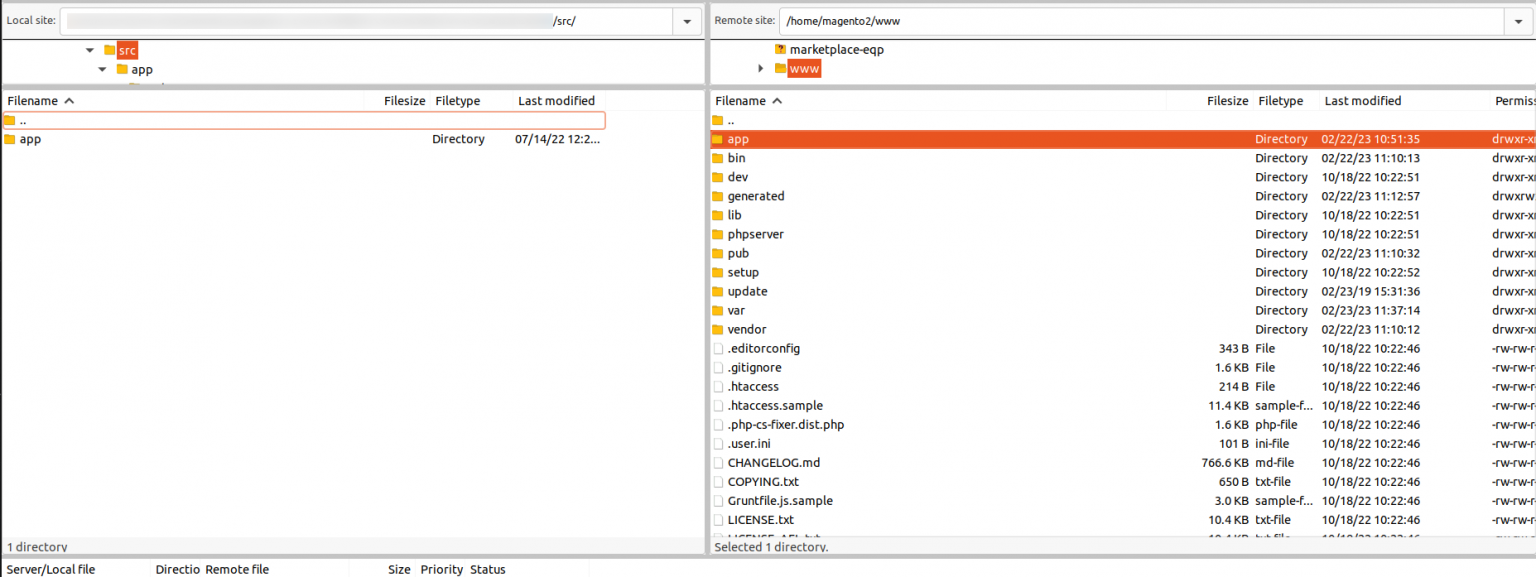
3. Install Dependencies & Run Commands
Run the following commands in sequence in the Magento 2 root directory to install the required external libraries and compile/deploy the module:
First, install the library dependencies via Composer:
composer require guzzlehttp/guzzle:"^7.0" spatie/array-to-xml:"^3.1" league/csv:"^9.5"
Next, run the Magento compilation and setup updates:
php bin/magento setup:upgrade
php bin/magento setup:di:compile
php bin/magento setup:static-content:deploy -f
php bin/magento cache:flush
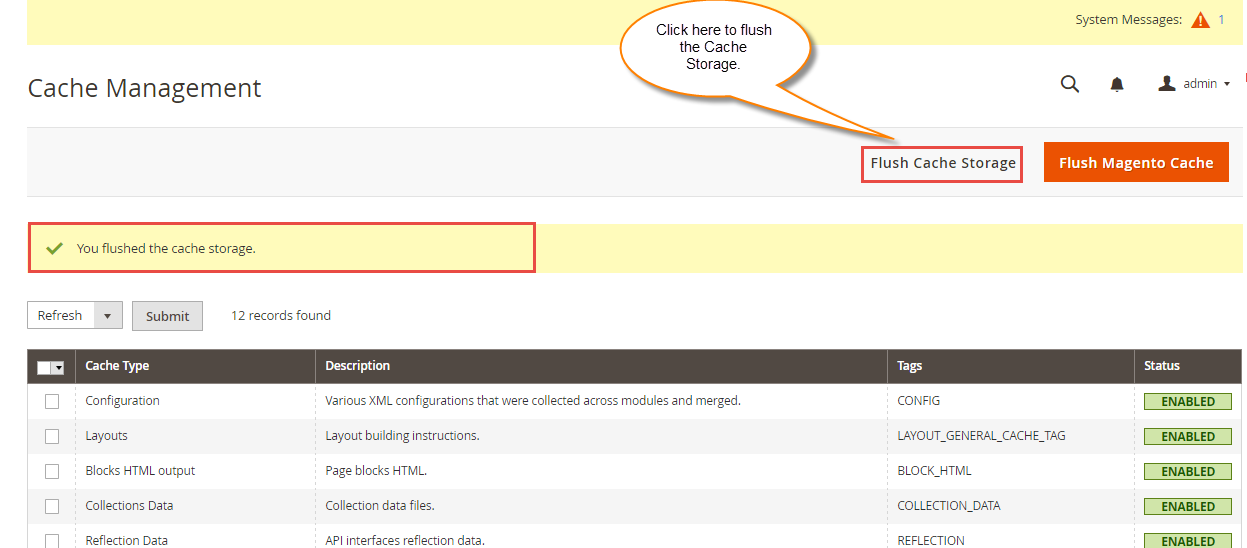
You can also clear the cache via the admin panel. Navigate to System -> Tools -> Cache Management and click the Flush Magento Cache button.
Option B — Install with Composer
Use this method if the module package is hosted in your private Webkul Composer repository.
Run the Composer require command to install the package:
composer require webkul/amazon-magento-connect
After running the Composer command, execute the installation commands:
php bin/magento setup:upgrade
php bin/magento setup:di:compile
php bin/magento setup:static-content:deploy -f
php bin/magento cache:flush
Language Translation
The module supports multiple languages, including Right-to-Left (RTL) and Left-to-Right (LTR) layouts. To translate the module into another language:
- Navigate to the module's i18n directory:
app/code/Webkul/AmazonMagentoConnect/i18n.
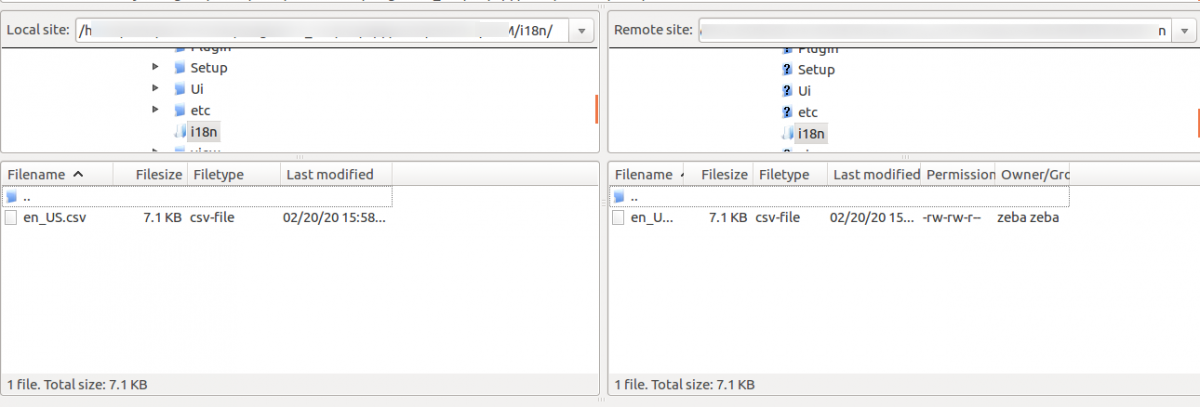
- Open the
en_US.csvfile. - Save or rename the CSV file using your target locale name (e.g.,
de_DE.csvfor German,fr_FR.csvfor French).
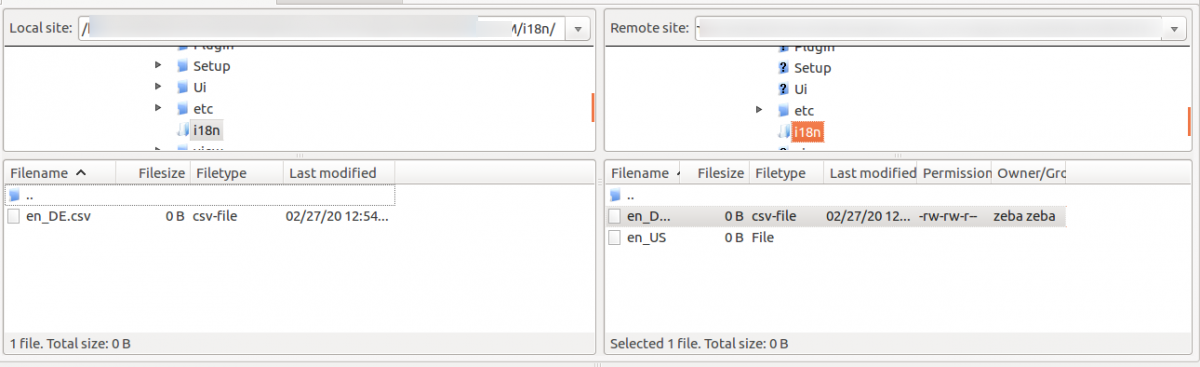
- Translate all phrases on the right side of the commas into your target language. Leave the English key on the left side untouched.
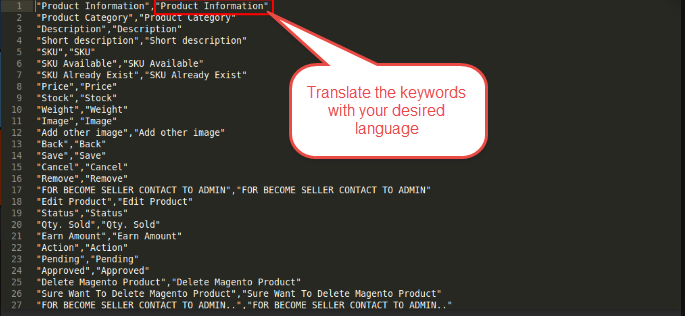
- Save the file and upload it to
app/code/Webkul/AmazonMagentoConnect/i18n. - Run static content deployment and cache flush commands again.