
Product & Order Sync
The core functionality of the Webkul Amazon Connector is the synchronization of catalog items, stock status, pricing, and sales orders.
Exporting Products (Magento to Amazon)
To list your Magento catalog items on Amazon:
- Navigate to Amazon Magento Connect > Manage Amazon Accounts and click Edit on your account.
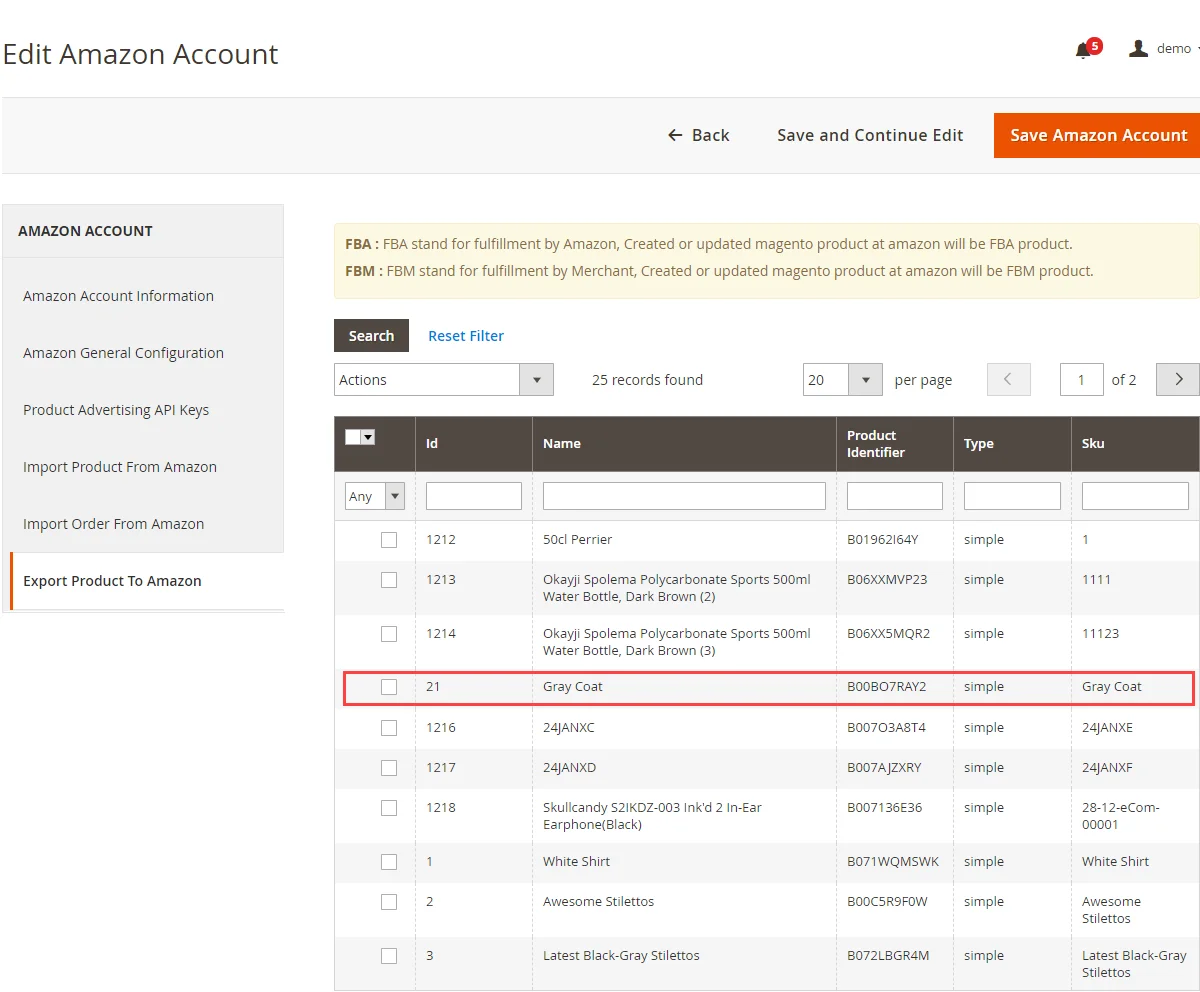
- Select the Export Product To Amazon tab.
- Select the products from the grid that you wish to export to Amazon.
- From the Actions dropdown, select Export to Amazon and apply the action.
Tracking Export Status
To check the status of exported products, navigate to the Export Product To Amazon Status tab under your Account Edit screen, or click Get Status under the Import Product From Amazon tab.
Importing Products (Amazon to Magento)
To fetch listings from Amazon Seller Central and create them in Magento 2:
- Under the Account Edit screen, select the Import Product From Amazon tab.
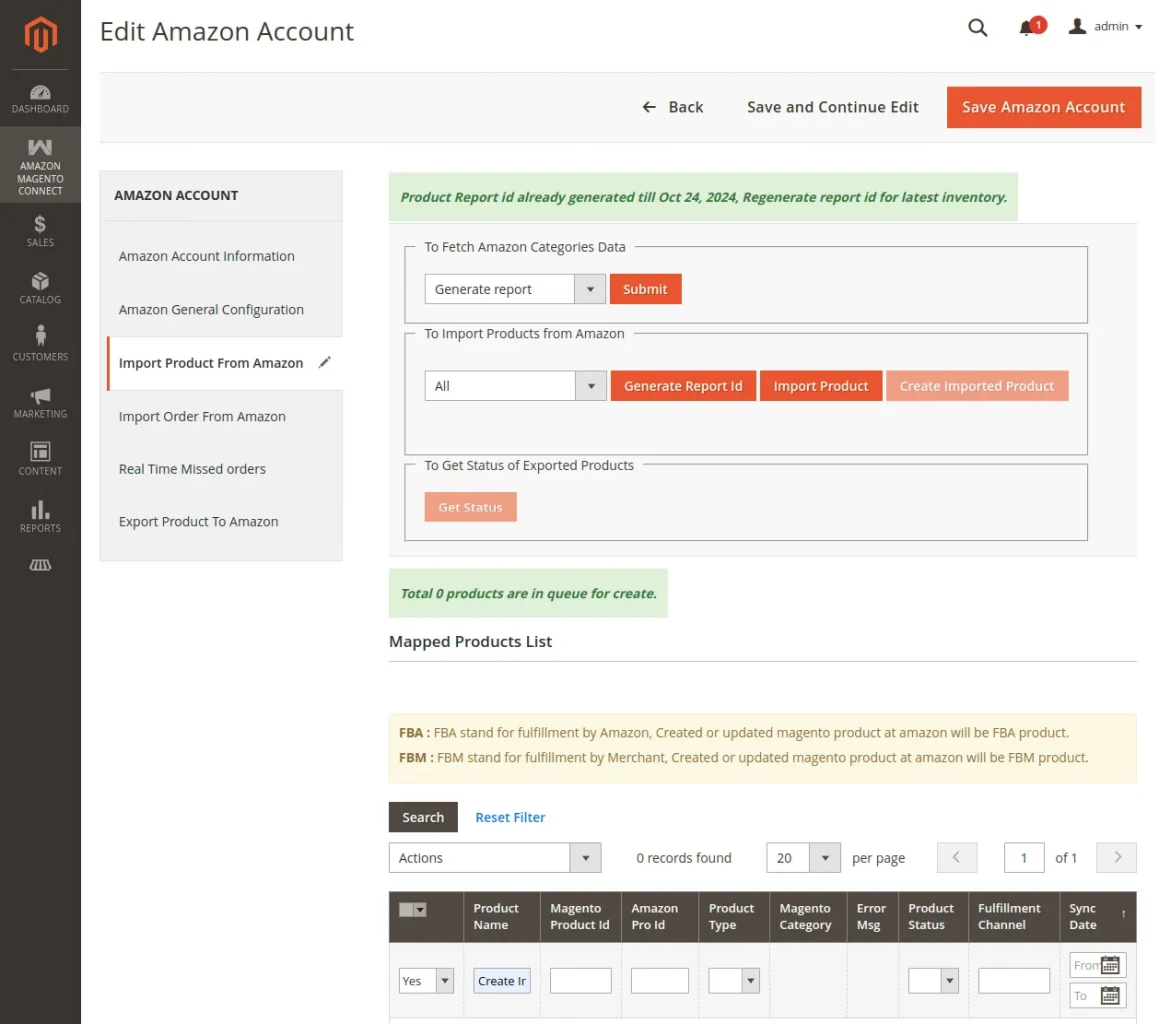
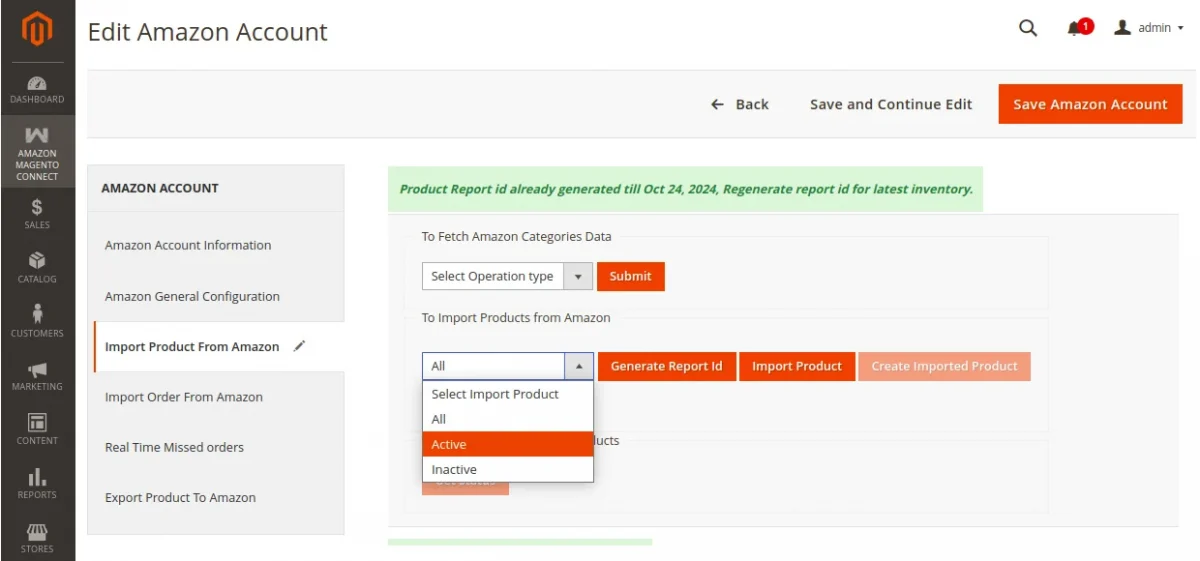
- Under the To Import Products from Amazon section, select the product status filter (All, Active, or Inactive).
- Click Generate Report Id to send an inventory report request to Amazon.
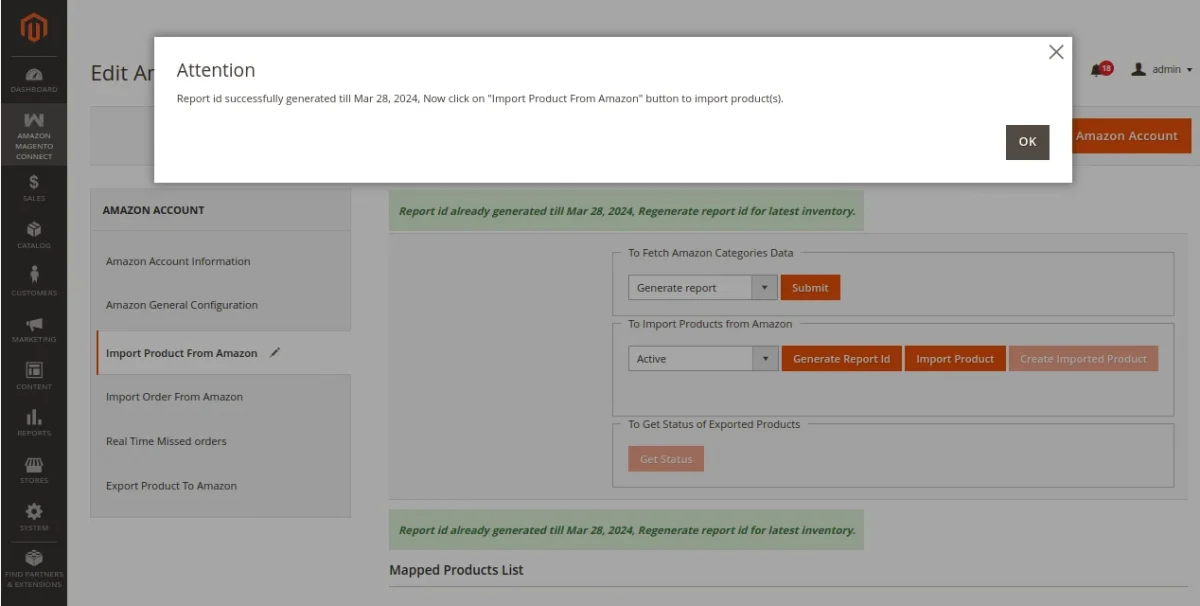
- Once the report is generated, click Import Product to pull the product listings into the temporary table queue.
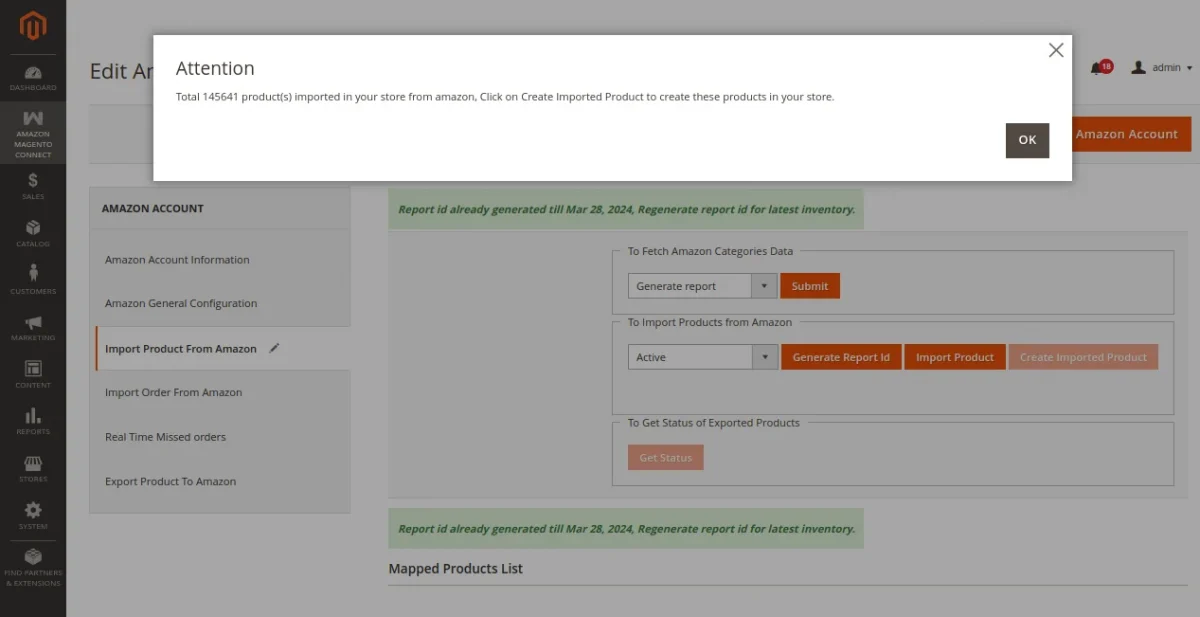
- Click Create Imported Product (or Publish Messages to Create Imported Product if Message Queue is enabled) to convert the queued items into Magento catalog products under mapped categories.
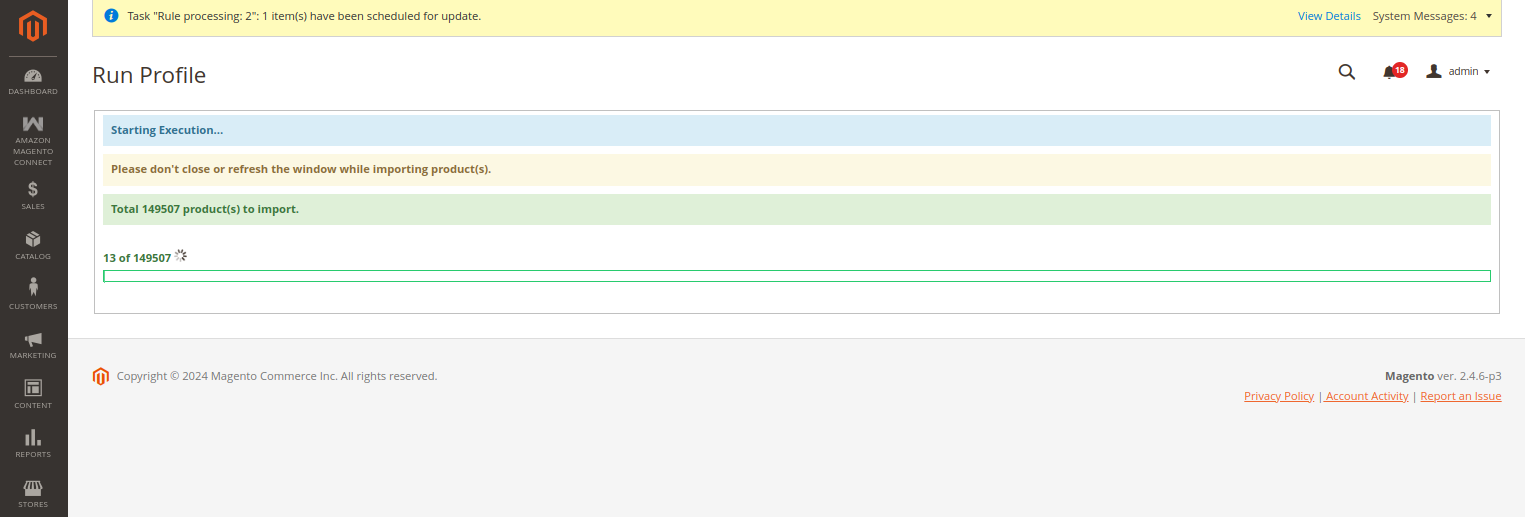
Asynchronous Message Queue Processing
When Enable Message Queue is active in General Configuration, queue consumer workers can be started via terminal: php bin/magento queue:consumers:start amazonproduct.import &
Price & Stock Synchronization
Once products are mapped between Magento and Amazon:
- Product Revisions & Export: Updating product inventory or details in Magento reflects on Amazon when Revise Amazon Product and Export Product Image options are enabled in Account Configuration.
- Real-time & Cron Synchronization: Order placement and stock adjustments automatically update inventory levels across connected systems when real-time and cron settings are enabled.
Importing Orders
Fulfill your Amazon orders within Magento:
- Under the Account Edit screen, select the Import Order From Amazon tab.
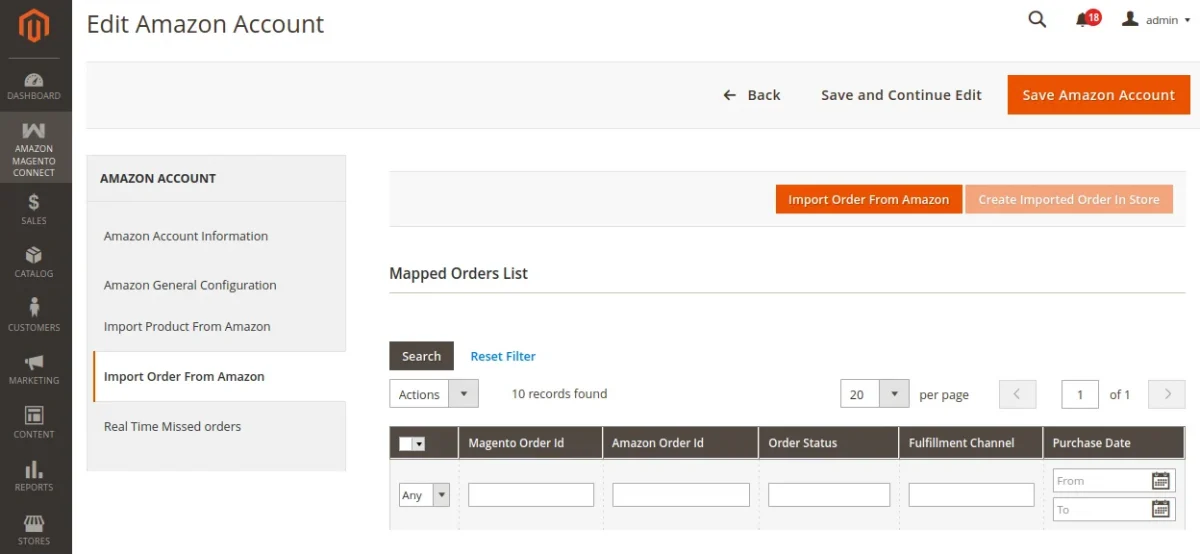
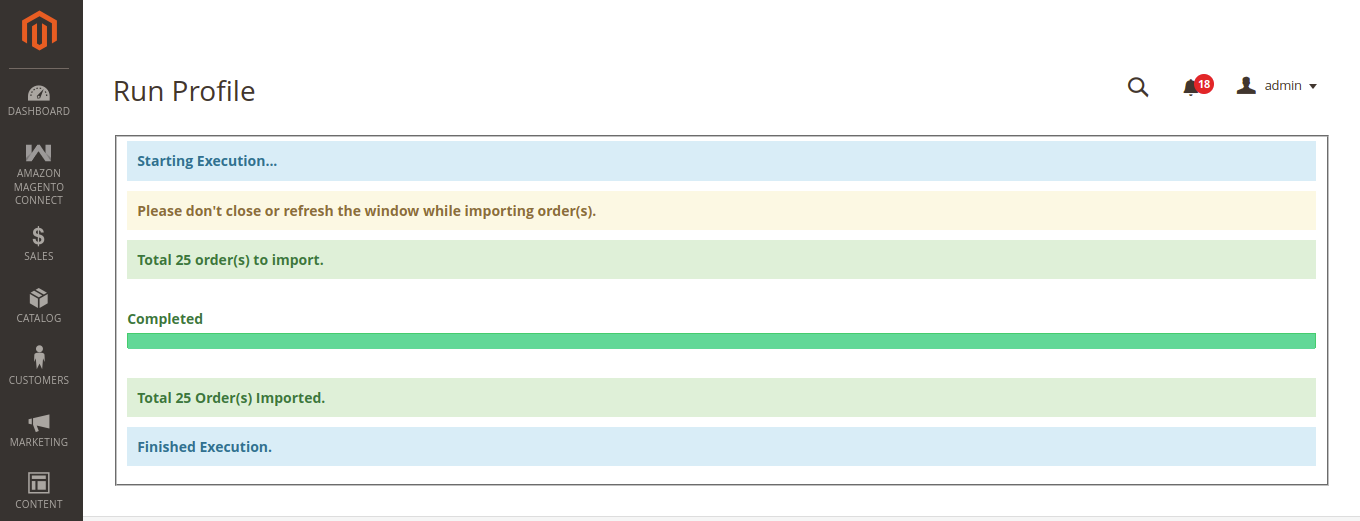
- Click the Import Order From Amazon button to open the Amazon Order Range popup.
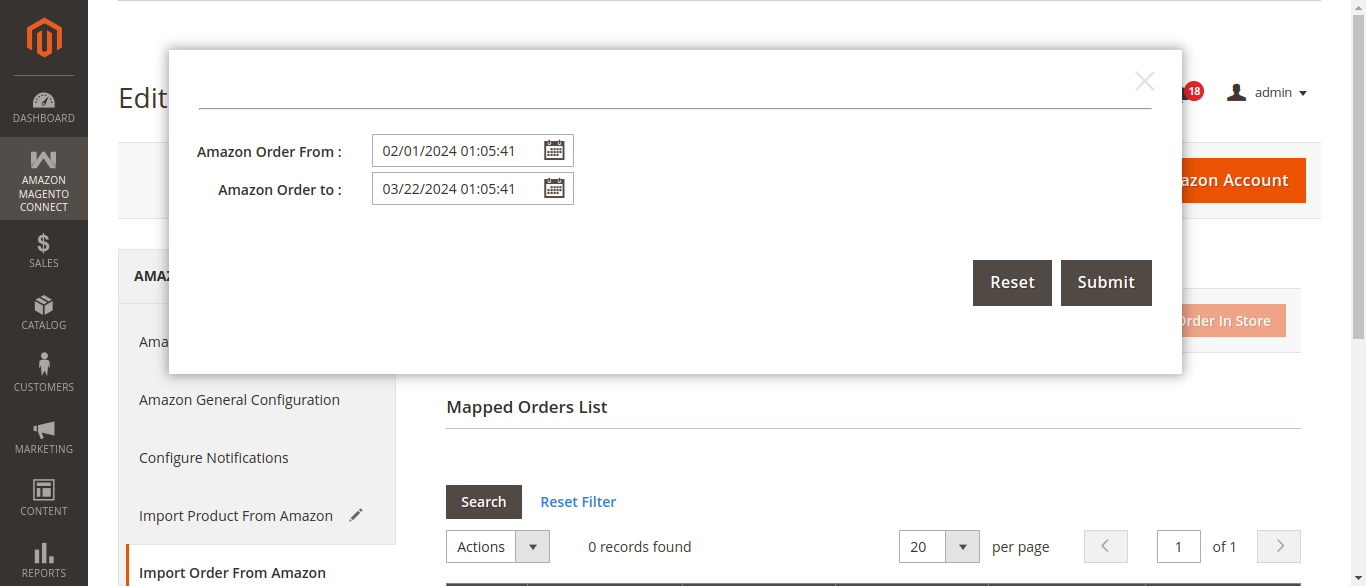
- Select the Amazon Order From and Amazon Order to dates and click Submit.
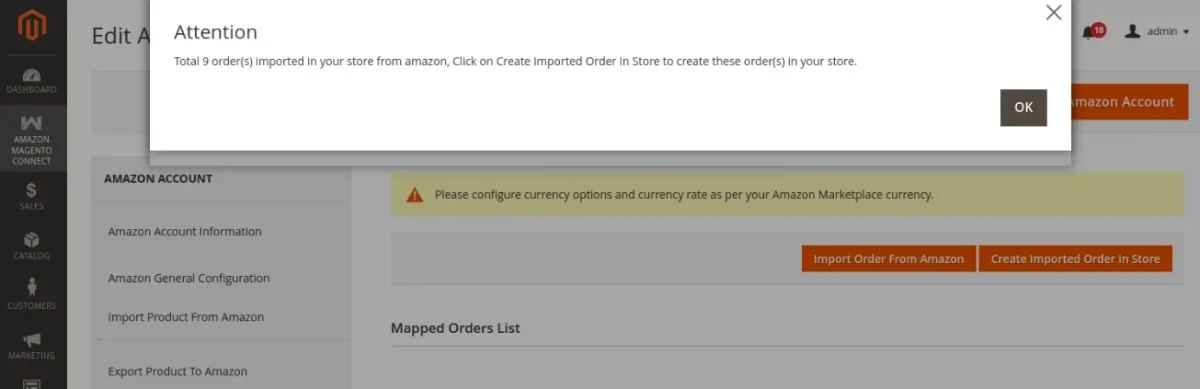
- Click Create Imported Order In Store to convert the fetched orders into standard Magento sales orders.
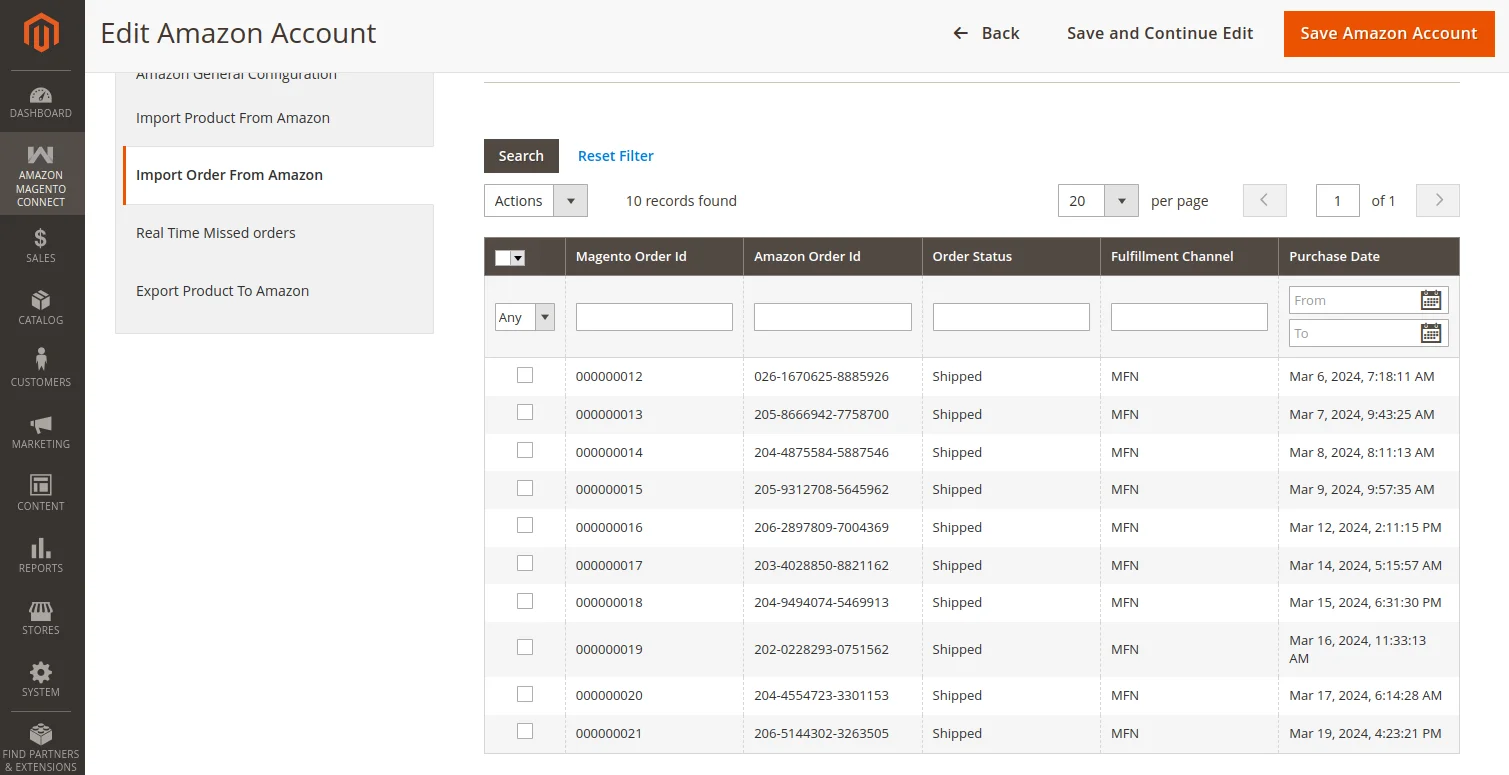
- View, invoice, and ship these orders from Sales > Orders in Magento.
Automatic Sync
Instead of manually running import routines, product sync and real-time order imports can be automated using scheduled cron jobs.