
Account Configuration
The Webkul Amazon Connector allows you to manage multiple Amazon Seller accounts. Each account is configured in Magento using credentials obtained from Amazon Seller Central alongside account-specific synchronization defaults.
Accessing Seller Accounts
- Log in to your Magento 2 Admin panel.
- Navigate to Amazon Magento Connect > Manage Amazon Accounts in the sidebar.
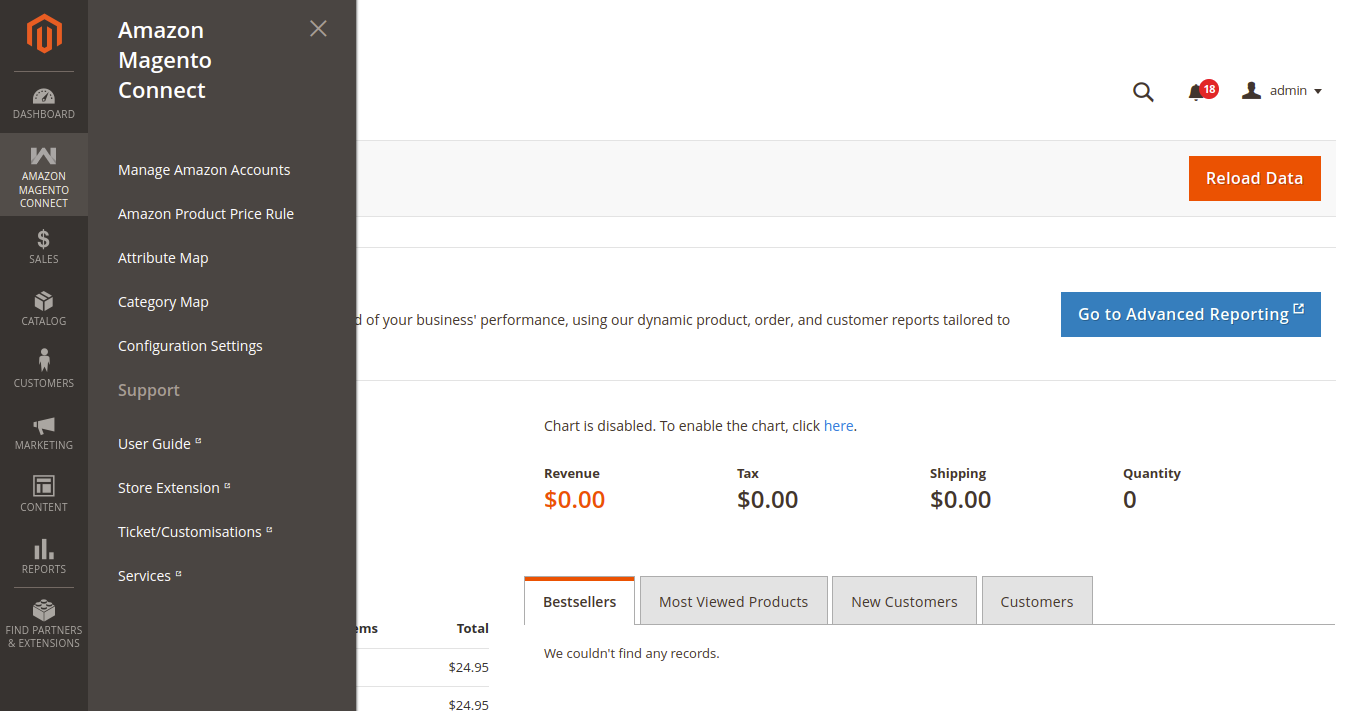
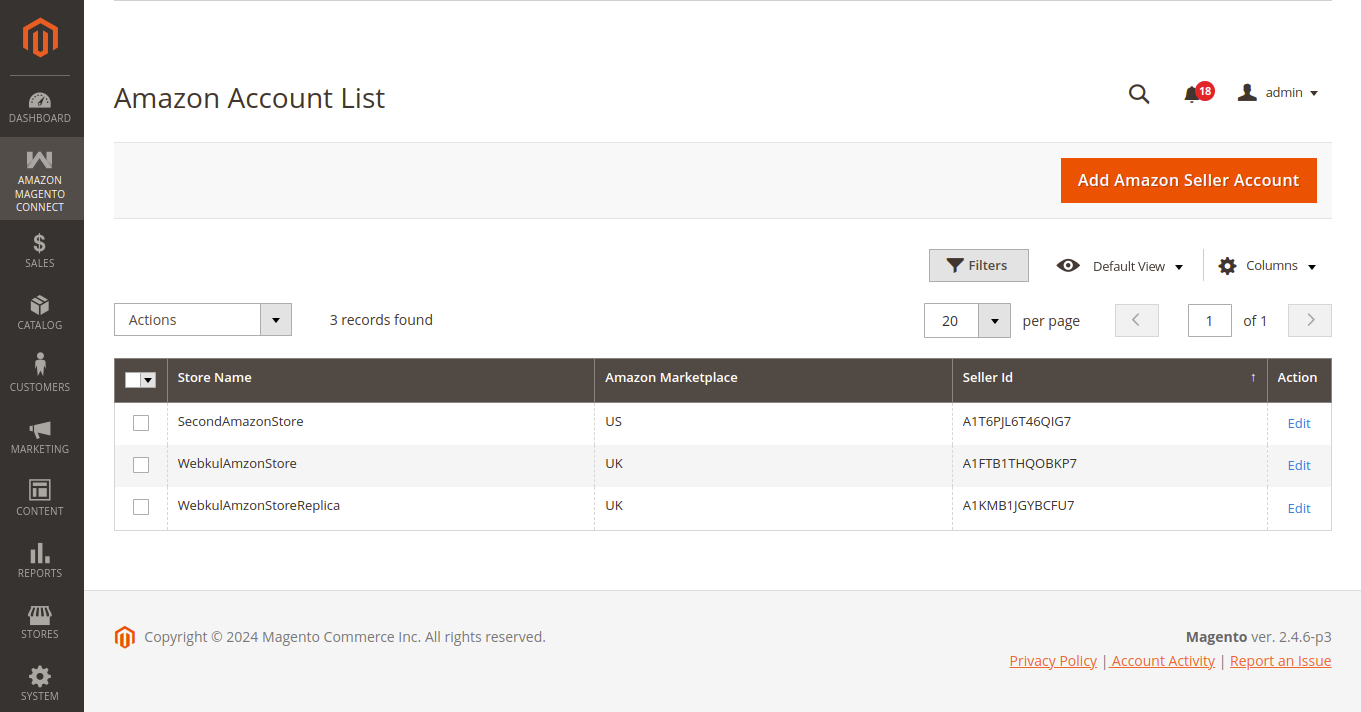
- Click Add Amazon Seller Account in the top right corner (or select an existing account to Edit).
Amazon Account Information
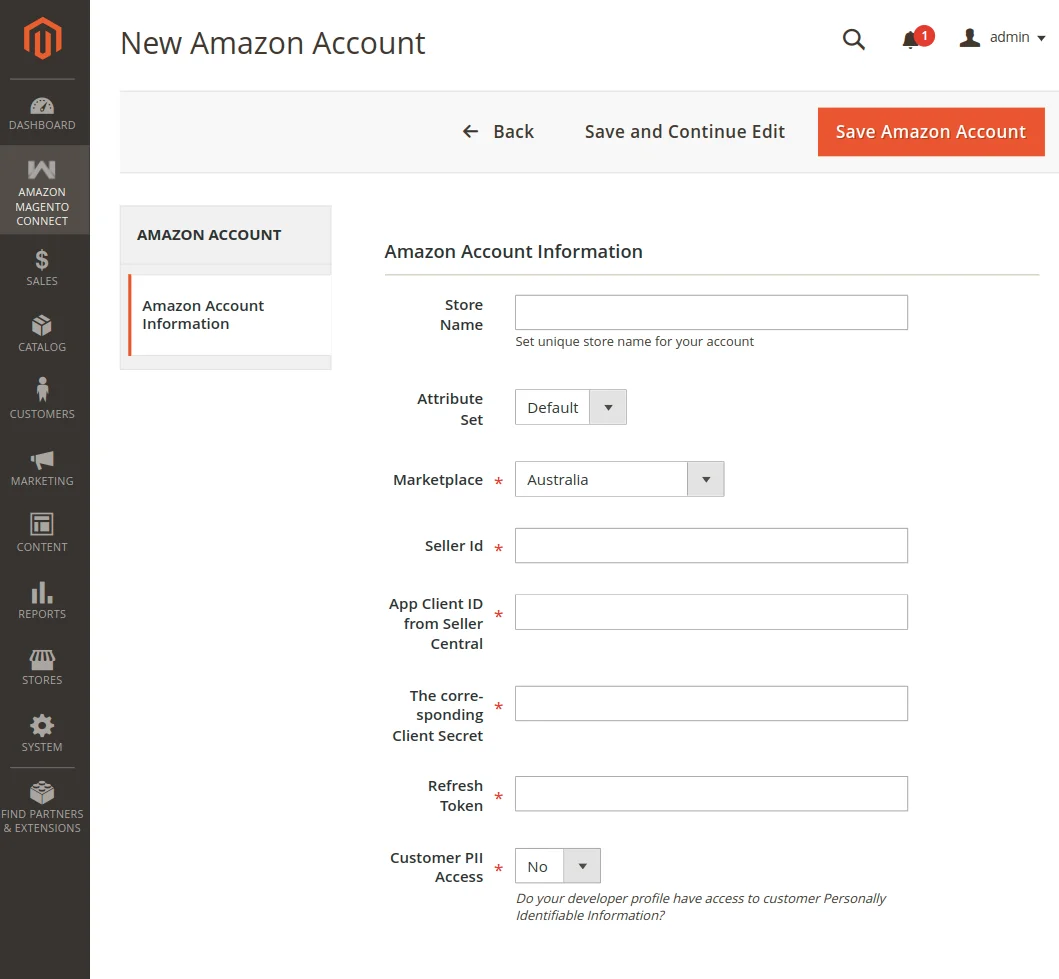
Enter your store identification, SP-API credentials, and optional event notification credentials:
Account Identifiers & API Credentials
- Store Name: Set a unique, recognizable store title for this seller account (e.g., Amazon US Store).
- Attribute Set: Select the default Magento attribute set mapped to this account.
- Marketplace: Select the Amazon Marketplace location (e.g., Amazon.com, Amazon.co.uk).
- Seller Id: Enter your Amazon Merchant Token / Seller ID.
- App Client ID from Seller Central: Enter your Login with Amazon (LWA) App Client ID.
- The corresponding Client Secret: Enter your LWA Client Secret.
- Refresh Token: Enter your Selling Partner API (SP-API) LWA Refresh Token.
- Customer PII Access: Select Yes if your developer profile has access to customer Personally Identifiable Information.
Event Notification Configuration (AWS SQS)
- AWS Account Id: Enter the AWS account identifier responsible for receiving notifications.
- Access Key of AWS IAM User: Enter the Access Key ID for your AWS IAM User.
- Secret Key of AWS IAM User: Enter the Secret Key for your AWS IAM User.
- SQS Queue Name: Enter the exact SQS Queue Name created in your AWS account.
- SQS Queue Url: Displayed read-only URL of the target SQS Queue used for notifications.
General Configuration
Set account-level defaults for product creation, stock sources, order processing, and synchronization behavior:
General Account Defaults
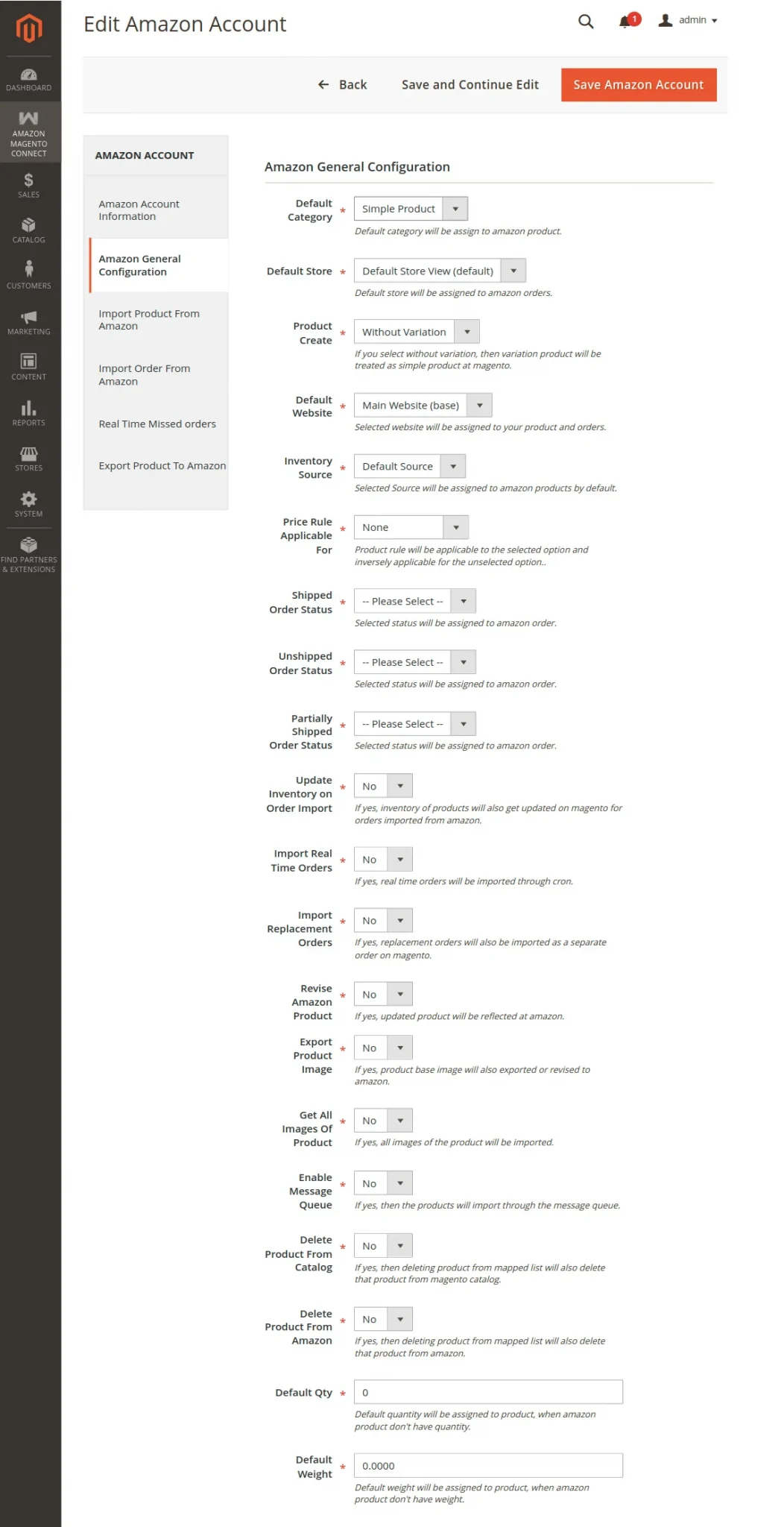
- Default Category: Select the default Magento parent category assigned to imported Amazon products when no category mapping applies.
- Default Store: Select the Magento Store View assigned to orders imported from Amazon.
- Product Create: Choose whether variant products are imported With Variation or Without Variation (as simple products).
- Default Website: Select the Magento website associated with imported products and orders.
- Inventory Source: Specify the Magento Multi-Source Inventory (MSI) source code assigned to imported stock.
- Price Rule Applicable For: Choose whether price rules apply to Import Product, Export Product, or both.
Order Settings
- Shipped Order Status: Select the Magento order status assigned when imported Amazon orders are already shipped.
- Unshipped Order Status: Select the order status assigned when imported Amazon orders are unshipped.
- Partially Shipped Order Status: Select the order status assigned when imported Amazon orders are partially shipped.
- Update Inventory on Order Import: Select Yes to update Magento stock levels when Amazon orders are imported.
- Import Real Time Orders: Select Yes to automatically import real-time orders via cron.
- Import Replacement Orders: Select Yes to import replacement orders as separate orders in Magento.
- Import Tax-Exclusive Item Price: Select Yes to calculate imported order item prices excluding unit item tax.
NOTE
Payment and shipping methods for Amazon orders are automatically managed using the extension's built-in Amazon Payment method (amzpayment) and Amazon Connector Ship carrier (wk_amzconnectship).
Product & Inventory Defaults
- Revise Amazon Product: Select Yes to reflect updated product details on Amazon when edited in Magento.
- Default Qty: Specify the default inventory quantity assigned to imported products if Amazon stock quantity is unspecified.
- Default Weight: Specify the default weight (e.g., 1.00) assigned to imported products lacking weight attributes.
- Export Product Image: Select Yes to include base product images when exporting or revising products on Amazon.
- Get All Images Of Product: Select Yes to import all gallery images for products from Amazon.
- Enable Message Queue: Select Yes to process product imports asynchronously via backend message queue workers.
- Delete Product From Catalog: Select Yes to remove a product from the Magento catalog when unmapped.
- Delete Product From Amazon: Select Yes to remove a product from Amazon when unmapped.