
Admin Domain Management
When the Store Vendor Subdomain Setting is enabled in system configuration, the store administrator has full capability to assign custom, independent domain names to individual marketplace sellers across specific store views.
Accessing Seller Accounts
- Log in to the Magento Admin Panel.
- Navigate to Customers > All Customers.
- Locate and select the marketplace seller whose domain settings you wish to configure, then click Edit.
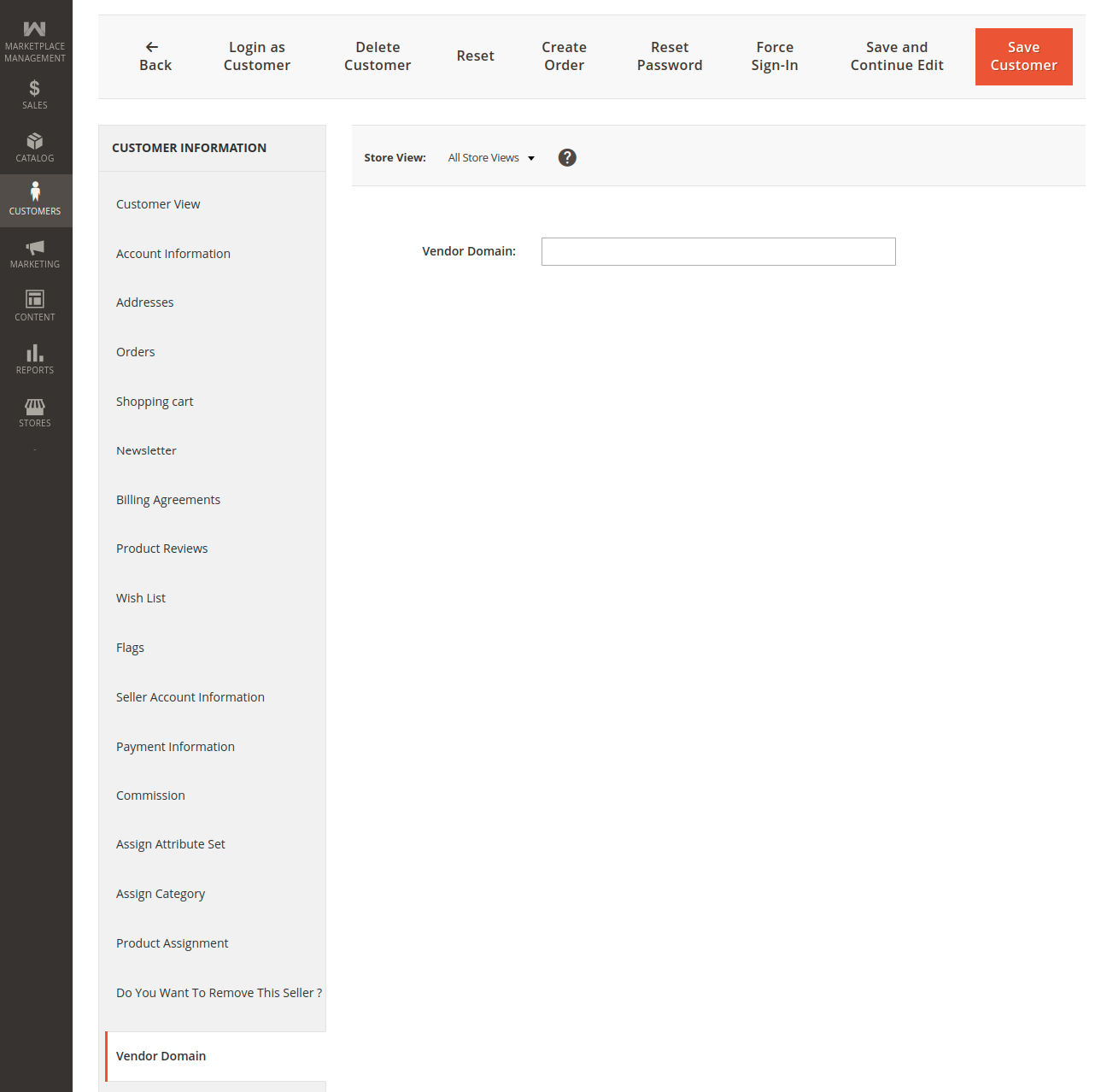
Configuring the Vendor Domain Tab
Upon opening the customer edit profile, an additional navigation tab titled Vendor Domain appears in the customer information menu:
- Click on the Vendor Domain tab in the left rail.
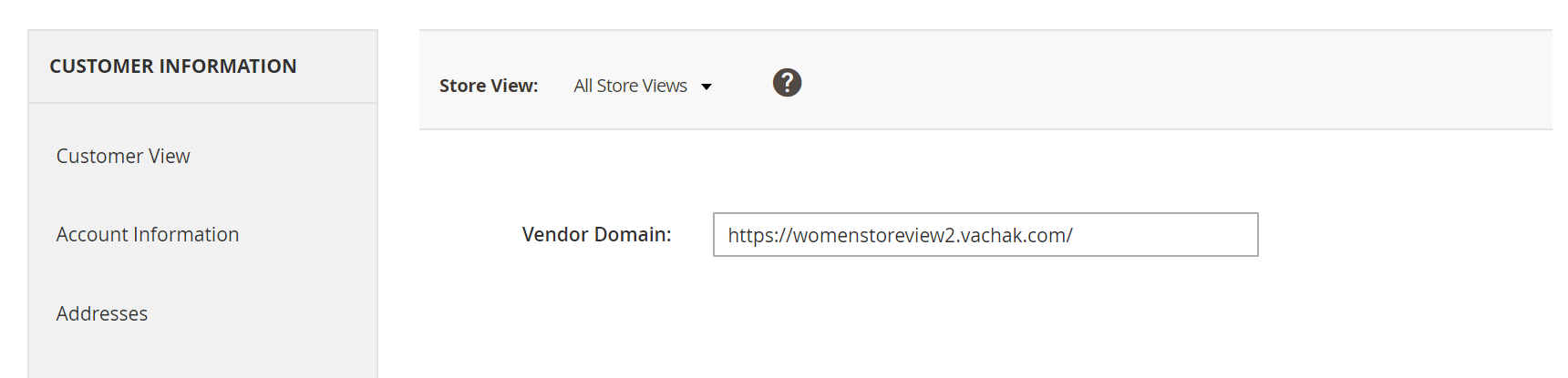
- In the Vendor Domain field, enter the fully qualified domain URL assigned to this seller (e.g.,
https://womenstoreview2.vachak.comorhttps://seller-custom-brand.com). - Click Save Customer.
Loading diagram...
Store-View Specific Domain Allocation
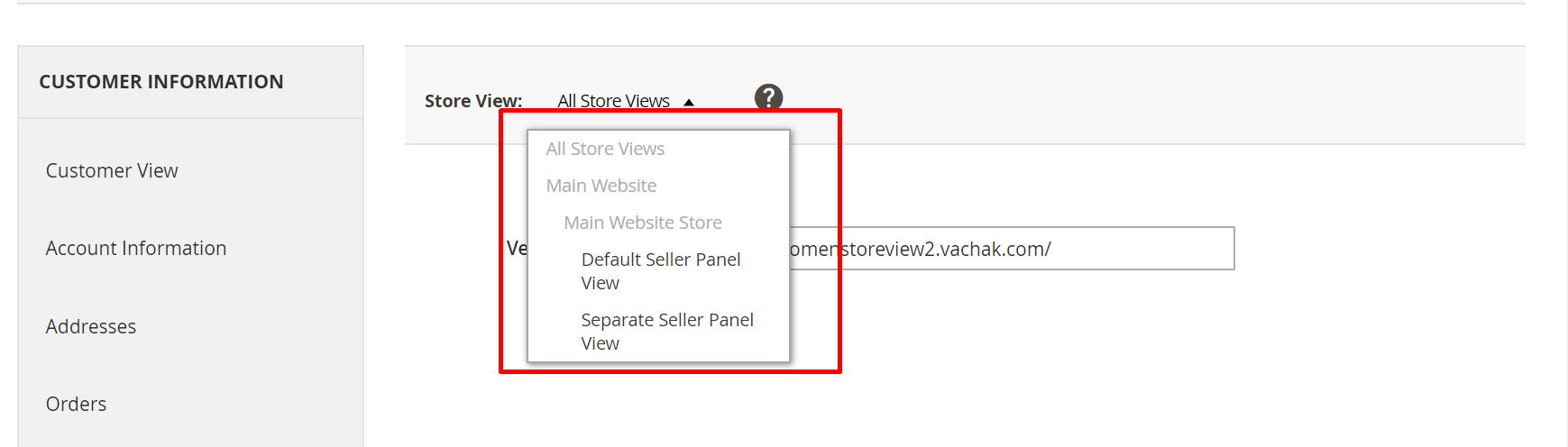
The extension enables mapping different custom domains to the same seller depending on the active Store View. This allows multi-regional sellers to maintain distinct language- or country-specific domains (e.g., German store view vs English store view):
- In the customer edit form, select the target Store View from the top-left scope switcher.
- Enter the appropriate domain corresponding to that store view.
- Save the customer record.
Technical & DNS Prerequisites
Before binding custom domain names in the Magento Admin Panel, ensure:
- Domain Ownership: The domain name must be registered and active through an authorized domain registrar.
- DNS A Record: An
Arecord pointing the custom domain to your Magento server's public IP address must be created and propagated. - Web Server Configuration: The custom domain must be included in your web server's VirtualHost
ServerAlias(Apache) orserver_name(Nginx) directives. - SSL / TLS Certificate: If serving traffic over HTTPS, ensure the SSL certificate covering the custom domain is active on the server.