
Vendor Custom Options
Marketplace sellers can create, customize, and manage product custom options directly from their vendor panel.
Accessing Vendor Custom Options
- Vendors log in to their Marketplace Seller Panel.
- Go to My Product List.
- Click Add New Product or click Edit on an existing product item.
- Scroll down to the Custom Options section.
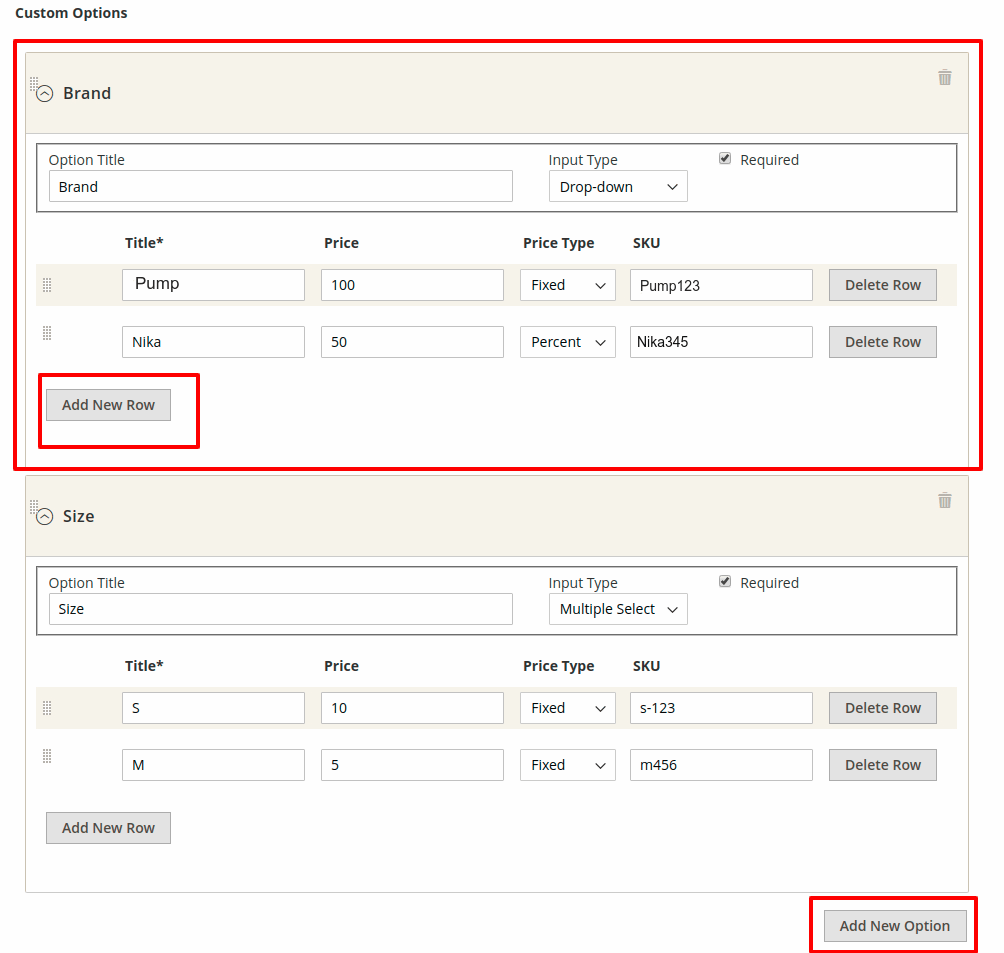
Adding & Configuring Custom Options
- Click the Add Option button to insert a new custom option container.
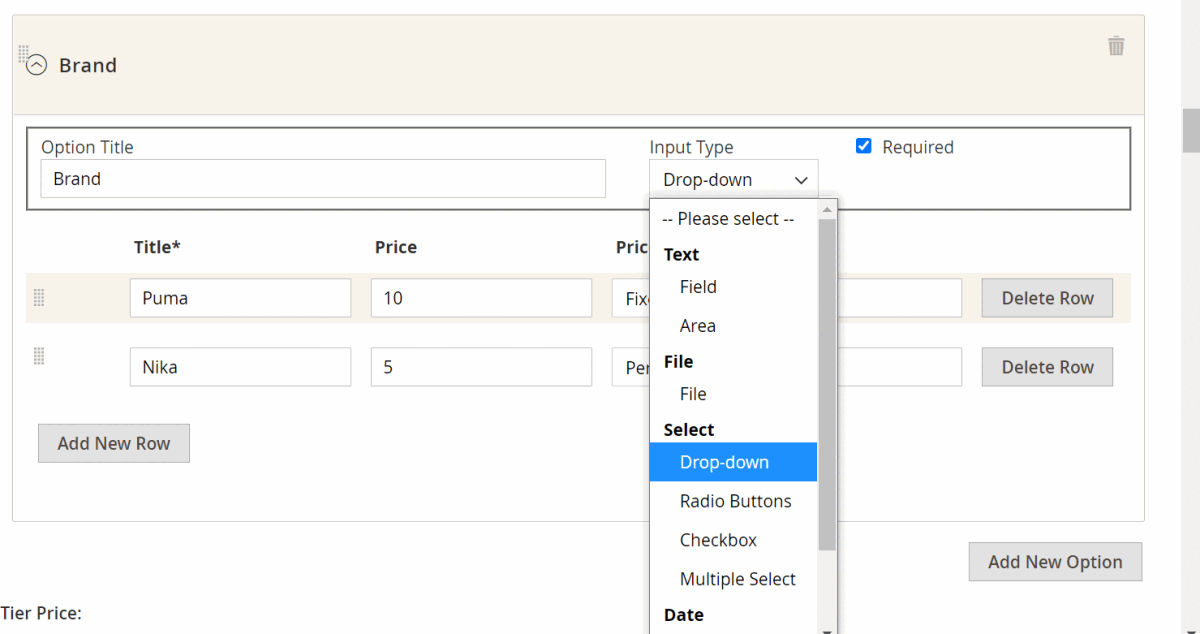
- Fill in the required option properties:
| Field Name | Description & Usage |
|---|---|
| Option Title | The customer-facing title for the option (e.g., Custom Text Engraving, Gift Wrapping, Warranty). |
| Input Type | Select the input control format (see breakdown below). |
| Is Required | Set to Yes to make option selection mandatory before adding to cart. Set to No for optional choices. |
| Price & Price Type | Enter the price adjustment value. Choose Fixed ($) for absolute dollar additions, or Percent (%) for percentage additions calculated against product base price. |
| SKU | Specify an option SKU suffix appended to the base product SKU in order records. |
| Position | Numeric order value or drag-and-drop position sorting handle. |
Supported Input Types Breakdown
| Input Group | Input Type | Description |
|---|---|---|
| Text | Field | Single-line text input field (e.g., custom name engraving). |
| Text | Area | Multi-line text box (e.g., gift message notes). |
| File | File Upload | Allows customers to upload files (e.g., custom print logo, design PDF). |
| Select | Drop-Down | Single selection drop-down list. |
| Select | Radio Buttons | Single selection radio button list. |
| Select | Check-Box | Multi-selection checkboxes (customers can pick multiple choices). |
| Select | Multi-Select | Multi-line list box selection. |
| Date | Date | Date picker input field. |
| Date | Date & Time | Date and time selector. |
| Date | Time | Time selection picker. |
Saving Custom Options
After configuring all option titles, input types, prices, and positions:
- Click Save Product in the vendor action menu.
- The custom options are immediately published to the storefront product page.