
Product Setup & Assignment
Once size chart templates are created, they can be assigned directly to individual catalog products by both store administrators and marketplace sellers.
Supported Product Types
The wk_mpsizechart_template product attribute is scoped and applied to:
- Simple Products
- Configurable Products
Note
For configurable apparel items with options (like Size and Color), assigning the template to the parent configurable product displays the unified size chart on the storefront product page.
Admin Product Assignment
Store administrators can assign any active template (global admin templates) to products from the Magento Admin Panel.
Step-by-Step:
- Navigate to Catalog > Products.
- Click Edit on the target Simple or Configurable product.
- In the product form, locate the Marketplace Size Chart fieldset.
- From the Size Chart Template dropdown:
- Select the desired size chart template.
- As soon as a template is selected, a live preview matrix displays below showing all size rows, measurement columns, and dimension values.
- Click Save in the upper-right corner.
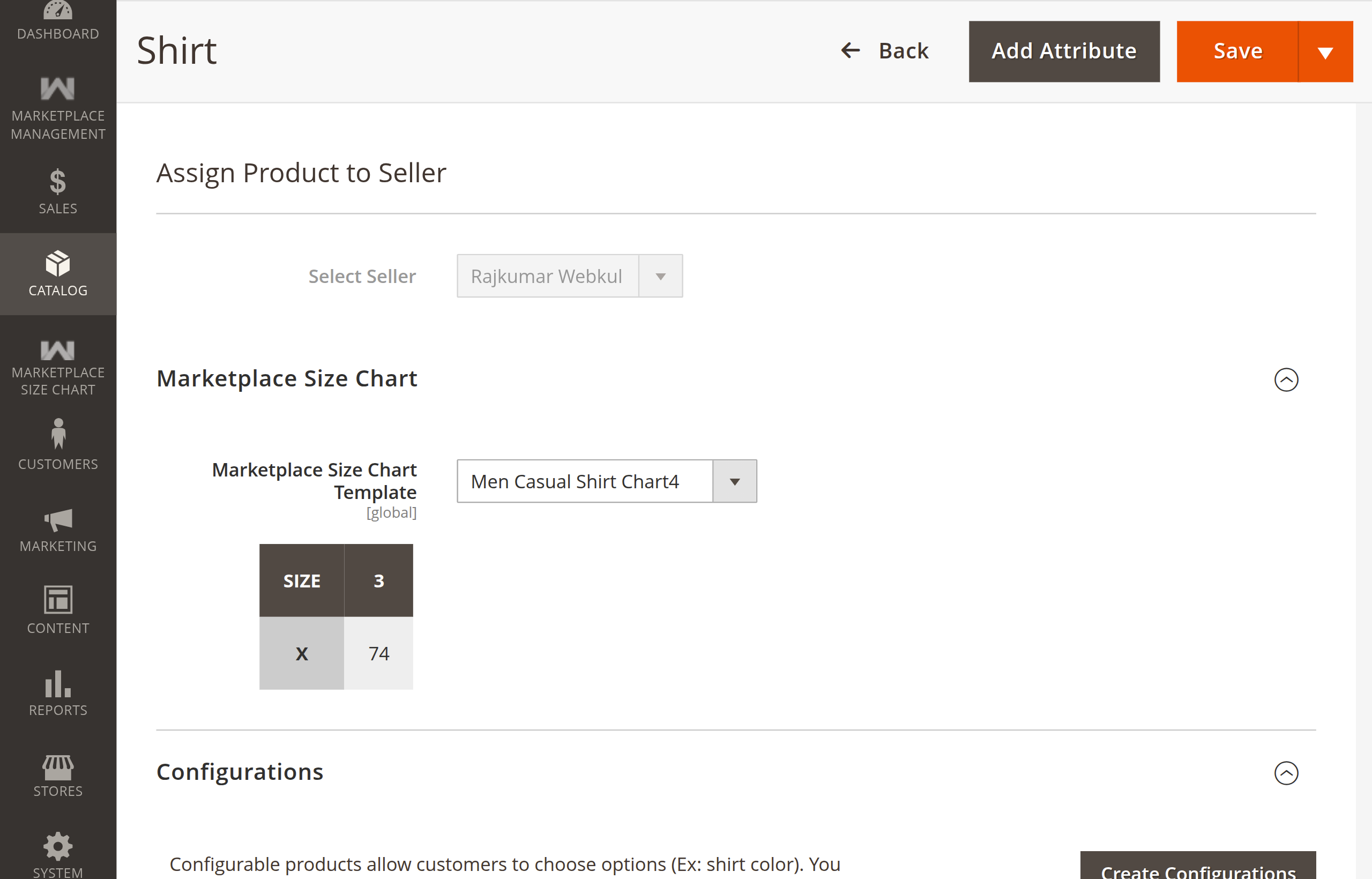
Seller Product Assignment
Marketplace sellers can assign their own created size chart templates when adding or editing products from the Marketplace Seller Dashboard.
Step-by-Step:
- In the seller dashboard, navigate to Marketplace > Add Product (or edit an existing product under My Product List).
- Ensure the product type is Simple or Configurable.
- Under the Size Chart Template section:
- Select one of your active size chart templates from the dropdown list.
- An animated loader appears while the matrix table is fetched via AJAX.
- The size chart preview renders directly on the seller product form.
- Click Save Product.
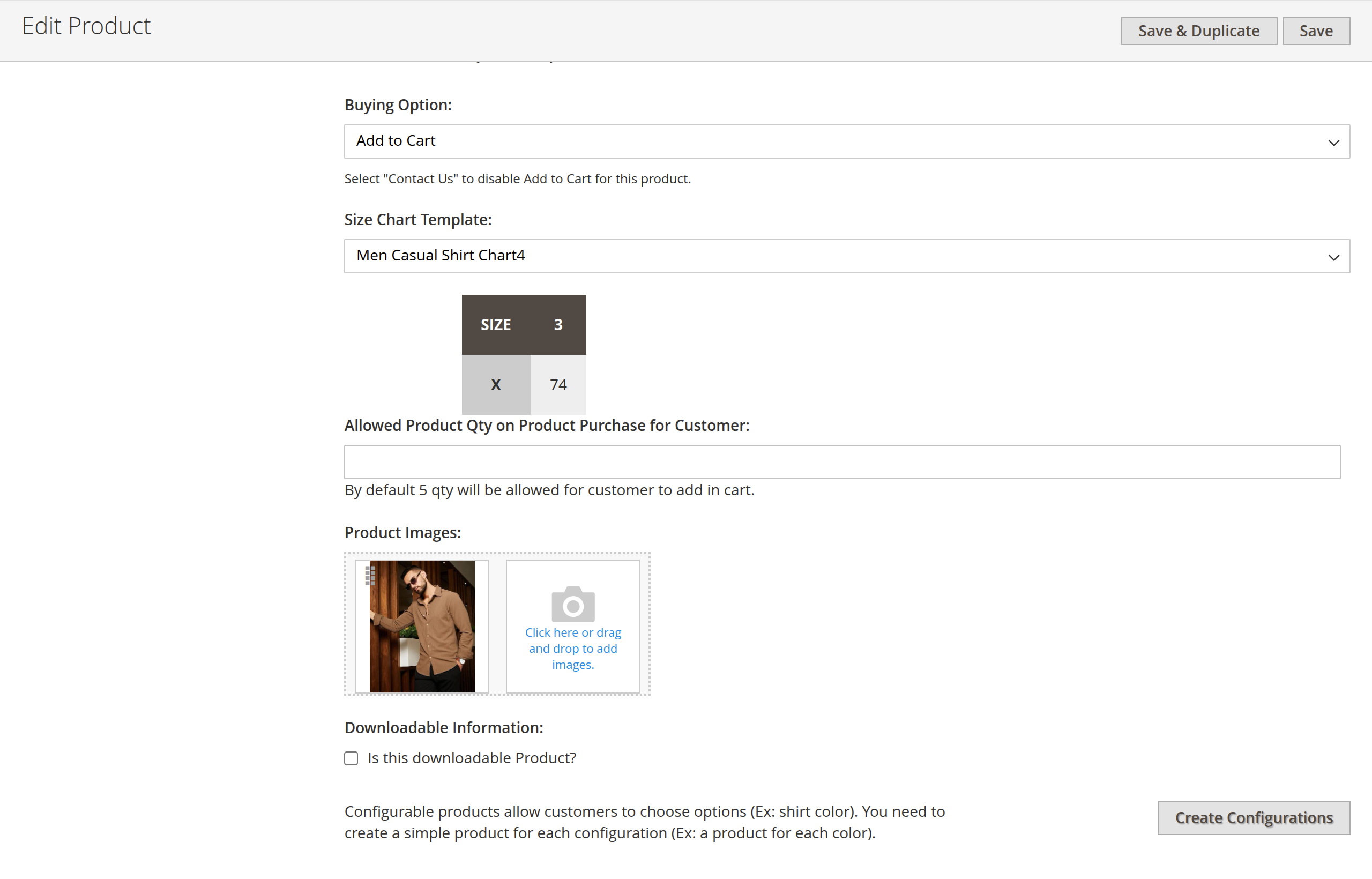
Unassigning / Updating Size Charts
- To change a template: Select another template from the dropdown and save. The preview and storefront popup update immediately.
- To remove a size chart from a product: Choose Please Select (empty option) from the dropdown and save. The "SIZE CHART" button will no longer appear on that product page.