
Email Notifications & Alerts
The Webkul Magento 2 Order Edit module includes an automated email notification system that alerts customers and store administrators whenever an order is modified.
Notifications are processed smoothly in the background, ensuring that your admin panel saves edits instantly without slowing down your workflow.
Why Background Email Notifications?
When managing orders in a busy store, performance and reliability are essential:
- Instant Admin Response: When you click Save on an order edit, the page updates immediately. You don't have to wait for external mail servers to connect and send the email.
- Reliable Delivery: Emails are safely queued and dispatched by Magento in the background, preventing timeouts or failed saves if your mail server experiences temporary delays.
- Accurate Communication: Customers and warehouse teams immediately receive a clear summary of what changed, eliminating confusion about updated totals or items.
Configuring Notification Recipients
You can tailor who receives email alerts based on your store's operational needs:
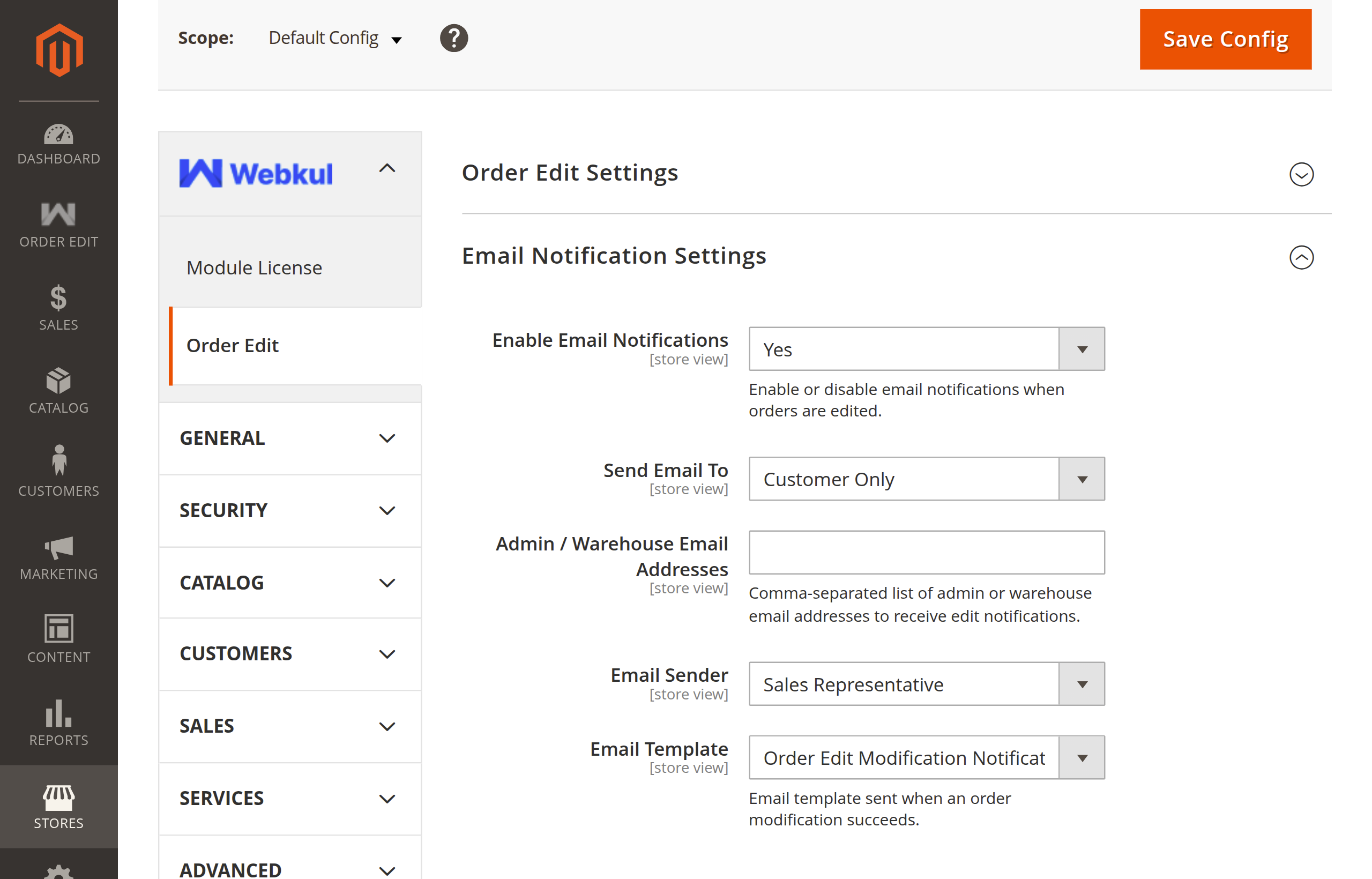
- Navigate to Stores → Configuration → Webkul → Order Edit.
- Scroll to the Email Notification Settings group.
- Configure your preferences:
| Setting | Options / Field | Description |
|---|---|---|
| Enable Email Notifications | Yes / No | Turn automated modification emails on or off. |
| Send Email To | Dropdown | Choose who gets notified: Customer and Admin, Customer Only, or Admin / Warehouse Only. |
| Admin / Warehouse Email Addresses | Text Field | Enter one or more email addresses separated by commas (e.g., orders@example.com, shipping@example.com) to alert internal fulfillment teams. |
| Email Sender | Dropdown | Select the store email contact (e.g., Sales Representative or Customer Support) displayed as the sender. |
| Email Template | Dropdown | Select the email template to use for order updates. |
What is Included in the Notification Email?
The notification email provides a clear, professional summary of the updated order, including:
- Order Number: The original order increment ID (e.g.,
#000000008). - Customer Name: The name associated with the order.
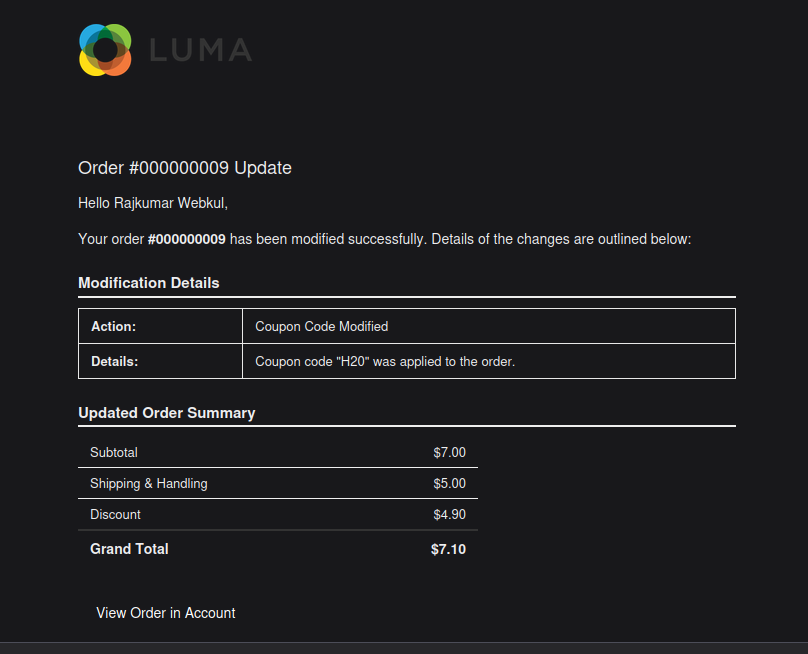
- Modification Details: A dedicated table showing the exact Action taken (e.g., Item Quantity Updated, New Product Added, Item Removed, or Coupon Code Modified) and human-readable Details with affected SKUs, quantities, and prices.
- Updated Order Summary: A live financial breakdown showing the recalculated Subtotal, Shipping & Handling fee, Discount amount, and new Grand Total.
- Account Link: A direct "View Order in Account" link allowing customers to review their updated order online.
Sample Notification Emails
Below are real-world examples of how notification emails look for each type of order modification:
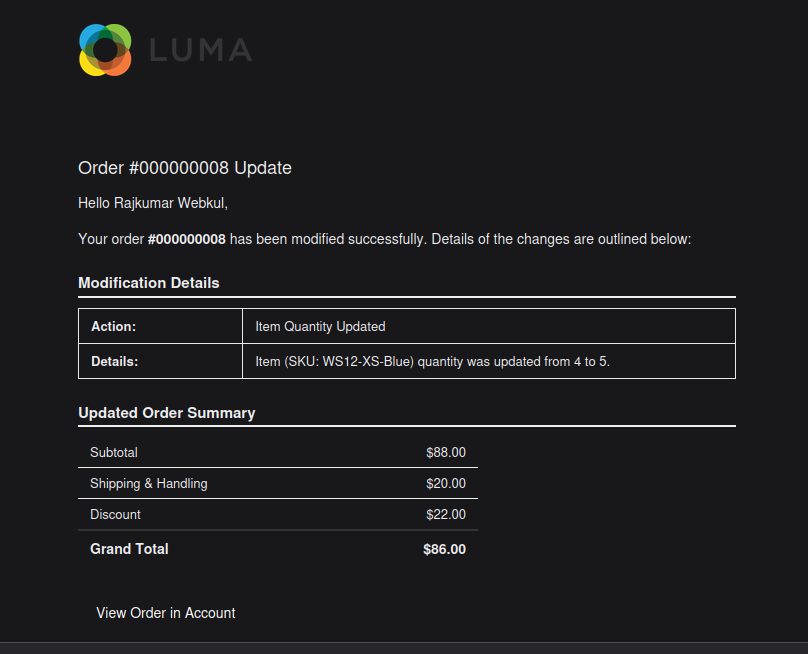
1. Item Quantity Updated
When an administrator modifies product quantities or line-item pricing, the email details the SKU and before/after quantity changes:
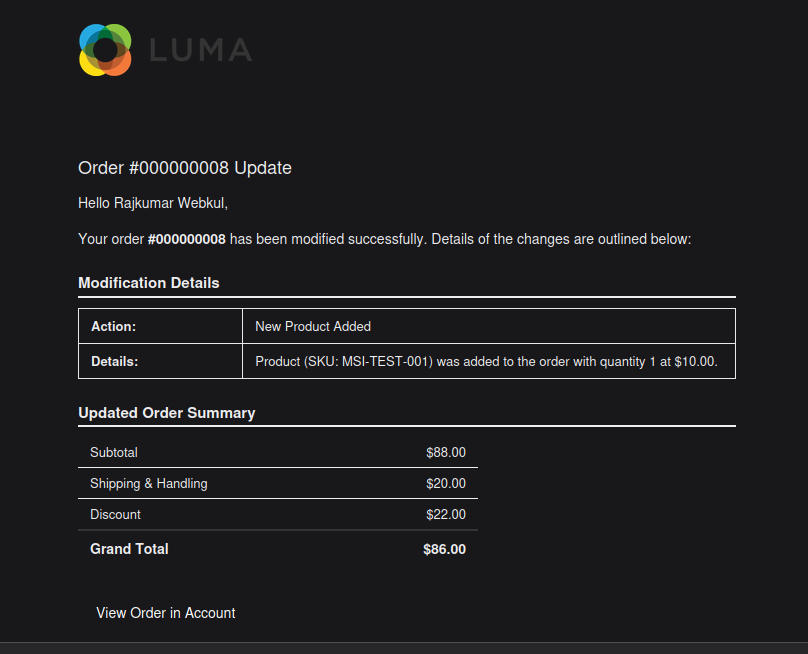
2. New Product Added
When a new product is added to an open order, the notification highlights the product SKU, added quantity, and unit price:
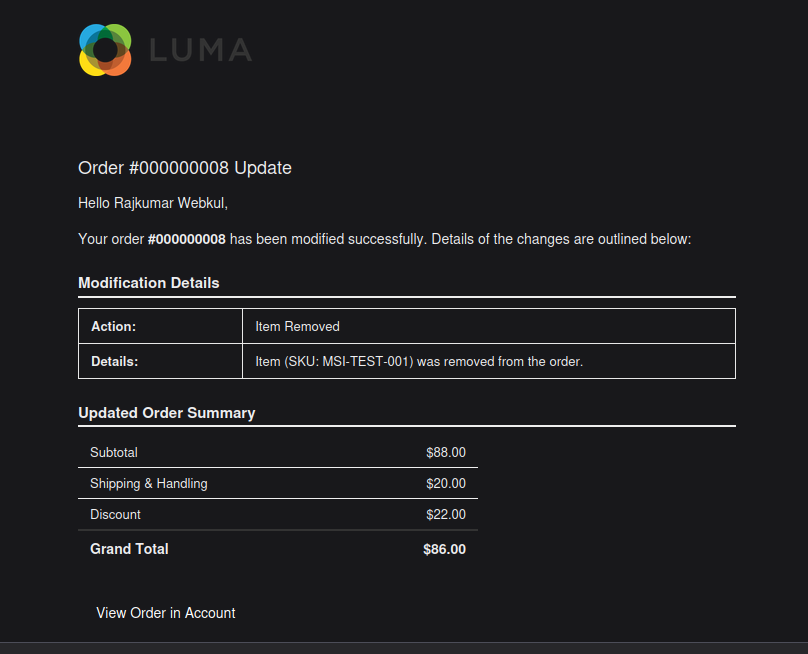
3. Item Removed
When an item is deleted from an order, the notification alerts the customer and shows the revised order subtotals and totals:
4. Coupon Code Modified
When a promotional coupon code is applied or adjusted, the email details the coupon code and recalculates order discounts:
Customizing the Email Template
You can easily customize the branding, logo, colors, and wording of the notification email directly from the Magento Admin Panel without editing any code:
- In the admin panel, navigate to Marketing → Communications → Email Templates.
- Click the Add New Template button.
- In the Load default template section:
- Select Order Edit Email Template from the Template dropdown.
- Click Load Template.
- Customize the Template Subject and HTML body content to match your store's brand guidelines.
- In Template Information, enter a name for your custom template (e.g., Store Order Edit Notification).
- Click Save Template.
- To activate your custom template:
- Go to Stores → Configuration → Webkul → Order Edit.
- Under Email Notification Settings, select your new template in the Email Template dropdown.
- Click Save Config and flush the configuration cache.
Ensuring Notifications Are Sent
Background notifications are processed automatically by Magento's standard queue and cron services:
- Standard Magento Setup: As long as your Magento cron is running normally, queued emails are dispatched automatically.
- Testing Delivery: To verify email notifications, make a minor edit on a test order and confirm receipt in the customer or admin inbox.
Next Step
Learn how product stock and inventory reservations are handled during order editing in MSI Inventory Synchronization.