
Activate & Connect
After installing the extension files and running Magento CLI commands, you must verify the module registration, activate your Webkul license key, and enable the module in store configuration to unlock administrative order editing features.
Step 1: Verify Module Status via CLI
Verify that Webkul_OrderEdit is registered and enabled in your Magento installation:
php bin/magento module:status Webkul_OrderEdit
If the module is listed under disabled modules, enable it:
php bin/magento module:enable Webkul_OrderEdit --clear-static-content
php bin/magento setup:upgrade
php bin/magento cache:flush
Step 2: License Verification
The module requires a verified license key before full administrative capabilities become active:
- Log in to your Magento Admin Panel.
- In the left navigation menu, navigate to Stores → Configuration.
- In the left panel under the Webkul tab, click Module License.
- In the Licensed Modules section, locate the Order Edit entry.
- Notice that the initial status displays as UNVERIFIED.
- Enter your valid License Key (obtained from your Webkul store account) into the Enter license key field.
- Click the Save & Verify button.
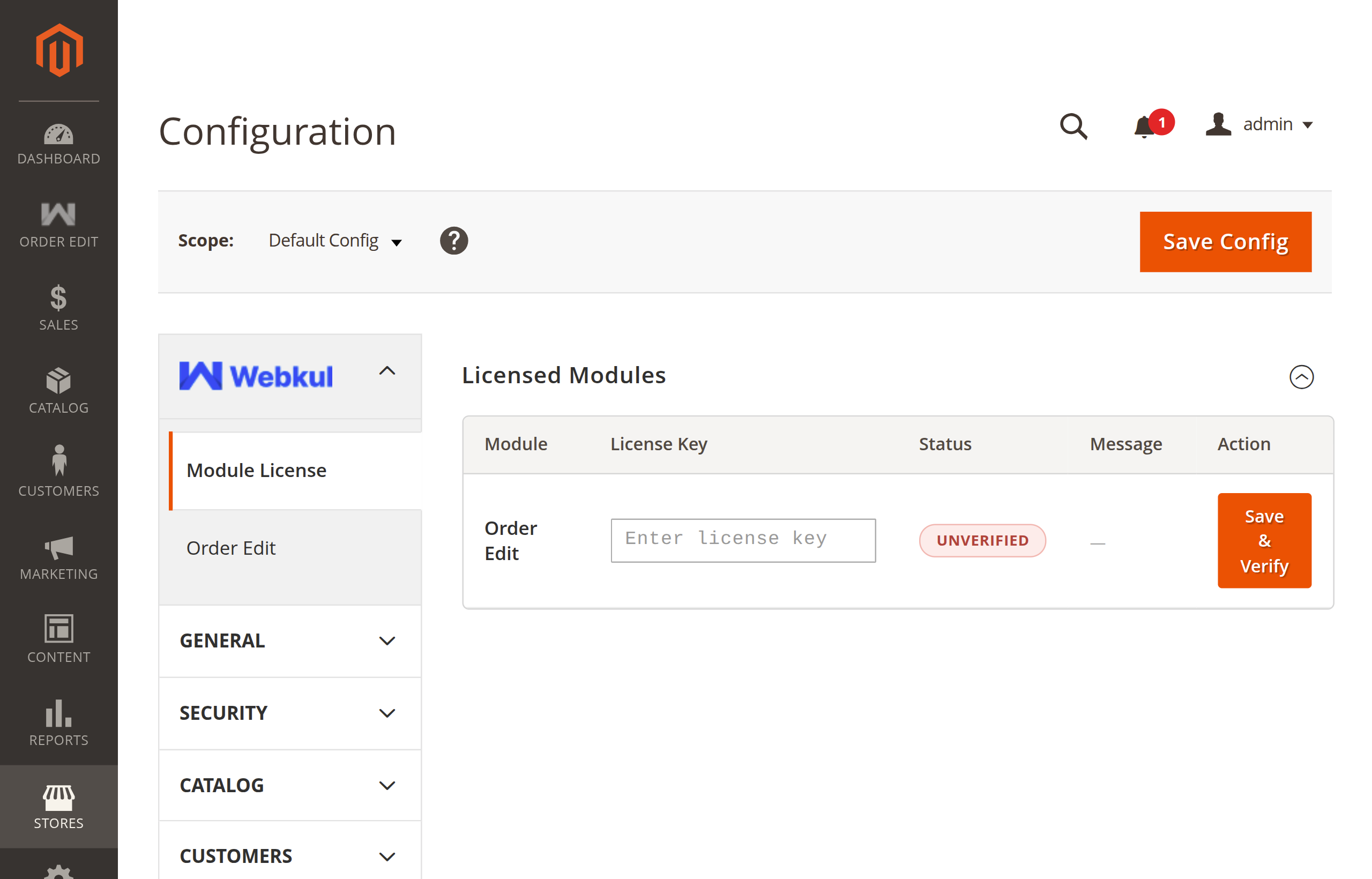
- Upon successful validation, the status updates to VERIFIED.
Where to Find Your License Key
You can locate your license key by logging into your Webkul Customer Account and navigating to My Account → My Purchased Products.
Step 3: Enable the Module in Store Configuration
The Order Edit functionality is controlled by a master status switch in Magento's system configuration:
- In the Magento Admin Panel, go to Stores → Configuration.
- In the left panel under Webkul, select Order Edit.
- Under the Order Edit Settings group:
- Set Enable Module to Yes.
- (Optional) Configure Email Notification Settings if you wish to receive background notifications whenever orders are modified.
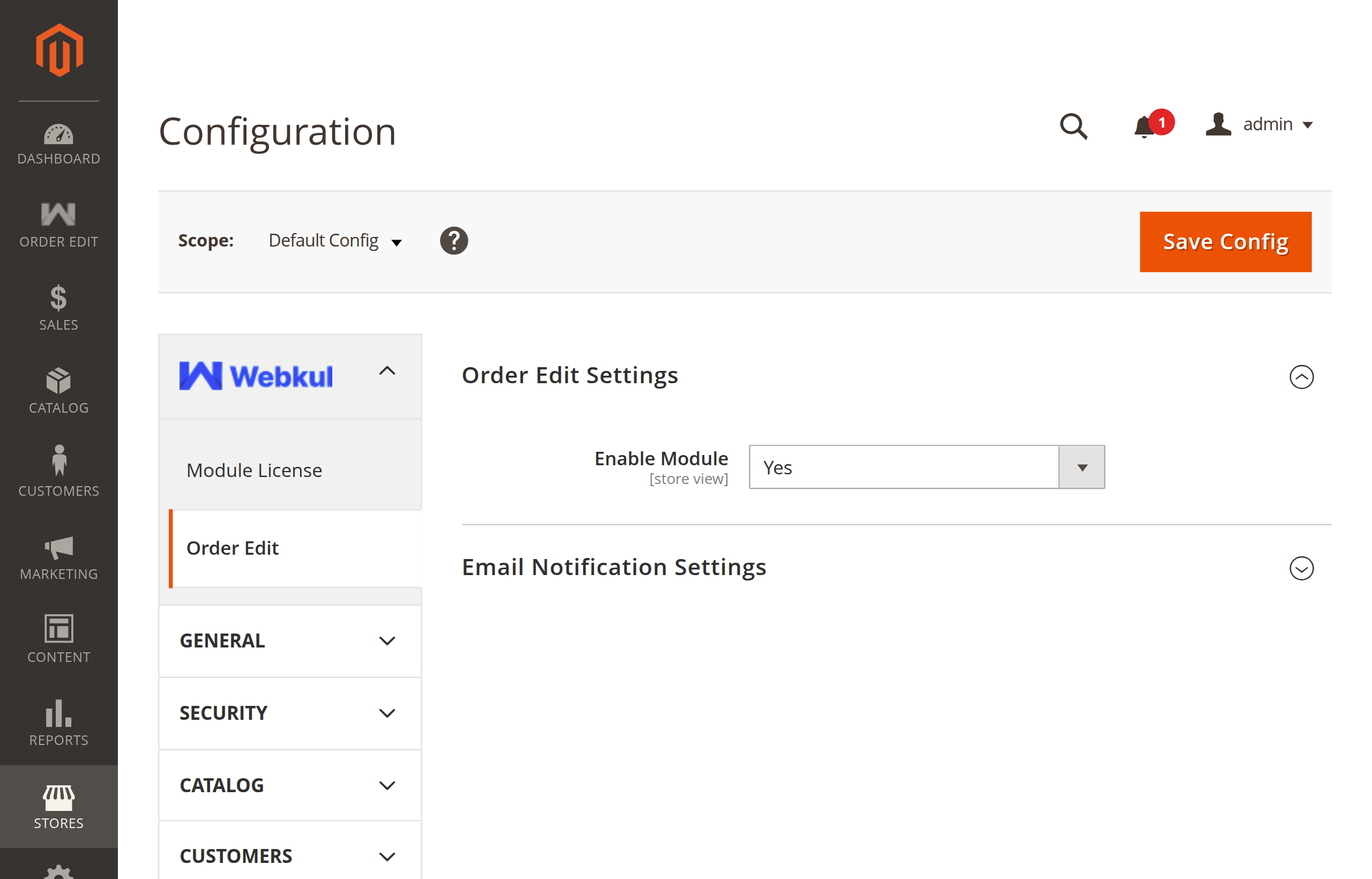
- Click Save Config in the upper right corner.
- Flush the configuration cache:
php bin/magento cache:clean config
Admin Menu Dependency
In menu.xml, the Webkul → Order Edit menu item is configured with dependsOnConfig="orderedit/settings/status". Setting Enable Module to Yes is required for the Order Edit menu items and the in-place order editing buttons on order detail pages to appear.
Step 4: Access Admin Menu Navigation
Once enabled, navigate to Webkul → Order Edit in the left sidebar to view the module navigation structure:
- Configuration Setting: Direct shortcut to the Order Edit configuration screen (
adminhtml/system_config/edit/section/orderedit). - Support: Quick access to official Webkul assistance resources:
- User Guide: Direct link to online documentation and step-by-step guides.
- Store Extension: View the official Webkul Store module page for release notes and version updates.
- Ticket/Customisations: Open support tickets or submit custom feature inquiries via Webkul UVdesk.
- Services: Explore Webkul's enterprise development, customization, and migration services.
- Reviews: Leave feedback and review the extension on the Webkul Store.
Step 5: Configure Admin ACL Permissions
If your store utilizes custom administrative roles (such as Customer Support Agents, Order Managers, or Warehouse Supervisors), ensure that the relevant roles are granted permission to access Order Edit resources:
- In the admin panel, navigate to System → Permissions → User Roles.
- Click on the role you want to configure (e.g., Customer Support).
- Under the Role Resources tab, set Resource Access to Custom.
- Expand the tree and verify the following resources:
- Order Edit (
Webkul_OrderEdit::orderedit)- Menu (
Webkul_OrderEdit::menu)- Configuration Setting (
Webkul_OrderEdit::orderedit_configuration)
- Configuration Setting (
- Support (
Webkul_OrderEdit::support)- User Guide (
Webkul_OrderEdit::userguide) - Store Extension (
Webkul_OrderEdit::extension) - Ticket/Customisations (
Webkul_OrderEdit::uvdesk) - Services (
Webkul_OrderEdit::services) - Reviews (
Webkul_OrderEdit::reviews)
- User Guide (
- Menu (
- Order Edit (
- Click Save Role.
Next Step
With the module activated and permissions configured, proceed to Configuration Overview to understand the architecture and operational flow of in-place order editing.