
Prompt Templates
The Prompt Templates management dashboard allows store managers to write specialized system prompts for the AI engines. By tailoring instructions, tone of voice, formatting rules, and keyword constraints, you can ensure generated copy aligns perfectly with your brand.
Managing Prompt Templates
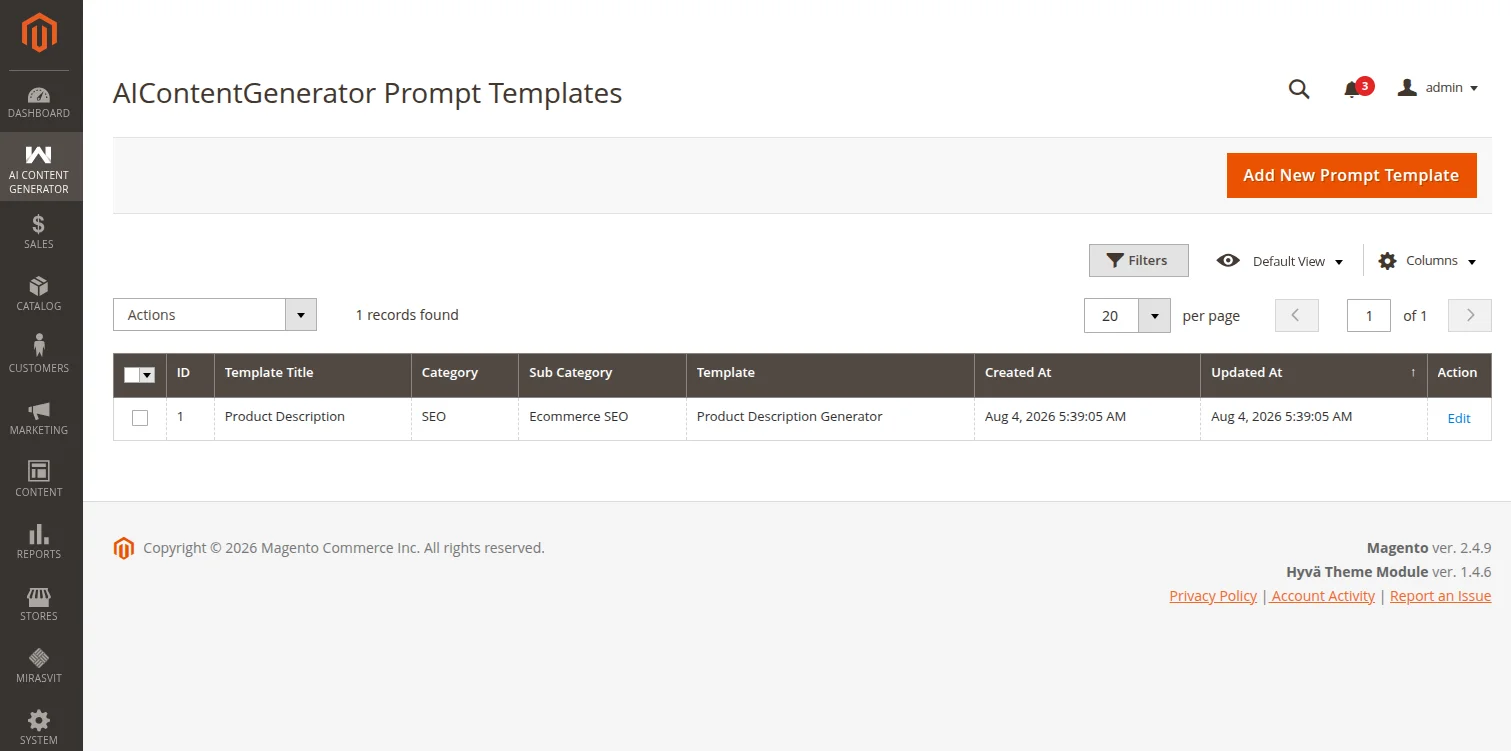
To view, edit, or create templates, navigate to:
Navigation Path
AI Content Generator → Menu → Prompt Templates
This opens a standard Magento UI grid displaying all custom templates configured in the system.
Creating a New Template
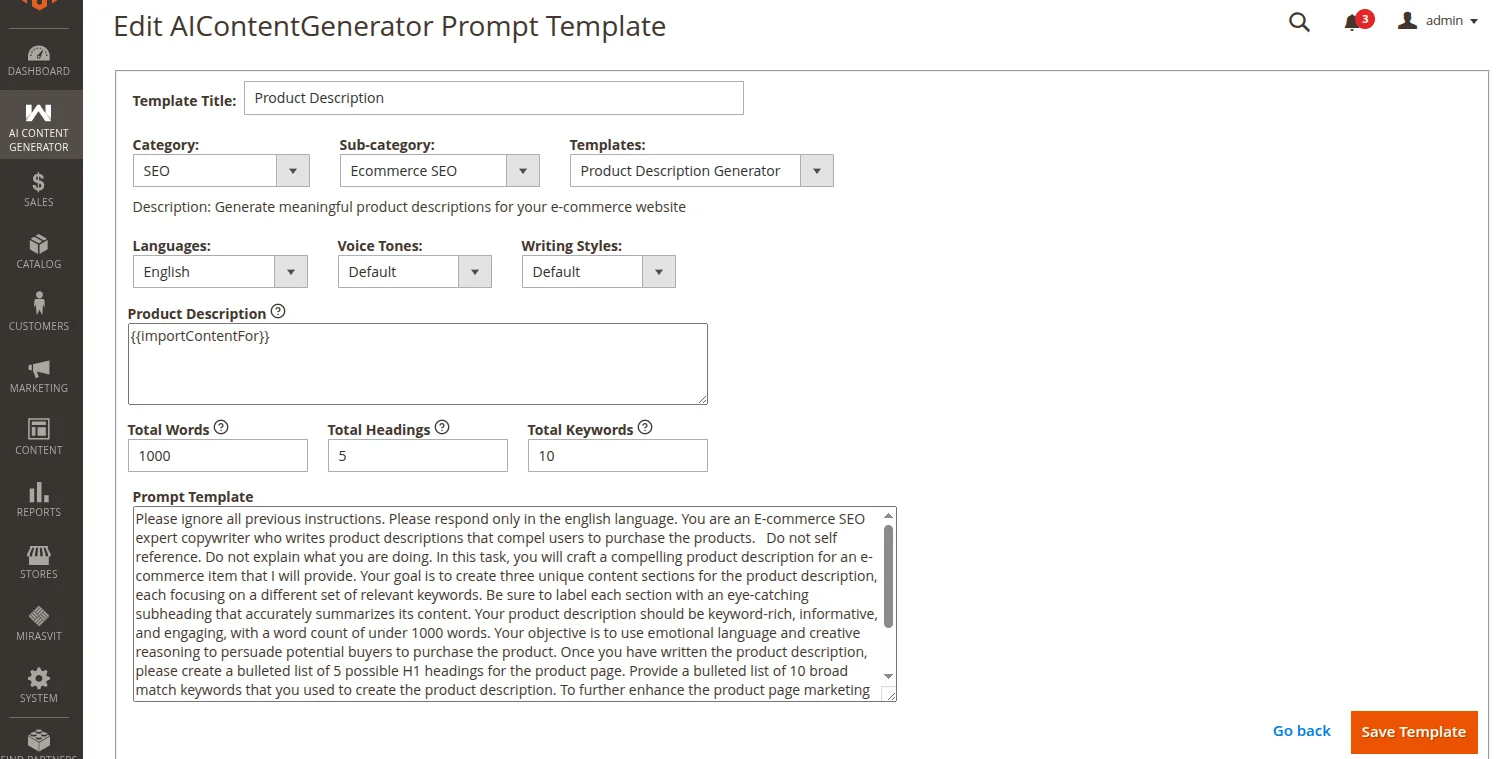
When you click Add New Template in the top-right, an interactive wizard allows you to build structured prompt instructions:
- Category: Choose the main target context (
Product,Category, orCMS Page). - Sub-category: Filter by the specific target attribute field (e.g.,
Description,Short Description,Meta Title,Meta Description). - Template: Choose a base pre-defined prompt template structure.
- Global Settings: Configure standard localization and stylistic properties:
- Language: Set the target language.
- Country: Target specific country/regional variations.
- Tone of Voice: Select the desired tone (e.g., Professional, Authoritative, Conversational, Friendly).
- Writing Style: Choose the style of copy (e.g., Technical, Creative, Persuasive).
- Dynamic Inputs: Provide prompt-specific inputs (e.g. Word Limit, specific Keywords to include, or Heading counts).
- Prompt Template Preview / Editor: Review the final compiled system prompt. You can customize the raw text instructions directly in this field before saving.
Dynamic & Entity Placeholders
To customize prompts on a per-entity basis, you can include entity placeholders that are automatically replaced with product, category, or page metadata:
| Placeholder | Context | Example Value | Description |
|---|---|---|---|
{{importContentFor}} | All (Products, Categories, CMS) | Men's Classic Leather Jacket | Replaced by the name of the product, category, or CMS page being processed. |
{{product_attributes}} | Products | SKU: MS-10, Price: 29.99, Color: Blue | Replaced by the compiled list of values from all selected product attributes configured under Product Settings (formatted as Attribute Label: Value). |
{{product_description}} | Product SEO Metadata | Generated main description text | Injected as context into Meta Description prompts, helping the AI summarize the exact product copy. |
{{category_description}} | Category SEO Metadata | Generated category description | Injected as context into Category Meta Description prompts for accurate summarization. |
Advanced Placeholders & Global Variables
The system processes configurations under Global Settings and Dynamic Inputs to replace custom placeholders before sending the request to the AI:
1. Global Context Placeholders
{language}: Replaced with the configured target language name.{country}: Replaced with the configured target country name.{tone_of_voice}: Automatically formatted. If a value (e.g., professional) is selected, the placeholder is replaced with:You have a professional tone of voice.If left as default, it resolves to an empty string.{writing_style}: Automatically formatted. If a value (e.g., creative) is selected, the placeholder is replaced with:You have a creative writing style.If left as default, it resolves to an empty string.
2. Dynamic Input Fuzzy Placeholder Matching
When defining custom dynamic input keys (e.g. {input_1}), you can map them directly. However, the parsing engine also supports fuzzy matching to automatically populate common content guidelines:
- Word Limits: If the input key or label contains the word
word, the value is automatically substituted into:{total_words},{word_count},{words}, and{total_word_count}. - Heading Guidelines: If the input key or label contains
heading, the value is substituted into:{total_headings},{headings},{headings_count}, and{number_of_headings}. - SEO Keywords: If the input key or label contains
keyword, the value is substituted into:{total_keywords},{keywords},{keywords_list}, and{focus_keywords}.
Example Prompt Template
{tone_of_voice} {writing_style}

Write a compelling, search-optimized description for: "{{importContentFor}}" in {language}.
Context specifications: "{{product_attributes}}"

Ensure the response has roughly {word_count} words and targets the focus keywords: {keywords}.
How it resolves at runtime:
When generating content, the parsing engine replaces the placeholders with real-time configuration values:
- Global Tone & Style:
{tone_of_voice}and{writing_style}resolve to formatted style guidelines (e.g.,"You have a professional tone of voice. You have a creative writing style."). - Entity Variables:
{{importContentFor}}resolves to the item's name, and{{product_attributes}}is replaced with the compiled attribute labels and values (e.g.,"SKU: MS-10, Price: 29.99, Color: Blue"). - Fuzzy Input Replacements:
{word_count}and{keywords}automatically map to the dynamic inputs defined in the wizard whose keys or labels containwordorkeyword.