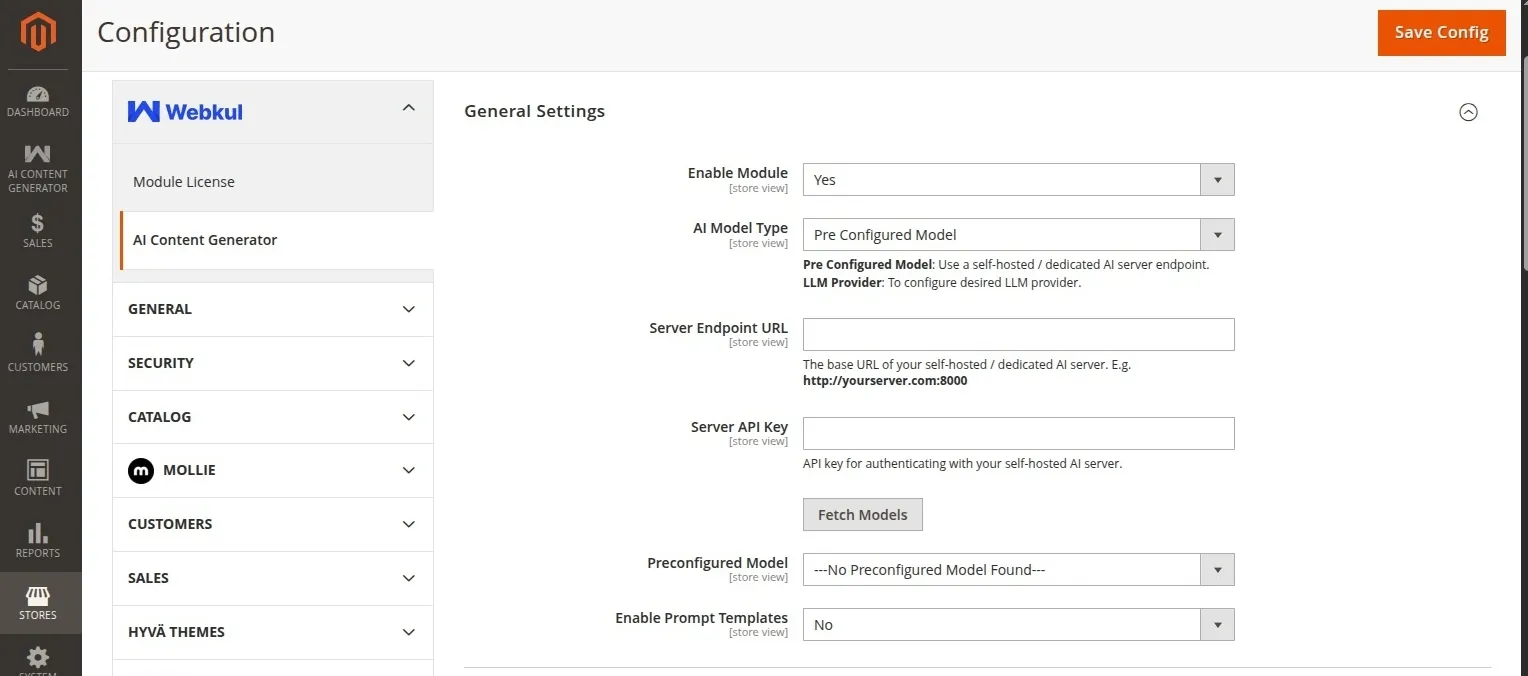
General Settings
The General Settings section defines the global behavior of the AI Content Generator, including active state, connection parameters, selected LLM providers, and advanced search features.
License Activation Dependency
This module relies on the central Webkul licensing framework. All configuration fields and buttons are hidden and disabled by default until the license key is successfully validated under the centralized Module License configuration page.
To access these settings, navigate to:
Navigation Path
Stores → Configuration → Webkul → AI Content Generator
Global Toggles & Config Options
The following options are available under General Settings:
| Field | Options / Type | Description |
|---|---|---|
| Enable Module | Yes / No | Globally enable or disable the AI generation buttons, configurations, and consumers. |
| AI Model Type | Pre Configured Model / LLM Provider | Select whether to route generation requests to a custom local server or direct to cloud providers. |
| Enable Prompt Templates | Yes / No | When set to Yes, enables the mapping of custom prompt templates to descriptions and SEO properties. |
| CMS Page Prompt Template | Dropdown | The default prompt template used when generating CMS page body content. |
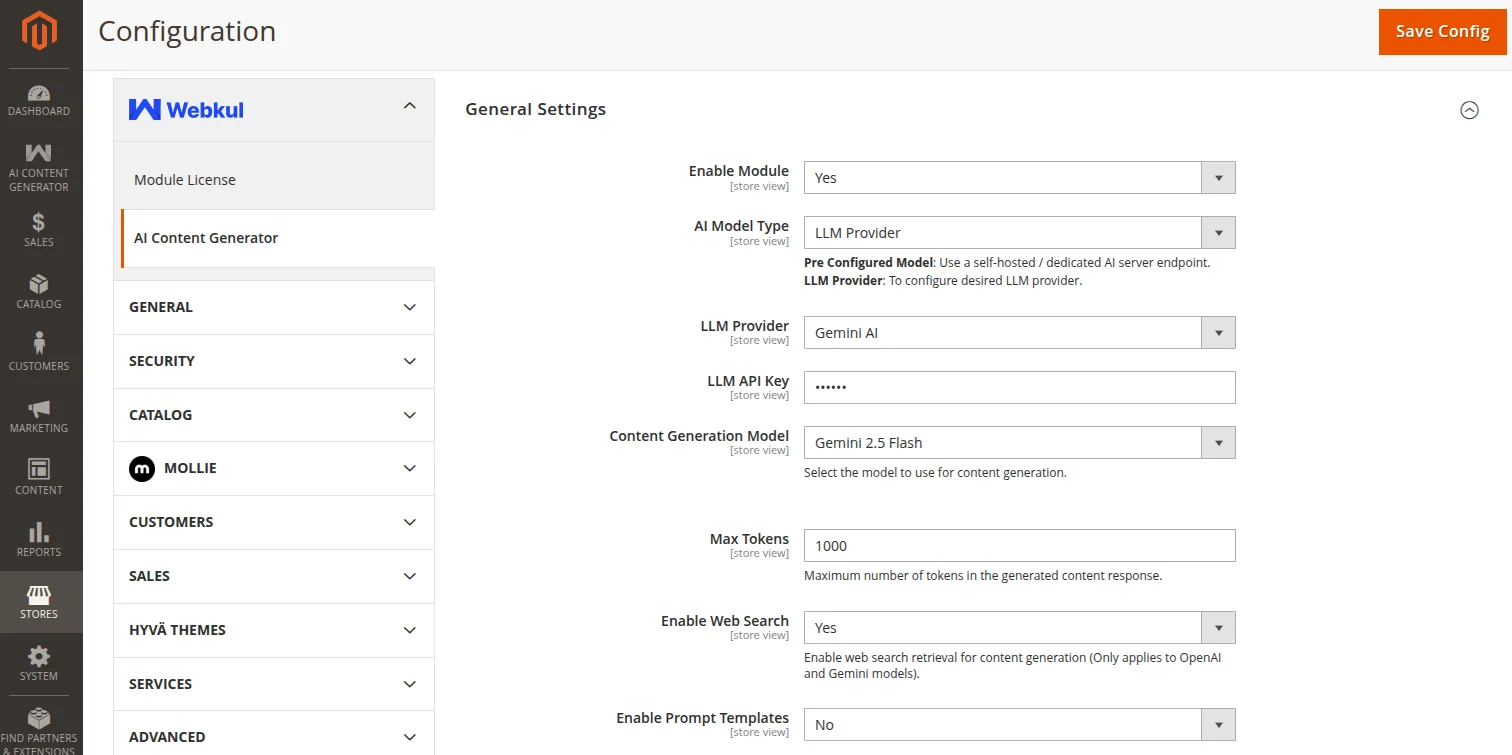
Configuration Path A: LLM Provider
If AI Model Type is set to LLM Provider, requests are processed using the Symfony AI bridge libraries:
- LLM Provider: Choose your preferred cloud engine:
- OpenAI (latest available models)
- Gemini (latest available models)
- Anthropic (latest available models)
- OpenRouter (OpenRouter multi-model proxy)
- Cerebras (Cerebras inference engines)
- DeepSeek (DeepSeek Chat/Coder engines)
- LLM API Key: Enter your secret developer API key for authentication. This is saved as an encrypted value in the database.
- Content Generation Model: Select the specific model to use from your provider's available list.
- Max Tokens: An integer specifying the maximum length of generated content response from the LLM.
- Enable Web Search: A yes/no switch that enables real-time web search capability during generation.
Web Search Tool Integration Details
The Enable Web Search (web_search_tool) option leverages provider-specific tools to retrieve external context from the web to augment generated content.
[!NOTE] Web search retrieval is only supported for OpenAI and Gemini models. Ensure your API key has permission to call these tools.
- Google Gemini: Uses the Gemini server tool
google_search => trueto perform grounding search results using Google Search.- OpenAI: Employs OpenAI's standard
web_searchtool parameters.
Configuration Path B: Pre Configured Model
If AI Model Type is set to Pre Configured Model, requests are sent to a dedicated self-hosted AI server endpoint (e.g. FastAPI / Python backend hosting custom model pipelines):
- Server Endpoint URL: The API host endpoint URL (e.g.,
http://your-ai-host.com:8000). - Server API Key: Authentication token required to query the endpoint.
- Preconfigured Model: After clicking Fetch Models to query your server, select the loaded model identifier from the dropdown.