Category Workflows
The AI Content Generator module supports both individual, on-demand content creation and large-scale bulk updates for categories.
1. Individual Category Generation
Store managers can generate tailored copy directly while editing category records in the Magento Admin Panel.
Description
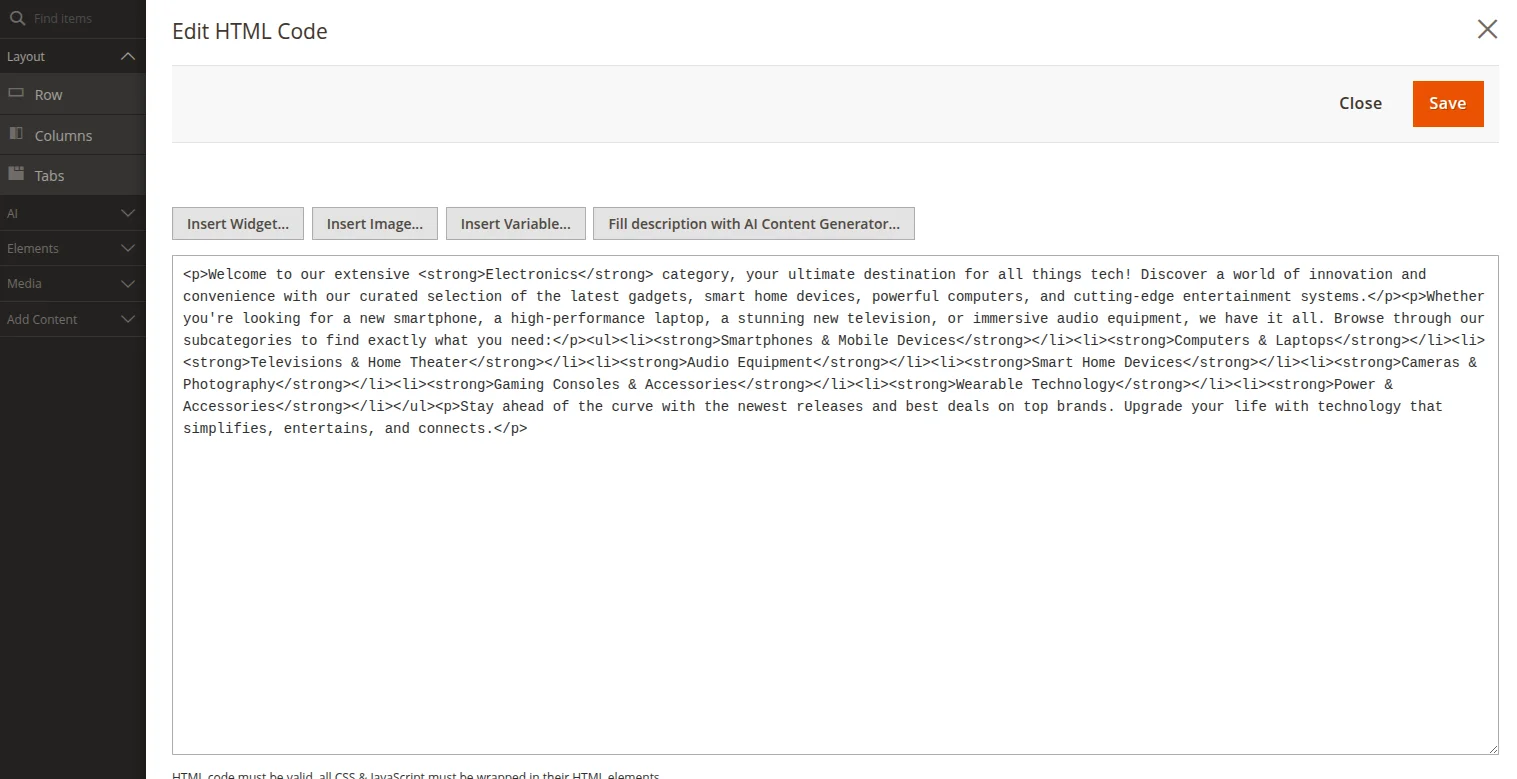
- Description: Click Fill description with AI Content Generator near the main category description WYSIWYG editor.
SEO Metadata
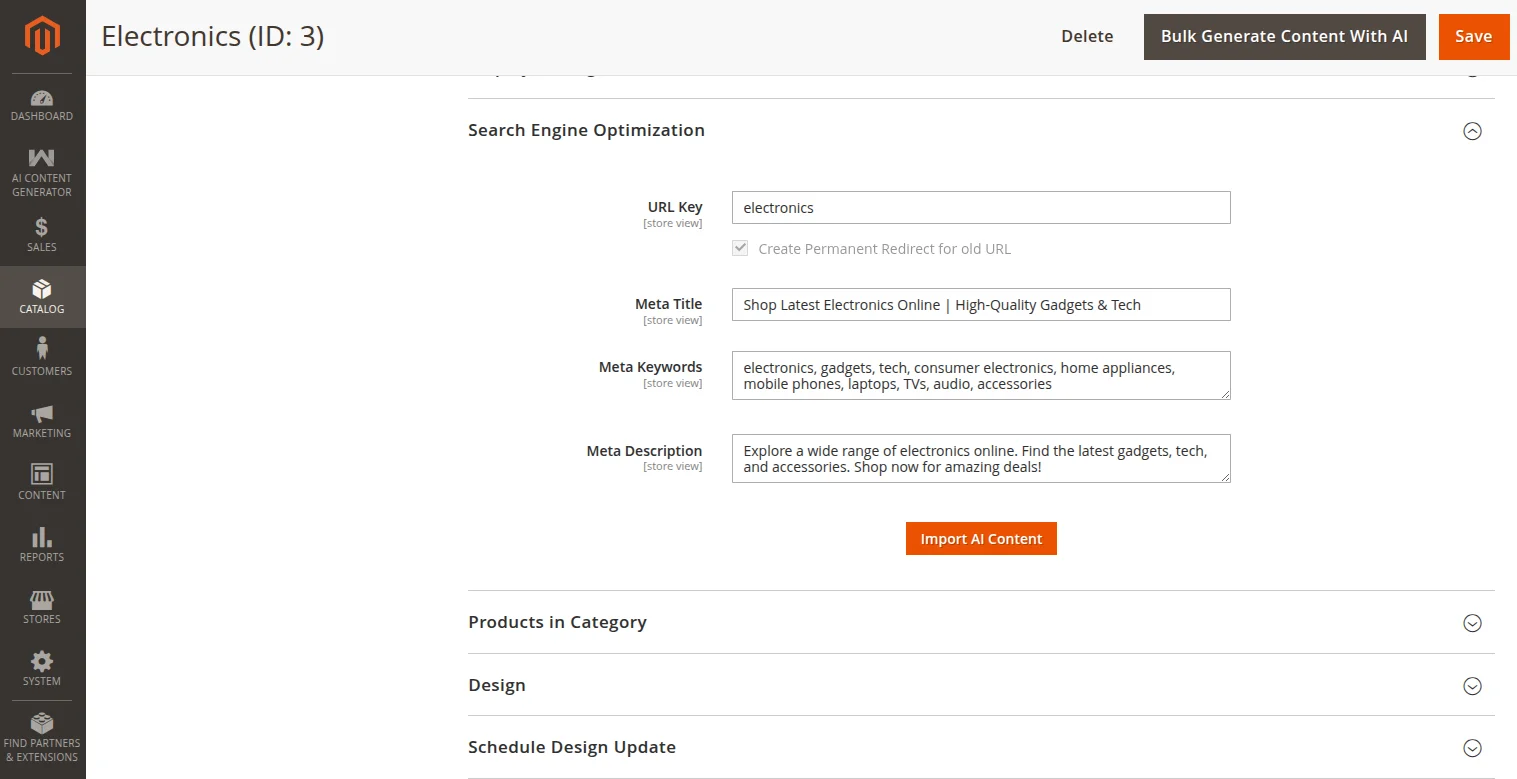
- SEO Metadata: Expand the Search Engine Optimization tab and click Import AI Content.
2. Category Bulk Generation (Asynchronous Queue)
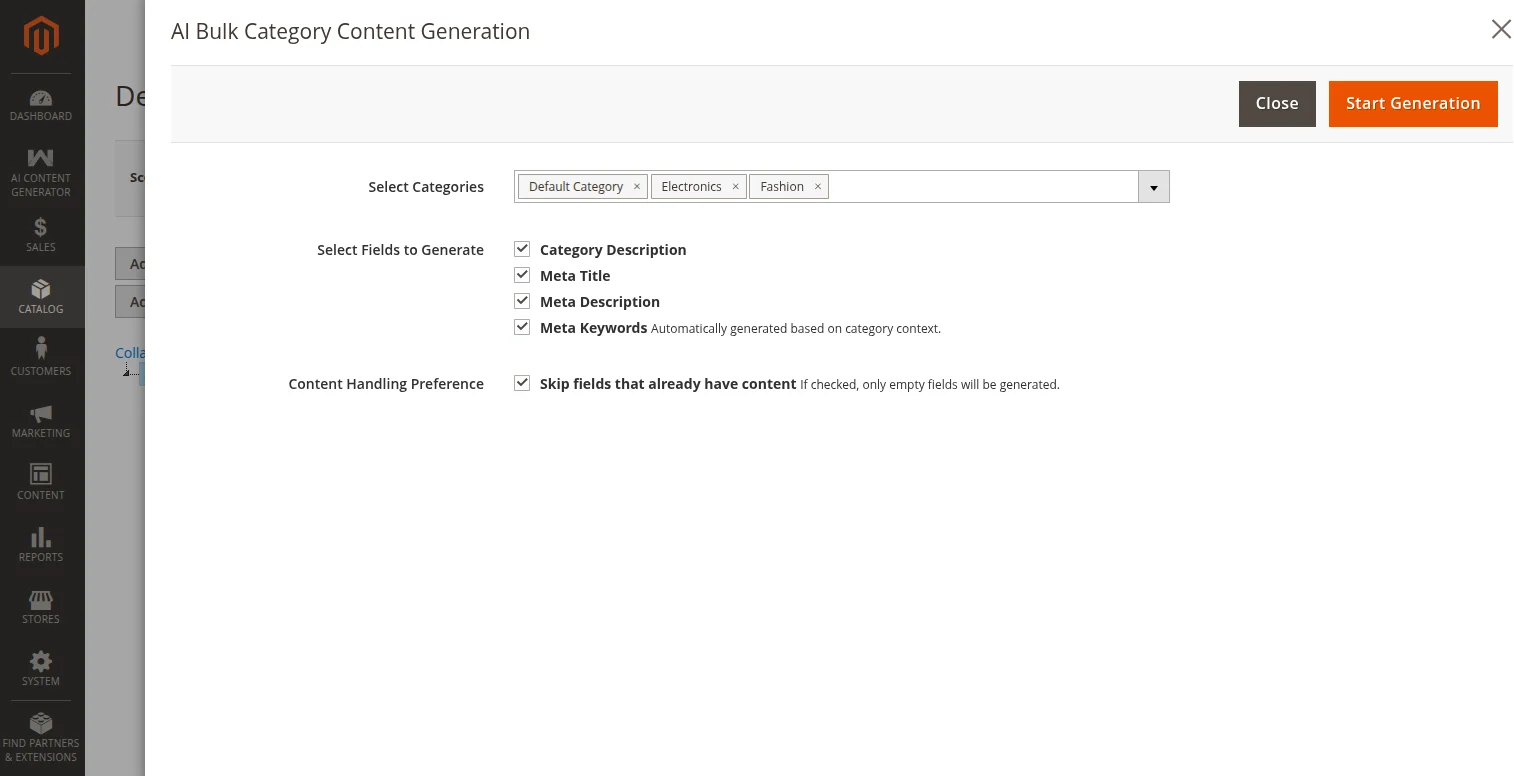
Category bulk generation is handled asynchronously through a dedicated modal setup with a category tree picker (accessible directly from the Category editing area):
How to trigger Category bulk generation
- Navigate to Catalog → Categories.
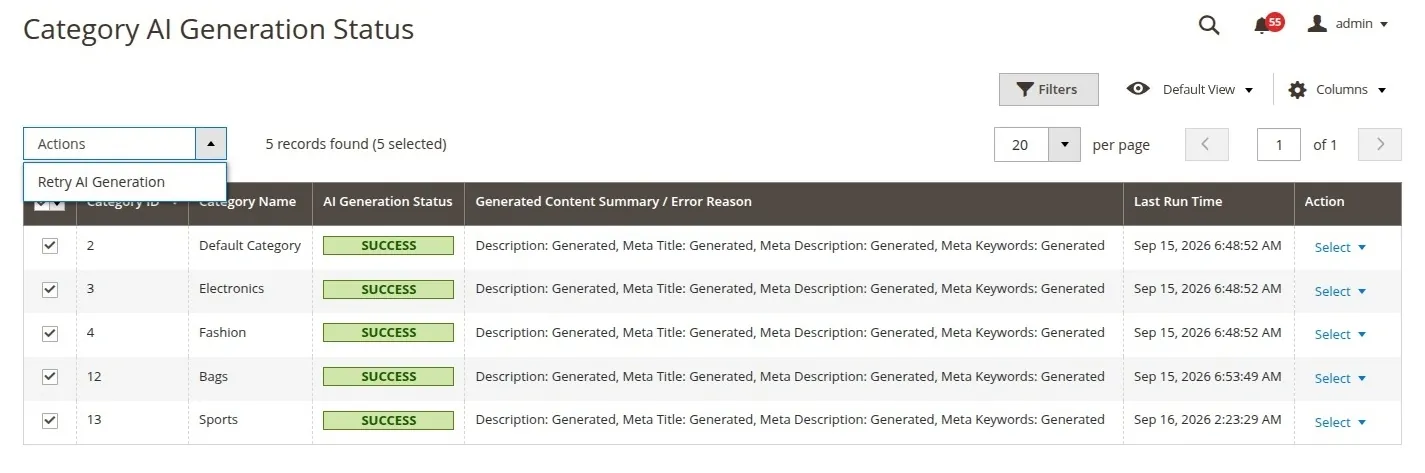
- Click the Bulk Generate Content With AI button at the top header of the category page.
- In the modal slide-out:
- Select Categories: Choose one or multiple categories from the interactive category tree.
- Select Fields to Generate: Check the target attributes (Category Description, Meta Title, Meta Description, Meta Keywords).
- Content Handling Preference: Toggle whether to skip fields that already have content.
- Click Start Generation to send the AJAX trigger and queue the tasks in the background.
3. Category Generation Logs & Monitoring
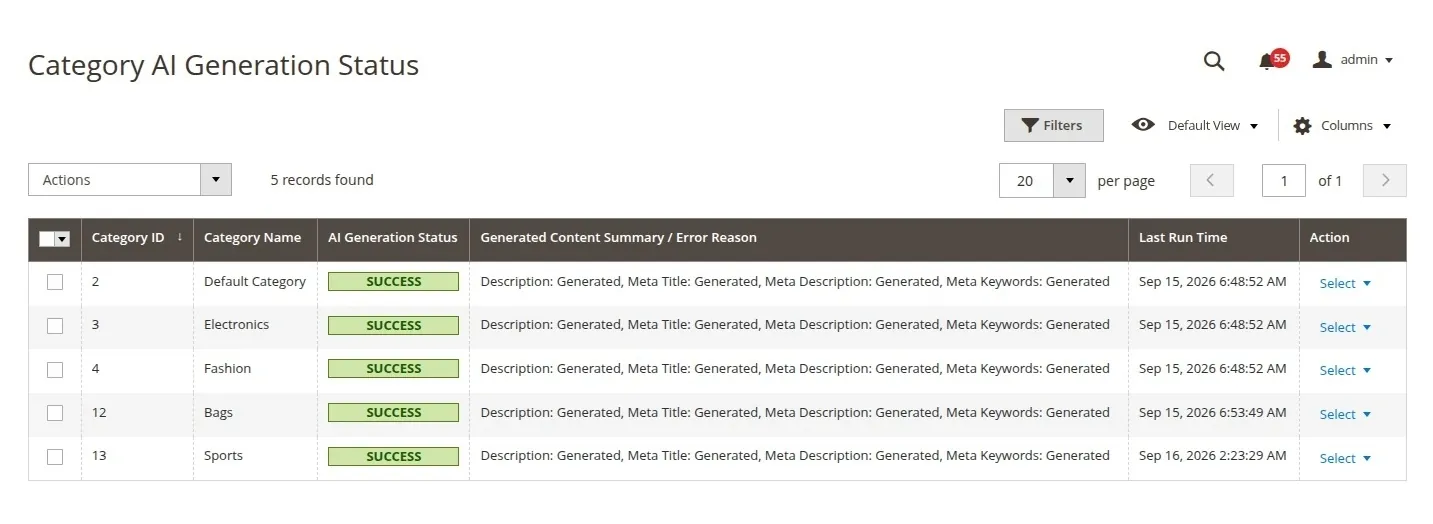
To monitor category background tasks and view generation metrics, navigate to the status logs:
Category Generation Logs
Navigation Path
AI Content Generator → Menu → Category Generation Status
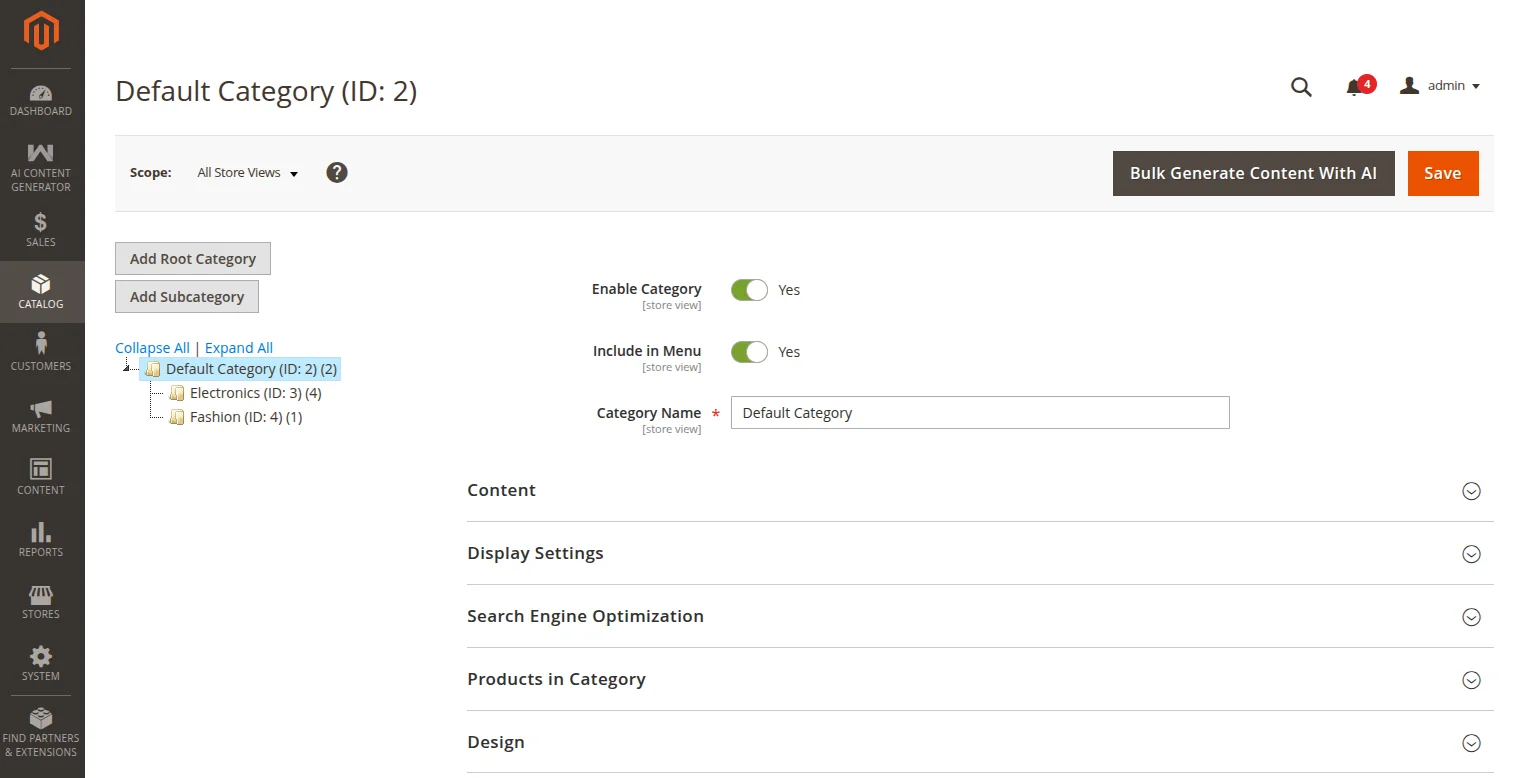
This grid tracks category processing status in real-time, detailing any errors encountered during background AI runs.
- Category ID: The target category ID.
- Category Name: Name of the target category.
- Generated Content: Execution status summary or generated content preview.
- Execution Status:
Pending,Success, orFailure. - Timestamp: When the task was submitted and finished.
- Actions: Re-trigger generation for failed or pending items.
Retrying Failed Category Content Generation
If a category generation fails due to API outages or temporary rate limits, store managers can re-queue generation directly from the Category Generation Status grid without re-opening the bulk category modal.
Single Category Retry
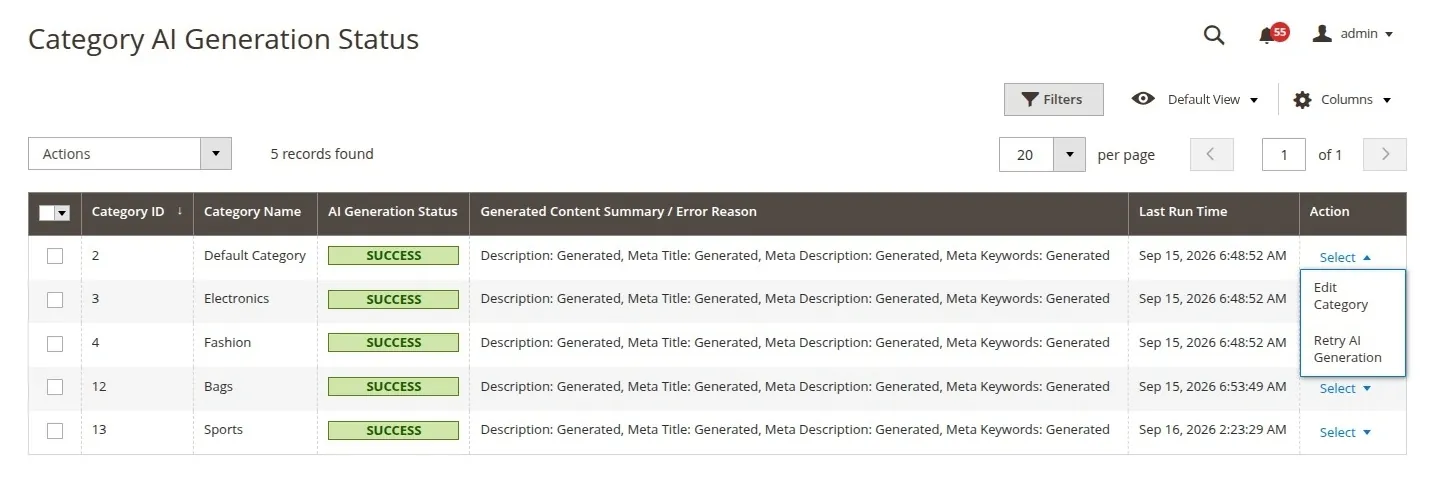
- Locate the target category in the Category Generation Status grid.
- In the Action column, click Retry AI Generation.
- The log status resets to
Pending(Queued for background retry) and dispatches the background consumer worker.
Bulk / Mass Category Retry
- Multi-select one or more category entries using the grid checkboxes.
- Click the Actions dropdown menu at the top-left of the grid.
- Select Retry AI Generation.
- Confirm the prompt to mass-queue all selected categories for background re-execution.